
Automated password rotation helps protect both cloud and on-premises environments from unauthorized access and credential compromise by reducing the risk associated with exposed credentials. Suspicious or unrecognized login attempts may indicate stolen credentials, compromised accounts, or malicious insider activity. By proactively managing credentials and monitoring authentication events, organizations reduce the risk of insider threats while maintaining strong security hygiene.
Wazuh is an open source security platform that provides real-time monitoring, log analysis, and threat detection across on-premises and cloud environments. It analyzes AWS CloudTrail events to identify unusual authentication activity and generate actionable alerts. Integrating Wazuh with Shuffle, an open source SOAR platform, enables organizations to automate alert handling and respond to suspicious activity faster and more reliably.
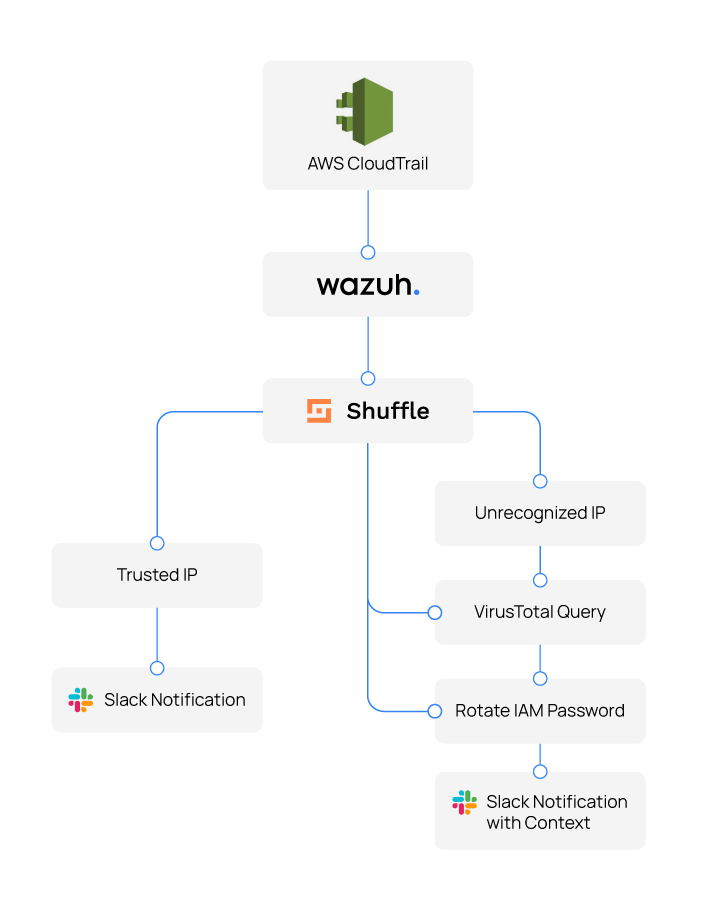
In this post, we demonstrate how the integration of Wazuh and Shuffle enhances security through automated password rotation in AWS. The workflow detects logins from unrecognized IP addresses, then enriches the alerts with VirusTotal intelligence, such as country and threat score. It subsequently rotates the affected IAM user’s password and sends the temporary password along with detailed notifications, including the VirusTotal report links to a private Slack channel. This approach helps prevent both external attacks and insider threats by ensuring compromised credentials are rotated.
Infrastructure
We use the following infrastructure to showcase Wazuh integration capabilities with Shuffle, providing a practical demonstration of automated response in a cloud environment.
- A pre-built, ready-to-use Wazuh OVA 4.14.1, which includes the Wazuh central components (Wazuh server, Wazuh indexer, and Wazuh dashboard). Follow this guide to download and set up the Wazuh virtual machine.
- A Shuffle SOAR instance, deployed on Shuffle Cloud (SaaS) for this demonstration.
- Amazon CloudTrail to gain visibility into the AWS infrastructure.
- VirusTotal for threat intelligence enrichment and reputation checks.
- Slack for delivering enriched Shuffle notifications with threat intelligence and workflow results.
Configuration
Perform the steps in the sections below to configure automated password rotation with Wazuh and Shuffle.
Monitoring AWS events with Wazuh
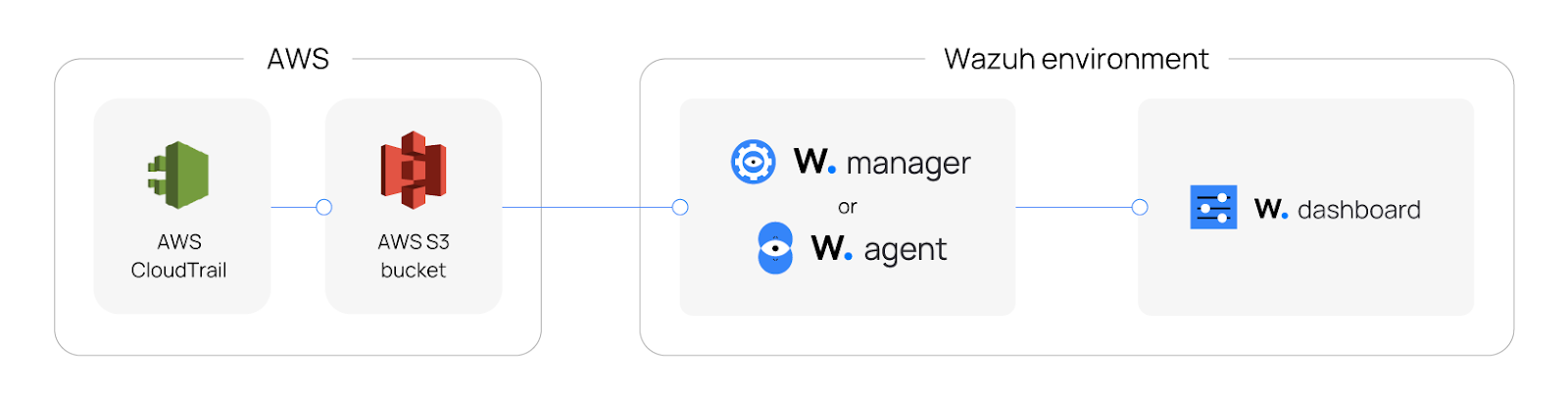
This diagram illustrates how AWS CloudTrail integrates with the Wazuh environment. AWS CloudTrail logs are delivered to an S3 bucket within 5-10 minutes of account activity. CloudTrail achieves this through a trail, which is a configuration object that determines where and how events are recorded. Wazuh ingests the logs via the Wazuh manager or agent. The data is processed and visualized in the Wazuh dashboard for security monitoring and analysis.
AWS infrastructure
Perform the steps below on the AWS infrastructure to configure Wazuh to monitor AWS CloudTrail services and identify security incidents.
Set up CloudTrail
Note
If you already have a Trail set up for saving CloudTrail, you can skip this step.
Refer to the Wazuh documentation for instructions on creating an S3 bucket and CloudTrail.
Configure AWS IAM for user login management
Perform the following steps to create an IAM user, assign minimal required permissions, and generate access keys. This user follows the principle of least privilege, so Wazuh and Shuffle SOAR automate AWS security workflows without granting unnecessary permissions.
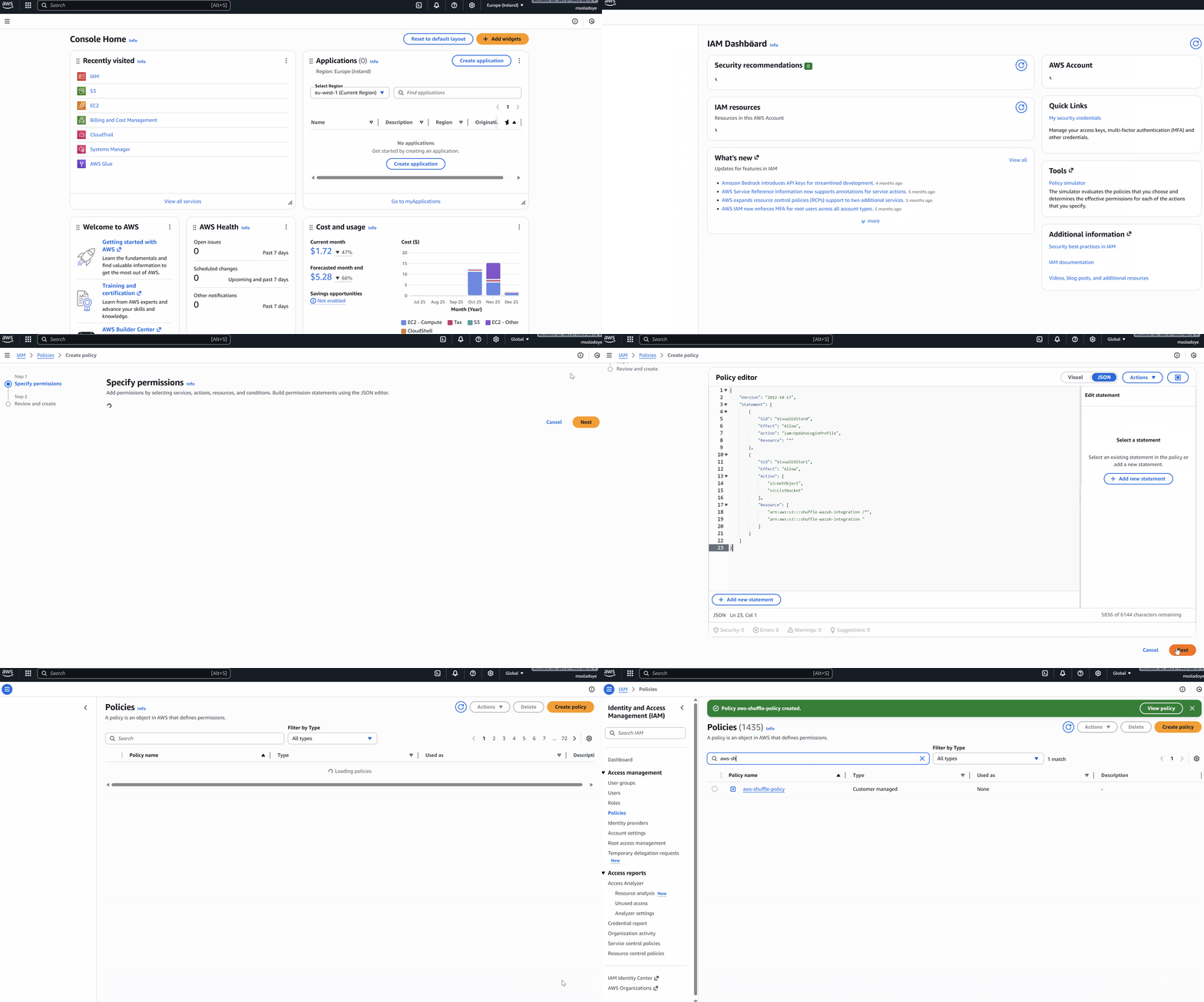
- Go to the search bar at the top left > type IAM > select IAM from the results > Policies > Create Policy.
- Select JSON and replace the existing policy format with the policy below. Replace
<AWS_BUCKET_NAME>with the S3 bucket created on the AWS infrastructure:
{
    "Version": "2012-10-17",
    "Statement": [
        {
            "Sid": "VisualEditor0",
            "Effect": "Allow",
            "Action": "iam:UpdateLoginProfile",
            "Resource": "*"
        },
        {
            "Sid": "VisualEditor1",
            "Effect": "Allow",
            "Action": [
                "s3:GetObject",
                "s3:ListBucket"
            ],
            "Resource": [
                "arn:aws:s3:::<AWS_BUCKET_NAME>/*",
                "arn:aws:s3:::<AWS_BUCKET_NAME>"
            ]
        }
    ]
}
Note
This policy allows the IAM user to update passwords and access the S3 bucket storing CloudTrail logs, enabling Wazuh to read the trail data.
- Select Next and name the policy as “
aws-shuffle-policy”. Select Create policy to finish creating the policy.
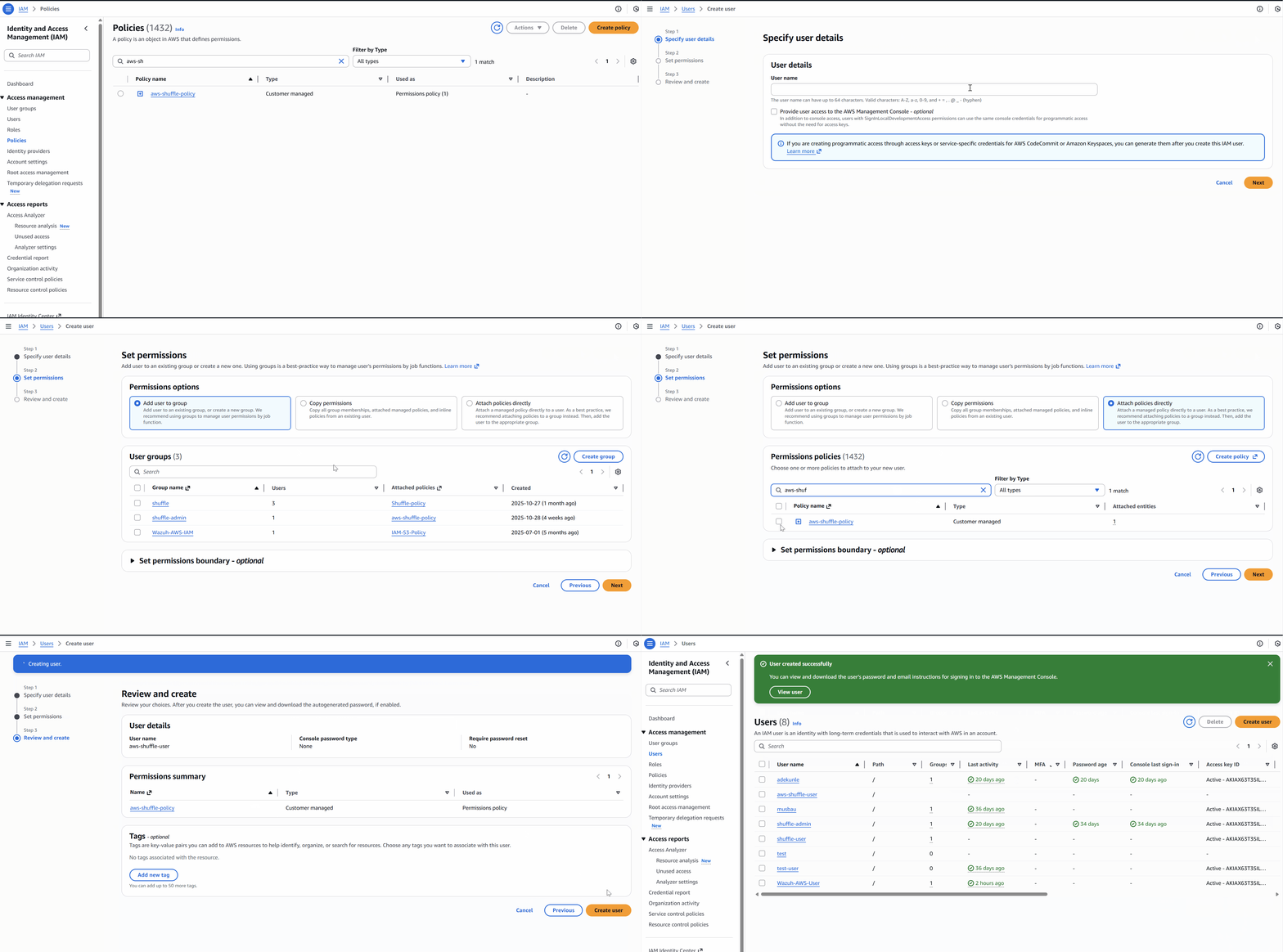
- Navigate to the left under Access management > select Users, and select Create user.
- Check the Provide user access to the AWS Management Console button.
- Enter a username, select either an autogenerated password or a custom password, and click Next.
- Select Attach policies directly, and search for the
aws-shuffle-policypolicy. - Select the
aws-shuffle-policypolicy to assign it directly to the user and select Next. - Review the details and select Create user to complete the setup.
- Select the newly created user, and navigate to Security credentials > Create access key for the newly created user. Choose Command Line Interface (CLI) as the access key type.
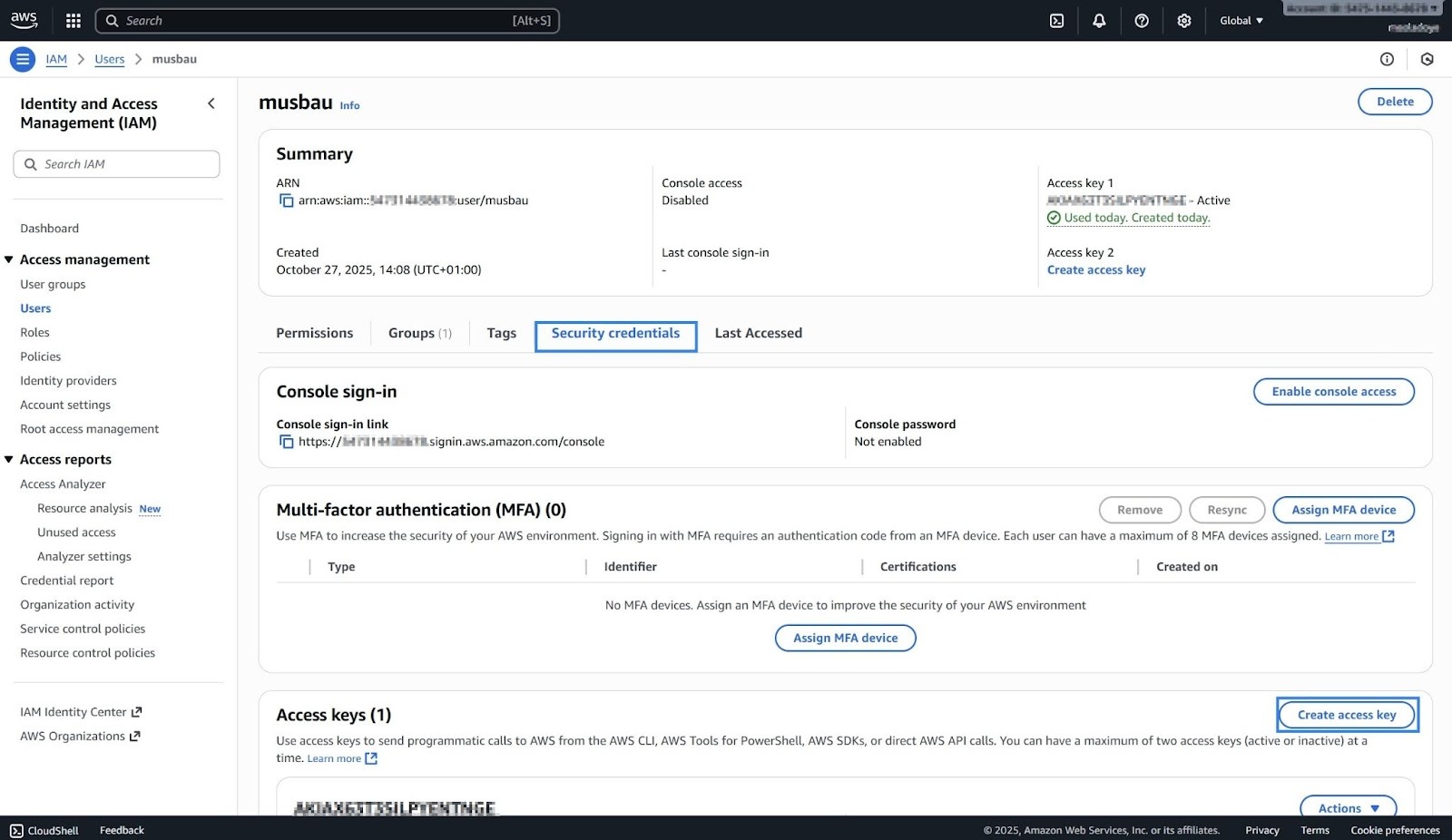
Where:
access_keyis your AWS access key ID used to authenticate API requests.secret_keyis your AWS secret access key used to sign API requests securely.
Note
Save your access_key and secret_key securely, as they will be referenced on the Wazuh server and Shuffle SOAR.
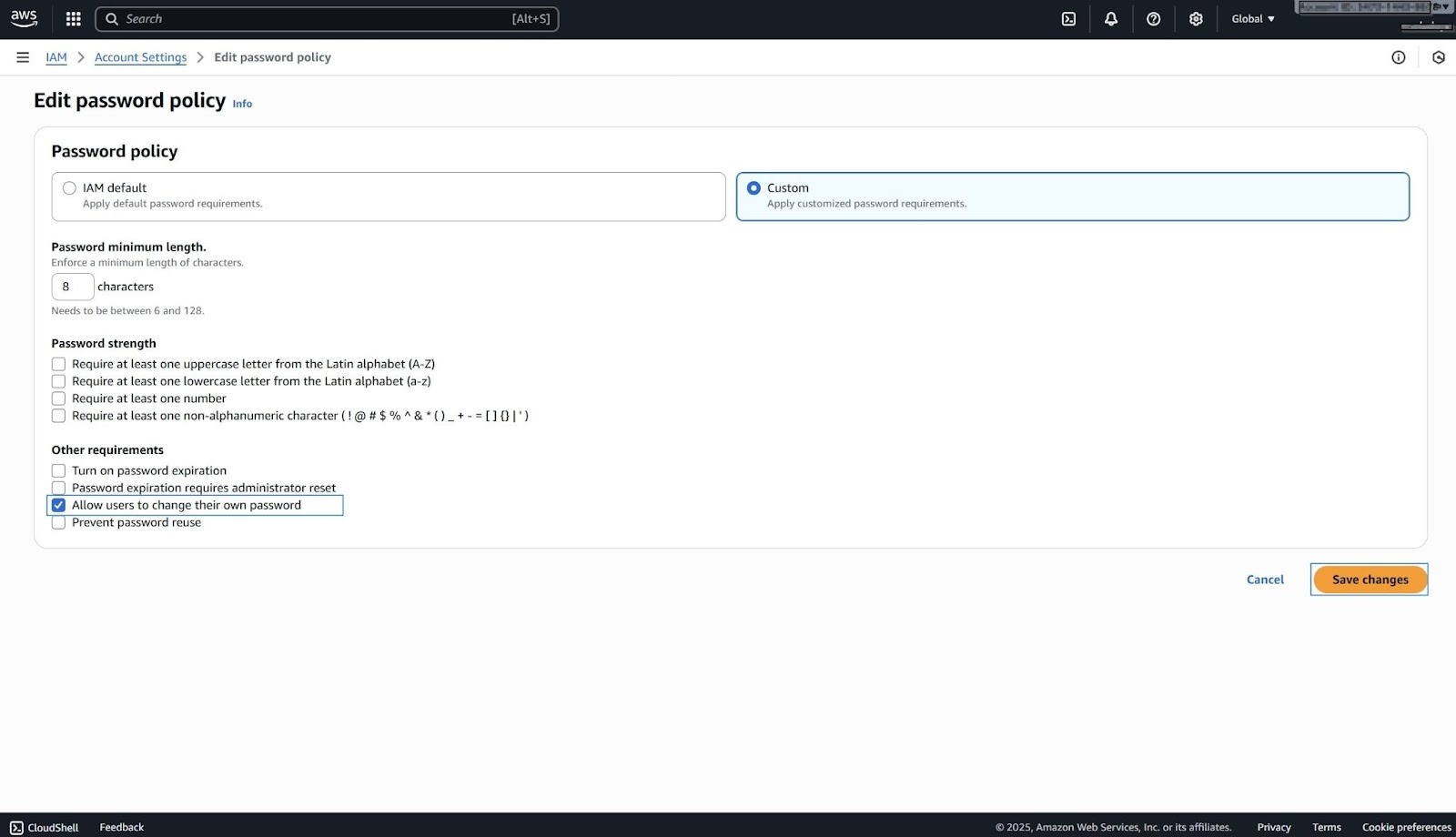
- Edit the password policy by navigating to IAM > Account settings > Edit > Custom. Check “Allow users to change their own password” and save changes:
Wazuh server
Perform the steps below on the Wazuh server to configure AWS credentials, ensuring that Wazuh can access and extract logs from the S3 bucket. Refer to the Wazuh documentation for more information on configuring AWS credentials.
- Install the necessary Python dependencies by following this guide.
- Create a file
credentialsin the/root/.aws/directory:
# mkdir /root/.aws
# touch /root/.aws/credentials
Note
Ensure the .aws/credentials file is saved in the home directory of the root user; therefore, the absolute file path will be /root/.aws/credentials
- Add the following to the
/root/.aws/credentialsfile. Replace<ACCESS_KEY_ID>and<SECRET_ACCESS_KEY>under thedefaultprofile with the access key and secret key obtained from the IAM user:
[default]
aws_access_key_id=<ACCESS_KEY_ID>
aws_secret_access_key=<SECRET_ACCESS_KEY>

[dev]
aws_access_key_id=<ACCESS_KEY_ID>
aws_secret_access_key=<SECRET_ACCESS_KEY>

[prod]
aws_access_key_id=<ACCESS_KEY_ID>
aws_secret_access_key=<SECRET_ACCESS_KEY>
- Enable the Wazuh AWS module in the
/var/ossec/etc/ossec.confconfiguration file on the Wazuh server. Add only the AWS buckets of interest. Replace<AWS_BUCKET_NAME>with the S3 bucket created on the AWS infrastructure.
<wodle name="aws-s3">
  <disabled>no</disabled>
  <interval>1m</interval>
  <run_on_start>yes</run_on_start>
  <skip_on_error>yes</skip_on_error>
  <bucket type="cloudtrail">
    <name><AWS_BUCKET_NAME></name>
    <aws_profile>default</aws_profile>
  </bucket>
</wodle>
- Restart the Wazuh manager to apply the changes:
# sudo systemctl restart wazuh-manager
Visualization
Wazuh has out-of-the-box rules that trigger alerts for some specific CloudTrail events. To view these alerts and explore the related rules, follow the steps below on the Wazuh dashboard:
Click on the upper left menu ☰ > Cloud security > Amazon Web Services > Events.
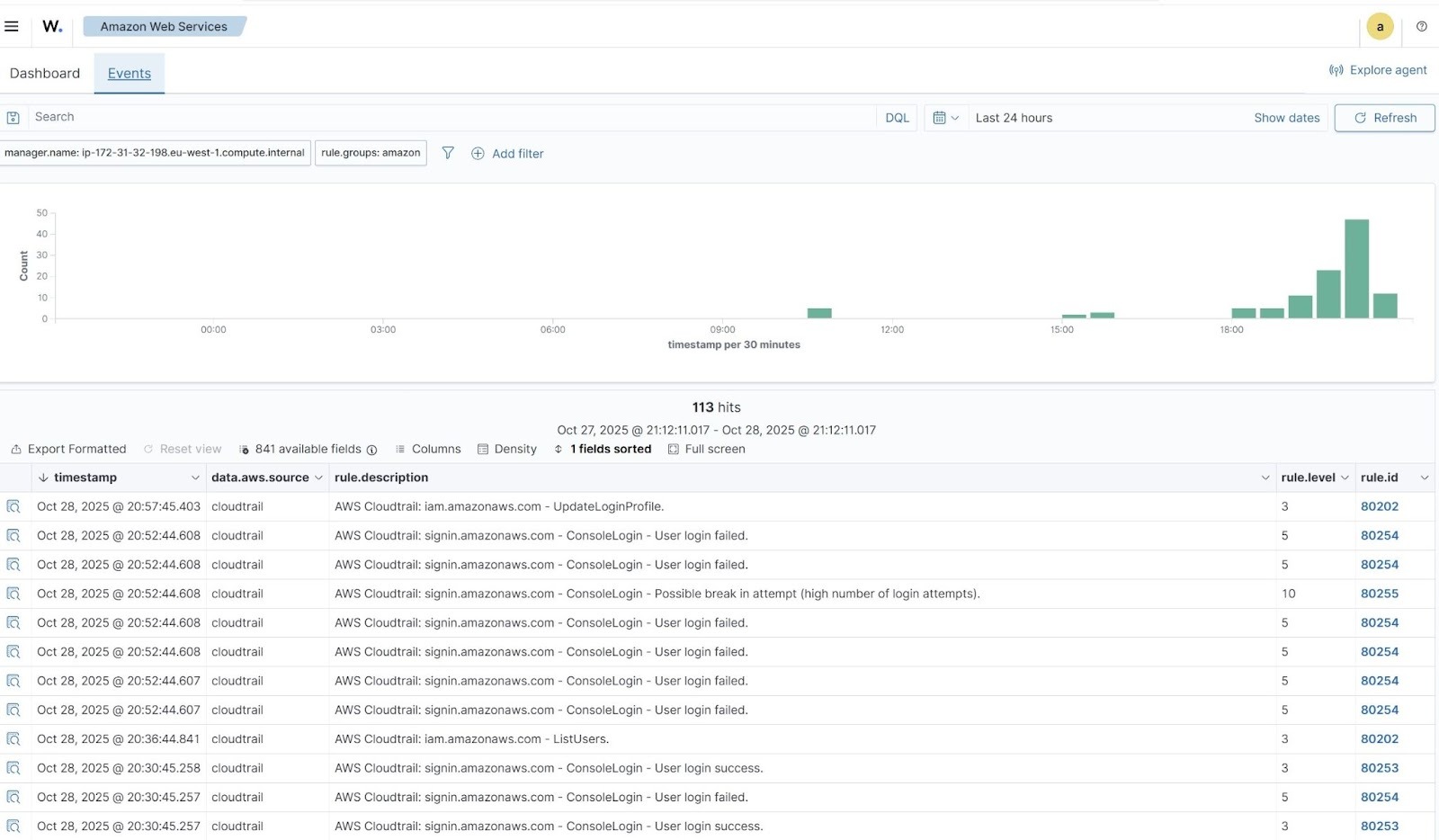
Where:
- Rule ID
80202is triggered when an AWS CloudTrail event indicates either a successful IAM user profile update or a successful listing of IAM users. - Rule ID
80254is triggered when an AWS CloudTrail event indicates a failed console login attempt to the AWS Management Console. - Rule ID
80255is triggered when an AWS CloudTrail event indicates a possible break-in attempt due to a high number of consecutive failed console login attempts. - Rule ID
80253is triggered when an AWS CloudTrail event indicates a successful console login to the AWS Management Console.
Shuffle integration
When a user successfully signs in to the AWS Management Console, Wazuh checks the source IP address against a predefined list of trusted IP addresses. It performs these checks using custom rules and a CDB (Constant Database) list. Wazuh forwards all matching ConsoleLogin alerts, regardless of whether the IP is trusted or unrecognized, to Shuffle SOAR.
In Shuffle, a condition evaluates the source IP:
- If the IP is recognized (present in the CDB list): The workflow simply sends a low-severity Slack notification for visibility and takes no further action. Routine logins from corporate offices, VPNs, or known locations proceed without disruption.
- If the IP is unrecognized (not in the CDB list): The workflow treats the event as higher risk and executes the following actions:
- Queries VirusTotal for reputation data on the IP.
- Automatically rotates the user’s IAM password (or temporary credentials).
- Sends a detailed Slack notification containing:
- Country and ASN of the source IP
- VirusTotal malicious-detection count (if any)
- Direct link to the full VirusTotal report
- The newly rotated password (shared securely in a private/need-to-know channel)
Creating Shuffle workflow
We create a workflow that responds based on whether a successful AWS console login comes from a trusted or unrecognized IP address.
Perform the steps below on the Shuffle dashboard to add the required nodes to Shuffle.
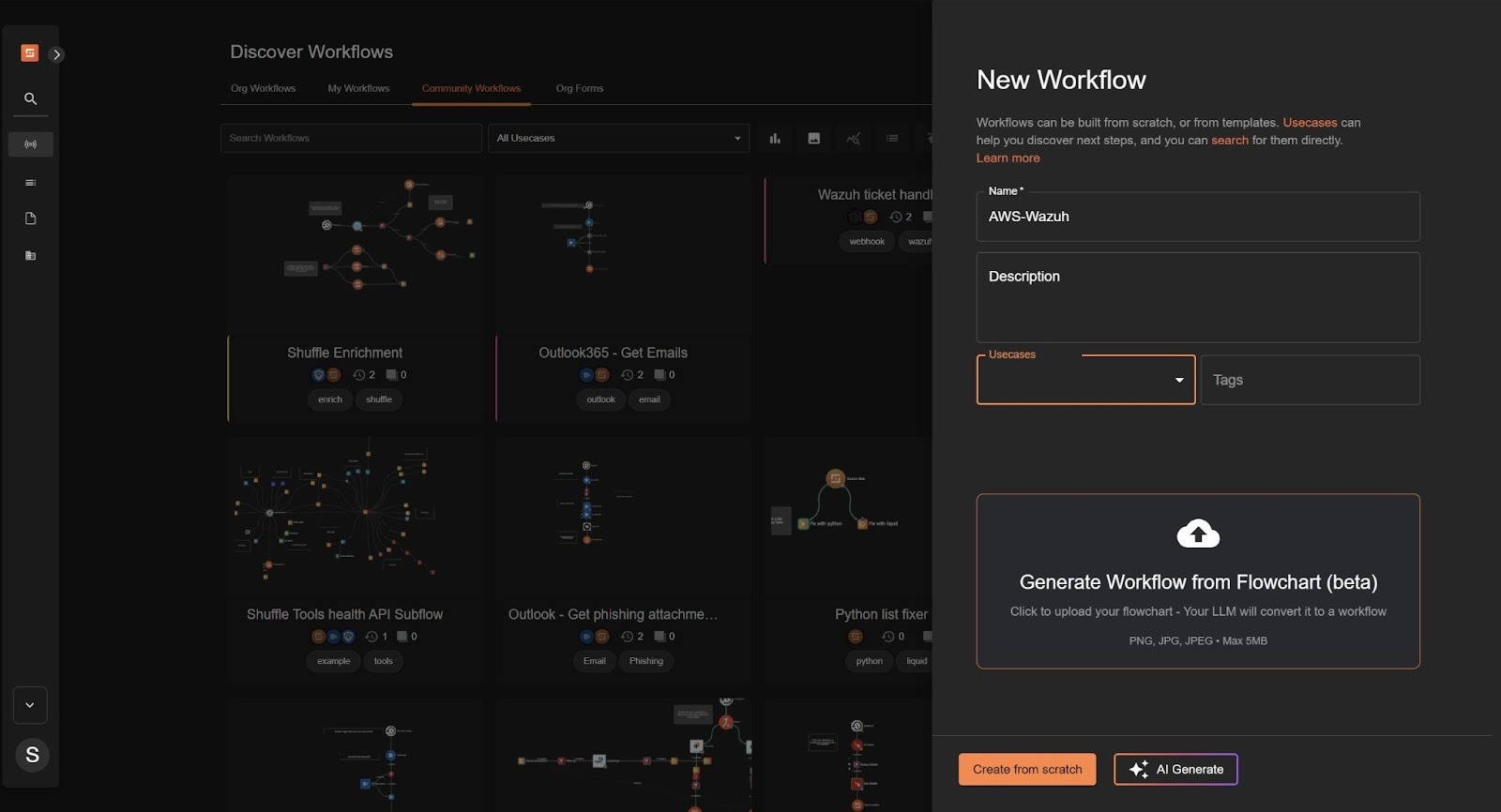
- Navigate to Automate > Workflows and click + Create Workflow to create a new workflow on Shuffle. Name it as “
AWS-Wazuh” (or any name you prefer), add an optional description, then click Create from scratch.
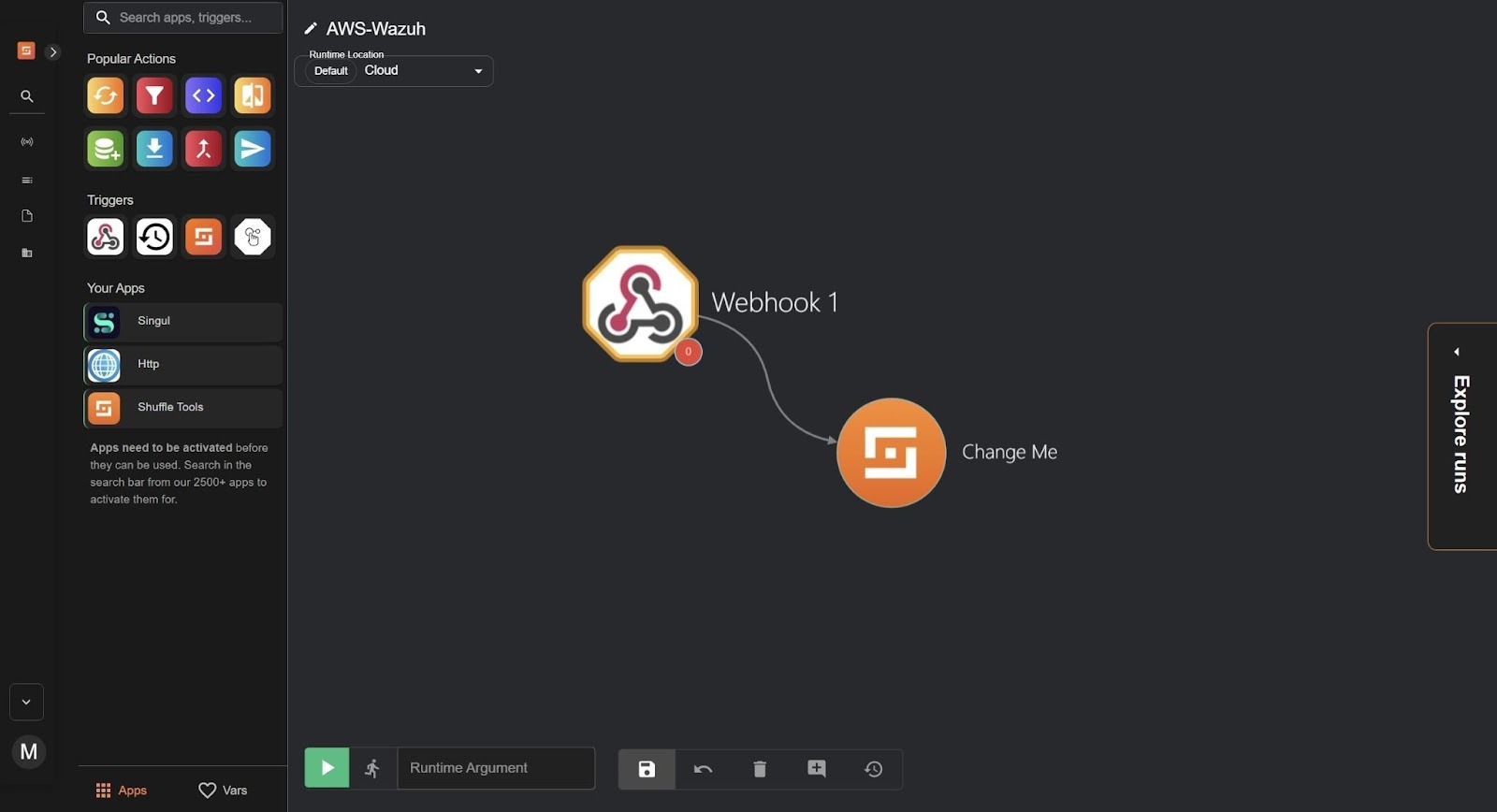
- Drag the
Webhooknode under Triggers to the workspace. The node automatically connects with an existingChange Menode in the workspace.
- Click on the
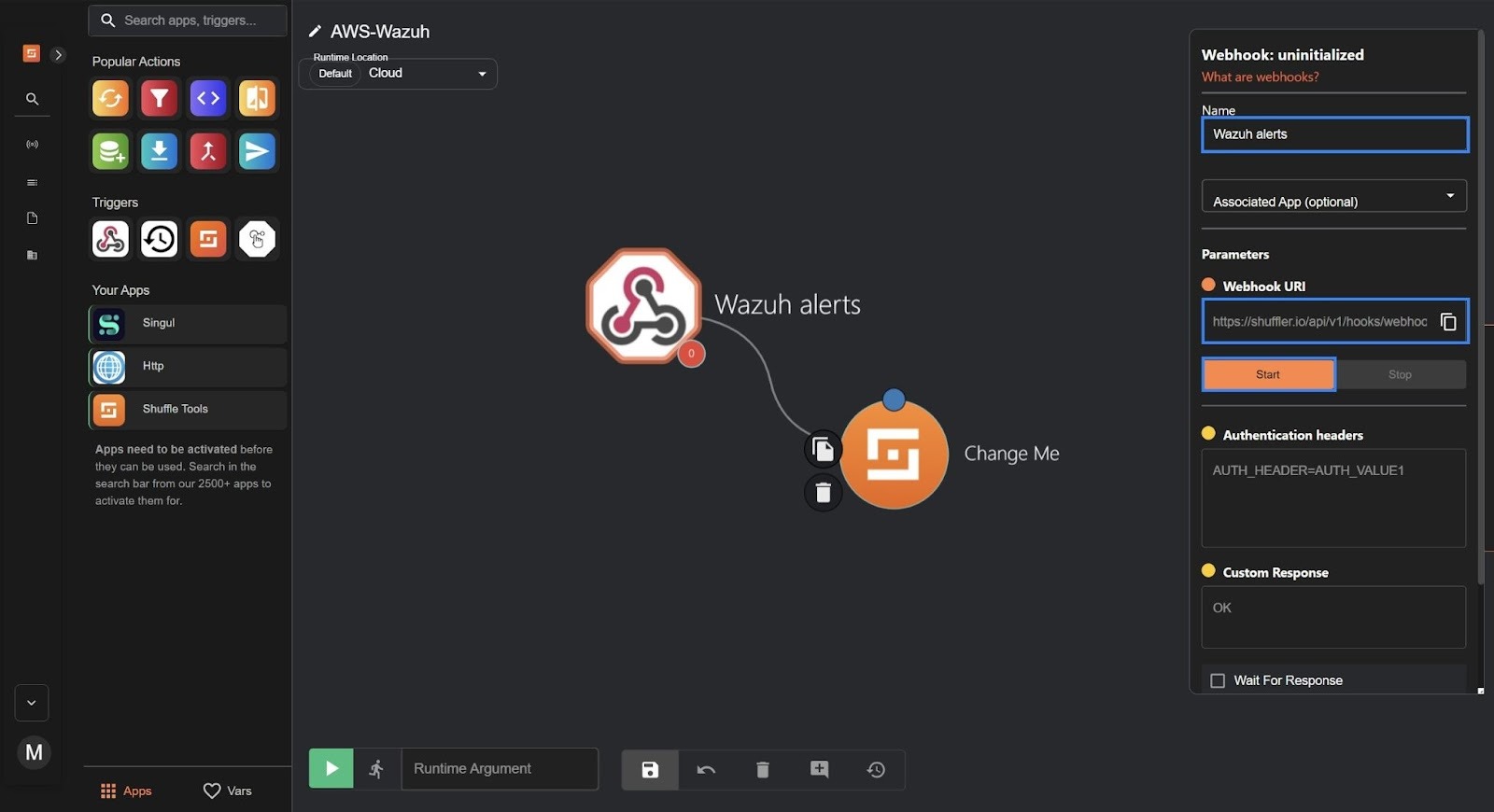
Webhooknode and rename it toWazuh alerts.
- Copy and save the webhook URL to use it when configuring the Wazuh server. The webhook URL looks like
https://shuffle.io/api/v1/hooks/<WEBHOOK>. - Click on Start to run the webhook.
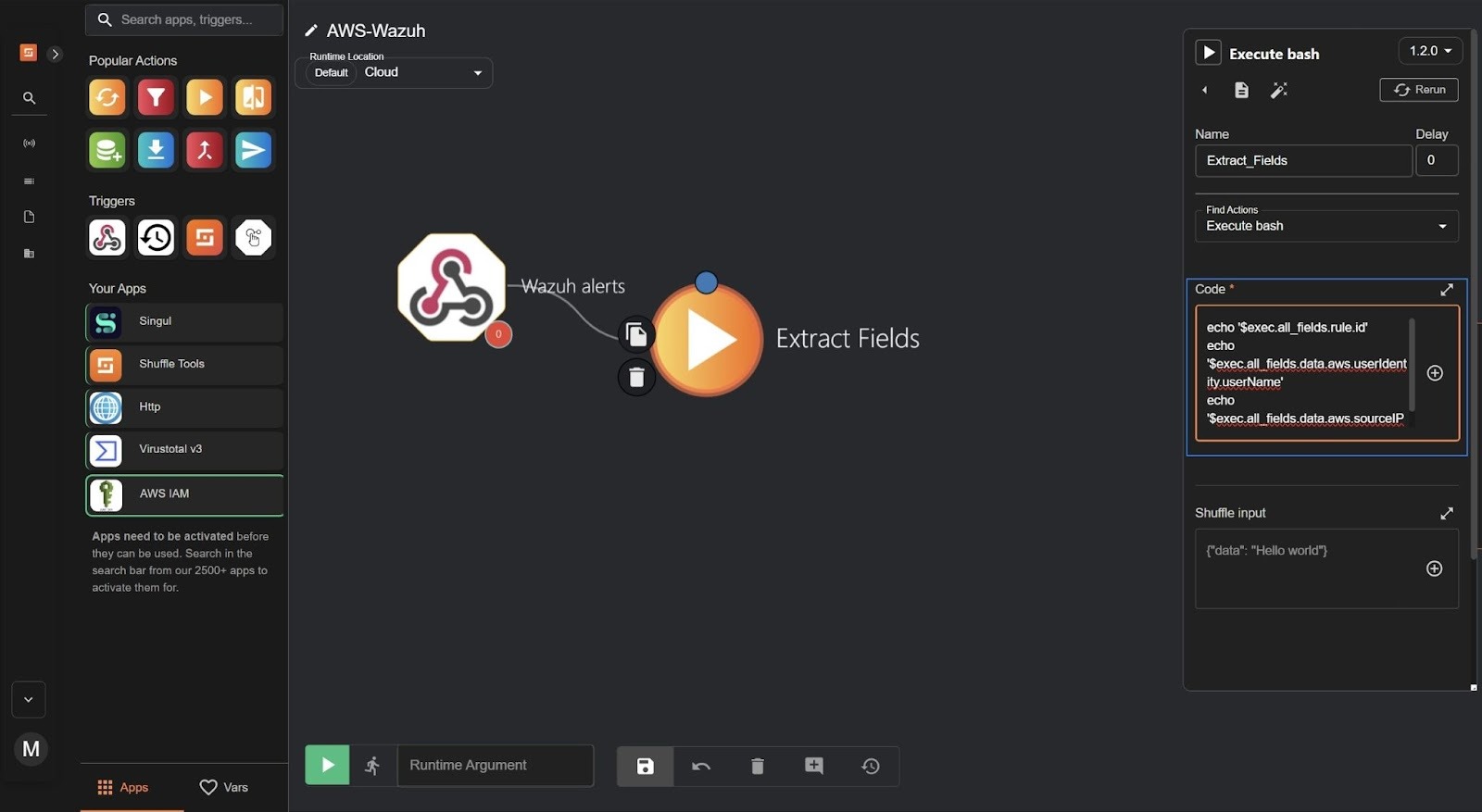
4. Click on the Change Me node and configure it to extract the IAM username, rule ID, and source IP address from the Wazuh alert.
- Change the name of the Change Me node to Extract_fields.
- Change the action to Execute bash.
- Enter the following code in the Code section:
echo '$exec.all_fields.rule.id'
echo '$exec.all_fields.data.aws.userIdentity.userName'
echo '$exec.all_fields.data.aws.sourceIPAddress'
Note
The values of the IAM username, rule ID, and source IP address are located in the data.aws.userIdentity.userName, rule.id, and data.aws.sourceIPAddress fields of the Wazuh alert payload.
Slack integration
Slack is used to receive notifications from Shuffle, giving the administrator a controlled channel to view enriched alert details and track automated responses in real time.
Slack web interface
Perform the following steps to create a Slack channel and a Shuffle alert bot app for integration with Shuffle.
- Go to the left-side menu and click Channels> Create > Create channel. Name the channel as shuffle-alerts and click Create.
- Navigate to Slack API: Applications to create the Slack app bot. Click Create an app > Create a channel > from scratch (no template). Name the app as Shuffle Alert Bot and pick a workspace to develop your app in.
- Select Create App to finalize the creation of the Slack app.
- In the Slack API dashboard, go to Features > OAuth & Permissions.
- Navigate to Scopes and click Add an OAuth Scope. Add the following scopes:
chat:write
channels:read
users:read
- Navigate to the top of the page and click Install to Workspace. Click Allow to approve the installation.
- Copy the Bot User OAuth Token (it starts with
xoxb-). Save it in a secure note. - Right-click on the new channel in Slack, select View channel details > Integrations, click Add apps, and select your Shuffle Alert Bot.
Shuffle Slack node
Perform the following steps in the Shuffle workspace to add and configure the Slack node.
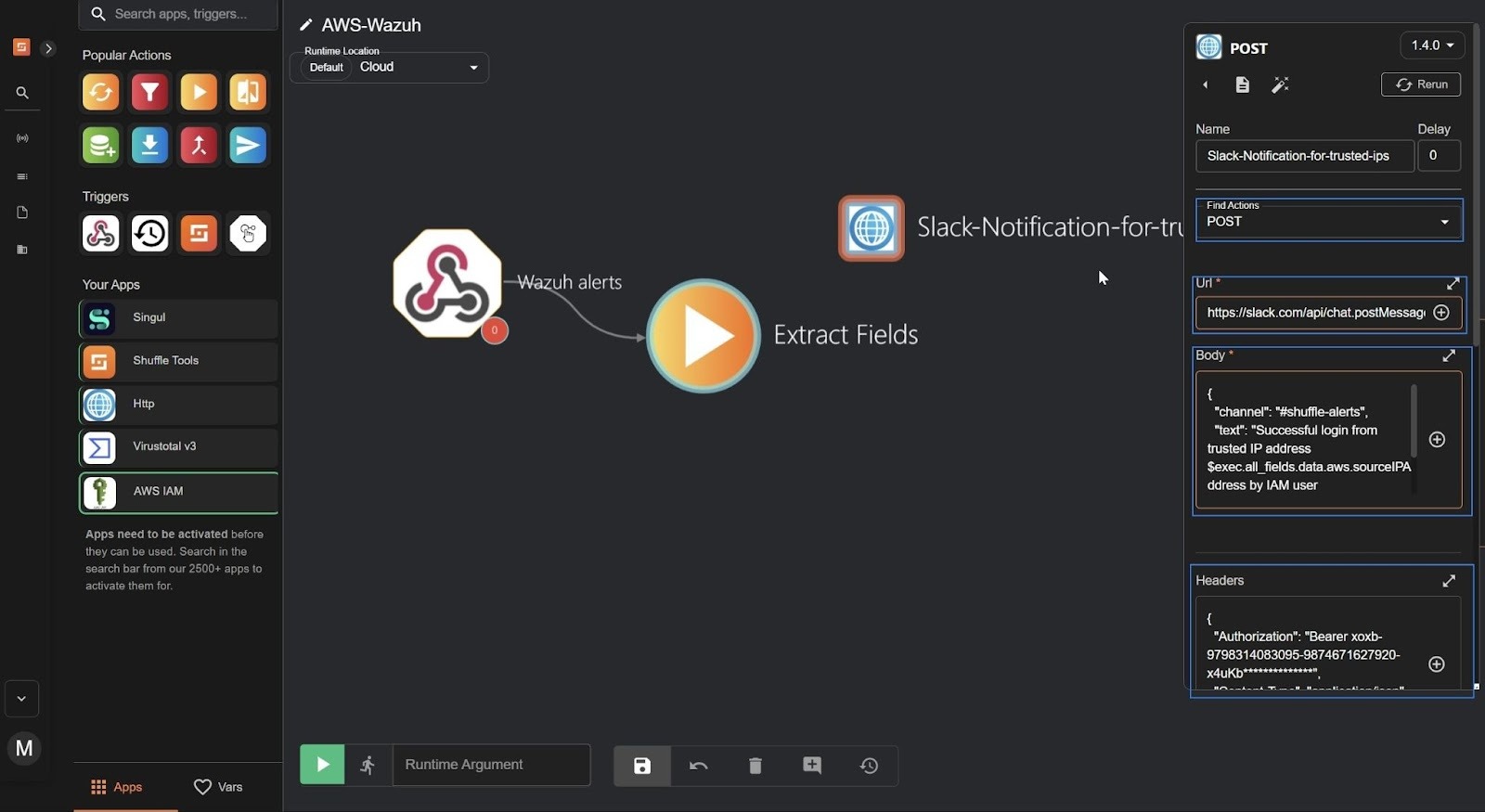
- Drag the HTTP node into the workspace and name the node as
Slack-Notification-for-trusted-ips. - Select POST under Find Actions.
- Set the URL value to:
https://slack.com/api/chat.postMessage
- Enter the following in the Body field:
{
  "channel": "#shuffle-alerts",
  "text": "Successful login from trusted IP address $exec.all_fields.data.aws.sourceIPAddress by IAM user $exec.all_fields.data.aws.userIdentity.userName"
}
- Enter the following in the Headers field:
{
  "Authorization": "Bearer xoxb-9798314083095-9874671627920-x4uKb**************",
  "Content-Type": "application/json"
}
Where:
xoxb-9798314083095-9874671627920-x4uKb**************is the Bot User OAuth Token.
Note
Replace the Bot User OAuth Token with the one saved in a secure note.
- Enter the following in the Username field:
$exec.all_fields.data.aws.userIdentity.userName
- Drag a new HTTP node into the workspace of your Shuffle workflow and rename the node as
Slack-Notification-for-unrecognized-ips. - Select POST under Find Actions, and set the URL to:
https://slack.com/api/chat.postMessage
- Enter the following in the Body field. This is the content of the message to be received in Slack.
{
  "channel": "#shuffle-alerts",
  "text": "🚨 *Suspicious Login Alert*\n\n👤 User: $exec.all_fields.data.aws.userIdentity.userName\n🌐 IP: $exec.all_fields.data.aws.sourceIPAddress\n📍 Country: $virustotal_v3_1.body.data.attributes.country\n🏢 ASN: $virustotal_v3_1.body.data.attributes.as_owner\n⚠️ Threat: $virustotal_v3_1.body.data.attributes.last_analysis_stats.malicious malicious / $virustotal_v3_1.body.data.attributes.last_analysis_stats.suspicious suspicious\n📡 Network: $virustotal_v3_1.body.data.attributes.network\n📉 Reputation: $virustotal_v3_1.body.data.attributes.reputation \n\n🔍 Full Report: $virustotal_v3_1.body.data.links.self \n\n Password has been rotated!!! \n\n Temporary password is: $auto_password "
}
- Enter the following in the Header field:
{
  "Authorization": "Bearer xoxb-9798314083095-9874671627920-x4uKb**************",
  "Content-Type": "application/json"
}
Where:
xoxb-9798314083095-9874671627920-x4uKb**************is the Bot User OAuth Token
Note
Replace the Bot User OAuth Token with the one saved in a secure note.
- Enter the following in the Username field:
$exec.all_fields.data.aws.userIdentity.userName
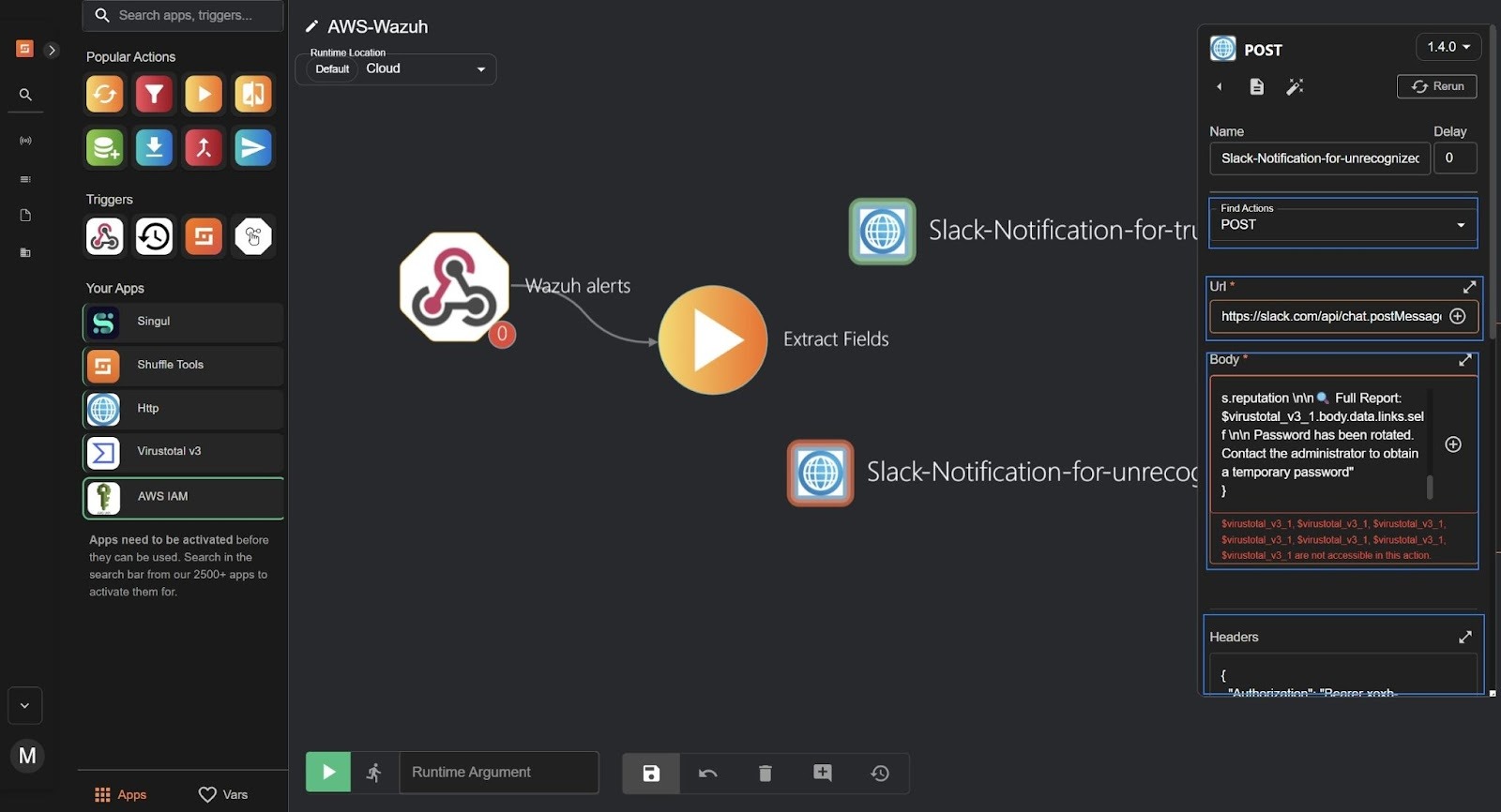
Note
You may see the message “virustotal_3_1 is not accessible in this action”. This occurs because the VirusTotal node has not been connected to the Slack-Notification-for-Unrecognized-IPs node.
VirusTotal integration
VirusTotal is a platform that aggregates multiple antivirus products and online scan engines to detect security threats. It provides an API that allows users to query URLs, IP addresses, domains, or file hashes for threat analysis. To integrate VirusTotal with Shuffle and enable automated threat intelligence lookups, you need to configure the VirusTotal node with your API key and set the necessary parameters:
- Navigate here to get your API key for authentication with Shuffle.
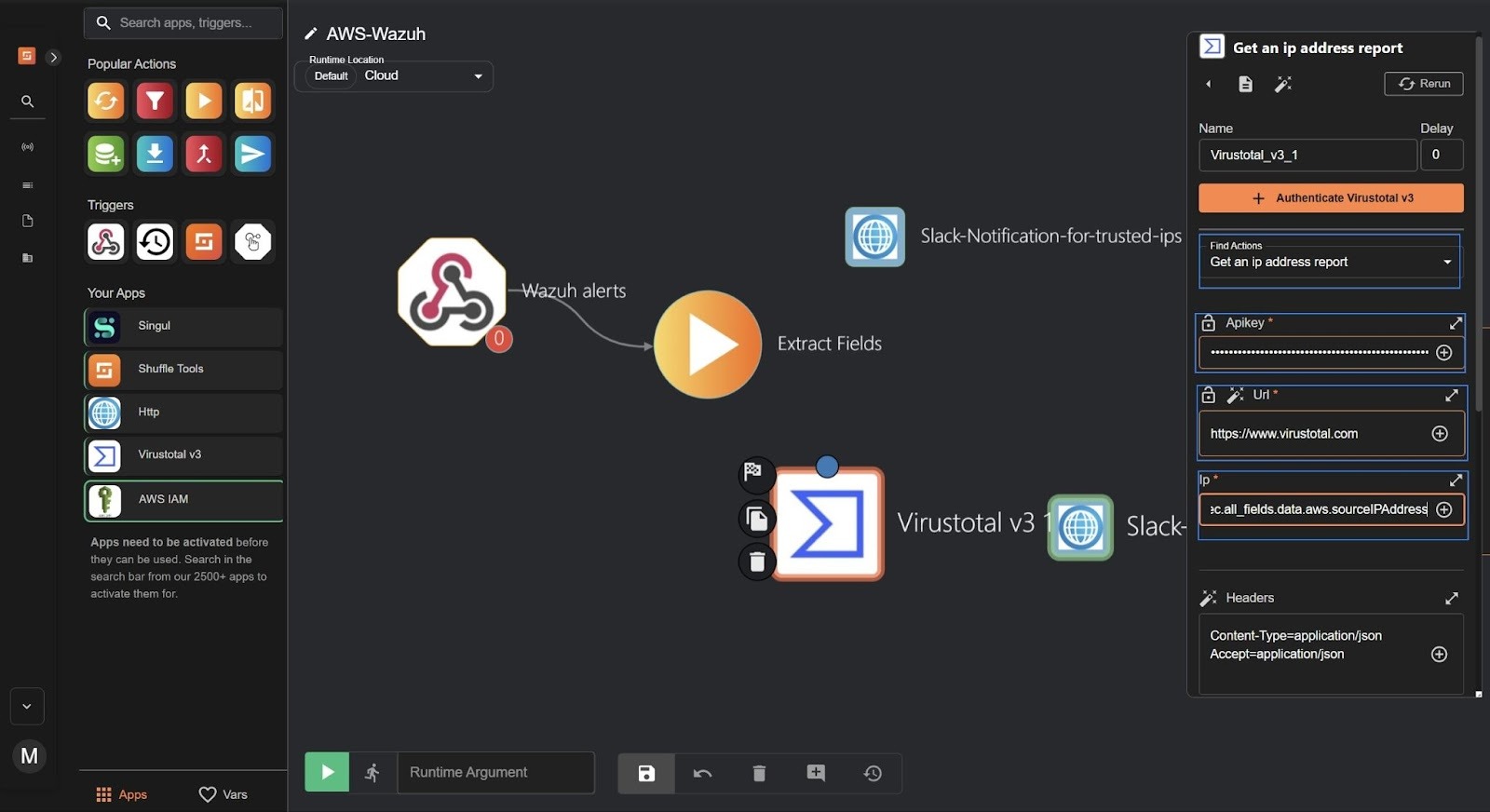
- Go to the search bar at the top left on your Shuffle workflow, type VirusTotal, and drag the VirusTotal node into the workspace. Click the VirusTotal node, and set the following credentials:
- Find Actions to Get an IP address report
- Apikey to the
Apikeygotten from VirusTotal - URL to
https://www.virustotal.com - IP to
$exec.all_fields.data.aws.sourceIPAddress - Headers and Queries: Leave at defaults unless a custom behavior is needed
- SSL verify to False only if your environment blocks certificate validation (not recommended for production)
- To file to False
Auto password generation
To support secure and automated password rotation, Shuffle generates a strong, unique password each time an unrecognized login is detected. The Auto Password Generation step creates this value dynamically, ensuring the rotated IAM password is random.
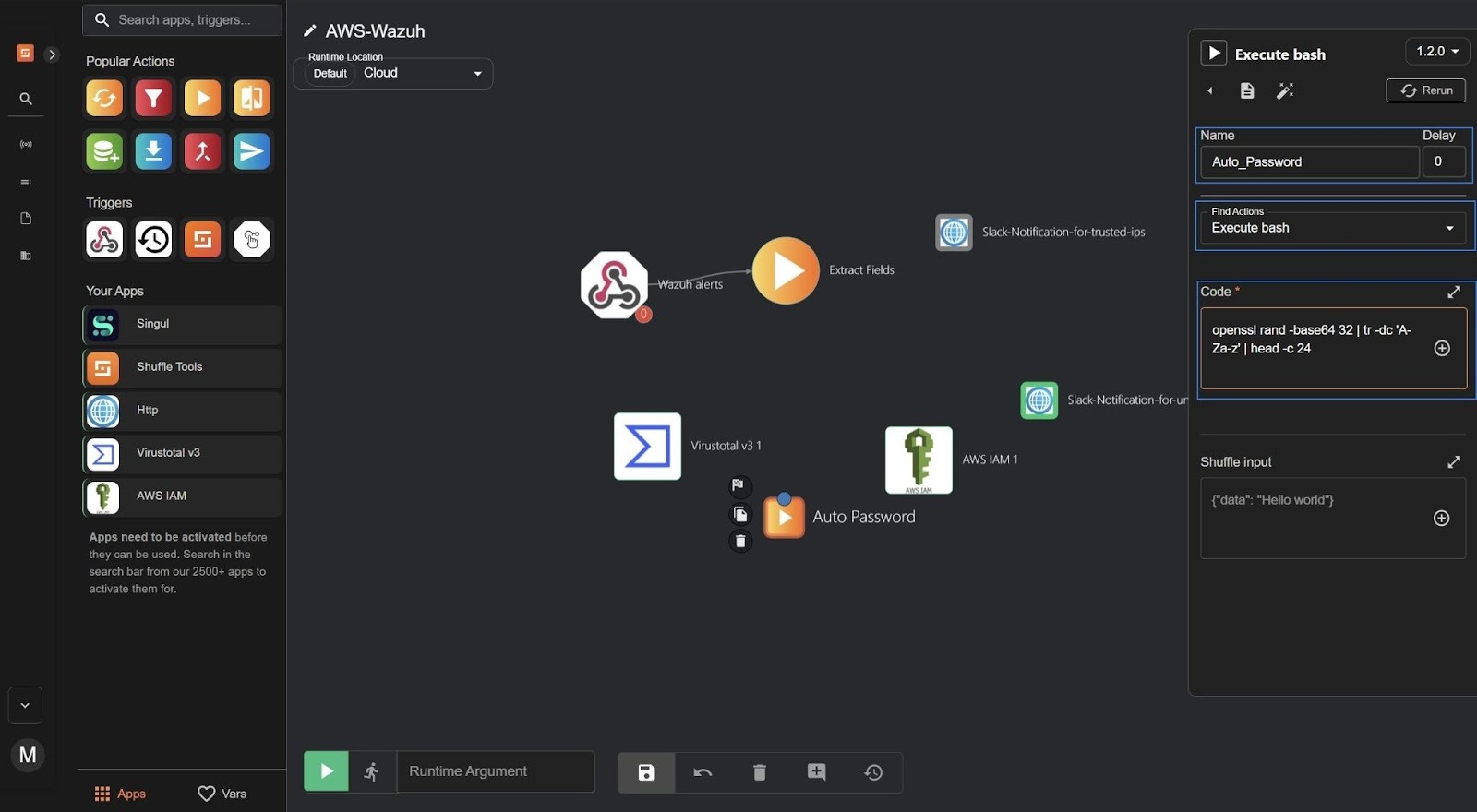
- Drag the Shuffle Tools node into the workspace, click the node, and set the following credentials:
- Name to
Auto_passwordor any other name of your choice - Find Actions to Execute bash
- Code to
openssl rand -base64 32 | tr -dc 'A-Za-z' | head -c 24
AWS IAM integration
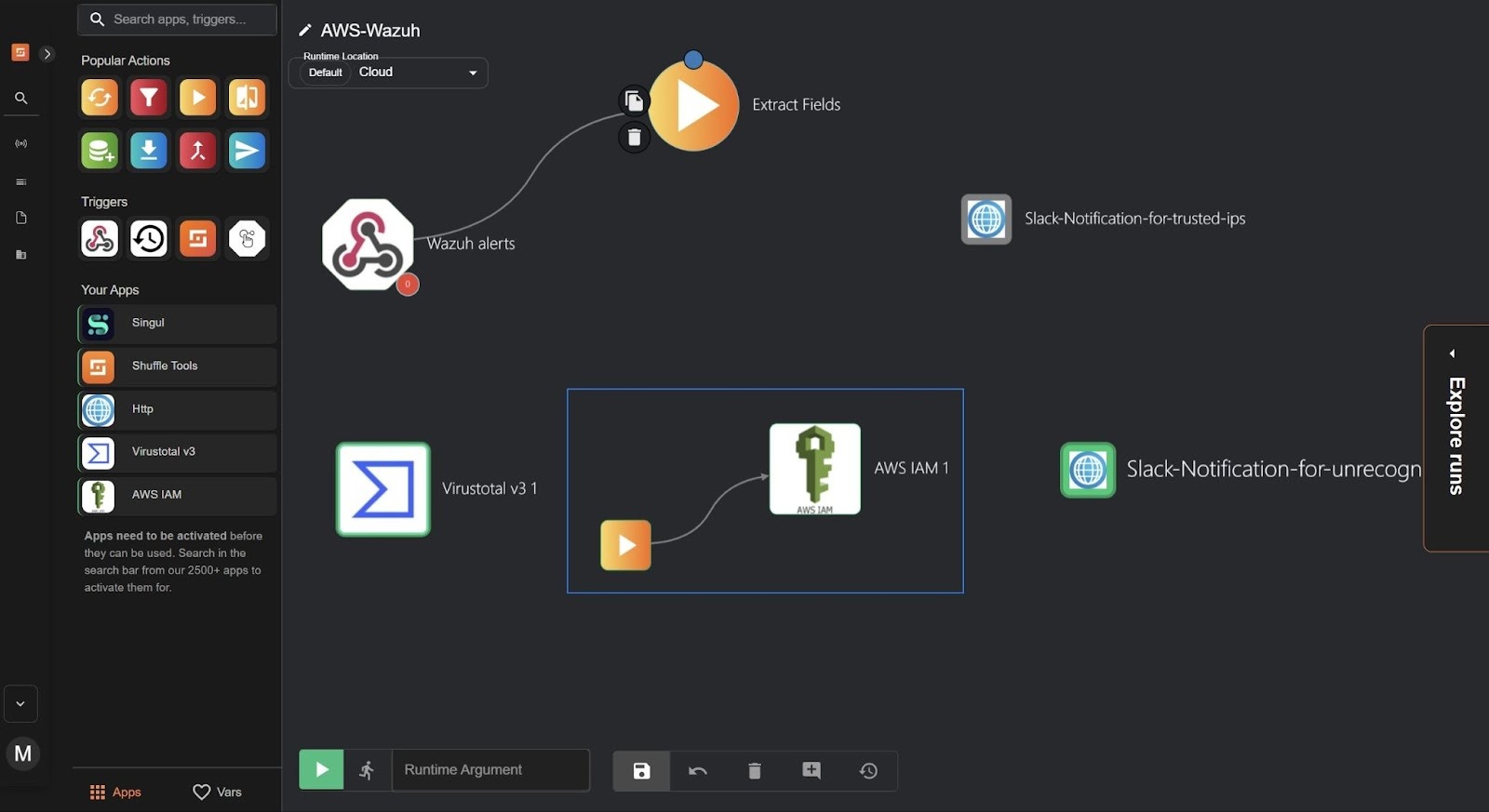
- Drag the AWS IAM node into the workspace, click the node, and set the following credentials:
- Find Actions to Change password.
- Access key to your AWS
access_keyused to authenticate API requests. - Secret key to your AWS
secret_keyused to sign API requests securely. - Region to the AWS region where your resources are located (e.g.,
us-east-1). - Username to
$exec.all_fields.data.aws.userIdentity.userName.
Note
Connect the Auto password node with the AWS IAM node before proceeding to set the password.
- Password: Click + on the password tab and select the name of the node you set in the Auto password generation section(for example, Auto_password). This is used to rotate the existing password once a successful login occurs from an unrecognized IP address.
Wazuh dashboard
We use Wazuh custom rules and CBD lists to detect AWS Management Console logins from trusted and unrecognized IP addresses. Alerts from these logins are forwarded to Shuffle. A no-code workflow then automatically rotates the IAM user’s password, retrieves threat intelligence about the IP address from VirusTotal, sends a Slack notification, and enforces a password reset at the user’s next login
Perform the steps below on the Wazuh dashboard to create and configure the CBD list and custom rules to forward all related alerts to Shuffle.
- Click on the upper left menu ☰, navigate to Server management > CBD Lists.
- Click + Add new lists file > + Add new entry.
- Name your CBD list as
trusted-ips. Add your trusted IP addresses askey:valuepairs.
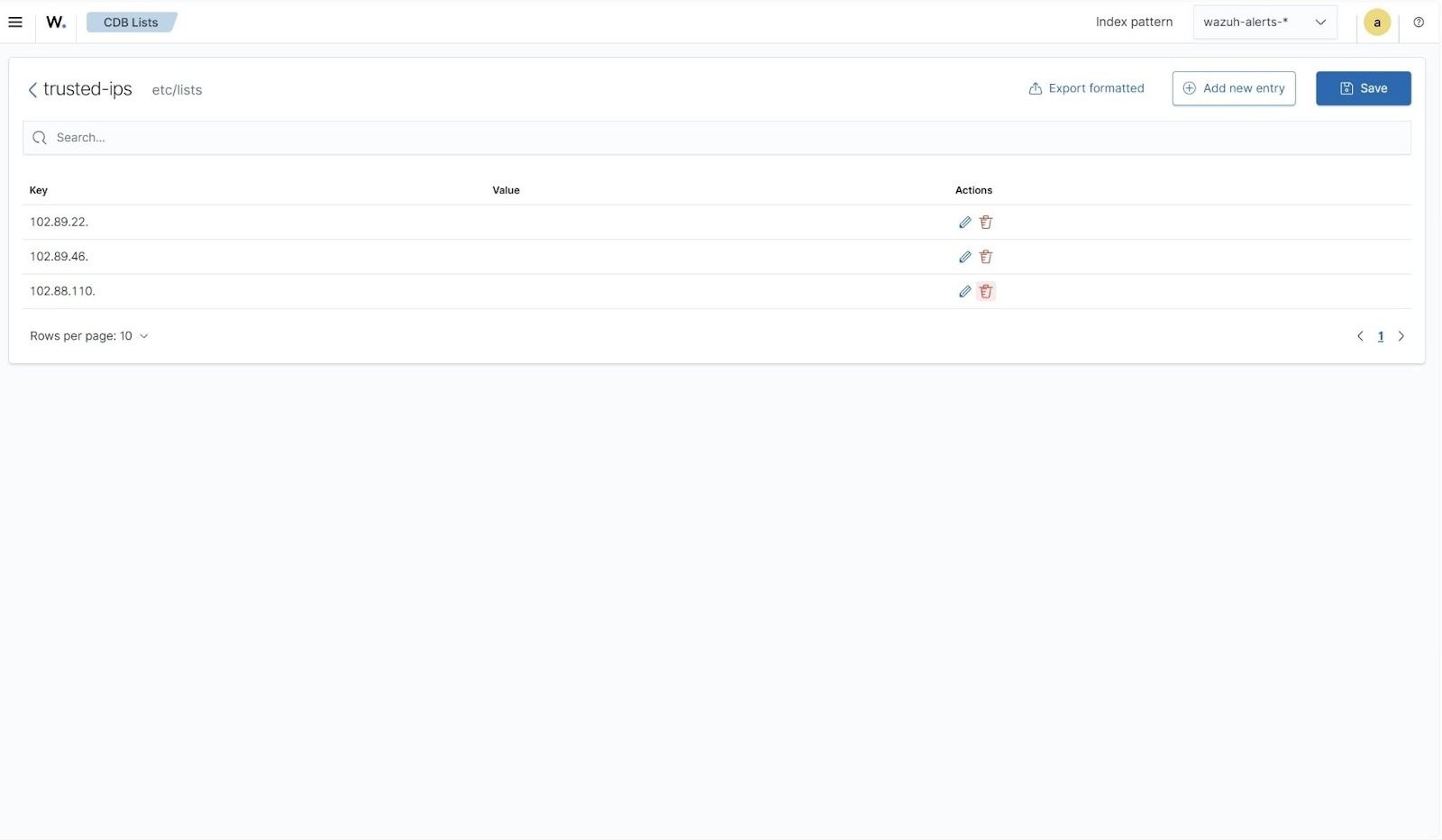
Refer to the Wazuh documentation for instructions on how to add IP addresses using different subnets.
- Click Save, and Reload for the changes to take effect.
- Click on the upper left menu ☰, navigate to Server management > Settings, and click on Edit configuration.
- Add the
/etc/lists/trusted-ipslist within the<ruleset>configuration block in the Wazuh server configuration file and click on Save:
<list>etc/lists/trusted-ips</list>
- Click on the upper left menu ☰, navigate to Server management > Rules > Manage rule files, and search for
local_rules. - Edit the
local_rules.xmland add the following custom rules. Click on Save to save the newly added rules and select Reload for the changes to take effect:
<group name="sourceusers,">

  <rule id="100500" level="7">
    <if_sid>80253</if_sid>
    <list field="aws.sourceIPAddress" lookup="address_match_key">etc/lists/trusted-ips</list>
    <description>Successful AWS Management Console login from trusted IP $(aws.sourceIPAddress) by IAM user $(aws.userIdentity.userName)</description>
  </rule>

 <rule id="100501" level="12">
    <if_sid>80253</if_sid>
    <list field="aws.sourceIPAddress" lookup="not_address_match_key">etc/lists/trusted-ips</list>
    <description>Successful AWS Management Console login from untrusted IP $(aws.sourceIPAddress) by IAM user $(aws.userIdentity.userName)</description>
  </rule>

</group>
Where:
- Rule ID
100500is triggered when a successful login occurs from a trusted IP address. - Rule ID
100501is triggered when a successful login occurs from an unrecognized IP address.
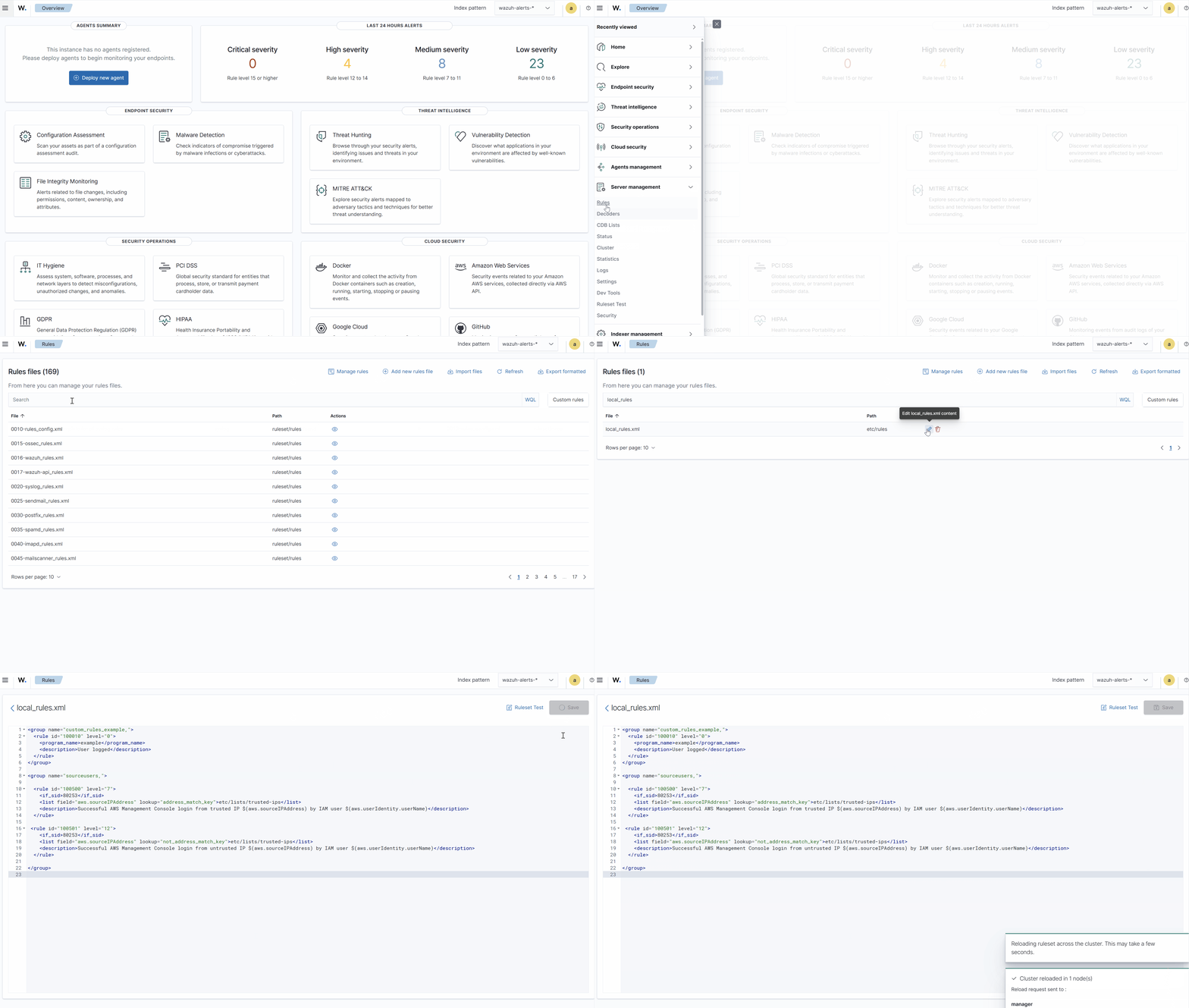
- Click on the upper left menu ☰, navigate to Server management > Settings, and click Edit configuration.
- Append the following settings to the configuration file to forward alerts triggered by rule IDs
100500and100501to Shuffle. Replace<YOUR_SHUFFLE_URL>with your Shuffle webhook URL:
<ossec_config>
  <integration>
    <name>shuffle</name>
    <hook_url><YOUR_SHUFFLE_URL></hook_url>
    <rule_id>100500,100501</rule_id>
    <level>3</level>
    <alert_format>json</alert_format>
  </integration>
</ossec_config>
- Click Save and Restart Manager to apply the changes.
Running the Shuffle workflow
Perform the steps below on the Shuffle dashboard to create the new workflow:
- Open the
AWS-Wazuhworkflow and trigger the workflow. - Verify that the workflow is triggered successfully, with the IAM
username,rule id, andsourceIPcorrectly extracted from the Wazuh alert.
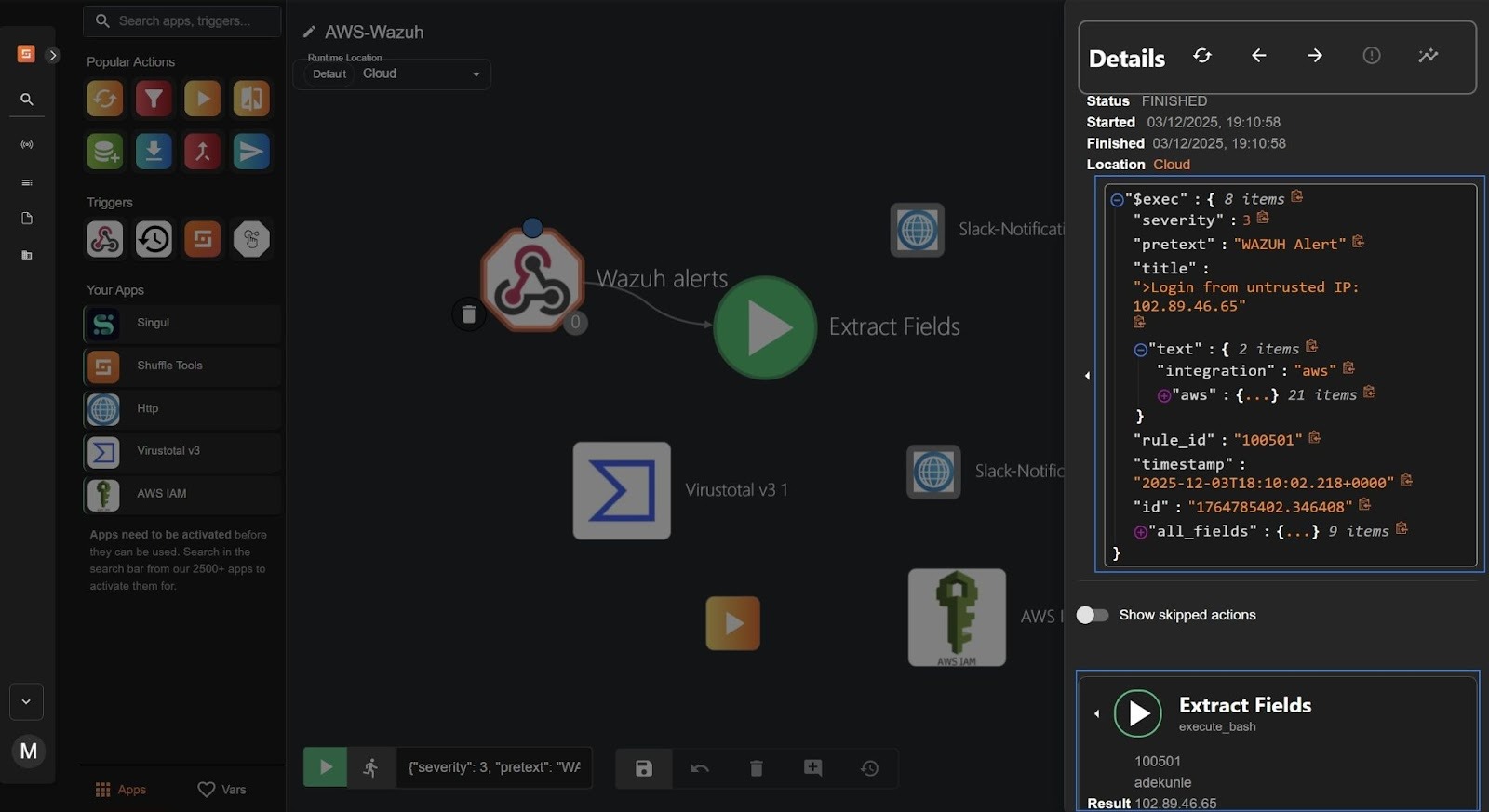
- Connect a branch from the Extract fields node to the Slack-Notification-for-trusted-ips node and set a condition by clicking on the branch > New condition. Enter the following values:
$exec.rule_idin the source field.100500in the destination field.
- Click Submit.
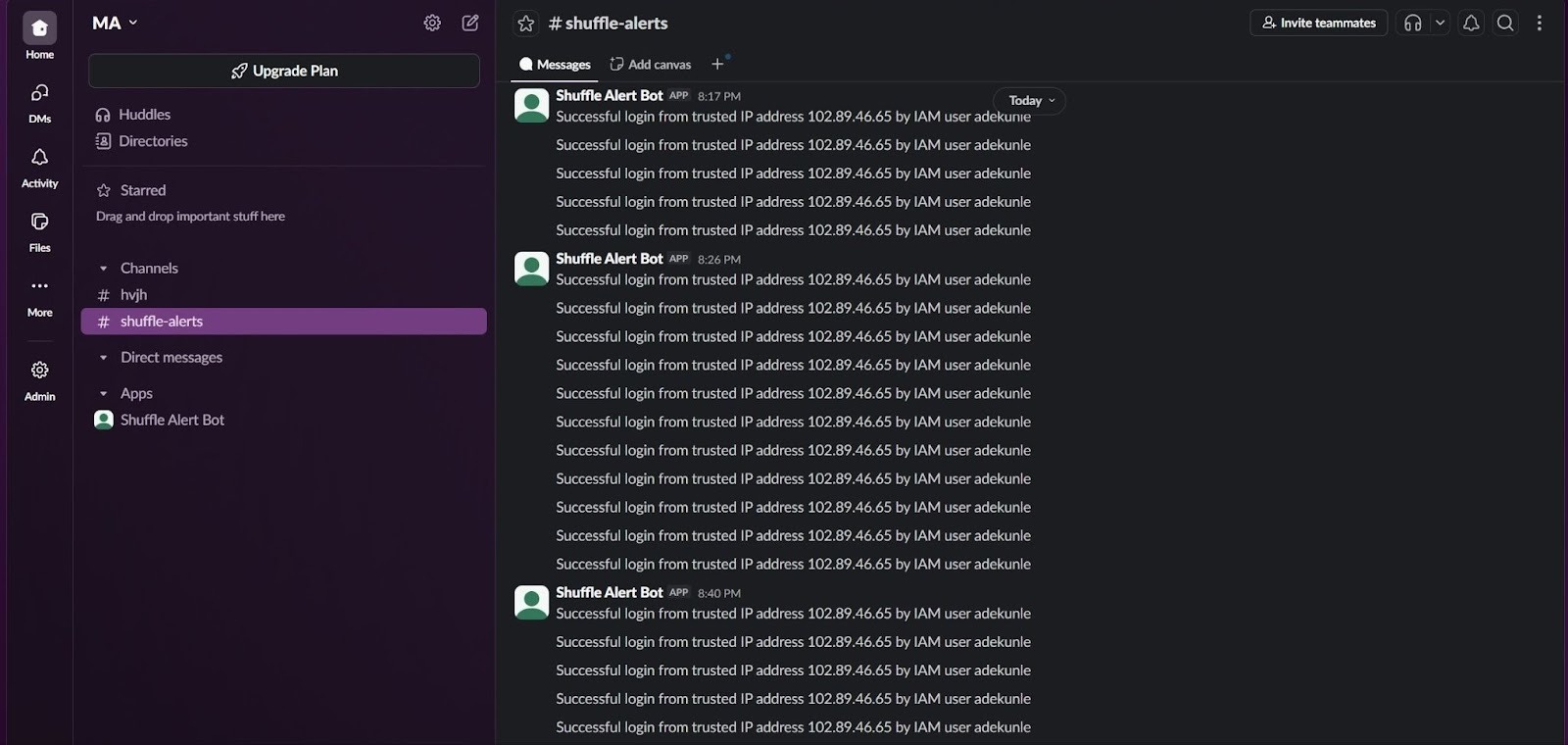
- Trigger the workflow to confirm that the Slack-Notification-for-trusted-ips node for Slack notification shows
"HTTPStatusCode": 200. This indicates that when rule100500is triggered, a notification is successfully sent to Slack. For example:
| Slack notification |
| Successful login from trusted IP address 102.88.55.111 by IAM user adekunle |
- Connect a branch from the Extract fields node to the
Virustotalnode and set a condition by clicking on the branch > Click New condition. Enter the following values:
$exec.rule_idin the source field.100501in the destination field.
- Click Submit
- Trigger the workflow to confirm that the Virustotal node shows
"HTTPStatusCode": 200. This indicates that when rule 100501 is triggered, Virustotal obtains an IP address report of the unrecognized IP address. - Connect a branch from the Virustotal node to the Auto password node. Trigger the workflow to confirm that the action shows the auto-generated password to be rotated. This changes every time a new alert is triggered.
- Connect a branch from the Auto password node to the AWS IAM node. Trigger the workflow to confirm that the action shows
"HTTPStatusCode": 200. This indicates the user’s password was successfully rotated. - Connect a branch from the AWS IAM node to the Slack-Notification-for-unrecognized-ips node. Trigger the workflow to confirm that it shows
"HTTPStatusCode": 200, indicating a notification is successfully sent to Slack.
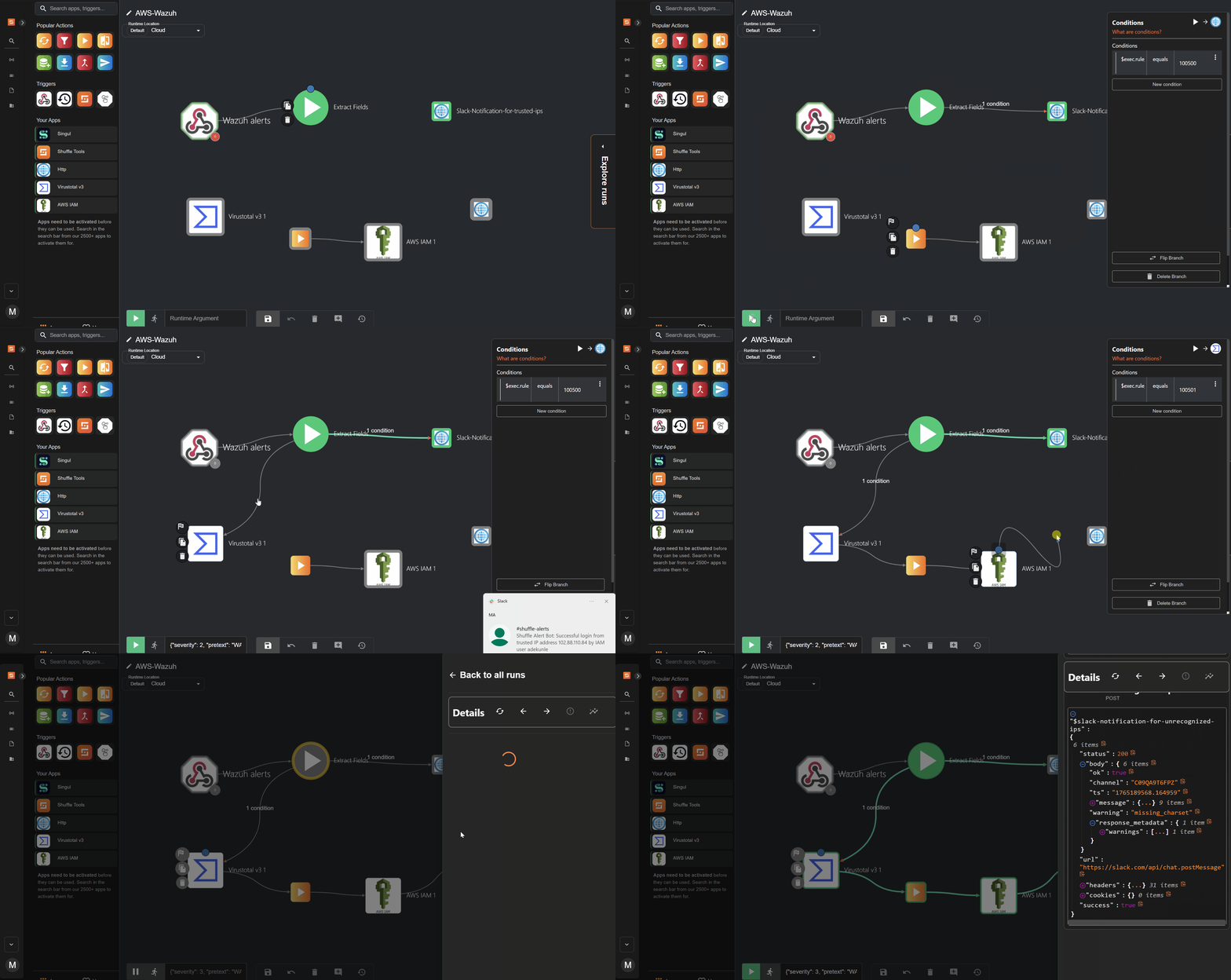
Simulating a successful login from a trusted and unrecognized IP address
Validate the integration by simulating successful AWS Management Console logins from both trusted and unrecognized source IP addresses. In this blog post, Wazuh uses custom rule 100500 with a CDB list to identify logins from trusted locations, and rule 100501 to flag logins from unrecognized IP addresses.
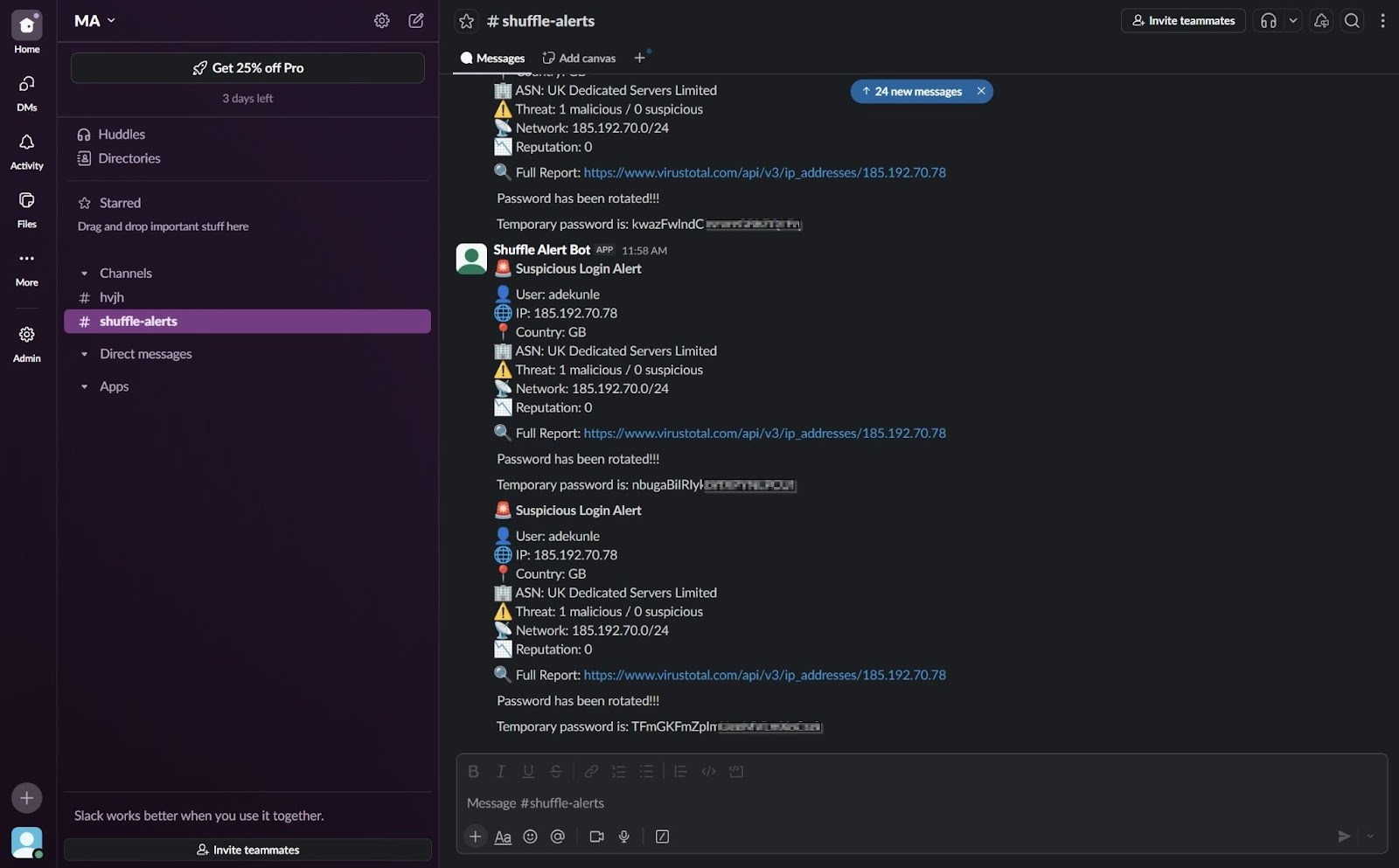
When either rule triggers, Wazuh forwards the alert to Shuffle SOAR. Shuffle then applies conditional logic: for trusted IP addresses, it sends a Slack notification. For unrecognized IP addresses, it queries VirusTotal, rotates the user’s password, and sends an enriched alert.
- Go to the AWS Management Console login page. Replace
<YOUR_ACCOUNT_ID>with your actual AWS account ID:
| https://<YOUR_ACCOUNT_ID>.signin.aws.amazon.com/console |
- Attempt a successful login as any IAM user (for example,
adekunle) using a trusted IP address.
- Attempt a successful login as any IAM user (for example,
adekunle) using an unrecognized IP address.
Note
For this simulation, we are using a VPN provider to generate logins from different IP addresses.
Note
Only the administrator has access to this private Slack channel, ensuring that rotated passwords and other sensitive workflow details remain restricted to need-to-know personnel.
VirusTotal full report
Perform this step on a Windows command prompt or any Linux terminal with administrator or root privileges to get the full VirusTotal report, as it requires your API key:
Note
Ensure the curl package is installed on your Linux endpoint before running the command.
Replace VIRUSTOTAL_LINK with the report URL from the Slack notification and YOUR_API_KEY with the key obtained from your VirusTotal account.
curl --request GET --url "<VIRUSTOTAL_LINK>" --header "X-Apikey: <YOUR_API_KEY>"
Wazuh dashboard visualization
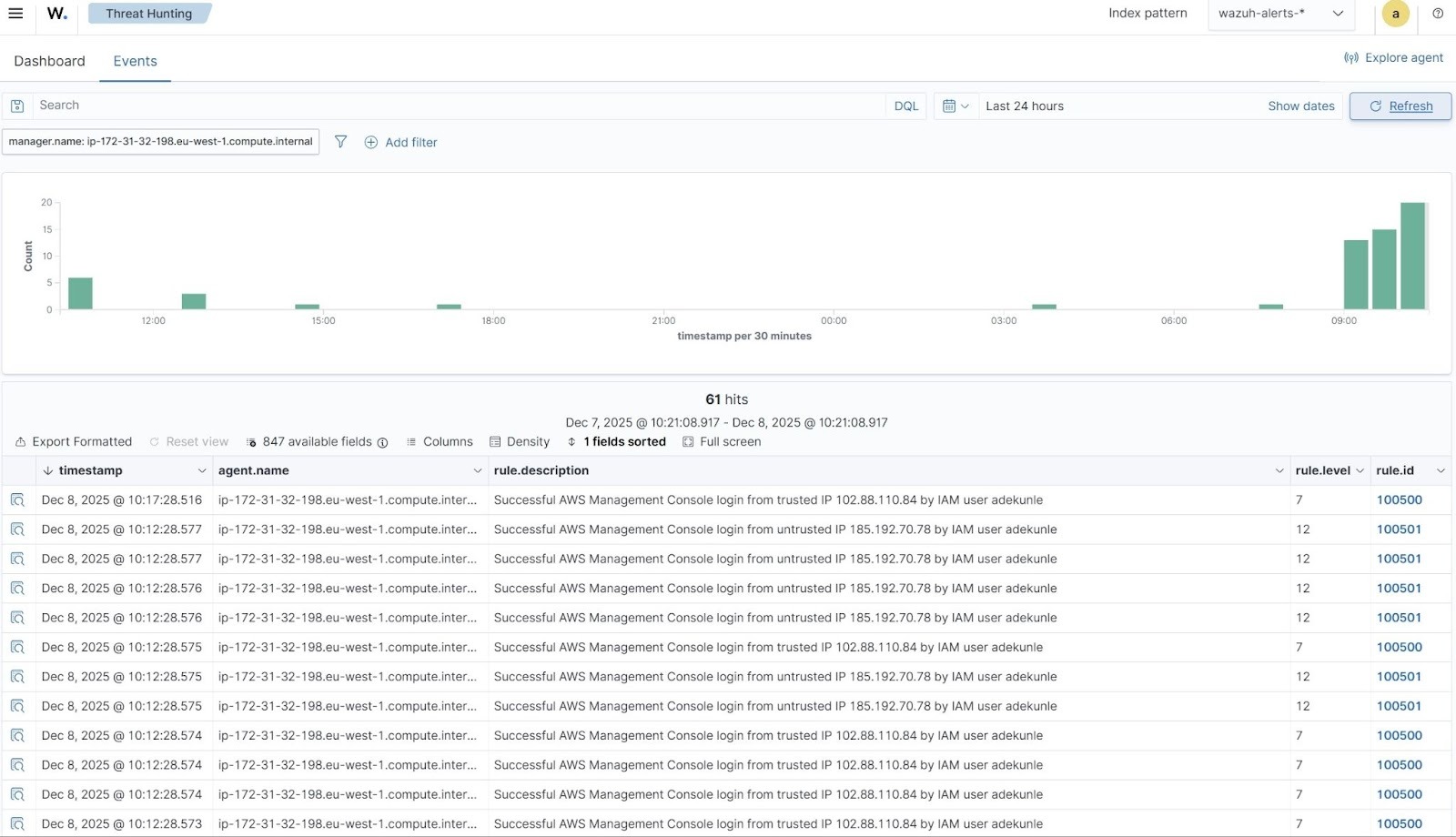
Wazuh generates alerts for both trusted and unrecognized IP addresses based on CDB Lists and custom rules. Follow these steps to view these alerts in the Wazuh dashboard.
- Navigate to Threat intelligence > Threat Hunting and click the Events tab.
- Click + Add filter. Then filter for
rule.idin the Field field. Selectis one ofthe Operator fields. - Add the filters
100500and100501in the Values field. - Click Save.
Note
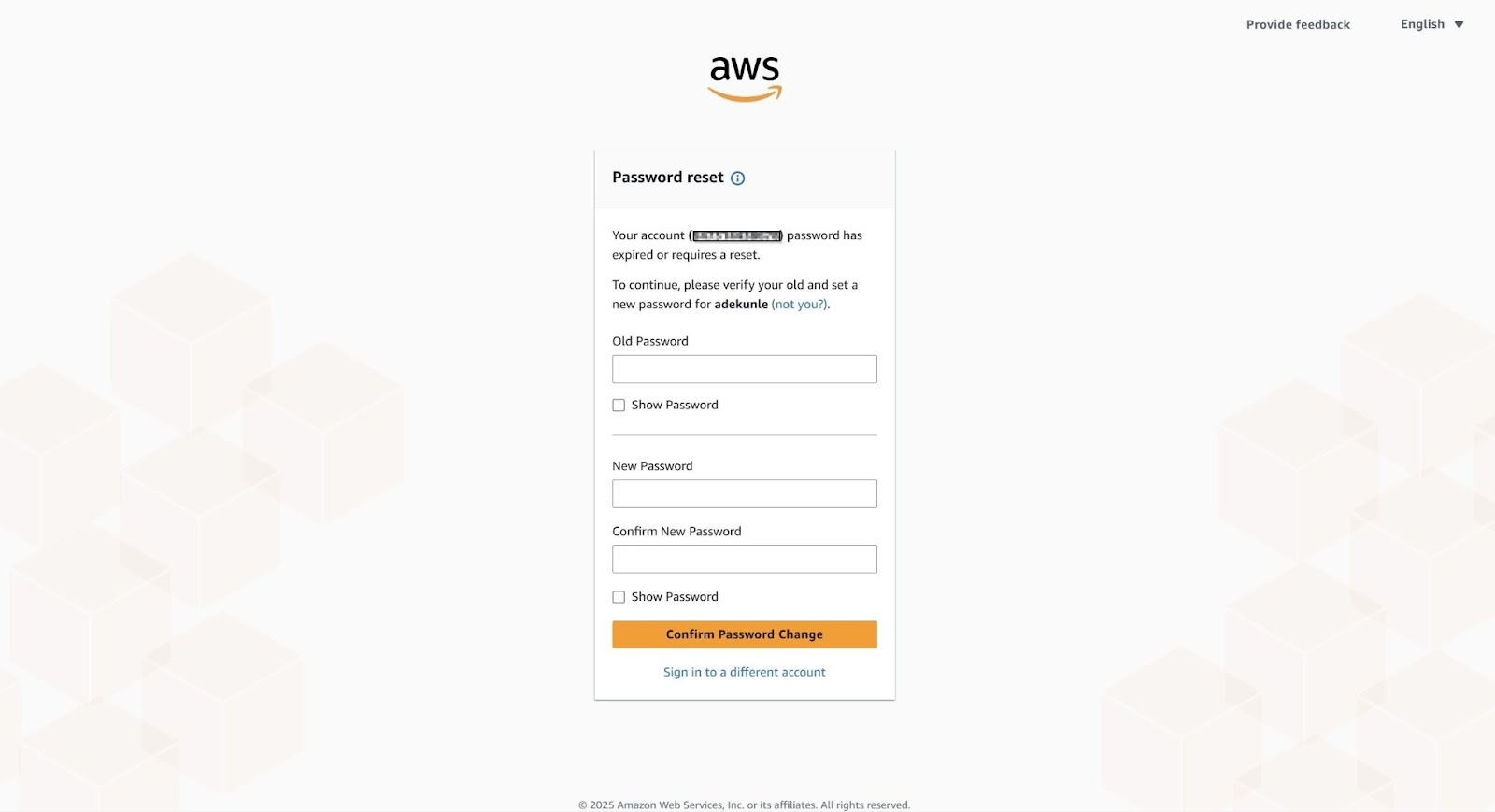
Once a password is rotated, the active session remains valid. The user will be required to change the password upon their next login.
Conclusion
In this blog post, we demonstrate how to build an automated defense layer for AWS IAM credentials by integrating Wazuh with Shuffle SOAR.
Wazuh continuously monitors AWS Console logins via CloudTrail, using a CDB list of trusted IPs and custom rules to classify each successful login as either recognized or unrecognized. Both event types are sent to Shuffle, where conditional logic drives the response. Logins from trusted IPs generate simple visibility alerts, while unrecognized IPs trigger a VirusTotal lookup, automatic password rotation, and secure delivery of the temporary password to a private, need-to-know channel.
This integration helps maintain normal access for trusted users while automatically responding to potential threats in real time. By combining Wazuh detection capabilities, Shuffle’s automation, and VirusTotal’s threat intelligence, organizations can create a proactive, context-aware approach to securing AWS accounts.
To learn more about Wazuh, explore our other blog posts and join the growing community.