
Endpoint hardening is a continuous process for securing modern IT environments against vulnerabilities and misconfigurations. It reduces the attack surface of endpoints and strengthens defenses against cyber threats by enforcing standardized security configurations. Organizations typically rely on established guidelines and frameworks, such as the Center for Internet Security (CIS) Benchmarks and NIST, for hardening. These resources provide best practices and predefined baseline configurations to help secure IT systems effectively.
Establishing a secure environment is essential, but manually addressing security gaps across a large number of endpoints is time-consuming, inconsistent, and difficult to scale. As infrastructure grows, organizations need a reliable way to enforce and maintain a minimally acceptable security baseline. Automating this process enables consistent enforcement of security controls and helps sustain a strong security posture without constant manual intervention.
In this blog post, we explore how to automate Linux endpoint hardening using the Wazuh Command module while maintaining continuous visibility into configuration drift through the Wazuh Security Configuration Assessment (SCA) capability. The Wazuh Command module allows you to move beyond simple monitoring and into automated remediation actions. This approach ensures consistent security controls and higher compliance scores without the burden of manual intervention.
Note
This blog post is based on the CIS Ubuntu 24.04 Benchmark v1.0.0. The configurations described here are intended for standalone endpoints. For managing multiple endpoints, you can use the Wazuh Centralized configuration on the Wazuh server.
Infrastructure
We use the following infrastructure to demonstrate the configuration required for automatic hardening of the monitored endpoints:
- Wazuh 4.14.4 central components (Wazuh server, Wazuh indexer, Wazuh dashboard) installed on an Ubuntu 24.04 endpoint using the Quickstart guide.
- An Ubuntu 24.04 endpoint with Wazuh agent 4.14.4 installed and enrolled in the Wazuh server.
Initial CIS benchmark score
Security Configuration Assessment (SCA) scans are enabled by default on monitored endpoints. Before applying the remediation script configuration, we review the Wazuh dashboard to confirm the initial CIS Ubuntu Linux 24.04 v1.0.0 SCA scan results.
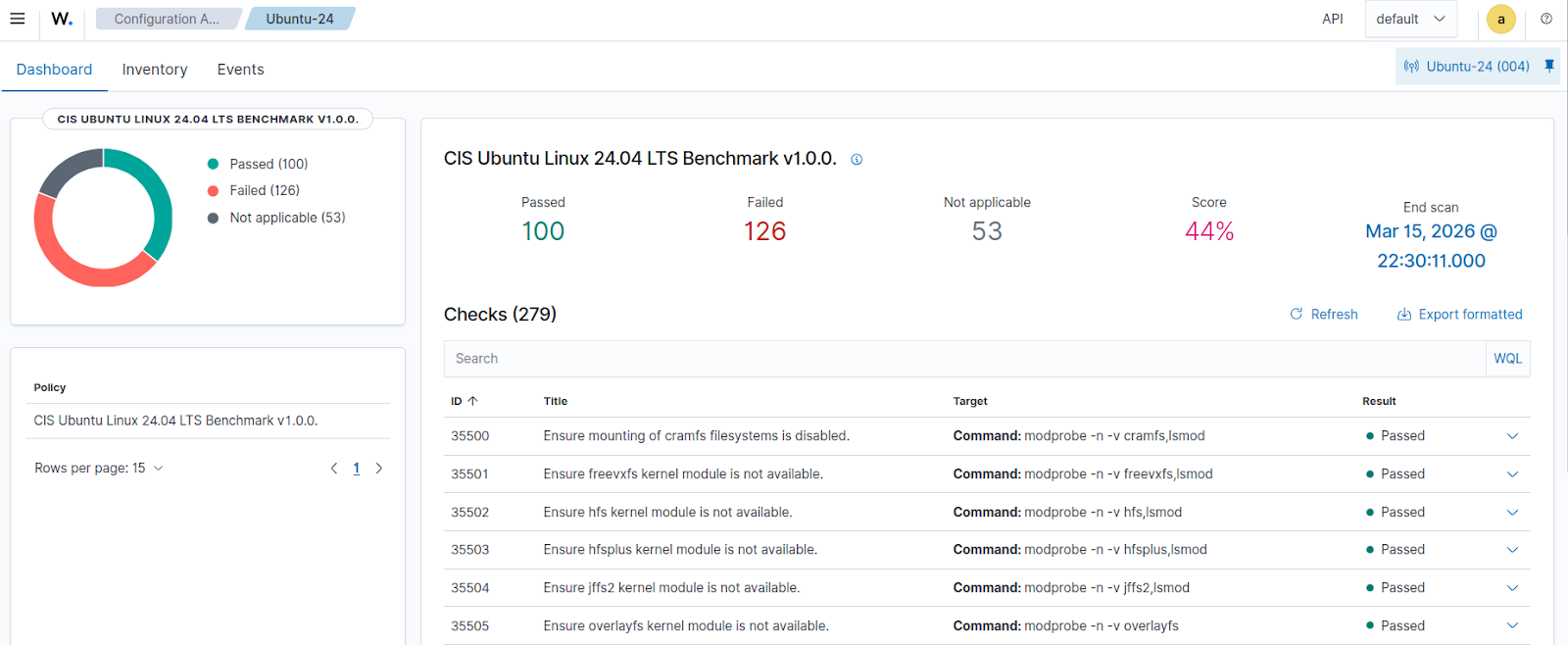
Navigate to Endpoint security > Configuration Assessment on the Wazuh dashboard, then select the monitored Ubuntu endpoint to view the current SCA scan results. As seen in the image below, the initial scan has 100 of 226 tests passed and 53 Not applicable tests, which is a 44% score.
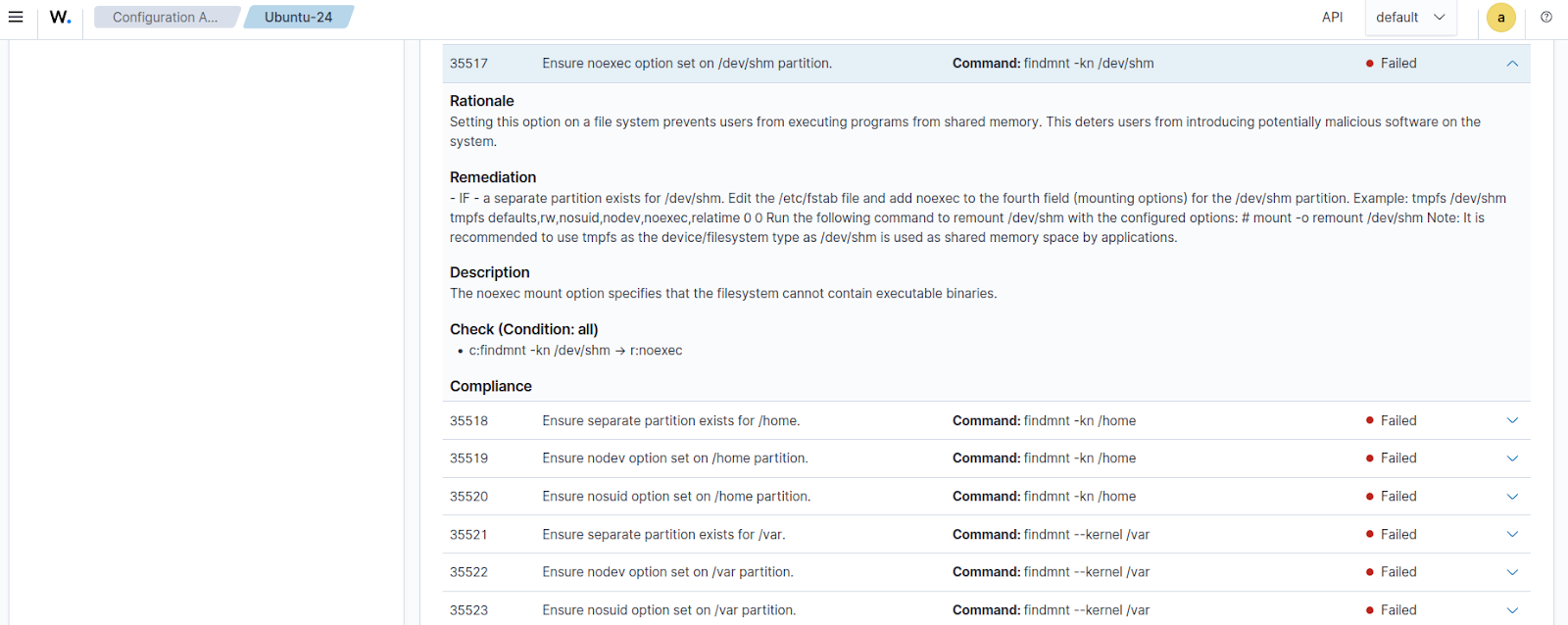
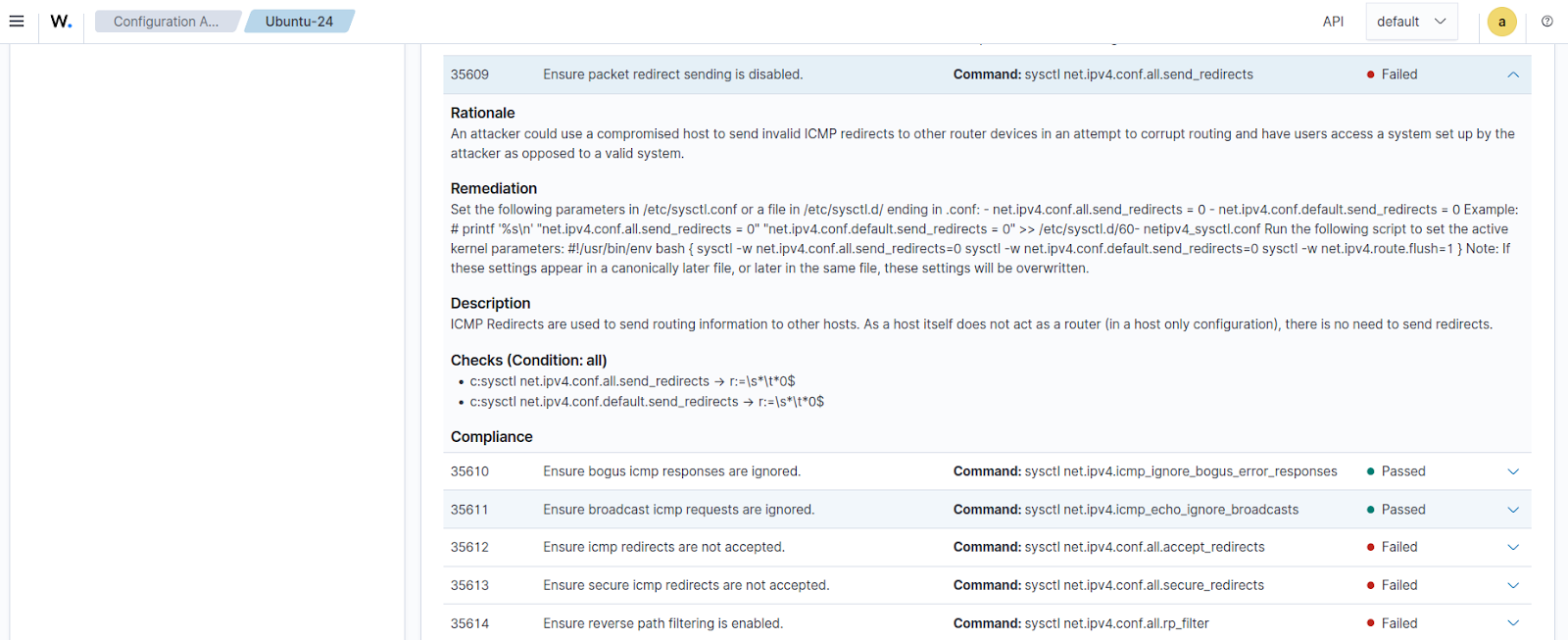
The images below show details of some individual benchmark checks with Failed results.
35517 - Ensure noexec option on /dev/shm partition
35609 - Ensure packet redirect sending is disabled
Hardening the endpoint
This section outlines the steps required to configure automated hardening for Ubuntu endpoints. We create a script that executes commands to fix some of the failed policy checks from the initial SCA scan on the monitored endpoint. The Wazuh Command module is then configured to run this script periodically, ensuring the target configuration is maintained consistently across the monitored endpoints.
Ubuntu endpoint
Perform the steps below on the Ubuntu endpoint.
1. Create a Bash script linux_hardening.sh, in the /var/ossec/active-response/bin/ folder and add the content below. The script contains configuration commands to modify thirty-six (36) required settings in line with the CIS Benchmark requirements:
| Warning: This script is a proof of concept (PoC). Review and validate it to ensure it meets the operational and security requirements of your environment. |
#!/usr/bin/env bash
set -e

############################################
# 35517 Ensure noexec on /dev/shm

fstab_file="/etc/fstab"
shm_entry="tmpfs /dev/shm tmpfs defaults,nodev,nosuid,noexec 0 0"

if grep -q "^tmpfs /dev/shm" "$fstab_file"; then
    sed -i "s|^tmpfs /dev/shm.*|$shm_entry|" "$fstab_file"
else
    echo "$shm_entry" >> "$fstab_file"
fi

mount -o remount,noexec /dev/shm || true
systemctl daemon-reload


############################################
# 35545 Disable Automatic Error Reporting

systemctl disable apport.service --now || true
sed -i 's/enabled=1/enabled=0/' /etc/default/apport || true

############################################
# 35547 Local login banner

banner_msg="Authorized users only. All activities are monitored."
grep -qxF "$banner_msg" /etc/issue || echo "$banner_msg" > /etc/issue

############################################
# 35548 Remote login banner

grep -qxF "$banner_msg" /etc/issue.net || echo "$banner_msg" > /etc/issue.net

############################################
# 35553 GDM login banner

if dpkg -s gdm3 >/dev/null 2>&1; then

gdm_file="/etc/gdm3/greeter.dconf-defaults"

# Ensure section exists
grep -Eq '^\s*\[org/gnome/login-screen\]' "$gdm_file" 2>/dev/null || \
    echo "[org/gnome/login-screen]" >> "$gdm_file"

set_gdm_param() {
    local key="$1"
    local value="$2"

    if grep -Eq "^\s*#?\s*${key}\s*=" "$gdm_file"; then
        # Replace commented OR uncommented line
        sed -i "s|^\s*#\?\s*${key}\s*=.*|${key}=${value}|" "$gdm_file"
    else
        # Add under section
        sed -i "/^\[org\/gnome\/login-screen\]/a ${key}=${value}" "$gdm_file"
    fi
}

# Apply settings
set_gdm_param banner-message-enable true
set_gdm_param banner-message-text "'$banner_msg'"

dconf update

fi


############################################
# 35562 Disable avahi

for svc in avahi-daemon.socket avahi-daemon.service; do
    systemctl stop $svc || true
	systemctl kill $svc || true
	systemctl disable $svc || true
    systemctl mask $svc || true
done

############################################
# 35571 Disable print services

pkg="cups cups-browsed cups-filters"

for svc in cups.socket cups.service; do
    systemctl stop $svc || true
    systemctl mask $svc || true
	apt purge $pkg -y || true
done

############################################
# 35588 Configure systemd-timesyncd

timesync_file="/etc/systemd/timesyncd.conf"
if grep -q "^#NTP=" "$timesync_file"; then
    sed -i 's/^#NTP=.*/NTP=pool.ntp.org/' "$timesync_file"
elif ! grep -q "^NTP=" "$timesync_file"; then
    echo "NTP=pool.ntp.org" >> "$timesync_file"
fi
systemctl restart systemd-timesyncd

############################################
# 35594-35599 Cron permissions

for file in /etc/crontab /etc/cron.hourly /etc/cron.daily /etc/cron.weekly /etc/cron.monthly /etc/cron.d; do
    chown root:root "$file"
    chmod og-rwx "$file"
done

############################################
# 35609-35616 Network sysctl hardening

CONFIG_FILE="/etc/sysctl.d/99-hardening.conf"

sysctl_settings=(
"net.ipv4.conf.all.send_redirects=0"
"net.ipv4.conf.all.accept_redirects=0"
"net.ipv4.conf.all.secure_redirects=0"
"net.ipv4.conf.all.accept_source_route=0"
"net.ipv4.conf.all.rp_filter=1"
"net.ipv4.conf.all.log_martians=1"
"net.ipv4.conf.default.send_redirects=0"
"net.ipv4.conf.default.accept_redirects=0"
"net.ipv4.conf.default.secure_redirects=0"
"net.ipv4.conf.default.accept_source_route=0"
"net.ipv4.conf.default.rp_filter=1"
"net.ipv4.conf.default.log_martians=1"
"net.ipv6.conf.all.accept_redirects=0"
"net.ipv6.conf.default.accept_redirects=0"
)

for setting in "${sysctl_settings[@]}"; do
    key="${setting%%=*}"
     "$CONFIG_FILE" 2>/dev/null || echo "$setting" >> "$CONFIG_FILE"grep -q "^$key"
done

sysctl --system >/dev/null

############################################
# 35664 Ensure sudo log file

if ! grep -Eq '^\s*Defaults\s+logfile=' /etc/sudoers; then
    echo 'Defaults logfile="/var/log/sudo.log"' | EDITOR='tee -a' visudo
else
    sed -i 's|^\s*Defaults\s\+logfile=.*|Defaults logfile="/var/log/sudo.log"|' /etc/sudoers
    visudo -c
fi

############################################
# 35668 Restrict su command
grep -Eq '^\s*auth\s+required\s+pam_wheel\.so.*group=sudo' /etc/pam.d/su || \
    sed -i '/^auth/a auth required pam_wheel.so use_uid group=sudo' /etc/pam.d/su

############################################
# 35676-35683 Password policies (PAM)
apt-get install -y libpam-pwquality

# Set key=value
set_config() {
    local key="$1"
    local value="$2"
    local file="$3"

    if grep -Eq "^\s*${key}\s*=" "$file"; then
        # Replace existing (commented or not)
        sed -i "s|^\s*#\?\s*${key}\s*=.*|${key} = ${value}|" "$file"
    else
        # Add if missing
        echo "${key} = ${value}" >> "$file"
    fi
}

# pwquality.conf settings
pwquality_conf="/etc/security/pwquality.conf"

set_config difok 2 "$pwquality_conf"
set_config minlen 14 "$pwquality_conf"
set_config minclass 4 "$pwquality_conf"
set_config maxrepeat 3 "$pwquality_conf"
set_config maxsequence 3 "$pwquality_conf"


# faillock.conf settings
faillock_conf="/etc/security/faillock.conf"

set_config deny 5 "$faillock_conf"
set_config unlock_time 900 "$faillock_conf"
set_config root_unlock_time 60 "$faillock_conf"

############################################
# 35694-35698 Password aging

# Set login.defs values
set_login_def() {
    local key="$1"
    local value="$2"
    local file="/etc/login.defs"

    if grep -Eq "^\s*#?\s*${key}\b" "$file"; then
        sed -i "s|^\s*#\?\s*${key}.*|${key} ${value}|" "$file"
    else
        echo "${key} ${value}" >> "$file"
    fi
}

# Apply for future users
set_login_def PASS_MAX_DAYS 90
set_login_def PASS_MIN_DAYS 1
set_login_def PASS_WARN_AGE 7

# Apply to existing users (/etc/shadow via chage)
# Note - Passwords for users with password age over the setting should be changed first or else the user will be locked out.

for user in $(awk -F: '$3 >= 1000 && $1 != "nobody" {print $1}' /etc/passwd); do
    chage --mindays 1 --maxdays 90 --warndays 7 --inactive 45 "$user"
done

# Apply to root
chage --mindays 1 --maxdays 90 --warndays 7 --inactive 45 root


############################################
# 35723 auditd installed
apt-get install -y auditd audispd-plugins
systemctl enable auditd --now

echo "$(date '+%Y-%m-%d %H:%M:%S') Hardening complete." >> /var/ossec/logs/ossec.log
Note
The script is designed to be modular. You can choose to add or remove any individual configuration check based on your specific needs.
This script remediates the following thirty-six (36) CIS requirements for Ubuntu endpoints:
35517: Ensure noexec option set on/dev/shmpartition.35545: Ensure Automatic Error Reporting is not enabled.35547: Ensure local login warning banner is configured properly.35548: Ensure remote login warning banner is configured properly.35553: Ensure GDM login banner is configured.35562: Ensure Avahi daemon services are not in use.35571: Ensure print server services are not in use.35588: Ensuresystemd-timesyncdconfigured with an authorized timeserver.35594: Ensure permissions on/etc/crontabare configured.35595: Ensure permissions on/etc/cron.hourlyare configured.35596: Ensure permissions on/etc/cron.dailyare configured.35597: Ensure permissions on/etc/cron.weeklyare configured.35598: Ensure permissions on/etc/cron.monthlyare configured.35599: Ensure permissions on/etc/cron.dare configured.35609: Ensure packet redirect sending is disabled.35612: Ensure icmp redirects are not accepted.35613: Ensure secure icmp redirects are not accepted.35614: Ensure reverse path filtering is enabled.35615: Ensure source routed packets are not accepted.35616: Ensure suspicious packets are logged.35664: Ensure sudo log file exists.35668: Ensure access to the su command is restricted.35676: Ensure password failed attempts lockout is configured.35677: Ensure password unlock time is configured.35678: Ensure password failed attempts lockout includes the root account.35679: Ensure the password number of changed characters is configured.35680: Ensure minimum password length is configured.35681: Ensure password complexity is configured.35682: Ensure password with the same consecutive characters is configured.35683: Ensure the password maximum sequential characters is configured.35694: Ensure password expiration is configured.35695: Ensure the minimum password days is configured.35696: Ensure password expiration warning days are configured.35697: Ensure a strong password hashing algorithm is configured.35698: Ensure inactive password lock is configured.35723: Ensureauditdpackages are installed.
2. Append the following configuration to the local configuration file, /var/ossec/etc/ossec.conf, to automate the execution of the script:
<ossec_config>
  <wodle name="command">
    <disabled>no</disabled>
    <tag>hardening-script</tag>
    <command>/var/ossec/active-response/bin/linux_hardening.sh</command>
    <interval>7d</interval>
    <ignore_output>yes</ignore_output>
    <run_on_start>yes</run_on_start>
    <verify_sha256><SHA_256_HASH></verify_sha256>
    <timeout>300</timeout>
  </wodle>
</ossec_config>
This configuration runs the remediation script every 7 days (7d) and also executes it immediately when the Wazuh agent starts. This ensures persistent policy compliance and remediation of unauthorized endpoint changes.
Note
Replace <SHA_256_HASH> with the SHA256 hash of the Bash script. The SHA256 hash can be obtained using the following command:
# sha256sum /var/ossec/active-response/bin/linux_hardening.sh
Optionally, you can use the Wazuh centralized configuration on the Wazuh server to distribute the script and configuration across your monitored Ubuntu endpoints.
3. Set the ownership and permissions of the /var/ossec/active-response/bin/linux_hardening.sh file. This ensures the script is only available to the root user and the wazuh group:
# chown root:wazuh /var/ossec/active-response/bin/linux_hardening.sh
# chmod 750 /var/ossec/active-response/bin/linux_hardening.sh
4. Restart the Wazuh agent to apply the configuration changes. This action triggers the remediation script configuration and initiates a fresh SCA scan.
# systemctl restart wazuh-agent
When the Wazuh agent is restarted, the remediation script is executed, and the SCA scan result is updated on the next SCA scan.
Reviewing the CIS Benchmark score
This section reviews the SCA scan results after applying the remediation script.
Navigate to Endpoint security > Configuration Assessment on the Wazuh dashboard and select the monitored Ubuntu endpoint to see the updated SCA scan result. In this instance, the result moves from 100 to 135 of 251 tests passed and 28 Not applicable tests, which is a 53% score.
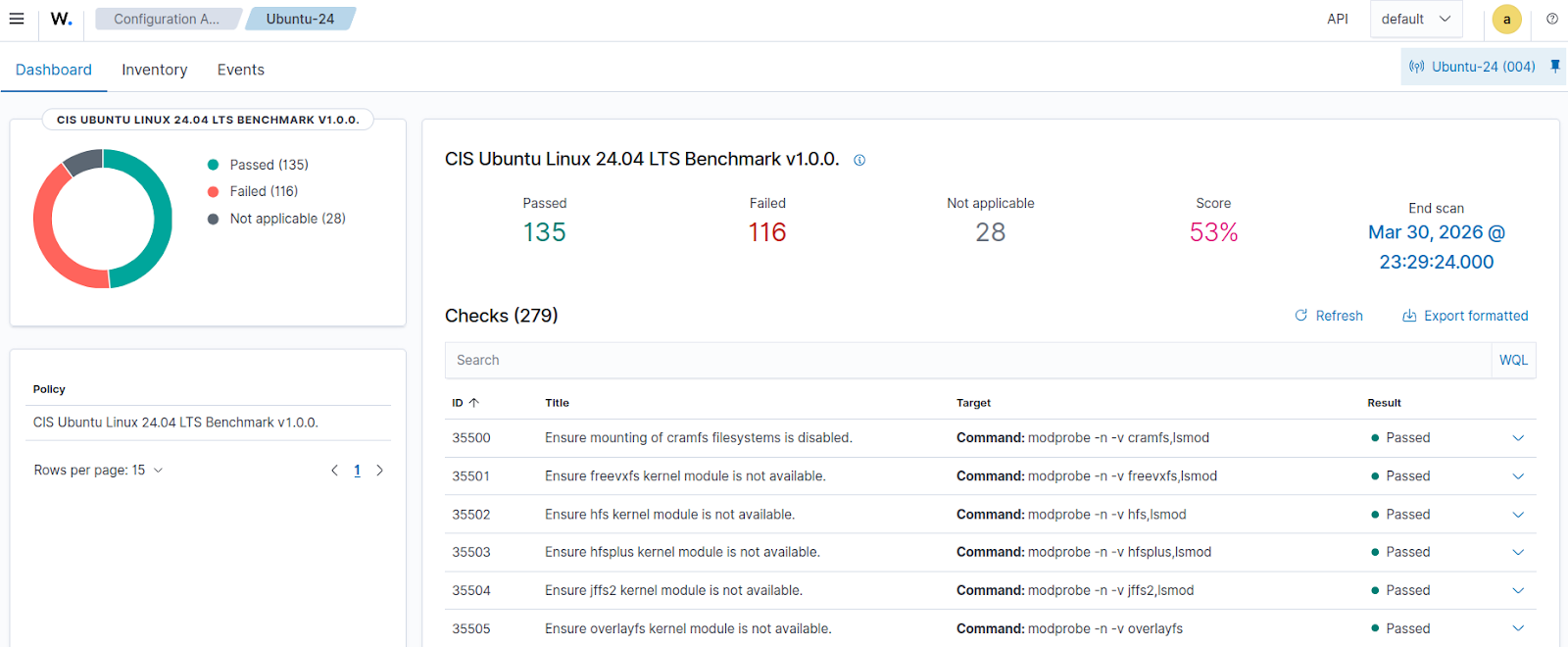
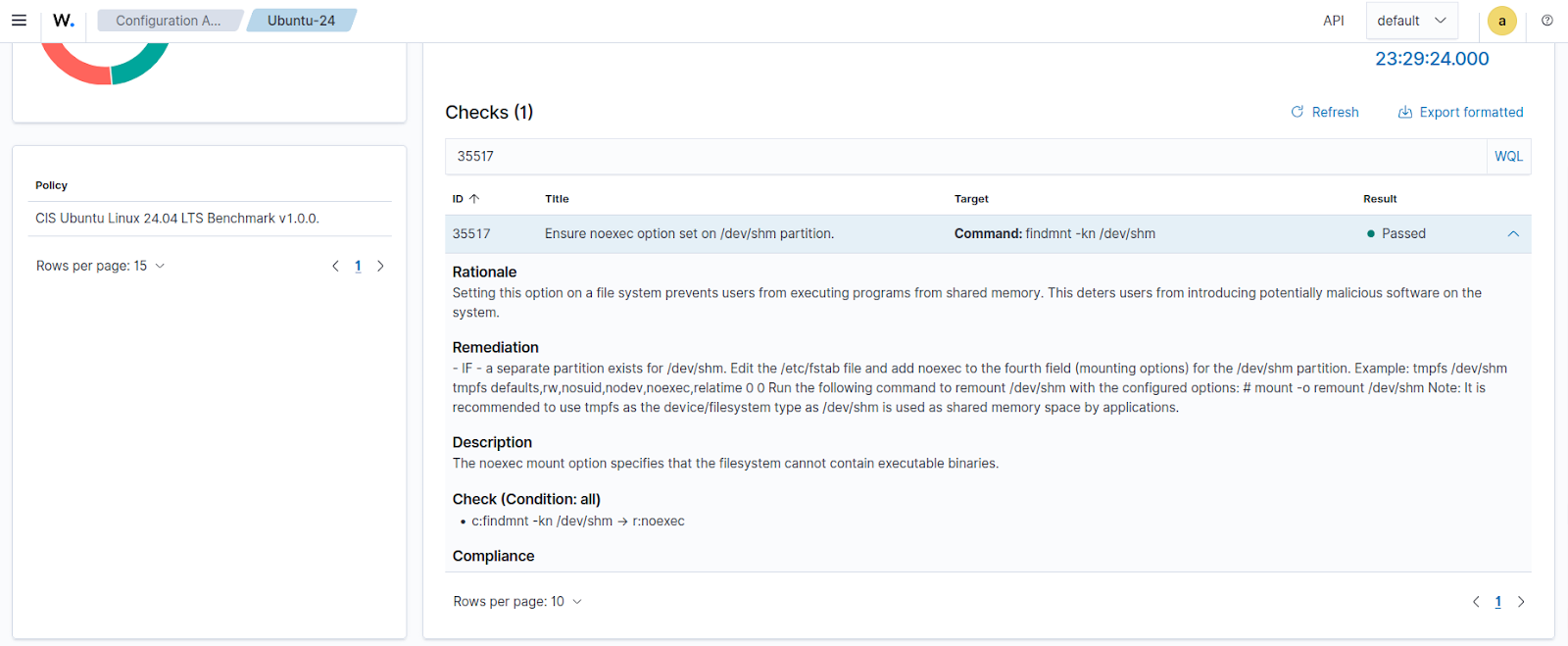
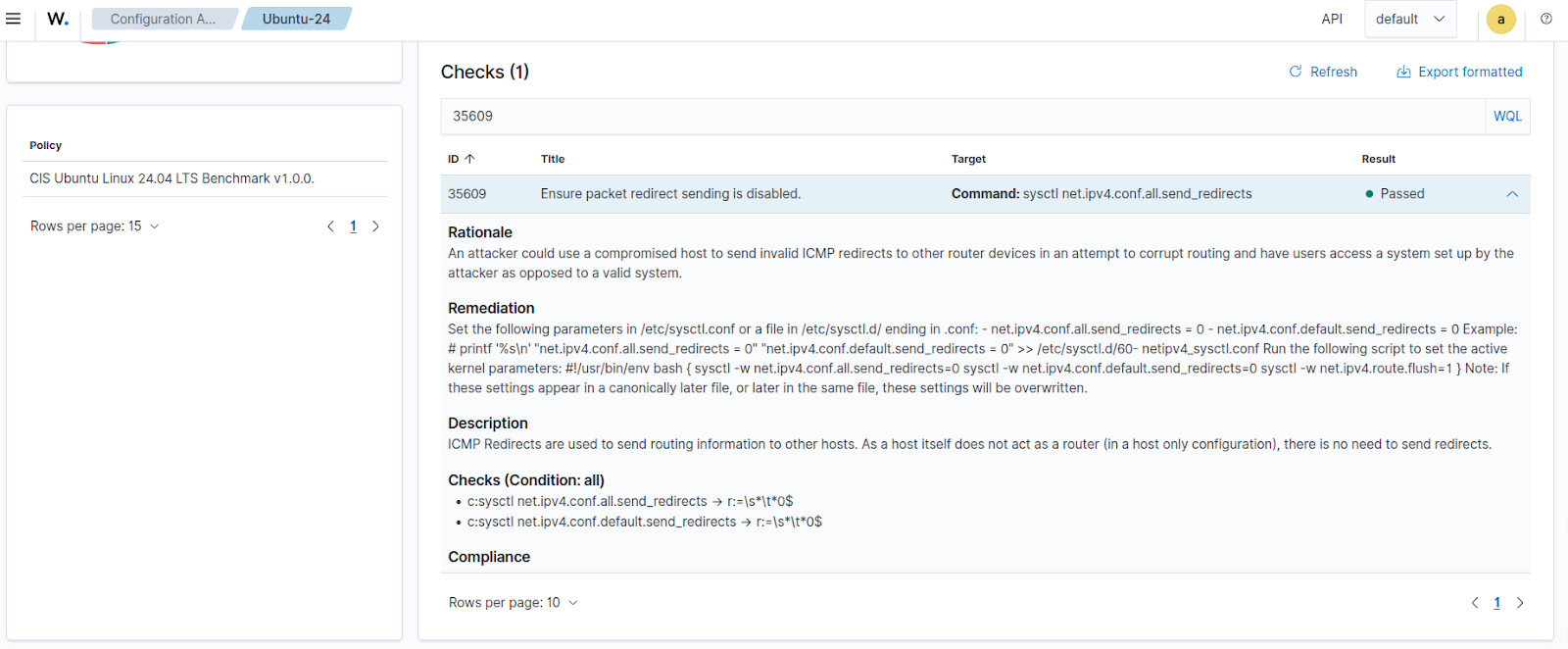
Taking a closer look at some of the expanded remediated checks, we can see that the status has changed from Failed to Passed.
35517 - Ensure noexec option on /dev/shm partition
35609 - Ensure packet redirect sending is disabled
Conclusion
The Wazuh SCA module provides continuous visibility into inconsistent configuration across your monitored endpoints. You can use the Wazuh Command module and custom scripts to automate repeatable remediation workflows that keep your Ubuntu endpoints in line with CIS Benchmarks. This approach helps security teams reduce response times and maintain a consistently hardened Ubuntu environment without the constant need for manual intervention.
If you have any questions about this blog post or Wazuh, we invite you to join our community, where our team will be happy to assist you.