
GreenBlood ransomware is a Go-based ransomware family that has recently emerged in the threat landscape, targeting Windows environments while employing a double-extortion model. The malware is engineered for high-speed execution and parallel file encryption, leveraging the performance and portability benefits of a compiled, statically linked language. This design allows GreenBlood to rapidly impact infected systems and scale effectively across victim environments.
GreenBlood has been linked to extortion campaigns that combine file encryption with the threat of data exposure through a Tor-based leak site. These operations illustrate how modern ransomware operations prioritize reliability, speed, and automation to maximize impact once access is obtained. Rather than depending on complex exploits, these malwares often rely on efficient execution workflows and built-in system utilities to carry out their objectives. In this blog post, we demonstrate how to detect GreenBlood ransomware using Wazuh.
GreenBlood ransomware behavior
When GreenBlood ransomware is executed on a Windows endpoint, it initiates a sequence of actions that encrypt data and disrupt system services. Below are some behaviors observed when GreenBlood ransomware is successfully executed on a Windows endpoint:
- It creates a ransom note named
READ_ME_TO_RECOVER_FILES.txtorHOW_TO_RECOVER_FILES.txtand places it in every folder containing encrypted files. In this case, the note was observed in multiple directories such asDownloads,Desktop, andDocuments, among others. - The ransomware encrypts the files and appends a
.tgbgor.gbloodextension to the encrypted files. - Uses the
bcdedit /set {default} bootstatuspolicy ignoreallfailurescommand to set the boot policy on the Windows endpoint to suppress recovery prompts and ignore all failures. - Executes the
bcdedit /set {default} recoveryenabled Nocommand to disable automatic repair on the Windows endpoint. - Deletes data backup in quiet mode using several commands like
vssadmin delete shadows /all /quiet,wmic shadowcopy delete, andwbadmin delete catalog -quiet. - Disables the Windows Defender Firewall using the command
netsh advfirewall set allprofiles state off. - Disables Microsoft Defender real-time protection using the command
reg add \"HKLM\SOFTWARE\Policies\Microsoft\Windows Defender\Real-Time Protection\" /v DisableRealtimeMonitoring /t REG_DWORD /d 1 /f. - Executes the
cmd /C C:\Users\<USERNAME>\AppData\Local\Temp\cleanup_greenblood.batcommand to perform cleanup actions after the ransomware completes execution.
Analyzed samples
| Type | Value |
| SHA256 | 12bba7161d07efcb1b14d30054901ac9ffe5202972437b0c47c88d71e45c717605294c9970f365c92e0b0f1250db678dc356dbf418dba27bdd5eeb68487a7199 |
Infrastructure
We use the following infrastructure to demonstrate how to detect and respond to GreenBlood ransomware with Wazuh:
- A pre-built, ready-to-use Wazuh OVA 4.14.3, which includes the Wazuh central components (Wazuh server, Wazuh indexer, and Wazuh dashboard). Follow the instructions in this guide to download and set up the Wazuh virtual machine.
- A Windows 11 endpoint with the Wazuh agent 4.14.3 installed and enrolled in the Wazuh server. This endpoint is monitored for GreenBlood ransomware activity.
Detection with Wazuh
We use the following techniques to detect GreenBlood ransomware on the infected Windows endpoint:
- Custom detection rules to detect GreenBlood ransomware activities.
- YARA integration and the Wazuh Active Response module to scan and remove files with malicious patterns.
Custom detection rules
We use Sysmon to monitor Windows system events and create custom detection rules on the Wazuh server to detect the malicious behavior of GreenBlood ransomware.
Windows endpoint
Complete these steps to configure the Wazuh agent to capture logs with Sysmon and forward them to the Wazuh server for analysis.
- Download Sysmon from the Microsoft Sysinternals page.
- Extract the compressed Sysmon file to your preferred directory.
- Download the Sysmon configuration file sysmonconfig.xml using PowerShell as an administrator. Replace
<SYSMON_EXECUTABLE_PATH>with the directory path to your Sysmon executable.
> wget -Uri https://wazuh.com/resources/blog/emulation-of-attack-techniques-and-detection-with-wazuh/sysmonconfig.xml -OutFile <SYSMON_EXECUTABLE_PATH>\sysmonconfig.xml
- Switch to the folder with the Sysmon executable and run the command below to install and start Sysmon using PowerShell with Administrator privileges:
> .\Sysmon64.exe -accepteula -i sysmonconfig.xml
- Add the following configuration to the
C:\Program Files (x86)\ossec-agent\ossec.conffile within the<ossec_config>block to capture and forward Sysmon event logs to the Wazuh server:
<localfile>
    <location>Microsoft-Windows-Sysmon/Operational</location>
    <log_format>eventchannel</log_format>
  </localfile>
- Add the below configuration within the
<syscheck>block of theC:\Program Files (x86)\ossec-agent\ossec.conffile to monitor theDownloadsfolder of all users:
<directories realtime="yes">C:\Users\*\Downloads</directories>
Note
This configuration is to capture and show the encryption behavior of this ransomware when it adds the .tggb or .gblood extension to encrypted files. In this blog post, we monitor only the Downloads folder of all users. However, you can configure Wazuh to monitor any directory of your choice.
- Restart the Wazuh agent to apply the configuration changes:
> Restart-Service -Name wazuh
Wazuh dashboard
We create custom rules to detect GreenBlood ransomware activities on the monitored Windows endpoint. Perform the steps below to add rules to the Wazuh server for analysis.
- Navigate to Server management > Rules.
- Click + Add new rules file.
- Copy and paste the rules below and name the file
greenblood_rules.xml, then click Save.
<group name="greenblood,malware,ransomware,">
<!-- Ransom note file creation -->
  <rule id="100201" level="12" timeframe="100" frequency="5">
    <if_matched_sid>61613</if_matched_sid>
    <field name="win.eventdata.image" type="pcre2">\.exe</field>
    <field name="win.eventdata.targetFilename" type="pcre2">(?i)[C-Z]:.*.\\READ_ME_TO_RECOVER_FILES.txt|HOW_TO_RECOVER_FILES.txt</field>
    <description>The file $(win.eventdata.targetFilename) has been created in multiple directories. Possible Greenblood ransomware detected.</description>
    <mitre>
      <id>T1486</id>
    </mitre>
  </rule>

  <!-- Malware encrypts files across the system by appending .tgbg extension -->
  <rule id="100202" level="10">
    <if_sid>550,554</if_sid>
    <field name="File" type="pcre2">\.tgbg$|\.gblood$</field>
    <description>File created with .tgbg or .gblood extension. Potential GreenBlood ransomware encryption activity detected.</description>
    <mitre>
      <id>T1059</id>
      <id>T1486</id>
    </mitre>
  </rule>

<!-- Malware inhibits system recovery -->
  <rule id="100203" level="12">
     <if_sid>61603</if_sid>
     <field name="win.eventdata.parentImage" type="pcre2">\.exe</field>
     <field name="win.eventdata.CommandLine" type="pcre2">(?i)vssadmin\sdelete\sshadows\s\/all\s\/quiet|wmic\sshadowcopy\sdelete|wbadmin\sdelete\scatalog\s-quiet</field>
     <description>Shadow copies have been deleted. Possible ransomware activity detected.</description>
     <mitre>
       <id>T1490</id>
       <id>T1486</id>
     </mitre>
  </rule>

  <rule id="100204" level="12">
     <if_sid>61603</if_sid>
     <field name="win.eventdata.parentImage" type="pcre2">\.exe</field>
     <field name="win.eventdata.CommandLine" type="pcre2">(?i)bcdedit\s\/set\s{default}\srecoveryenabled\sno</field>
     <description>System recovery disabled. Possible ransomware activity detected.</description>
     <mitre>
       <id>T1490</id>
       <id>T1486</id>
     </mitre>
  </rule>

  <rule id="100205" level="12">
     <if_sid>61603</if_sid>
     <field name="win.eventdata.parentImage" type="pcre2">\.exe</field>
     <field name="win.eventdata.CommandLine" type="pcre2">(?i)bcdedit\s\/set\s{default}\sbootstatuspolicy\signoreallfailures</field>
     <description>Boot status policy set to ignore all failures.</description>
     <mitre>
       <id>T1490</id>
     </mitre>
  </rule>

  <rule id="100206" level="12">
    <if_sid>92042</if_sid>
    <field name="win.eventdata.parentImage" type="pcre2">\.exe</field>
    <field name="win.eventdata.CommandLine" type="pcre2">(?i)netsh\sadvfirewall\sset\sallprofiles\sstate\soff</field>
    <description>Windows Defender Firewall disabled.</description>
    <mitre>
      <id>T1087</id>
      <id>T1059.003</id>
    </mitre>
  </rule>

  <rule id="100207" level="12">
    <if_sid>92041</if_sid>
    <field name="win.eventdata.parentImage" type="pcre2">\.exe</field>
    <field name="win.eventdata.CommandLine" type="pcre2">(?i)reg\sadd\s\\\\\\"HKLM\\\\SOFTWARE\\\\Policies\\\\Microsoft\\\\Windows\sDefender\\\\Real-Time\sProtection\\\\\\"\s\/v\sDisableRealtimeMonitoring\s\/t\sREG_DWORD\s\/d\s1\s\/f</field>
    <description>Microsoft Defender real-time protection disabled.</description>
    <mitre>
      <id>T1087</id>
      <id>T1059.003</id>
    </mitre>
  </rule>

    <!-- Malware creates a cleanup_greenblood.bat file -->
   <rule id="100208" level="10">
    <if_sid>92213</if_sid>
    <field name="win.eventdata.image" type="pcre2">\.exe</field>
    <field name="win.eventdata.targetFilename" type="pcre2">[C-Z]:\\\\Users\\\\.+\\AppData\\\\Local\\\\Temp\\\\cleanup_greenblood.bat</field>
    <description>The file $(win.eventdata.targetFilename) created by $(win.eventdata.image). GreenBlood ransomware activity detected.</description>
    <mitre>
      <id>T1059</id>
    </mitre>
  </rule>

  <rule id="100209" level="12">
    <if_sid>92052</if_sid>
    <field name="win.eventdata.parentImage" type="pcre2">\.exe</field>
    <field name="win.eventdata.CommandLine" type="pcre2">(?i)cmd\s\/C\s[C-Z]:\\\\Users\\.+\\\\AppData\\\\Local\\\\Temp\\\\cleanup_greenblood.bat</field>
    <description>A cleanup script is executed to clear any trace to the ransomware. GreenBlood ransomware activity detected.</description>
    <mitre>
      <id>T1087</id>
      <id>T1486</id>
      <id>T1059.003</id>
    </mitre>
  </rule>

 </group>
Where:
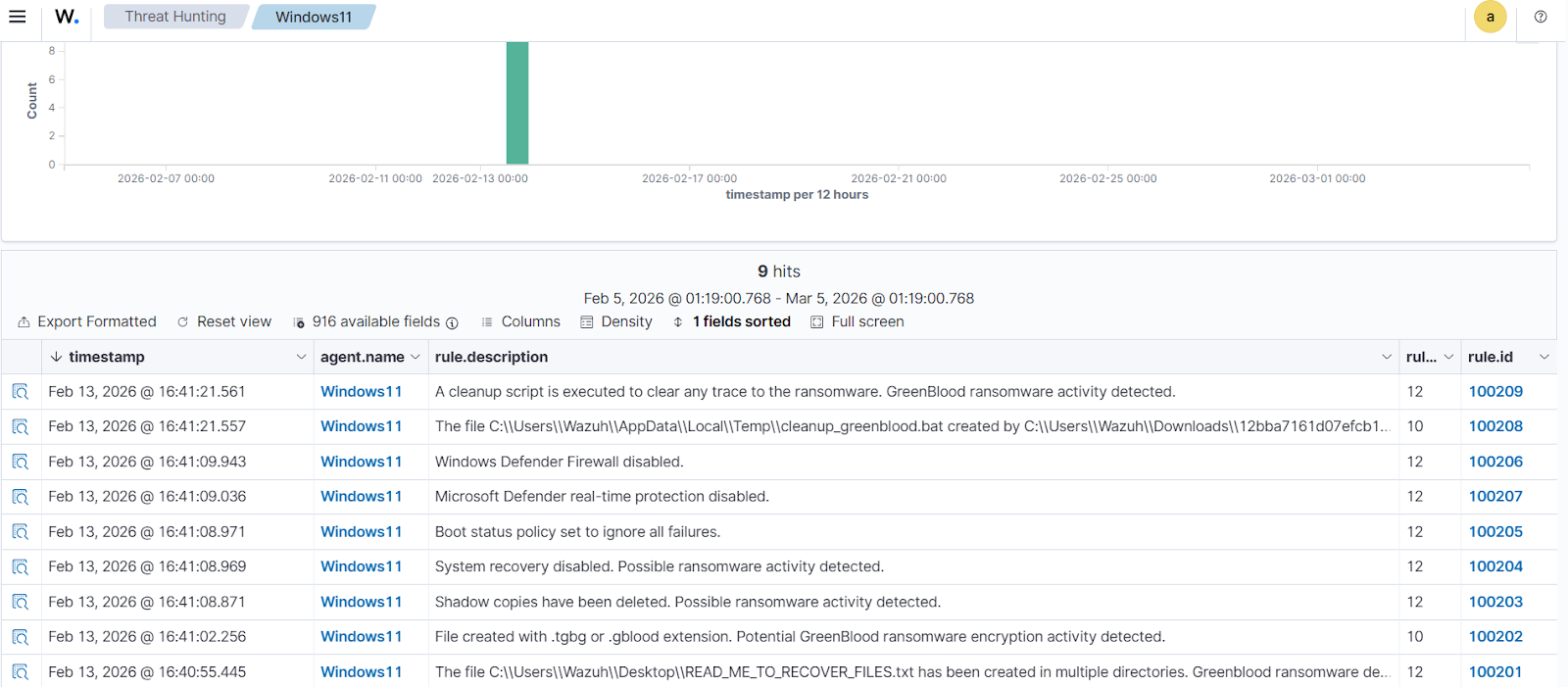
- Rule ID
100201is triggered when the ransomware drops a ransom note with the file nameREAD_ME_TO_RECOVER_FILES.txtorHOW_TO_RECOVER_FILES.txtin various folders. - Rule ID
100202is triggered when the ransomware encrypts files and appends the.tgbgor.gbloodextension to them. - Rule ID
100203is triggered when the ransomware deletes all the shadow copies of the files and folders on the Windows endpoint. - Rule ID
100204is triggered when ransomware disables the automatic startup repair feature on the Windows endpoint. - Rule ID
100205is triggered when the ransomware sets the boot status policy to ignore all failures. - Rule ID
100206is triggered when the ransomware disables Windows Defender firewall. - Rule ID
100207is triggered when the ransomware disables Microsoft Defender real-time protection. - Rule ID
100208is triggered when the ransomware adds thecleanup_greenblood.batfile to theTempfolder. - Rule ID
100209is triggered when the ransomware executes thecleanup_greenblood.batfile to clear any trace of ransomware execution.
- Click Reload to apply the changes. Click Confirm when prompted.
Detection results
Perform the following steps to view the alerts on the Wazuh dashboard.
- Click Threat Hunting > Explore agent, then select the Windows agent. Then select the Events tab.
- Click + Add filter. Then filter for
rule.groupsin the Field field. Selectis one ofin the Operator field. - Add the values
greenbloodandransomwarein the Values field. - Click Save.
The alerts below are generated on the Wazuh dashboard when GreenBlood ransomware is executed on a Windows endpoint.
Removing malicious files using YARA integration
A proactive malware defense strategy relies on early visibility into file system changes across monitored endpoints. By monitoring file creation and modification activity, security teams can detect suspicious changes and respond before malicious payloads are executed. The Wazuh File Integrity Monitoring (FIM) module provides this visibility by continuously monitoring selected directories and reporting newly added or modified files, helping to detect early signs of compromise. The effectiveness of file monitoring is further enhanced when it is paired with external threat intelligence and malware analysis engines such as YARA and VirusTotal. These integrations allow organizations to leverage regularly updated detection rules and signatures to automatically identify both established and newly emerging threats.
In our scenario, when a suspicious file is detected, the Wazuh Active Response module automatically initiates a YARA scan, evaluates the file, and removes it if it’s confirmed as malicious. This approach shifts security operations from post-incident remediation to proactive prevention, reducing the window of opportunity for threats to execute.
In this section, we demonstrate how to remove malicious files by leveraging Wazuh integration with YARA.
Windows endpoint
Perform the steps below to configure the monitored endpoint.
- Install the following prerequisites:
- Python 3.12.2 or later (with pip pre-installed). Ensure the ” Add Python.exe to PATH option is checked during installation.
- Microsoft Visual C++ 2015 Redistributable
Note
Run PowerShell as an Administrator.
- Download YARA:
> Invoke-WebRequest -Uri https://github.com/VirusTotal/yara/releases/download/v4.5.5/yara-4.5.5-2368-win64.zip -OutFile yara-v4.5.5-win64.zip
- Extract the downloaded YARA file:
> Expand-Archive yara-v4.5.5-win64.zip
- Create a yara folder in the
C:\Program Files (x86)\ossec-agent\active-response\bin\folder and copy the YARA binary into it:
> mkdir 'C:\Program Files (x86)\ossec-agent\active-response\bin\yara\'
> cp .\yara-v4.5.5-win64\yara64.exe 'C:\Program Files (x86)\ossec-agent\active-response\bin\yara\'
- To download the YARA rules, use the
piputility to installvalhallaAPI. This API retrieves the public signature-based YARA ruleset:
> pip install valhallaAPI
- Create a file
download_yara_rules.py, and paste the below script into it:
from valhallaAPI.valhalla import ValhallaAPI
v = ValhallaAPI(api_key="1111111111111111111111111111111111111111111111111111111111111111")
response = v.get_rules_text()
with open('yara_rules.yar', 'w') as fh:
    fh.write(response)
- Run the
download_yara_rules.pyscript file to download YARA rules:
> python download_yara_rules.py
- Create
C:\Program Files (x86)\ossec-agent\active-response\bin\yara\rules\folder and copy the rules into it:
> mkdir 'C:\Program Files (x86)\ossec-agent\active-response\bin\yara\rules\'
> cp yara_rules.yar 'C:\Program Files (x86)\ossec-agent\active-response\bin\yara\rules\'
- Edit the downloaded YARA rule file
C:\Program Files (x86)\ossec-agent\active-response\bin\yara\rules\yara_rules.yarand add the following GreenBlood ransomware rule:
rule GreenBlood_ransomware {
   meta:
      description = "Detect GreenBlood ransomware"
      author = "Anthony Faruna"
      reference = "https://github.com/Neo23x0/yarGen"
      date = "2026-02-11"
   strings:
      $x1 = "morebuf={pc:: no frame (sp=runtime: frame ts set in timertraceback stuckunexpected kindadvertise errorkey has expirednetwork is " ascii
      $x2 = "wmic shadowcopy deletecleanup_greenblood.batinteger divide by zeroCountPagesInUse (test)ReadMetricsSlow (test)trace reader (bloc" ascii
      $x3 = " (types from different scopes)notetsleep - waitm out of syncfailed to get system page sizeruntime: found in object at *( in prep" ascii
      $x4 = "sched={pc:, gp->status= pluginpath= : unknown pc  called from runtime: pid=level 3 resetsrmount errortimer expiredexchange fullR" ascii
      $x5 = "invalid exchangeno route to hostinvalid argumentmessage too longobject is remoteremote I/O errorSetFilePointerExOpenProcessToken" ascii
      $x6 = "!!!READ_ME_TO_RECOVER_FILES!!!.txtNoDefaultCurrentDirectoryInExePathslice bounds out of range [:%x:%y]slice bounds out of range " ascii
      $x7 = "runtime: sp=abi mismatchwrong timersinvalid slothost is downillegal seekGetLengthSidGetLastErrorGetStdHandleGetTempPathWLoadLibr" ascii
      $x8 = "SYSTEMROOT=assistQueuenetpollInitreflectOffsglobalAllocmSpanManualstart traceclobberfreegccheckmarkscheddetailunspecifiedcgocall" ascii
      $x9 = "tried to trace goroutine with invalid or unsupported statussync: WaitGroup is reused before previous Wait has returnedreflect: r" ascii
      $x10 = "lock: sleeping while lock is availableP has cached GC work at end of mark terminationfailed to acquire lock to start a GC transi" ascii
      $x11 = "unlock: lock countprogToPointerMask: overflow/gc/cycles/forced:gc-cycles/memory/classes/other:bytes/memory/classes/total:bytesfa" ascii
      $x12 = "bytes.Buffer: reader returned negative count from Readinternal error: polling on unsupported descriptor typemheap.freeSpanLocked" ascii
      $x13 = "bindm in unexpected GOOSruntime: mp.lockedInt = runqsteal: runq overflowunexpected syncgroup setdouble traceGCSweepStartbad use " ascii
      $x14 = "lock: lock countbad system huge page sizearena already initialized to unused region of span bytes failed with errno=runtime: Vir" ascii
      $x15 = "stopm spinning nmidlelocked= needspinning=randinit twicestore64 failedsemaRoot queuebad allocCountbad span statestack overflow u" ascii
      $x16 = "runtime.newosprocruntime/internal/internal/runtime/thread exhaustionlocked m0 woke upentersyscallblock spinningthreads=gp.waitin" ascii
      $x17 = " runqueue= stopwait= runqsize= gfreecnt= throwing= spinning=atomicand8float64nanfloat32nanException  ptrSize=  targetpc= until p" ascii
      $x18 = "runtime: typeBitsBulkBarrier without type/memory/classes/metadata/mspan/free:bytesruntime.SetFinalizer: second argument is gcSwe" ascii
      $x19 = "[*] Encryption process completed!release of handle with refcount 0bytes.Buffer.Grow: negative countslice bounds out of range [%x" ascii
      $x20 = "span set block with unpopped elements found in resetruntime: GetQueuedCompletionStatusEx failed (errno= runtime: NtCreateWaitCom" ascii
      $x21 = "ll.gbloodwindows.%d.tmpfloat32float64runningwsarecvwsasendconnectopenbsdlookup writetoUpgradeHEADERSsocks5hReferer flags= len=%d (conn) %v=v,expiresrefererrefreshGODEBUGname" ascii
      $x22 = "HOW_TO_RECOVER_FILES.txt" ascii
      $x23 = "temp%s-%d.tgbgfalse<nil>ErrorfilesroutewriteclosechdirLstatdefersweeptestRtestWexecWhchanexecRschedsudogtimergscanmheaptracepanicsleep cnt=gcing MB,  got=" ascii
      $x24 = "Files encrypted: .tgbg extension" ascii
      $x25 = "All your important files (documents, photos, databases, etc.) have been encrypted 'enc++'\\nusing military-grade AES-256 encryption.\\n\\nYour unique identifiers:" ascii
   condition:
      uint16(0) == 0x5a4d and filesize < 11000KB and
      1 of ($x*)
}
- Monitor the
Downloadsfolder of all users in real-time by adding the below configuration within the<syscheck>block of theC:\Program Files (x86)\ossec-agent\ossec.conffile:
<directories realtime="yes">C:\Users\*\Downloads</directories>
Note
In this blog post, we only monitored the Downloads folder of all users. However, you can configure other directories you wish to monitor.
- Create a batch file
yara.batin theC:\Program Files (x86)\ossec-agent\active-response\bin\folder and copy the below script into it. The Wazuh Active Response module runs this script to perform YARA scans for malware detection and removal:
Note
This script is a proof of concept (PoC). Review and validate it to ensure it meets the operational and security requirements of your environment.
:: This script deletes the GreenBlood ransomware executable and other malicious files matched by the YARA Rules

@echo off
setlocal enableDelayedExpansion
reg Query "HKLM\Hardware\Description\System\CentralProcessor\0" | find /i "x86" > NUL && SET OS=32BIT || SET OS=64BIT
if %OS%==32BIT (
    SET log_file_path="%programfiles%\ossec-agent\active-response\active-responses.log"
)
if %OS%==64BIT (
    SET log_file_path="%programfiles(x86)%\ossec-agent\active-response\active-responses.log"
)
set input=
for /f "delims=" %%a in ('PowerShell -command "$logInput = Read-Host; Write-Output $logInput"') do (
    set input=%%a
)
set json_file_path="C:\Program Files (x86)\ossec-agent\active-response\stdin.txt"
set syscheck_file_path=
echo %input% > %json_file_path%
FOR /F "tokens=* USEBACKQ" %%F IN (`Powershell -Nop -C "(Get-Content 'C:\Program Files (x86)\ossec-agent\active-response\stdin.txt'|ConvertFrom-Json).parameters.alert.syscheck.path"`) DO (
SET syscheck_file_path=%%F
)
set yara_exe_path="C:\Program Files (x86)\ossec-agent\active-response\bin\yara\yara64.exe"
set yara_rules_path="C:\Program Files (x86)\ossec-agent\active-response\bin\yara\rules\yara_rules.yar"
echo %syscheck_file_path% >> %log_file_path%
for /f "delims=" %%a in ('powershell -command "& \"%yara_exe_path%\" \"%yara_rules_path%\" \"%syscheck_file_path%\""') do (
    echo wazuh-yara: INFO - Scan result: %%a >> %log_file_path%
    :: Deleting the scanned file.
	del /f "%syscheck_file_path%" >nul 2>&1
if exist "%syscheck_file_path%" (
    echo wazuh-yara: INFO - Error removing threat: %%a >> %log_file_path%
) else (
    echo wazuh-yara: INFO - Successfully deleted: %%a >> %log_file_path%
)
 )
exit /b
- Restart the Wazuh agent to apply the changes:
> Restart-Service -Name wazuh
Wazuh dashboard
Perform the following steps on the Wazuh dashboard to configure custom decoders, rules, and the Wazuh Active Response module on the Wazuh server.
- Click on the upper left menu ☰ and navigate to Server management > Decoders.
- Click Manage decoders files.
- Search for and edit the
local_decoder.xmlfile.

- Add the following decoders to the
local_decoder.xmlfile to decode the logs generated by the Active Response script:
<decoder name="yara_decoder">
    <prematch>wazuh-yara:</prematch>
</decoder>

<decoder name="yara_decoder1">
    <parent>yara_decoder</parent>
    <regex>wazuh-yara: (\S+) - Scan result: (\S+) (\S+)</regex>
    <order>log_type, yara_rule, yara_scanned_file</order>
</decoder>

<decoder name="yara_decoder1">
    <parent>yara_decoder</parent>
    <regex>wazuh-yara: (\S+) - Successfully deleted: (\S+) (\S+)</regex>
    <order>log_type, yara_rule, yara_scanned_file</order>
</decoder>

<decoder name="yara_decoder1">
    <parent>yara_decoder</parent>
    <regex>wazuh-yara: (\S+) - Error removing threat: (\S+) (\S+)</regex>
    <order>log_type, yara_rule, yara_scanned_file</order>
</decoder>
- Click Save and Reload to apply the changes.
- Click on the upper left menu ☰ and navigate to Server management > Rules.
- Click Manage rules files.
- Search for and edit the
local_rules.xmlfile.

- Add the custom rules below to it:
<group name= "syscheck,">
  <rule id="100210" level="7">
    <if_sid>550</if_sid>
    <field name="file" type="pcre2">(?i)C:\\Users.+Downloads</field>
    <description>File modified in the Downloads folder.</description>
  </rule>

  <rule id="100211" level="7">
    <if_sid>554</if_sid>
    <field name="file" type="pcre2">(?i)C:\\Users.+Downloads</field>
    <description>File added to the Downloads folder.</description>
  </rule>
</group>

<!--  Rule for the decoder (yara_decoder) -->
<group name="yara,">
  <rule id="100212" level="0">
    <decoded_as>yara_decoder</decoded_as>
    <description>Yara grouping rule</description>
  </rule>

<!--  YARA scan detects a positive match -->
  <rule id="100213" level="12">
    <if_sid>100212</if_sid>
    <match type="pcre2">wazuh-yara: INFO - Scan result: </match>
    <description>File "$(yara_scanned_file)" is a ransomware. Yara rule: $(yara_rule)</description>
  </rule>

<!--  Wazuh successfully deletes malware with a positive match -->
  <rule id="100214" level="12">
    <if_sid>100212</if_sid>
    <match type="pcre2">wazuh-yara: INFO - Successfully deleted: </match>
    <description>Successfully removed "$(yara_scanned_file)" by active response due to YARA rule $(yara_rule) positive match</description>
  </rule>

<!--  Wazuh encounters an error when deleting malware with a positive match -->
  <rule id="100215" level="12">
    <if_sid>100212</if_sid>
    <match type="pcre2">wazuh-yara: INFO - Error removing threat: </match>
    <description>Error removing "$(yara_scanned_file)". YARA rule: $(yara_rule)</description>
  </rule>
</group>
Where:
100210is triggered when a file is modified in theDownloadsfolder.100211is triggered when a file is added to theDownloadsfolder.100212is the base rule for detecting YARA-related events.100213is triggered when YARA scans and detects a malicious file.100214is triggered when the executable has been successfully removed by the Wazuh Active Response module.100215is triggered when the executable is not removed successfully by the Wazuh Active Response module.
- Click Save and then Reload to apply the changes.
- Click on the upper left menu ☰ and navigate to Server management > Settings.
- Click Edit configuration to edit the
ossec.confof the Wazuh manager. - Add the following configuration within the
<ossec_config>block to trigger an active response to rule ID100210or100211:
  <command>
    <name>yara</name>
    <executable>yara.bat</executable>
    <timeout_allowed>no</timeout_allowed>
  </command>

  <active-response>
    <command>yara</command>
    <location>local</location>
    <rules_id>100210,100211</rules_id>
  </active-response>
The Wazuh Active Response module runs the yara.bat script when a file is added or modified in the Downloads folder.
Where:
<name>specifies thatyarais the name of the command being called in the<active-response>block.<executable>specifies thatyara.batis the executable file to run.<command>specifies the command that the Active Response module will use.- The
<active response>block calls the<command>block when the rule ID100210or100211is triggered. <location>specifies where the active response script is executed.
- Click Save and then Restart Manager to apply the changes.
Alerts visualization
When the GreenBlood ransomware executable is added to the Downloads folder of the monitored Windows endpoint, the Wazuh Active Response module removes it successfully. This action generates alerts on the Wazuh dashboard.
To view these alerts:
- Navigate to Threat intelligence > Threat Hunting.
- Switch to the Events tab.
- Click + Add filter. Then filter by
rule.id - Select
is one ofin the Operator field. - Search and select rule IDs
100210,100211,100213,100214, and553in the Values field. - Click Save.

Conclusion
In this blog post, we demonstrated how to detect and respond to GreenBlood ransomware on a monitored Windows endpoint. We enhanced endpoint visibility by integrating Sysmon logs and developed custom Wazuh detection rules to identify the malicious behaviors associated with GreenBlood ransomware. In addition, we illustrated how to remove malicious files by leveraging YARA integration together with the Wazuh Active Response module.
Wazuh is a free and open source security platform that provides comprehensive defensive capabilities to protect your infrastructure against evolving threats. If you have questions about this blog post or need assistance with Wazuh, we encourage you to join our community, where our team actively engages and is ready to support you.