
Access control protects the confidentiality, integrity, and availability of systems and data. It is important because attackers frequently exploit legitimate accounts, excessive permissions, and weak policy enforcement to blend into normal operations. While access control systems are designed to prevent unauthorized actions, the decisions they generate, such as denied requests, privilege escalations, or anomalous authorization patterns, produce valuable security telemetry. When logged and monitored, these signals can reveal early indicators of compromise, policy misconfigurations, insider threats, or configuration drift that might otherwise remain undetected.
Open Policy Agent (OPA) is a general-purpose policy engine that evaluates policies against structured input from applications or services. It is commonly used to define and manage policies for access control, data filtering, and compliance checks across distributed systems. Wazuh is an open source security platform that provides real-time security monitoring and incident response across on-premises and cloud environments.
This blog post demonstrates how Wazuh can analyze Open Policy Agent logs to convert access control activity into searchable, actionable security telemetry.
Infrastructure
We use the following infrastructure to demonstrate this integration:
- A prebuilt, ready-to-use Wazuh OVA 4.14.2, which includes the Wazuh central components (Wazuh server, Wazuh indexer, and Wazuh dashboard). Follow this guide to download and set up the Wazuh virtual machine.
- An Ubuntu 24.04 endpoint with the Wazuh agent 4.14.2 installed and enrolled in the Wazuh server. This endpoint runs Open Policy Agent as a local service and hosts a sample application used to generate access control events.
Configuration
Open Policy Agent (OPA) is used to define and evaluate access control policies. In this integration, the sample application exposes an API that delegates access control decisions to OPA instead of enforcing them directly in application code. When an API endpoint in the application is accessed, the application sends OPA a structured JSON document describing the request context. This context includes attributes such as the user role, HTTP method, request path, device posture, and source IP address.
OPA evaluates this input against policies written in the Rego language and returns a decision that indicates whether the action is allowed or denied. The application is responsible for enforcing the decision returned by OPA. With decision logging enabled, OPA generates structured decision logs for each policy evaluation. These decision logs include the evaluated policy, input attributes, decision outcome, reason, and metadata.
Wazuh ingests the OPA decision logs and treats them as security telemetry. The Wazuh agent monitors the log file, and the Wazuh server applies detection rules to identify suspicious or unauthorized access patterns and generate alerts. This integration also uses the Wazuh File integrity monitoring (FIM) module to monitor OPA policy files. FIM detects when policy files are created, modified, or deleted on the monitored endpoint.
We perform the following steps:
On the Ubuntu endpoint:
- Deploying a sample application
- Installing OPA
- Creating access control policies
- Starting OPA and enabling decision logging
- Configuring the Wazuh agent to monitor decision logs
- Configuring Wazuh FIM to monitor OPA policy files
On the Wazuh dashboard:
Ubuntu
Perform the steps below on the Ubuntu endpoint.
Deploying a sample application
We use a Python-based application to generate access events for this demonstration. The application queries OPA to determine whether a request should be allowed or denied and enforces the result locally. The application logs the result returned by OPA for each request, and the Wazuh agent ingests these logs for detection and alerting.
Note
This is a minimal lab component that only generates allow or deny events for monitoring.
- Install the required packages:
$ sudo apt update
$ sudo apt install -y python3-venv python3-pip
- Create a directory for the application and change ownership to the current user:
$ sudo mkdir -p /opt/sample-app
$ sudo chown -R $(whoami) /opt/sample-app
- Create and activate a virtual environment. Then, install the Python dependencies:
$ python3 -m venv /opt/sample-app/.venv
$ source /opt/sample-app/.venv/bin/activate
$ pip install --upgrade pip
$ pip install fastapi uvicorn requests
- Create the Python script
app.pyin the/opt/sample-app/directory and add the content below. This script queries OPA for every request and logs the resulting decision:
from fastapi import FastAPI, Request, HTTPException
import requests
import json
import os
from datetime import datetime

OPA_URL = os.getenv("OPA_URL", "http://localhost:8181")
# OPA listens on port 8181 by default. Refer to the OPA documentation for more information

app = FastAPI(title="Sample API")

LOG_DIR = "/var/log/sample-app"
LOG_FILE = f"{LOG_DIR}/app.log"

def to_bool(value: str) -> bool:
    return str(value).strip().lower() in {"1", "true", "yes", "y"}

def app_log(message: str) -> None:
    try:
        os.makedirs(LOG_DIR, exist_ok=True)
        with open(LOG_FILE, "a") as f:
            f.write(f"{datetime.utcnow().isoformat()}Z {message}\n")
    except Exception:
        pass

def opa_query(policy: str, input_data: dict) -> dict:
    url = f"{OPA_URL}/v1/data/{policy}"
    payload = {"input": input_data}
    r = requests.post(url, json=payload, timeout=3)
    r.raise_for_status()
    return r.json()

def build_input(request: Request) -> dict:
    headers = request.headers

    user_name = headers.get("x-user", "unknown")
    user_role = headers.get("x-user-role", "guest")

    device_trusted = to_bool(headers.get("x-device-trusted", "false"))
    device_mfa = to_bool(headers.get("x-mfa", "false"))

    # Use X-Forwarded-For if present.
    xff = headers.get("x-forwarded-for")
    client_ip = xff.split(",")[0].strip() if xff else request.client.host

    return {
        "user": {"name": user_name, "role": user_role},
        "method": request.method,
        "path": request.url.path,
        "device": {"trusted": device_trusted, "mfa": device_mfa},
        "ip": client_ip
    }

def enforce(policy: str, request: Request) -> None:
    input_data = build_input(request)
    resp = opa_query(policy, input_data)
    decision = resp.get("result", {}).get("decision", {})

    allow = decision.get("allow", False)
    reason = decision.get("reason", "unknown")
    risk = decision.get("risk", "unknown")

    app_log(f"policy={policy} allow={allow} reason={reason} risk={risk} input={json.dumps(input_data)}")

    if not allow:
        raise HTTPException(status_code=403, detail={"reason": reason, "risk": risk})

@app.get("/admin/settings")
async def admin_settings(request: Request):
    enforce("admin_access", request)
    return {"status": "ok", "message": "Admin settings accessed."}

@app.delete("/records/{record_id}")
async def delete_record(record_id: int, request: Request):
    enforce("api_access", request)
    return {"status": "ok", "record_id": record_id, "message": "Record deleted."}

@app.get("/sensitive/records/{record_id}")
async def sensitive_record(record_id: int, request: Request):
    enforce("api_access", request)
    return {"status": "ok", "record_id": record_id, "message": "Sensitive record accessed."}

@app.get("/portal")
async def portal(request: Request):
    enforce("device_access", request)
    return {"status": "ok", "message": "Portal access granted."}

@app.get("/internal")
async def internal(request: Request):
    enforce("ip_allowlist", request)
    return {"status": "ok", "message": "Internal access granted."}
- Start the application API, which listens on port
8000:
$ python3 -m uvicorn app:app --host 0.0.0.0 --port 8000 --app-dir /opt/sample-app
INFO:     Started server process [76281]
INFO:     Waiting for application startup.
INFO:     Application startup complete.
INFO:     Uvicorn running on http://0.0.0.0:8000 (Press CTRL+C to quit)
The application exposes the following endpoints, each designed to generate a specific type of access control activity for monitoring:
/admin/settings– Administrative access attempts/records/{id} (DELETE)– Sensitive operation attempts/sensitive/records/{id}– Access attempts to protected resources/portal– Device-based access attempts/internal– Network-restricted access attempts
Installing OPA
- Run the following command to create the
/opt/opadirectory and download the OPA binary:
$ sudo mkdir /opt/opa
$ curl -L -o /opt/opa/opa https://openpolicyagent.org/downloads/latest/opa_linux_amd64
- Modify the file permissions and make it executable:
$ sudo chmod 755 /opt/opa/opa
- Add the OPA binary location to the PATH environment variable in the
.bashrcfile.
$ echo 'export PATH="$PATH:/opt/opa/"' >> ~/.bashrc
$ source ~/.bashrc
- Verify the installation:
$ opa version
Version: 1.13.1
Build Commit: ...
Creating access control policies
OPA uses Rego, a declarative policy language, to evaluate access requests. The policy files in this post are configured to determine whether a request is allowed or denied based on attributes such as user role, HTTP method, device posture, or source IP address. Each Rego policy returns a decision object with allow, reason, and risk fields, which OPA includes in its decision logs. This provides the context Wazuh requires to identify and categorize security incidents.
Create a directory to store policy files:
$ sudo mkdir -p /opt/opa/policies
Administrative access policy
The /admin/settings endpoint simulates an administrative action in the sample application. In this example, access to the endpoint is restricted to users with administrative privileges. This policy evaluates the user role provided by the application. Only users with the admin role receive an allowed decision; all other users are denied.
Create the file admin_access_policy.rego in the /opt/opa/policies/ directory and add the following content:
package admin_access

default decision = {
  "allow": false,
  "reason": "admin_access_denied",
  "risk": "medium"
}

decision = {
  "allow": true,
  "reason": "admin_access_allowed",
  "risk": "low"
} if {
  input.user.role == "admin"
}
API access policy
The sample application exposes API endpoints that simulate sensitive operations, such as deleting records and accessing protected resources. This policy enforces the following rules:
DELETErequests are only allowed for theadminrole.- Non-admin requests to paths under the
/sensitiveendpoint are denied.
Create the file api_access_policy.rego in the /opt/opa/policies/ directory and add the following content:
package api_access

default decision = {
  "allow": false,
  "reason": "api_not_authorized",
  "risk": "medium"
}

# Admins may perform DELETE requests
decision = {
  "allow": true,
  "reason": "admin_delete_allowed",
  "risk": "low"
} if {
  input.user.role == "admin"
  input.method == "DELETE"
}

# Non-admin access to sensitive endpoints
decision = {
  "allow": false,
  "reason": "sensitive_endpoint_blocked",
  "risk": "high"
} if {
  input.user.role != "admin"
  startswith(input.path, "/sensitive/")
}
Device access policy
The /portal endpoint requires a verified device posture for access. This policy evaluates device attributes provided by the application and permits access only when the request originates from a trusted device with multi-factor authentication (MFA) enabled.
Create the file device_access_policy.rego in the /opt/opa/policies/ directory and add the following content:
package device_access

default decision = {
  "allow": false,
  "reason": "device_not_trusted",
  "risk": "high"
}

decision = {
  "allow": true,
  "reason": "trusted_device_access",
  "risk": "low"
} if {
  input.device.mfa == true
  input.device.trusted == true
}
IP allow list policy
The /internal endpoint represents access to internal resources that should only be reachable from approved network ranges. This policy evaluates the source IP address of the request against approved CIDR ranges: 10.0.0.0/8 and 192.168.1.0/24.
Create the file ip_allowlist_policy.rego in the /opt/opa/policies/ directory and add the following content:
package ip_allowlist

allowed_ips = {"10.0.0.0/8", "192.168.1.0/24"}

default decision = {
  "allow": false,
  "reason": "ip_not_allowed",
  "risk": "medium"
}

decision = {
  "allow": true,
  "reason": "ip_allowed",
  "risk": "low"
} if {
  input.ip in allowed_ips
}
Starting OPA and enabling decision logging
- Create a directory
opain/var/log/to store OPA decisions:
$ sudo mkdir -p /var/log/opa
- Change the ownership of the
/var/log/opadirectory so the current user can write OPA decision logs:
Note
In this blog post, ownership of /var/log/opa is temporarily granted to the current user to allow OPA to write decision logs. In production deployments, OPA should run under a dedicated service account with appropriately restricted permissions.
$ sudo chown $(whoami) /var/log/opa
- Start the OPA server with the policy directory and decision logging enabled. This command enables OPA to generate structured decision logs in JSON format and redirects the output to
/var/log/opa/decision_logs.json, which is monitored by the Wazuh agent.
$ opa run --server /opt/opa/policies --set decision_logs.console=true > /var/log/opa/decision_logs.json 2>&1 &
Configuring the Wazuh agent to monitor decision logs
Configure the Wazuh agent to monitor the OPA decision log stored at /var/log/opa/decision_logs.json.
- Add the following configuration in the
<ossec_config>block in/var/ossec/etc/ossec.conf:
<localfile>
  <log_format>json</log_format>
  <location>/var/log/opa/decision_logs.json</location>
</localfile>
- Restart the Wazuh agent to apply the changes:
$ sudo systemctl restart wazuh-agent
Configuring Wazuh FIM to monitor OPA policy files
OPA policies define how access control decisions are evaluated across applications. Unauthorized or unexpected changes to these policies can significantly alter access behavior, potentially allowing actions that were previously denied.
The Wazuh File integrity monitoring (FIM) module provides continuous visibility into changes made to files and directories on monitored endpoints. By monitoring the directory that stores policy files /opt/opa/policies/, you can detect when policies are created, modified, or deleted, and generate alerts for review by security teams.
Perform the following steps to monitor the /opt/opa/policies/ directory that stores OPA policies:
- Add the following configuration inside the
<syscheck>block of the Wazuh agent configuration file/var/ossec/etc/ossec.conf:
<directories realtime="yes" report_changes="yes">/opt/opa/policies</directories>
- Restart the Wazuh agent to apply the changes:
$ sudo systemctl restart wazuh-agent
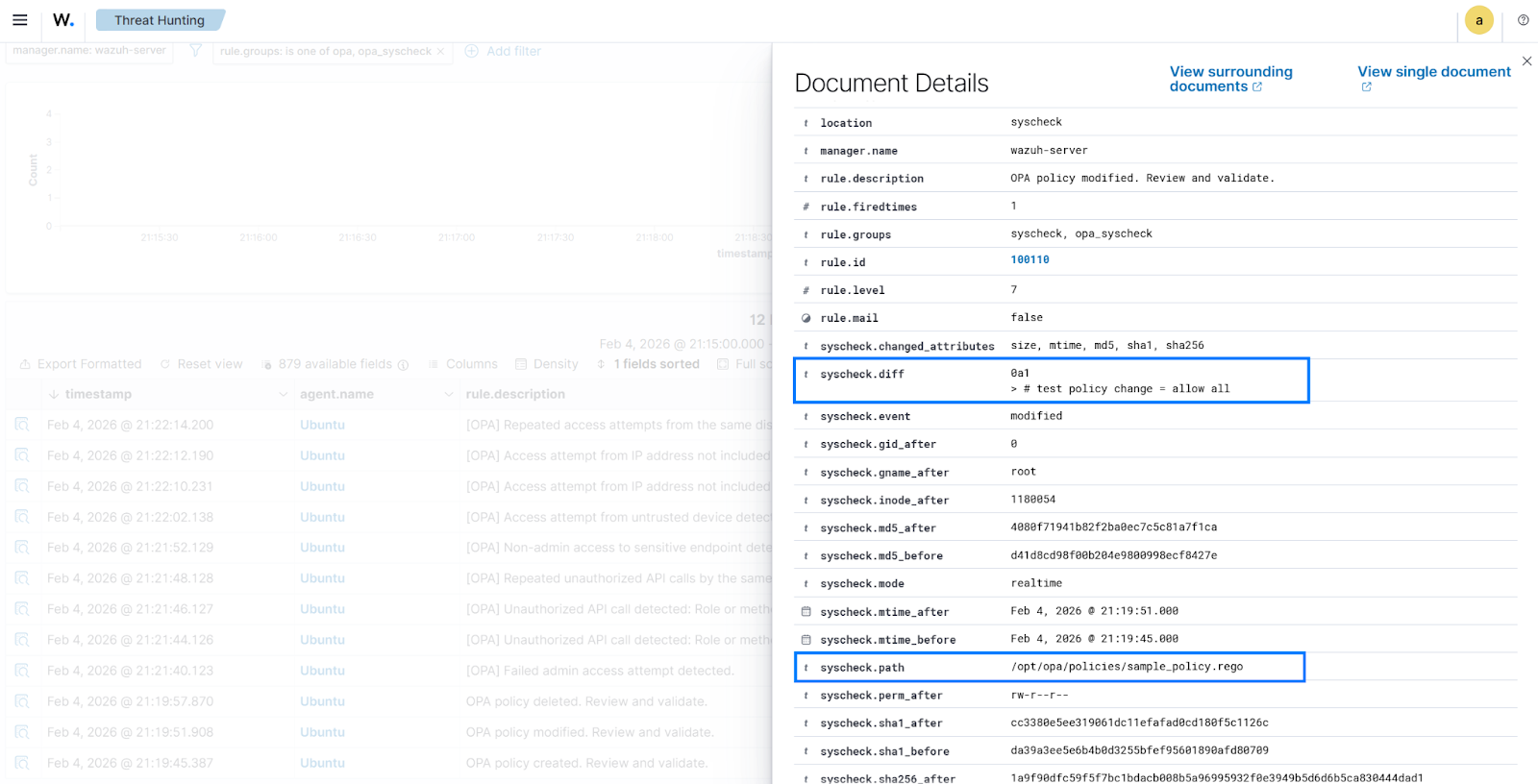
Once the Wazuh FIM module is enabled, alerts are generated when a policy file changes. For example, modifying a Rego policy file or adding a new policy under /opt/opa/policies generates an event indicating the affected file, changes made, and timestamp.
Wazuh dashboard
Perform the steps below on the Wazuh dashboard:
Creating custom rules for OPA
OPA generates logs in JSON format, so the built-in Wazuh JSON decoder can parse them without requiring custom decoders. Perform the steps below to add rules to the Wazuh server for analysis.
- Navigate to Server management > Rules.
- Click + Add new rules file.
- Copy and paste the rules below and name the file
opa_rules.xml.
<group name="opa,access_control,">
  <!-- Specific Unauthorized reason detection -->
  <rule id="100100" level="3">
    <decoded_as>json</decoded_as>
    <field name="type">openpolicyagent.org/decision_logs</field>
    <description>[OPA] Decision log event.</description>
  </rule>

  <rule id="100101" level="10">
    <if_sid>100100</if_sid>
    <field name="result.decision.allow">false</field>
    <field name="result.decision.reason">admin_access_denied</field>
    <description>[OPA] Failed admin access attempt detected.</description>
    <options>no_full_log</options>
    <mitre>
      <id>T1078</id>
    </mitre>
  </rule>

  <!-- Unauthorized API access based on role/method -->
  <rule id="100102" level="10">
    <if_sid>100100</if_sid>
    <field name="path">api_access</field>
    <field name="result.decision.allow">false</field>
    <field name="result.decision.reason">api_not_authorized</field>
    <description>[OPA] Unauthorized API call detected: Role or method not allowed.</description>
    <options>no_full_log</options>
    <mitre>
      <id>T1190</id>
    </mitre>
  </rule>

  <!-- Repeated unauthorized API access attempts by the same user -->
  <rule id="100103" level="14" frequency="3" timeframe="100">
    <if_matched_sid>100102</if_matched_sid>
    <same_field>input.user.role</same_field>
    <description>[OPA] Repeated unauthorized API calls by the same role detected.</description>
    <options>no_full_log</options>
    <mitre>
      <id>T1190</id>
    </mitre>
  </rule>

  <!-- Non-admin access to sensitive endpoint detected by OPA -->
  <rule id="100104" level="12">
    <if_sid>100100</if_sid>
    <field name="path">api_access</field>
    <field name="result.decision.allow">false</field>
    <field name="result.decision.reason">sensitive_endpoint_blocked</field>
    <description>[OPA] Non-admin access to sensitive endpoint detected.</description>
    <options>no_full_log</options>
    <mitre>
      <id>T1078</id>
    </mitre>
  </rule>

  <!-- Access attempt from untrusted device -->
  <rule id="100105" level="12">
    <if_sid>100100</if_sid>
    <field name="path">device_access</field>
    <field name="result.decision.allow">false</field>
    <field name="result.decision.reason">device_not_trusted</field>
    <description>[OPA] Access attempt from untrusted device detected.</description>
    <options>no_full_log</options>
    <mitre>
      <id>T1078</id>
    </mitre>
  </rule>

  <!-- Access attempt from IP address not in the allow list -->
  <rule id="100106" level="10">
    <if_sid>100100</if_sid>
    <field name="path">ip_allowlist</field>
    <field name="result.decision.allow">false</field>
    <field name="result.decision.reason">ip_not_allowed</field>
    <description>[OPA] Access attempt from IP address not included in the allowed list detected.</description>
    <options>no_full_log</options>
  </rule>

  <!-- Repeated access attempts from the same disallowed IP -->
  <rule id="100107" level="14" frequency="3" timeframe="100">
    <if_matched_sid>100106</if_matched_sid>
    <same_field>input.ip</same_field>
    <description>[OPA] Repeated access attempts from the same disallowed IP address detected.</description>
    <options>no_full_log</options>
    <mitre>
      <id>T1078</id>
    </mitre>
  </rule>
</group>
Where:
- Rule
100100groups all OPA events. It serves as a base rule for correlation and does not represent a security alert on its own. - Rule
100101is triggered when OPA detects a failed admin access attempt. - Rule
100102is triggered when OPA detects an unauthorized API call. - Rule
100103is triggered when OPA detects multiple unauthorized API calls from the same role. - Rule
100104is triggered when OPA detects a non-admin access attempt to a sensitive endpoint. - Rule
100105is triggered when OPA detects an access attempt from an untrusted device. - Rule
100106is triggered when OPA detects an access attempt from an IP address not in the allow list. - Rule
100107is triggered when multiple access attempts from the same IP are detected.
- Click Save and Reload when prompted to apply the changes.
Creating custom rules for FIM
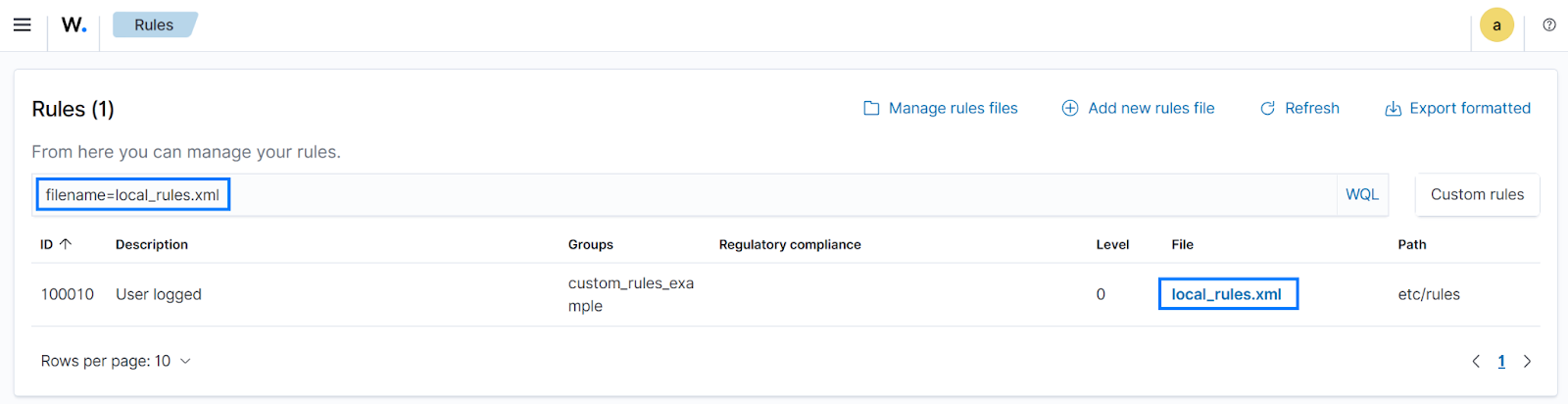
- Navigate to Server management > Rules.
- Apply the filter filename=local_rules.xml and hit Enter to locate the local_rules.xml file.
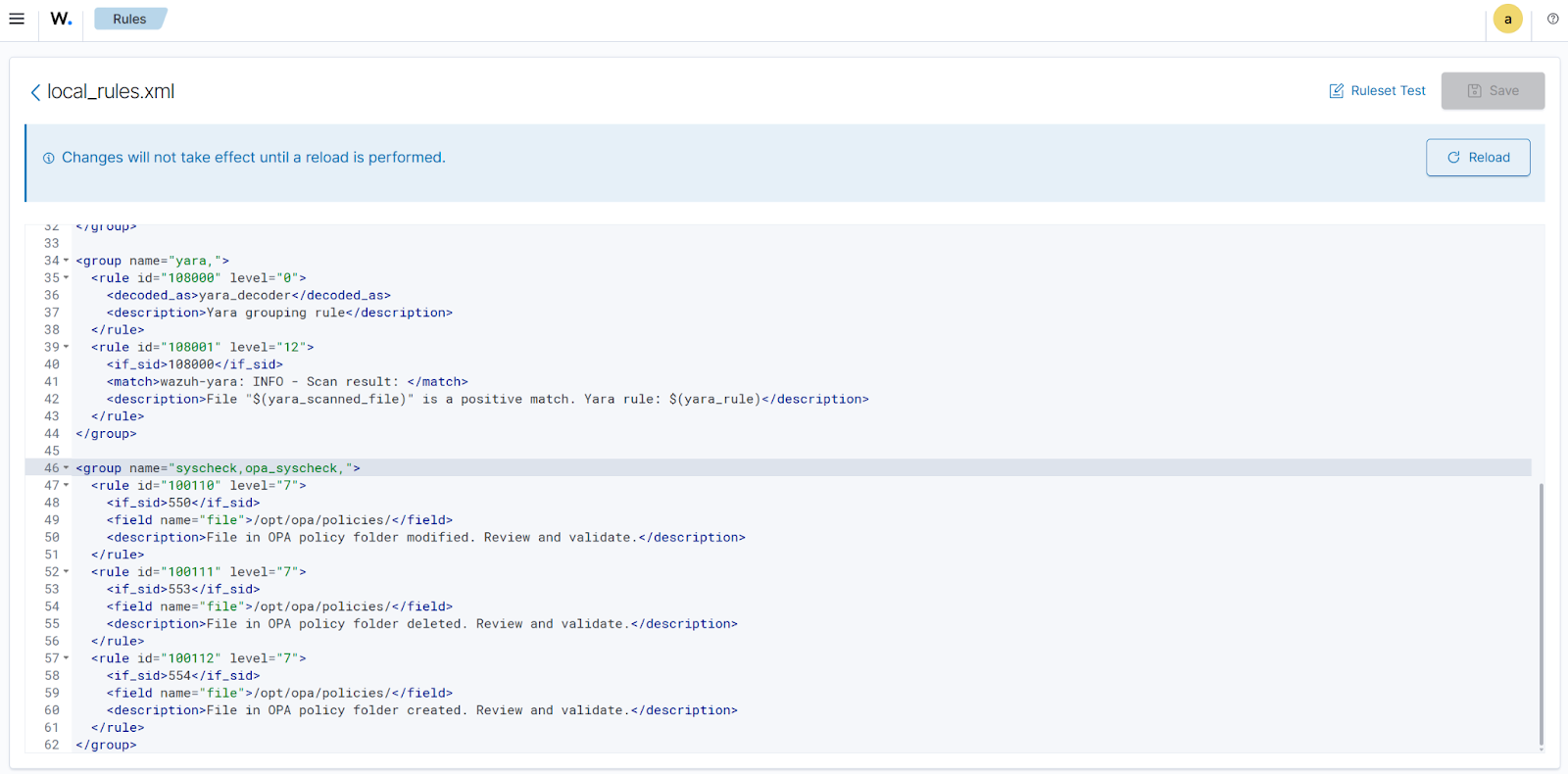
- Add the following rules to the
local_rules.xmlfile:
<group name="syscheck,opa_syscheck,">
  <rule id="100110" level="7">
    <if_sid>550</if_sid>
    <field name="file">/opt/opa/policies/</field>
    <description>OPA policy modified. Review and validate.</description>
  </rule>

  <rule id="100111" level="7">
    <if_sid>553</if_sid>
    <field name="file">/opt/opa/policies/</field>
    <description>OPA policy deleted. Review and validate.</description>
  </rule>

  <rule id="100112" level="7">
    <if_sid>554</if_sid>
    <field name="file">/opt/opa/policies/</field>
    <description>OPA policy created. Review and validate.</description>
  </rule>
</group>
Where:
- Rule ID
100110is triggered when a file in the OPA policies folder is modified. - Rule ID
100111is triggered when a file in the OPA policies folder is deleted. - Rule ID
100112is triggered when a file is created in the OPA policies directory.
- Click Save and Reload when prompted to apply the changes.
Generating and detecting access control events
We generate file integrity and access control events using the sample application. These actions demonstrate how Wazuh detects policy file changes and identifies suspicious or unauthorized access attempts based on OPA decision logs.
Run the following commands on the Ubuntu endpoint to generate events and trigger alerts.
Access control activity events
Send requests to the sample application to generate access control activity. The application queries OPA for each request and logs the resulting decision. Wazuh ingests the decision logs and triggers alerts when suspicious or unauthorized access patterns are detected.
Unauthorized administrative access attempt
This request targets the administrative endpoint /admin/settings using a non-admin role, helpdesk:
$ curl -i http://localhost:8000/admin/settings \
  -H "X-User: user1" \
  -H "X-User-Role: helpdesk"
{"detail":{"reason":"admin_access_denied","risk":"medium"}}
Unauthorized DELETE API calls
This loop sends multiple DELETE requests using a non-admin role support to simulate repeated unauthorized API access:
$ for i in {1..3}; do \
  curl -s -o /dev/null -w "%{http_code}\n" -X DELETE http://localhost:8000/records/12 \
    -H "X-User: user2" \
    -H "X-User-Role: support"
  sleep 2
done
403
403
403
Unauthorized access to a sensitive endpoint
This request targets a protected endpoint using a non-admin role support:
$ curl -i http://localhost:8000/sensitive/records/45 \
  -H "X-User: user2" \
  -H "X-User-Role: support"
{"detail":{"reason":"sensitive_endpoint_blocked","risk":"high"}}
Access attempt from an untrusted device
This request sends device posture attributes that fail policy checks:
$ curl -i http://localhost:8000/portal \
  -H "X-User: user2" \
  -H "X-User-Role: support" \
  -H "X-Device-Trusted: false" \
  -H "X-MFA: false"
{"detail":{"reason":"device_not_trusted","risk":"high"}}
Access attempts from a disallowed IP address
This request performs repeated access attempts from an IP address that is not included in the approved allow list. The IP address used in this example belongs to a reserved documentation range and does not represent a real external host.
$ for i in {1..3}; do \
  curl -s -o /dev/null -w "%{http_code}\n" http://localhost:8000/internal \
    -H "X-Forwarded-For: 203.0.113.29"
  sleep 2
done
403
403
403
Policy file tempering events
Perform the following steps to create, modify, and delete a sample OPA policy sample_policy.rego in the monitored /opt/opa/policies/ directory. These actions trigger FIM alerts for policy file creation, modification, and deletion.
- Create a sample policy file
sample_policy.regoin the/opt/opa/policiesdirectory:
$ sudo touch /opt/opa/policies/sample_policy.rego
- Modify the policy file
/opt/opa/policies/sample_policy.rego:
$ sudo sh -c "echo '# test policy change = allow all' >> /opt/opa/policies/sample_policy.rego"
- Delete the policy file
/opt/opa/policies/sample_policy.rego:
$ sudo rm /opt/opa/policies/sample_policy.rego
Visualizing alerts on the Wazuh dashboard
Perform the following steps to view the alerts generated on the Wazuh dashboard:
- Navigate to Threat intelligence > Threat Hunting and click the Events tab.
- Click + Add filter. Then filter by
rule.groups. - Select
is one ofin the Operator field. - Search and select
opa,opa_syscheckin the Values field. - Click Save.
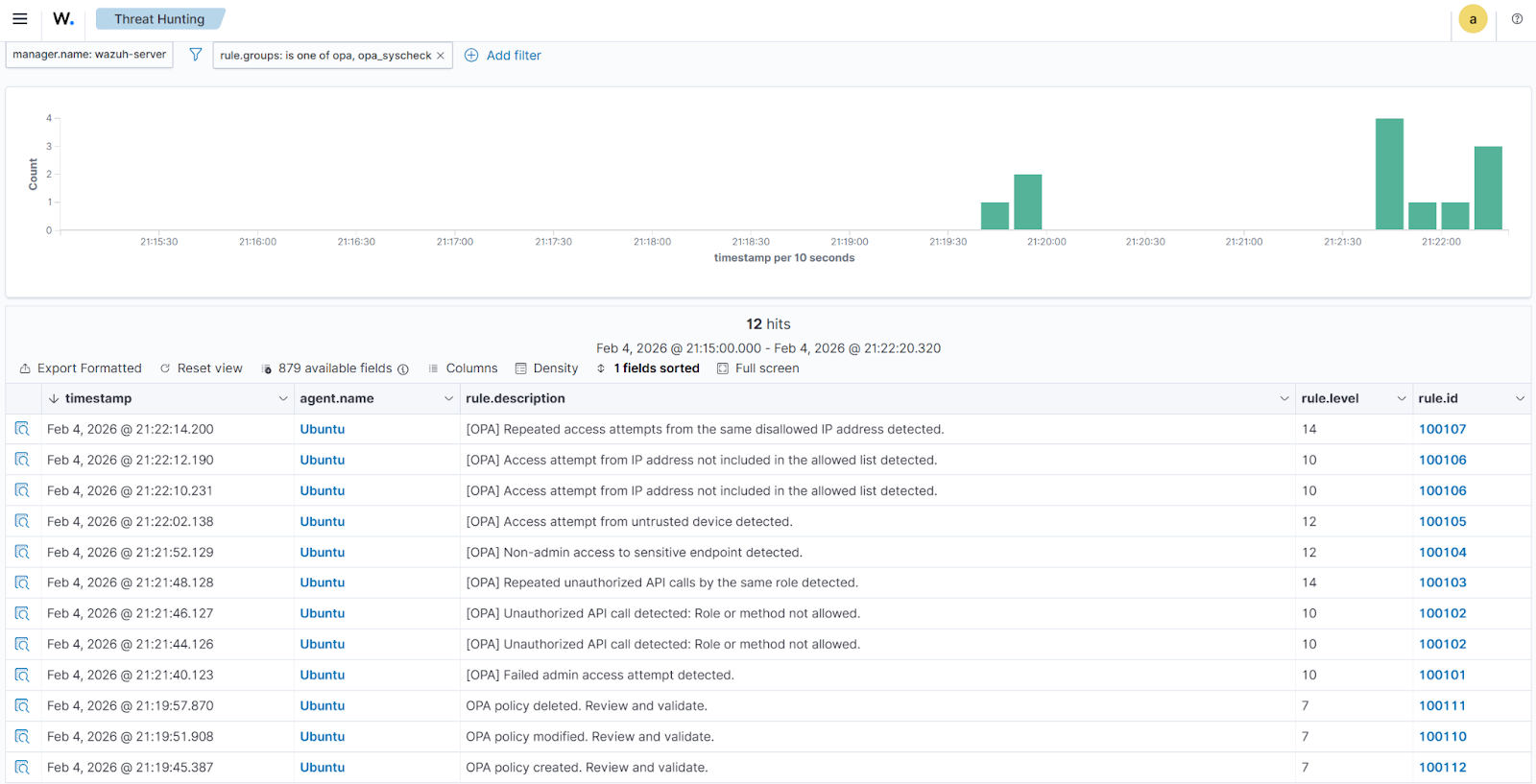
The image below shows alerts generated from access control violations and policy changes detected by the Wazuh File Integrity Monitoring module.
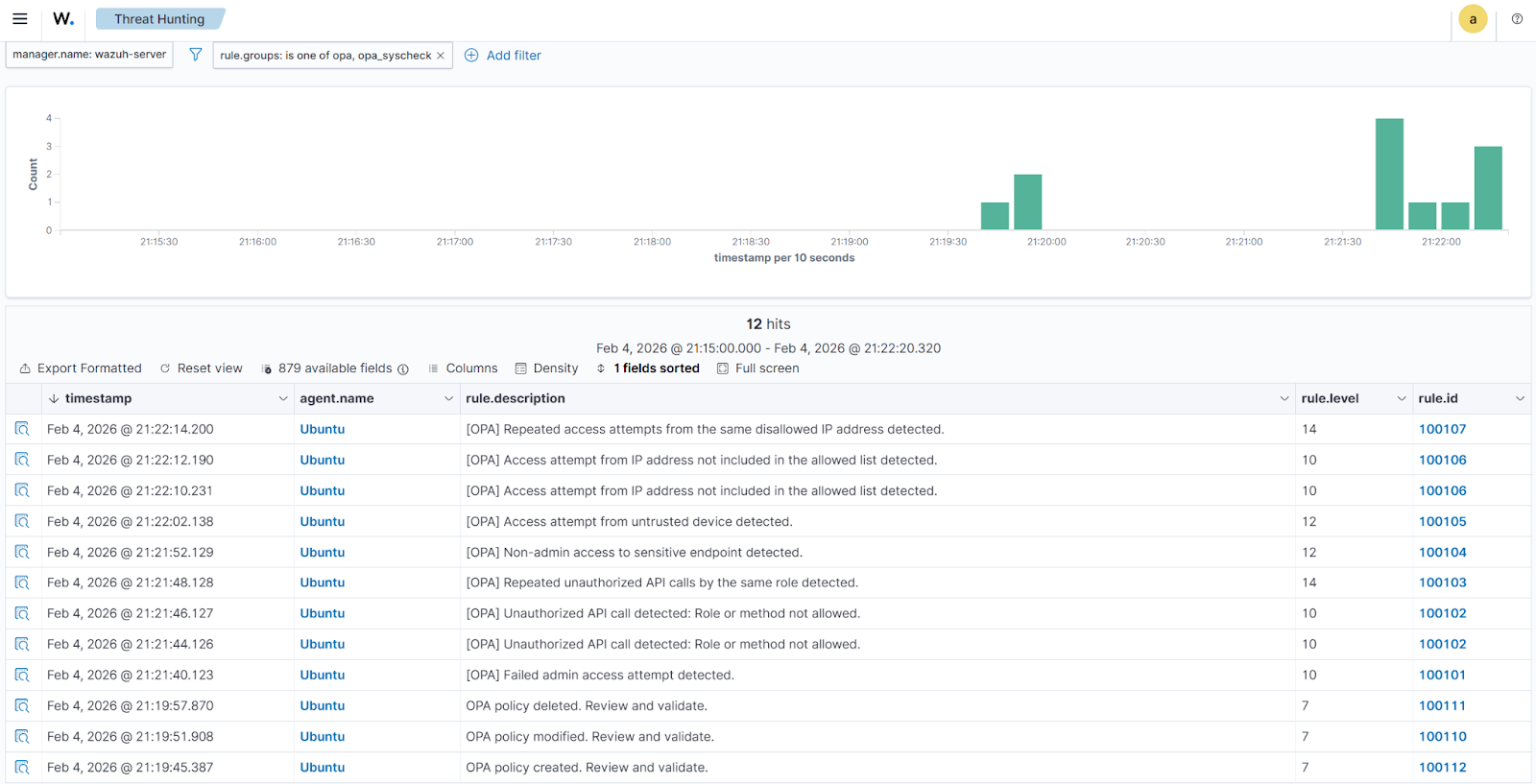
To view details of the changes made to the policy file, click the Inspect document details button at the far left of alert ID 100110.
Conclusion
This post demonstrates how access control activity generated by applications can be captured and analyzed as part of a security monitoring workflow. By collecting access control violation events from Open Policy Agent (OPA) and ingesting them into Wazuh, security teams gain centralized visibility into access behavior that can be used for detection, investigation, and auditing.
Integrating the Wazuh File Integrity Monitoring (FIM) module further extends this visibility by alerting on changes to OPA policy files, helping teams track configuration drift and unauthorized modifications.
To learn more about Wazuh, explore our other blog posts, and join the growing community.
References