
Salat stealer is a rapidly emerging Go-based information stealer offered under a Malware-as-a-Service (MaaS) model, enabling widespread access to the malware for threat actors. The malware leverages dedicated command and control (C2) infrastructure to manage infected endpoints and exfiltrate stolen data at scale. It primarily targets Windows endpoints to collect browser credentials, Telegram sessions, and cryptocurrency wallet information.
Designed for stealth, Salat stealer is frequently distributed as a UPX-packed binary, where the executable is compressed to obscure its contents and hinder analysis. The malware commonly masquerades as legitimate Windows processes to reduce suspicion during execution. Its combination of stealth, persistence, and remote control capabilities makes it dangerous for organizations handling sensitive data.
In this blog post, we demonstrate how to configure Wazuh to detect and mitigate Salat stealer infections on Windows endpoints.
Salat stealer behavior
The following are some of the behaviors exhibited by Salat stealer when it infects a Windows endpoint:
- The malware performs environment checks, such as sandbox/virtual machine detection, and uses packing (for example,
UPX) to evade static and dynamic analysis. - The malware interacts with the Antimalware Scan Interface (AMSI) in an attempt to inspect and bypass security scanning mechanisms.
- The malware drops temporary data files in the Windows
%Temp%directory, staging harvested credentials and artifacts before exfiltration. - The malware copies itself into trusted directories, such as
C:\Program Files (x86)\Windows NT\or browser application paths, masquerading as legitimate executables. - The malware creates Registry Run Key entries under
HKCU\Software\Microsoft\Windows\CurrentVersion\Runto achieve persistence at user logon. - The malware harvests stored credentials from browsers, email clients, and cryptocurrency wallets, then exfiltrates the data to its C2 server over HTTPS connections with fallback domains for resilience.
Analyzed samples
| Hash (SHA256) |
| 587f4ce1d40af1269676e2ffe73adf9a4fe05ee3d6bf17ffdeb7302df61a2ecc |
| a30940760fe0de1c84ec8452d2af1aa23dea47a483b7eb3e655952bab0a75ef2 |
| ea13c6307319649958f21be225151865013c0e77a9becea1fa39c960a6b8c7dc |
| e010108d9c70e2137939d1f75a40b430a6cfd96e08d762884f1c9cee540d8df5 |
Infrastructure
We use the following infrastructure to demonstrate the detection of Salat stealer with Wazuh.
- A pre-built, ready-to-use Wazuh OVA 4.14.3, which includes the Wazuh central components (Wazuh server, Wazuh indexer, and Wazuh dashboard). Follow this guide to download and set up the Wazuh virtual machine.
- A Windows 11 endpoint with the Wazuh agent 4.14.3 installed and enrolled in the Wazuh server. This endpoint is monitored for Salat stealer activity.
Detection with Wazuh
We use the following techniques to detect Salat stealer on an infected Windows endpoint:
- Custom detection rules to detect Salat stealer activities.
- VirusTotal integration and Wazuh Active Response module to scan and remove files with malicious patterns.
Custom detection rules
We use Sysmon to enhance visibility into system events and create custom detection rules on the Wazuh server to identify the malicious behavior associated with Salat stealer.
Windows endpoint
Perform the following steps to configure the Wazuh agent to capture Sysmon events and send them to the Wazuh server for analysis.
- Download Sysmon from the Microsoft Sysinternals page.
- Extract the compressed Sysmon file to your preferred directory.
- Download the Sysmon configuration file sysmonconfig.xml using PowerShell as an administrator. Replace
<SYSMON_EXECUTABLE_PATH>with the directory path to your Sysmon executable.
> wget -Uri https://wazuh.com/resources/blog/emulation-of-attack-techniques-and-detection-with-wazuh/sysmonconfig.xml -OutFile <SYSMON_EXECUTABLE_PATH>\sysmonconfig.xml
- Navigate to the folder containing the Sysmon executable. Run the command below to install and start Sysmon using PowerShell with Administrator privileges:
> .\Sysmon64.exe -accepteula -i sysmonconfig.xml
- Add the following configuration to the
C:\Program Files (x86)\ossec-agent\ossec.conffile within the<ossec_config>block to capture and forward Sysmon event logs to the Wazuh server:
<localfile>
  <location>Microsoft-Windows-Sysmon/Operational</location>
  <log_format>eventchannel</log_format>
</localfile>
- Restart the Wazuh agent to apply the configuration changes:
> Restart-Service -Name wazuh
Wazuh dashboard
Perform the following steps on the Wazuh dashboard to configure the Wazuh server for Salat stealer detection.
- Navigate to Server management > Rules.
- Click + Add new rules file.
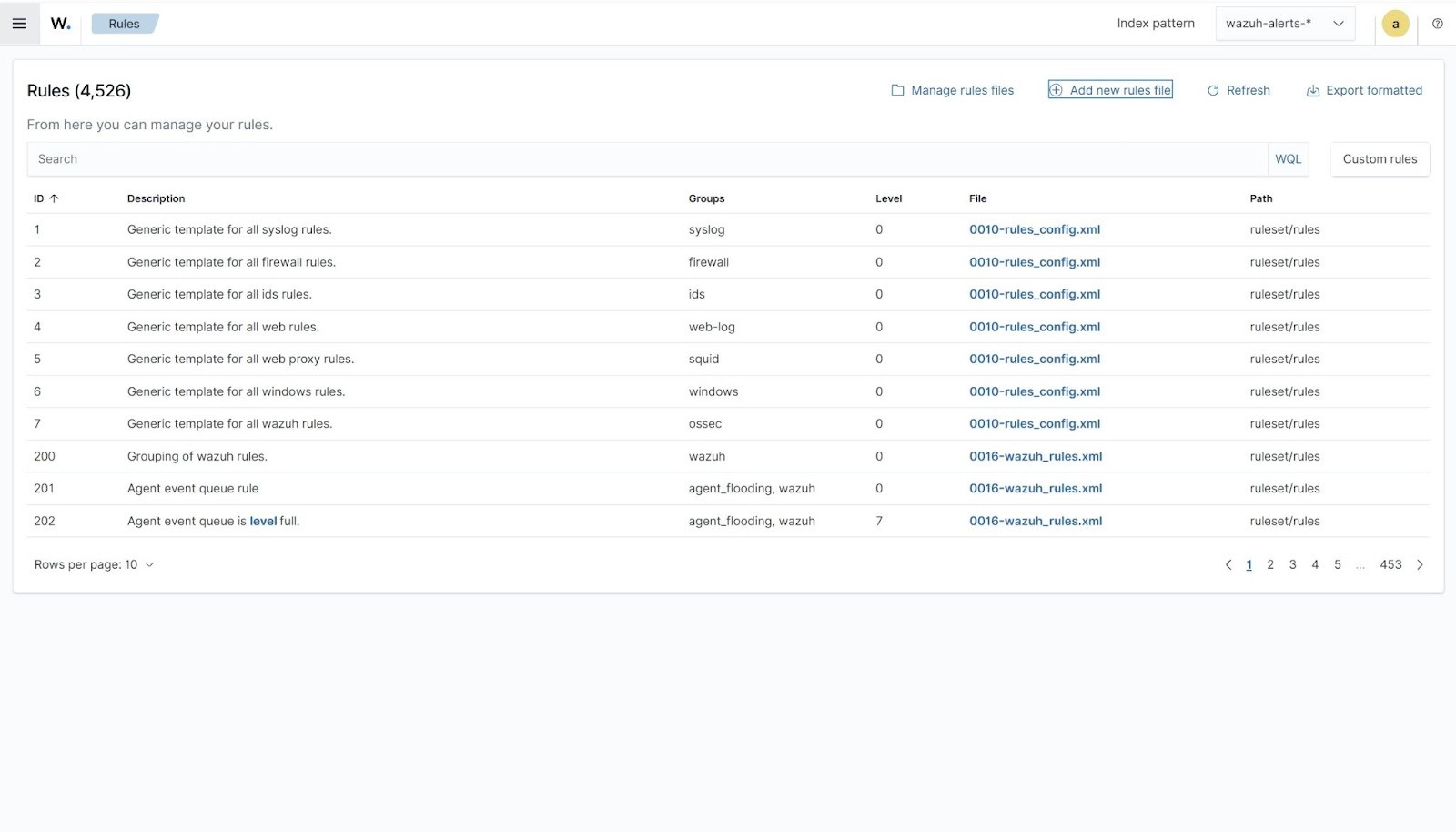
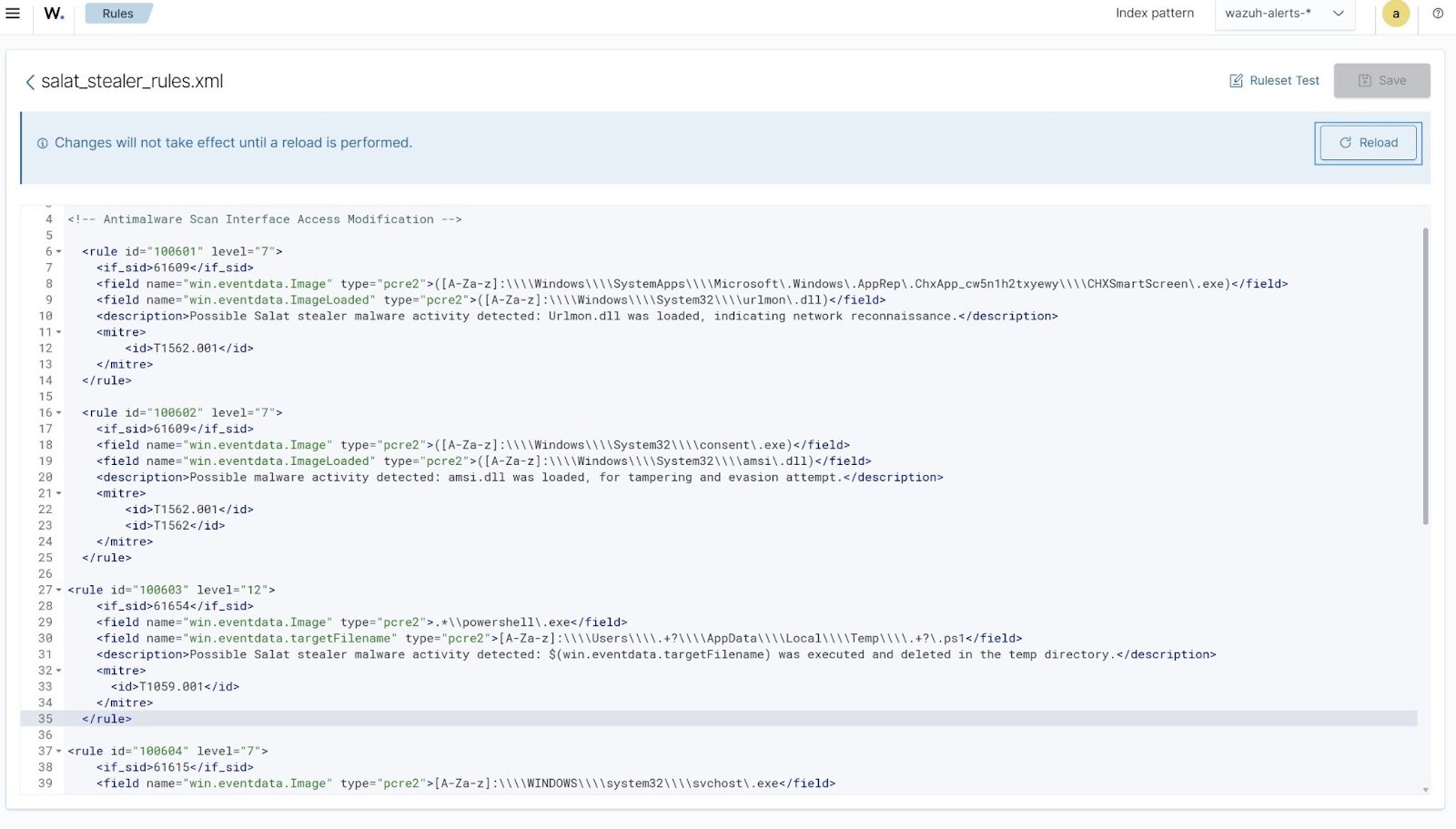
- Copy and paste the rules below and name the file
salat_stealer_rules.xml.
<group name="salat,malware,">
<!-- Antimalware Scan Interface Access Modification -->
  <rule id="100601" level="7">
    <if_sid>61609</if_sid>
    <field name="win.eventdata.Image" type="pcre2">([A-Za-z]:\\\\Windows\\\\SystemApps\\\\Microsoft\.Windows\.AppRep\.ChxApp_cw5n1h2txyewy\\\\CHXSmartScreen\.exe)</field>
    <field name="win.eventdata.ImageLoaded" type="pcre2">([A-Za-z]:\\\\Windows\\\\System32\\\\urlmon\.dll)</field>
    <description>Possible malware activity detected: urlmon.dll was loaded, indicating possible network reconnaissance.</description>
    <mitre>
      <id>T1562.001</id>
    </mitre>
  </rule>

  <rule id="100602" level="7">
    <if_sid>61609</if_sid>
    <field name="win.eventdata.Image" type="pcre2">([A-Za-z]:\\\\Windows\\\\System32\\\\consent\.exe)</field>
    <field name="win.eventdata.ImageLoaded" type="pcre2">([A-Za-z]:\\\\Windows\\\\System32\\\\amsi\.dll)</field>
    <description>Possible malware activity detected: amsi.dll was loaded, for tampering and evasion attempt.</description>
    <mitre>
      <id>T1562.001</id>
      <id>T1562</id>
    </mitre>
  </rule>

  <rule id="100603" level="12">
    <if_sid>61654</if_sid>
    <field name="win.eventdata.Image" type="pcre2">.*\\powershell\.exe</field>
    <field name="win.eventdata.targetFilename" type="pcre2">[A-Za-z]:\\\\Users\\\\.+?\\\\AppData\\\\Local\\\\Temp\\\\.+?\.ps1</field>
    <description>Possible Salat stealer malware activity detected: $(win.eventdata.targetFilename) was executed and deleted in the temp directory.</description>
    <mitre>
      <id>T1059.001</id>
    </mitre>
  </rule>

  <rule id="100604" level="7">
    <if_sid>61615</if_sid>
    <field name="win.eventdata.Image" type="pcre2">[A-Za-z]:\\\\WINDOWS\\\\system32\\\\svchost\.exe</field>
    <field name="win.eventdata.TargetObject" type="pcre2">HKLM\\\\System\\\\CurrentControlSet\\\\Control\\\\Lsa\\\\Credssp\\\\PolicyDefaults\\\\AllowDefaultCredentialsWhenNTLMOnlyDomain\\\\RD Child Sessions</field>
    <description>Possible malware activity detected: svchost.exe modified CredSSP registry settings, indicating potential credential or authentication manipulation.</description>
    <mitre>
      <id>T1556.001</id>
    </mitre>
  </rule>

<!-- Network Connection to C2 Server -->
  <rule id="100605" level="15">
    <if_sid>61605</if_sid>
    <field name="win.eventdata.Image" type="pcre2">(?i)[C-Z]:.+\.exe</field>
    <field name="win.eventdata.destinationIp" type="pcre2">(104\.21\.19\.248)</field>
    <description>Salat stealer activity detected: Outbound connection to "$(win.eventdata.destinationIp)" associated with command-and-control or remote access activity.
</description>
    <mitre>
      <id>T1071.001</id>
      <id>T1105</id>
    </mitre>
  </rule>

  <rule id="100606" level="7">
    <if_sid>61605</if_sid>
    <field name="win.eventdata.Image" type="pcre2">(?i)[C-Z]:.+\.exe</field>
    <field name="win.eventdata.destinationIp" type="pcre2">(8\.8\.\d+\.\d+)</field>
    <description>Possible malware activity detected: Suspicious DNS query.</description>
    <mitre>
      <id>T1071.001</id>
    </mitre>
  </rule>
</group>
Where:
- Rule ID
100601is triggered when Salat stealer uses the SmartScreen process to loadurlmon.dll, indicating outbound web communication through trusted Windows components. - Rule ID
100602is triggered when Salat stealer loadsamsi.dll, suggesting an attempt to interact with or evade the Antimalware Scan Interface. - Rule ID
100603is triggered when Salat stealer executes a PowerShell script in the%Temp%directory and immediately deletes it, indicating temporary script execution for stealth or evasion. - Rule ID
100604is triggered whensvchost.exemodifiesCredSSPregistry settings, indicating potential credential or authentication manipulation. - Rule ID
100605is triggered when Salat stealer establishes an outbound connection to a known external IP, consistent with command-and-control communication or remote access activity. - Rule ID
100606is triggered when Salat stealer performs DNS queries to public resolvers for connectivity checks, environment validation, or C2 resolution.
- Click Save and Reload to apply the changes.
Detection results
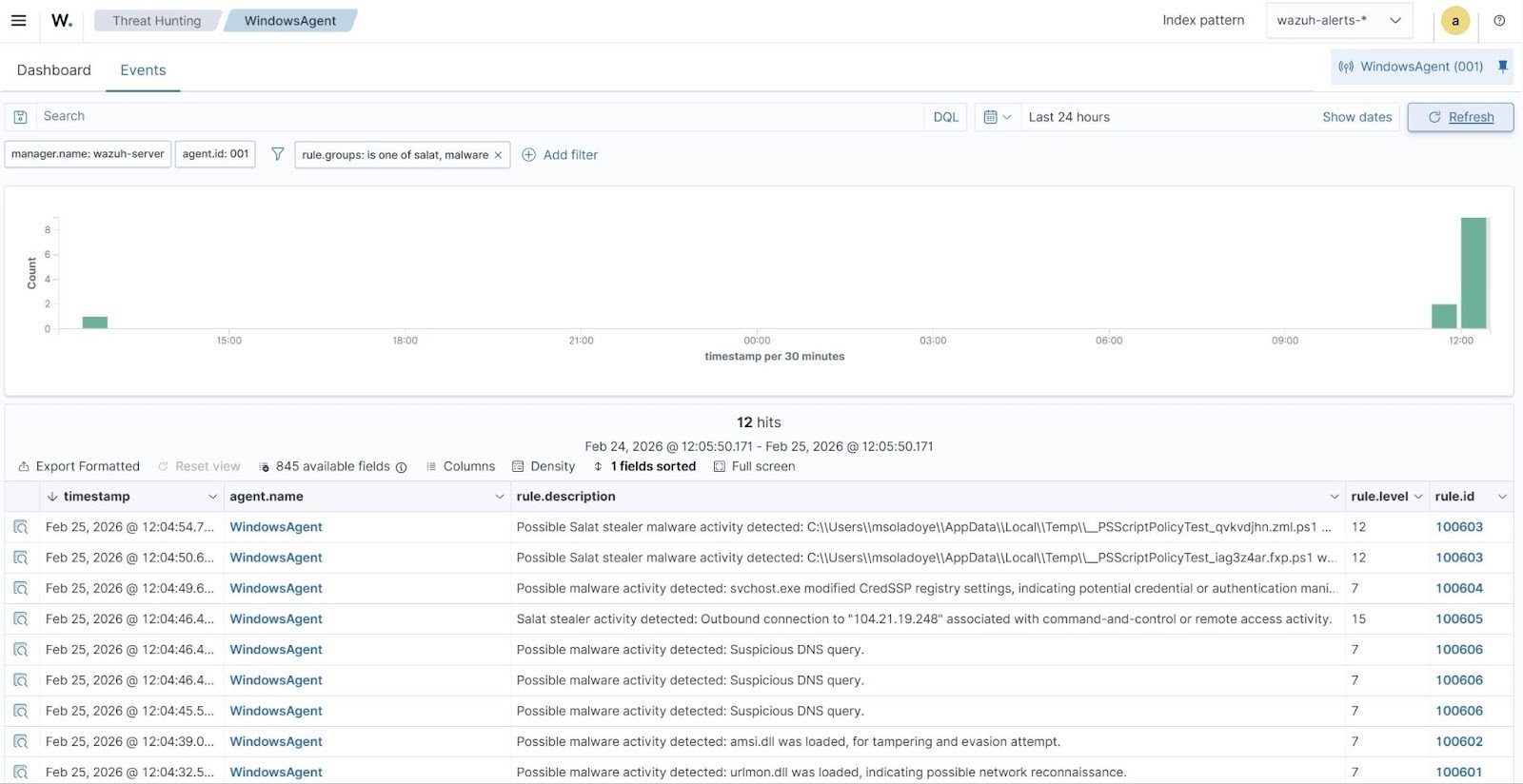
The alerts below are generated on the Wazuh dashboard when Salat stealer is executed on a Windows endpoint. Perform the following steps to view the alerts on the Wazuh dashboard.
- Navigate to Threat intelligence > Threat Hunting and select the Events tab.
- Click + Add filter. Then filter for
rule.groupsin the Field field. - Select
is one ofin the Operator field. - Add the filters
salatandmalwarein the Values field. - Click Save.
VirusTotal integration
VirusTotal is a platform that aggregates multiple antivirus products and online scan engines to detect security threats. It provides an API that allows users to query URLs, IP addresses, domains, or file hashes for threat analysis. By integrating VirusTotal with Wazuh, you can configure Wazuh to automatically send file hashes of newly created or modified files on monitored endpoints to the VirusTotal API for real-time threat detection.
For this integration, we configure the Wazuh File Integrity Monitoring (FIM) module and VirusTotal to detect and scan files that are added or modified in specific directories on the Windows endpoint. Additionally, we configure the Wazuh Active Response module to automatically delete the files that VirusTotal identifies as malicious.
Windows endpoint
- Add the following configuration within the
<syscheck>block in theC:\Program Files (x86)\ossec-agent\ossec.conffile to monitor for changes in theDownloadsfolder.
<directories realtime="yes">C:\Users\*\Downloads</directories>
Note
We configure the FIM module to monitor the Downloads folder for all users. You can configure other directories per your requirement.
- Restart the Wazuh agent to apply the changes by running the following PowerShell command as an administrator:
> Restart-Service -Name wazuh
Active Response Python script configuration
We create an active response script to remove any known variant of Salat stealer malware immediately after VirusTotal identifies it as a threat.
- Create a Wazuh Active Response script, remove-threat.py, on the Windows endpoint with the following content:
| Warning: This script is a proof of concept (PoC). Review and validate it to ensure it meets the operational and security requirements of your environment |
# Copyright (C) 2015-2026, Wazuh Inc.
# All rights reserved.

import os
import sys
import json
import datetime
import stat
import tempfile
import pathlib

if os.name == 'nt':
    LOG_FILE = "C:\\Program Files (x86)\\ossec-agent\\active-response\\active-responses.log"
else:
    LOG_FILE = "/var/ossec/logs/active-responses.log"

ADD_COMMAND = 0
DELETE_COMMAND = 1
CONTINUE_COMMAND = 2
ABORT_COMMAND = 3

OS_SUCCESS = 0
OS_INVALID = -1

class message:
    def __init__(self):
        self.alert = ""
        self.command = 0

def write_debug_file(ar_name, msg):
    with open(LOG_FILE, mode="a") as log_file:
        log_file.write(str(datetime.datetime.now().strftime('%Y/%m/%d %H:%M:%S')) + " " + ar_name + ": " + msg +"\n")

def setup_and_check_message(argv):
    input_str = ""
    for line in sys.stdin:
        input_str = line
        break

    msg_obj = message()
    try:
        data = json.loads(input_str)
    except ValueError:
        write_debug_file(argv[0], 'Decoding JSON has failed, invalid input format')
        msg_obj.command = OS_INVALID
        return msg_obj

    msg_obj.alert = data
    command = data.get("command")

    if command == "add":
        msg_obj.command = ADD_COMMAND
    elif command == "delete":
        msg_obj.command = DELETE_COMMAND
    else:
        msg_obj.command = OS_INVALID
        write_debug_file(argv[0], 'Not valid command: ' + command)

    return msg_obj

def send_keys_and_check_message(argv, keys):
    keys_msg = json.dumps({"version": 1,"origin":{"name": argv[0],"module":"active-response"},"command":"check_keys","parameters":{"keys":keys}})
    write_debug_file(argv[0], keys_msg)

    print(keys_msg)
    sys.stdout.flush()

    input_str = ""
    while True:
        line = sys.stdin.readline()
        if line:
            input_str = line
            break

    try:
        data = json.loads(input_str)
    except ValueError:
        write_debug_file(argv[0], 'Decoding JSON has failed, invalid input format')
        return OS_INVALID

    action = data.get("command")
    if action == "continue":
        return CONTINUE_COMMAND
    elif action == "abort":
        return ABORT_COMMAND
    else:
        write_debug_file(argv[0], "Invalid value of 'command'")
        return OS_INVALID

def secure_delete_file(filepath_str, ar_name):
    filepath = pathlib.Path(filepath_str)

    # Reject NTFS alternate data streams
    if '::' in filepath_str:
        raise Exception(f"Refusing to delete ADS or NTFS stream: {filepath_str}")

    # Reject symbolic links and reparse points
    if os.path.islink(filepath):
        raise Exception(f"Refusing to delete symbolic link: {filepath}")

    attrs = os.lstat(filepath).st_file_attributes
    if attrs & stat.FILE_ATTRIBUTE_REPARSE_POINT:
        raise Exception(f"Refusing to delete reparse point: {filepath}")

    resolved_filepath = filepath.resolve()

    # Ensure it's a regular file
    if not resolved_filepath.is_file():
        raise Exception(f"Target is not a regular file: {resolved_filepath}")

    # Perform deletion
    os.remove(resolved_filepath)

def main(argv):
    write_debug_file(argv[0], "Started")
    msg = setup_and_check_message(argv)

    if msg.command < 0:
        sys.exit(OS_INVALID)

    if msg.command == ADD_COMMAND:
        alert = msg.alert["parameters"]["alert"]
        keys = [alert["rule"]["id"]]
        action = send_keys_and_check_message(argv, keys)

        if action != CONTINUE_COMMAND:
            if action == ABORT_COMMAND:
                write_debug_file(argv[0], "Aborted")
                sys.exit(OS_SUCCESS)
            else:
                write_debug_file(argv[0], "Invalid command")
                sys.exit(OS_INVALID)

        try:
            file_path = alert["data"]["virustotal"]["source"]["file"]
            if os.path.exists(file_path):
                secure_delete_file(file_path, argv[0])
                write_debug_file(argv[0], json.dumps(msg.alert) + " Successfully removed threat")
            else:
                write_debug_file(argv[0], f"File does not exist: {file_path}")
        except OSError as error:
            write_debug_file(argv[0], json.dumps(msg.alert) + "Error removing threat")
        except Exception as e:
            write_debug_file(argv[0], f"{json.dumps(msg.alert)}: Error removing threat: {str(e)}")
    else:
        write_debug_file(argv[0], "Invalid command")

    write_debug_file(argv[0], "Ended")
    sys.exit(OS_SUCCESS)

if __name__ == "__main__":
    main(sys.argv)
The active response Python script handles the removal of the malicious file using the os.remove() function. The script logs the outcome of the file removal action to C:\Program Files (x86)\ossec-agent\active-response\active-responses.log.
- Download and install the latest version of Python with pip pre-installed. Select the following checkboxes during installation:
- Use admin privileges when installing py.exe.
- Add python.exe to PATH.
Note
This step is optional if Python is installed on the Windows endpoint.
- Run the following command with administrative privileges to install Pyinstaller using PowerShell:
> pip install -U pyinstaller
- Change to the directory where the Python script
remove-threat.pyis located and convert the file to an executable file with the following command:
> pyinstaller -F remove-threat.py
- Move the executable file,
remove-threat.exe, from the\distfolder under your current working directory to theC:\Program Files (x86)\ossec-agent\active-response\binfolder. - Restart the Wazuh agent to apply the changes by running the following PowerShell command as an administrator:
> Restart-Service -Name wazuh
Wazuh dashboard
Perform the following steps on the Wazuh dashboard to configure the Wazuh server to scan the Salat stealer malware executable files with VirusTotal:
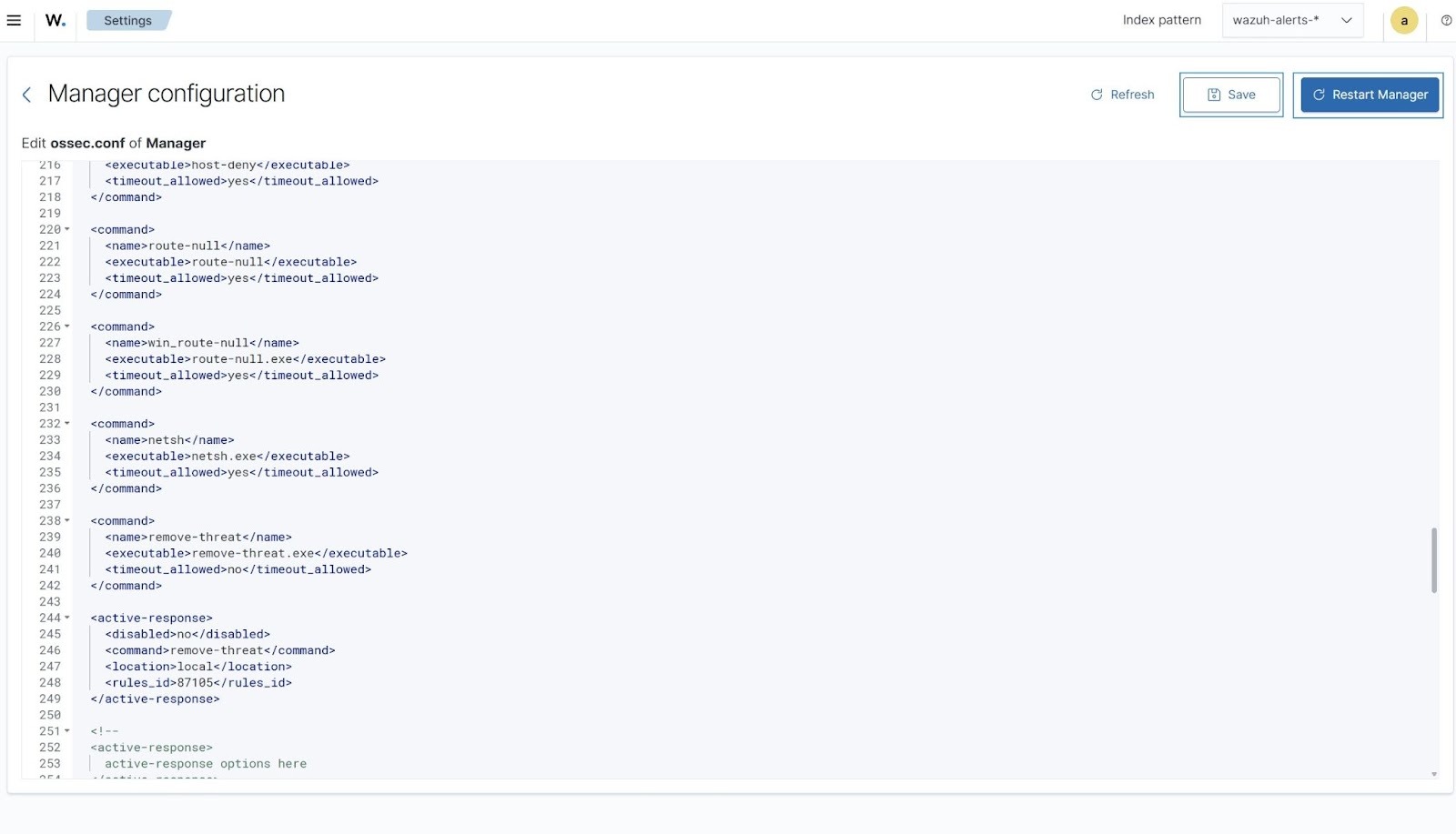
- Click on the upper left menu ☰, navigate to Server management > Settings.
- Click Edit configuration.
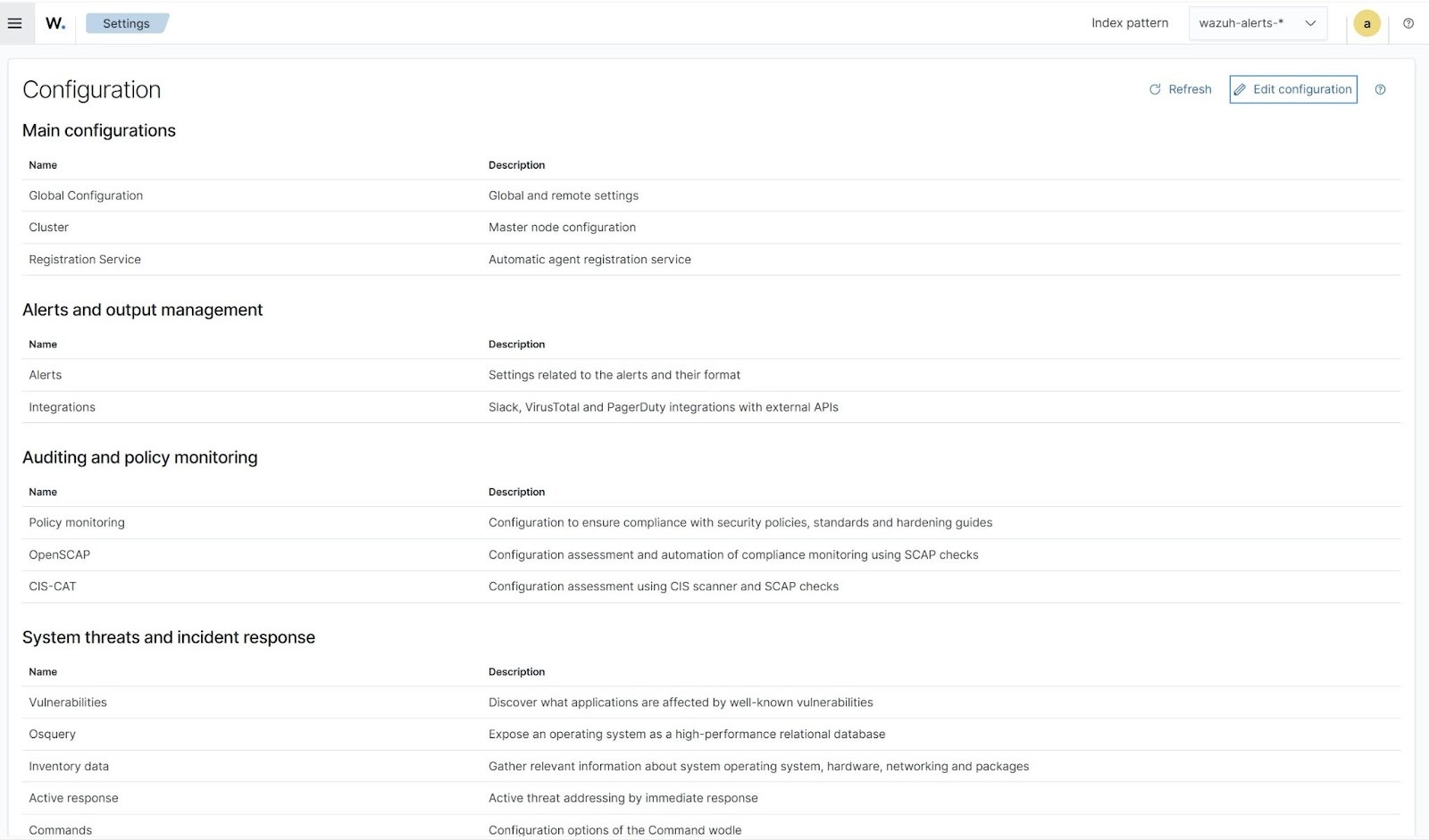
- Append the configuration below to the file. Replace the
<API_KEY>variable with your VirusTotal API key to scan the Salat stealer malware executable files with VirusTotal.
<ossec_config>
  <integration>
    <name>virustotal</name>
    <api_key><API_KEY></api_key> <!-- Replace with your VirusTotal API key -->
    <rule_id>554,550</rule_id>
    <alert_format>json</alert_format>
  </integration>
</ossec_config>
The FIM rule IDs 554 and 550 detect file addition and modification events, respectively.
- Append the following configuration for the Wazuh Active Response module to remove the malicious files.
<ossec_config>
  <command>
    <name>remove-threat</name>
    <executable>remove-threat.exe</executable>
    <timeout_allowed>no</timeout_allowed>
  </command>

  <active-response>
    <disabled>no</disabled>
    <command>remove-threat</command>
    <location>local</location>
    <rules_id>87105</rules_id>
  </active-response>
</ossec_config>
- Click Save, Restart Manager, and Confirm when prompted, to apply the configuration changes.
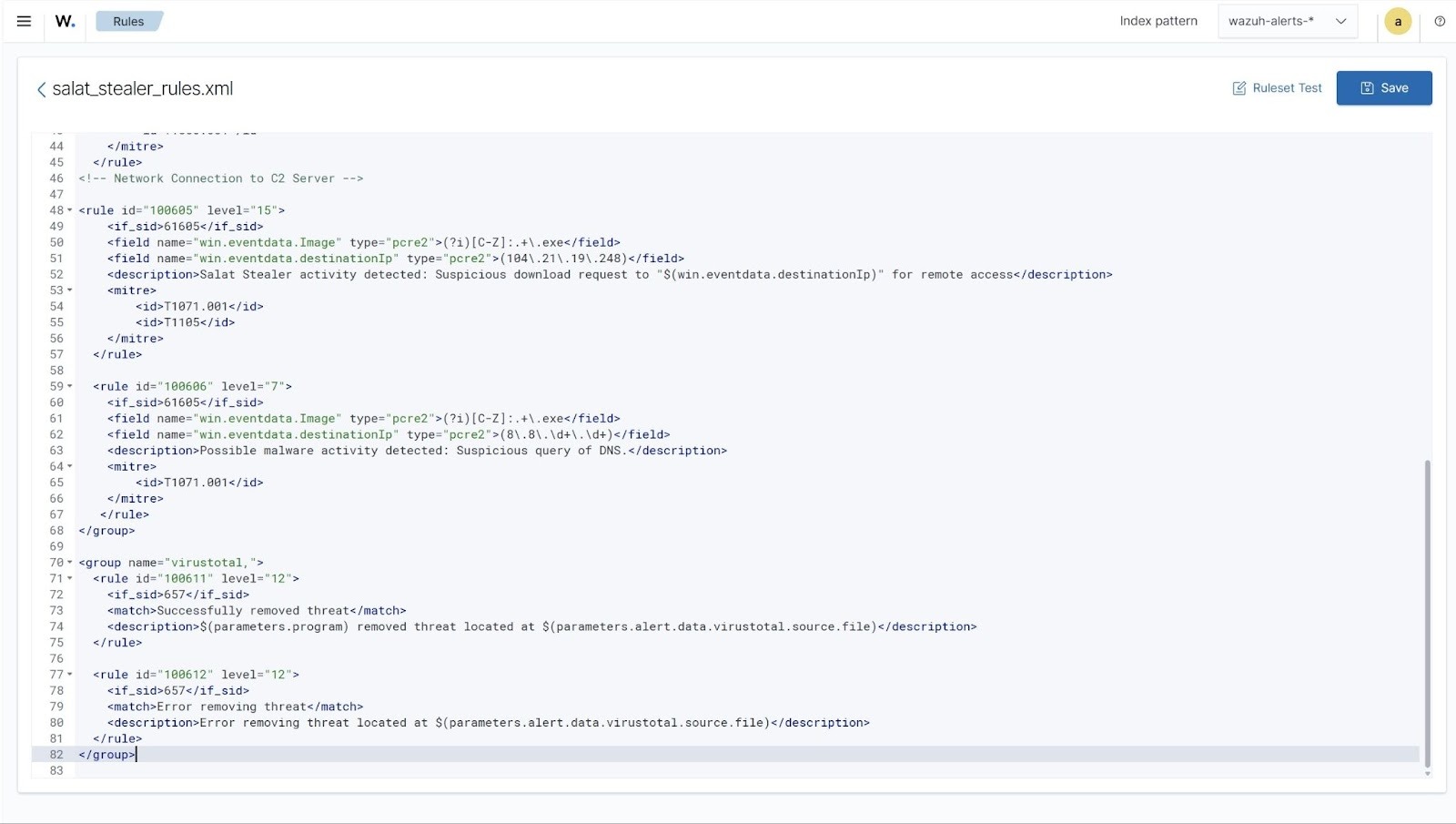
- Click on the upper left menu ☰, navigate to Server management > Rules > Manage rules files > Custom rules, and click the edit icon next to the
salat_stealer_rules.xmlfile. - Copy the rules below and append it to the
salat_stealer_rules.xmlfile to generate alerts when the Wazuh Active Response module successfully removes the malicious files.
<group name="virustotal,">
  <rule id="100611" level="12">
    <if_sid>657</if_sid>
    <match>Successfully removed threat</match>
    <description>$(parameters.program) removed threat located at $(parameters.alert.data.virustotal.source.file)</description>
  </rule>

  <rule id="100612" level="12">
    <if_sid>657</if_sid>
    <match>Error removing threat</match>
    <description>Error removing threat located at $(parameters.alert.data.virustotal.source.file)</description>
  </rule>
</group>
Where:
- Rule ID
100611generates an alert when the Wazuh Active Response module successfully removes the Salat stealer malware. - Rule ID
100612generates an alert when the Wazuh Active Response module fails to remove the Salat stealer malware.
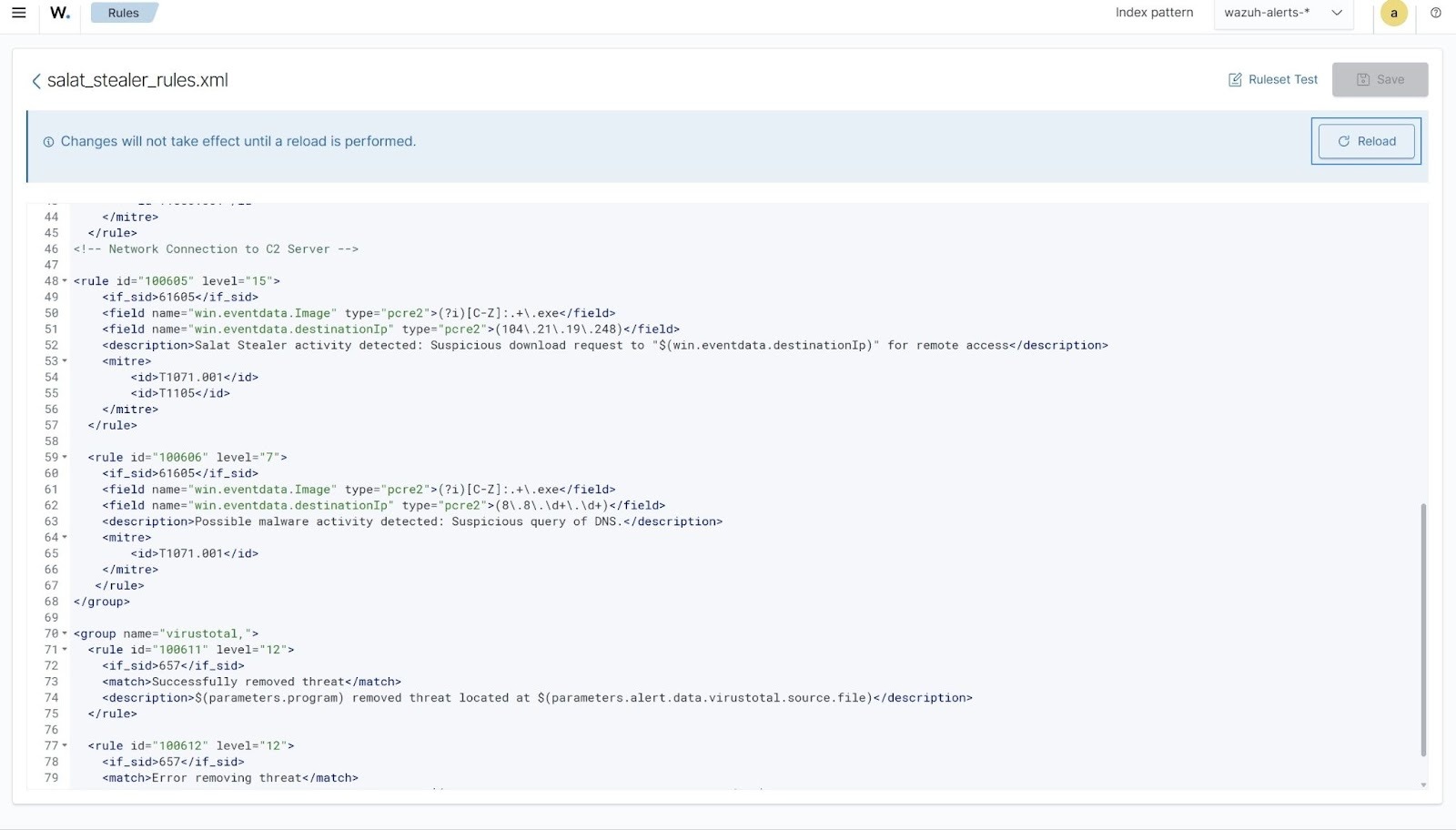
- Click Save and Reload to apply the changes.
Visualize results
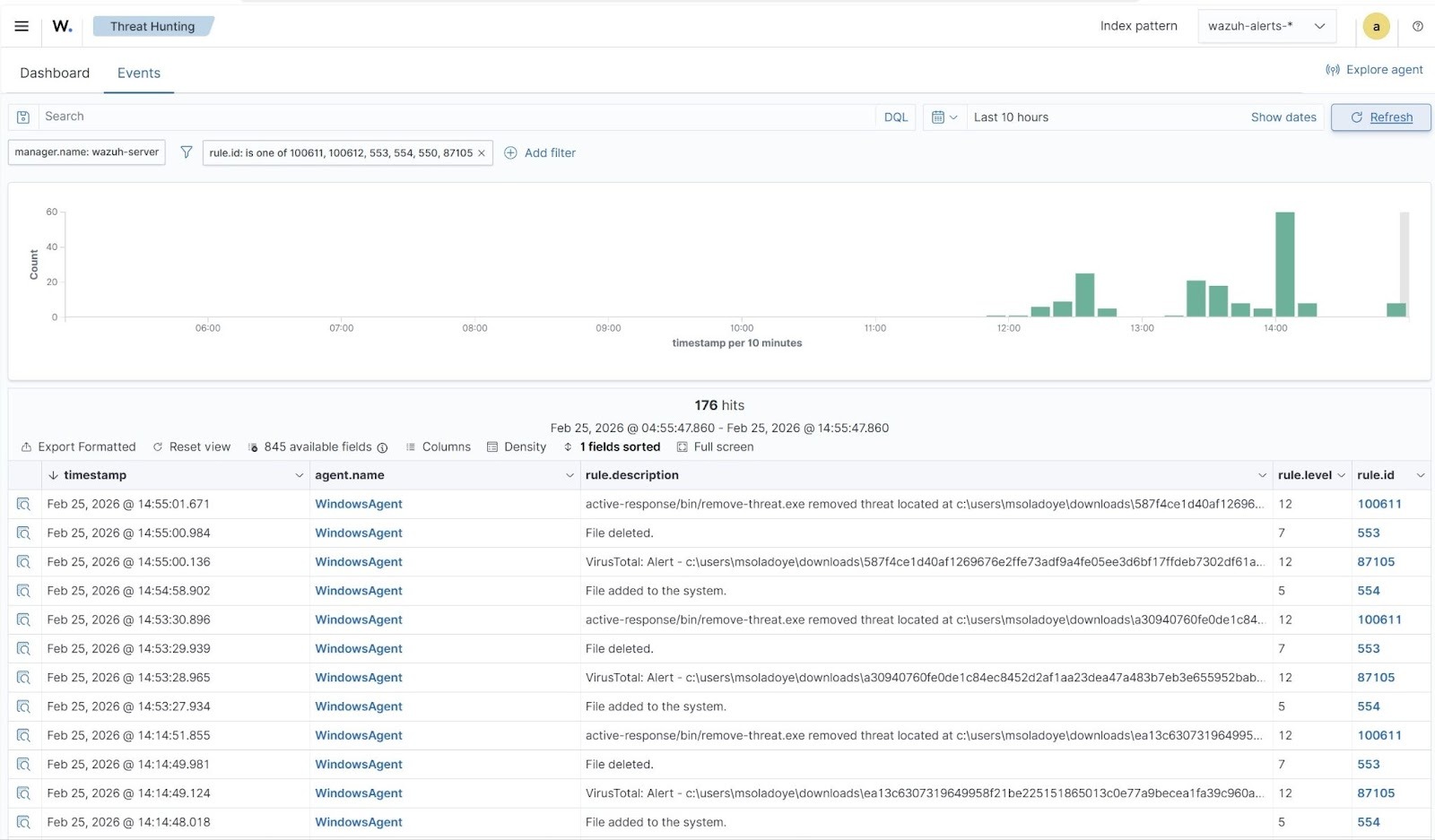
When a variant of Salat stealer is downloaded to the monitored Windows Downloads folder, Wazuh generates alerts and promptly initiates an active response to remove the malicious file. The screenshot below shows that the Wazuh FIM module detects the file addition, which VirusTotal confirms as malicious, triggering Wazuh to take an automated response. Follow these steps to view these alerts:
- Navigate to Threat intelligence > Threat Hunting and click the Events tab.
- Click + Add filter. Then filter by
rule.id. - In the Operator field, select
is one of. - Filter for
100611,100612,553,554,550, and87105in the Values field. - Click Save.
Conclusion
The Salat stealer presents a significant and evolving threat to both individual users and organizations. Integrating Wazuh into an organization’s cybersecurity defense system provides a proactive and effective approach to detecting and mitigating the risks posed by Salat stealer. This blog post highlights how to detect the Salat stealer malware activities on a monitored Windows endpoint with Wazuh. Additionally, it shows how to use the Wazuh FIM and Active Response capabilities with VirusTotal integration to respond to threats.
Wazuh provides various capabilities for detecting and responding to malware. Consult the Wazuh documentation to refine your setup or explore more capabilities of Wazuh. Feel free to join our community, where our team and other Wazuh users are available to assist you with any questions related to Wazuh.