
Microsoft Defender is one of the most widely deployed security solutions, shipping out of the box with Windows 10, Windows 11, and Windows Server releases. A newly disclosed zero-day vulnerability, known as RoguePlanet (tracked as CVE-2026-50656), affects how Microsoft Defender handles specific file operations during malware remediation. Successful exploitation can allow an attacker with access to a standard user account to escalate privileges to NT AUTHORITY\SYSTEM, the highest privilege level available on a Windows endpoint.
At the time of writing, no security update is available. This blog post explains how to defend against the RoguePlanet vulnerability using Wazuh and respond to exploitation attempts within your environment.
RoguePlanet vulnerability overview
RoguePlanet is a local privilege escalation (LPE) vulnerability, a class of attack where a user gains privileges beyond those originally assigned. In this case, an attacker with access to a standard user account can obtain SYSTEM privileges on vulnerable Windows 10 and 11 endpoints.
The vulnerability arises from a Time-of-Check-to-Time-of-Use (TOCTOU) race condition in Microsoft Defender. A TOCTOU race condition occurs when an application validates a file or path during one operation, then later interacts with the same resource without verifying whether it has changed.
Microsoft Defender performs file validation and remediation operations as a privileged SYSTEM process. RoguePlanet abuses this behavior by mounting a crafted disk image and using NTFS junctions to redirect privileged file operations. To reliably win the race condition, the exploit uses opportunistic locks (oplocks) to pause Microsoft Defender during critical file operations. When Microsoft Defender resumes processing, it may follow a redirected path and interact with attacker-controlled files instead of the original target.
If exploitation succeeds, the attacker-controlled code executes with SYSTEM privileges, often resulting in a SYSTEM-level command shell on the compromised endpoint.
RoguePlanet is part of a series of publicly released vulnerabilities targeting Microsoft Defender. Earlier vulnerabilities in this series include BlueHammer (CVE-2026-33825) and RedSun (CVE-2026-41091).
Affected systems:
- Windows 10
- Windows 11
Exploit mechanics
RoguePlanet exploits a race condition, so its reliability varies across endpoints depending on system configuration and timing conditions. The exploit chain uses the following steps:
- The exploit binary contains a crafted ISO image that includes an EICAR test file named
wermgr.exe. The exploit mounts the ISO silently using low-level Windows APIs, with no drive letter assigned and no visible disk appearing to the user. The exploit creates a temporary directory under%TEMP%\RP_<UUID>containing:
wdtest_tempcaptures Microsoft Defender quarantine artifacts.System32is a directory designed to mimic the legitimateC:\Windows\System32Windows system path.
- The exploit directly interacts with Microsoft Defender through
MpClient.dllto trigger a real-time scan of the stagedwermgr.exe. Microsoft Defender detects the EICAR file and starts its remediation workflow, including creating a Volume Shadow Copy (VSS) of the file. - The exploit monitors for the new VSS snapshot and places an opportunistic lock (oplock) on the staged file through its Volume Shadow Copy path. An oplock is a Windows file-locking mechanism that temporarily pauses file access. When Microsoft Defender reaches the locked file, the exploit gains a controlled timing window. This timing window allows the exploit to redirect Microsoft Defender file operations.
- While Microsoft Defender is paused, the exploit converts the
%TEMP%\RP_<UUID>\System32directory into an NTFS junction, a special file system link that redirects file access to another location. The junction initially points to the mounted ISO image. Later in the remediation workflow, the exploit redirects the junction so%TEMP%\RP_<UUID>\System32points to%TEMP%\RP_<UUID>wdtest_temp, an attacker-controlled directory. As a result, Microsoft Defender creates a SYSTEM-owned quarantine file inside the attacker-controlled directory. - The exploit overwrites the SYSTEM-owned quarantine file with a copy of itself. The exploit then redirects the root working directory
%TEMP%\RP_<UUID>toC:\Windowsusing another NTFS junction. Paths inside the temporary directory now resolve as legitimate Windows system paths. - Finally, the exploit triggers the Windows Error Reporting (WER) scheduled task through the Windows Task Scheduler interface. The scheduled task runs as SYSTEM and launches
C:\Windows\System32\wermgr.exe, which resolves through the junction to the exploit binary%TEMP%\RP_<UUID>\System32\wermgr.exe. Windows executes the exploit binary instead of the legitimate executable. The exploit then spawns a SYSTEM-level shell on the compromised endpoint, giving the attacker full control of the system.
Infrastructure
We use a lab environment with the following infrastructure to test the detection and response configuration for the RoguePlanet exploit.
- A pre-built, ready-to-use Wazuh OVA 4.14.5, which includes the Wazuh server, indexer, and dashboard.
- A Windows 11 endpoint with Wazuh agent 4.14.5 installed and enrolled in the Wazuh server.
Detection with Wazuh
The steps below show how to configure Wazuh to detect RoguePlanet exploitation attempts on Windows endpoints.
Configuring the Windows endpoint
Follow the steps below to configure Sysmon on the monitored endpoint and forward logs in the Sysmon event channel to the Wazuh server for analysis.
- Download Sysmon from the Microsoft Sysinternals page.
- Extract the compressed Sysmon file to your preferred directory.
- Download the Sysmon configuration file sysmonconfig.xml using PowerShell as an administrator. Replace
<SYSMON_EXECUTABLE_PATH>with the directory path to your Sysmon executable:
> wget -Uri https://wazuh.com/resources/blog/emulation-of-attack-techniques-and-detection-with-wazuh/sysmonconfig.xml -OutFile <SYSMON_EXECUTABLE_PATH>\sysmonconfig.xml
- Navigate to the folder containing the Sysmon executable. Run the command below to install and start Sysmon using PowerShell with Administrator privileges:
> .\Sysmon64.exe -accepteula -i sysmonconfig.xml
- Add the following configuration to the
C:\Program Files (x86)\ossec-agent\ossec.conffile within the<ossec_config>block to capture and forward Sysmon event logs to the Wazuh server:
<localfile>
  <location>Microsoft-Windows-Sysmon/Operational</location>
  <log_format>eventchannel</log_format>
</localfile>
- Restart the Wazuh agent to apply the configuration changes:
> Restart-Service -Name wazuh
Configuring the Wazuh server
Create custom detection rules to identify the known indicators associated with the RoguePlanet vulnerability. From the Wazuh dashboard:
- Navigate to Server management > Rules, then click + Add new rules file.
- Copy and paste the rules below and name the file
rogueplanet.xml, then click Save.
<group name="privilege_escalation,windows_defender,rogueplanet,sysmon,windows,">

  <rule id="100801" level="10">
    <if_group>sysmon_event1</if_group>
    <field name="win.eventdata.image" type="pcre2">(?i)RoguePlanet\.exe$</field>
    <description>RoguePlanet: Known exploit binary executed on the endpoint</description>
    <mitre>
      <id>T1068</id>
    </mitre>
  </rule>

  <rule id="100802" level="14">
    <if_group>sysmon_event_17</if_group>
    <field name="win.eventdata.pipeName" type="pcre2">(?i)RoguePlanet</field>
    <description>RoguePlanet: IOC detected, named pipe 'RoguePlanet' created</description>
    <mitre>
      <id>T1068</id>
    </mitre>
  </rule>

  <rule id="100803" level="11">
    <if_group>sysmon_event7</if_group>
    <field name="win.eventdata.imageLoaded" type="pcre2">(?i)MpClient\.dll$</field>
    <field name="win.eventdata.image" type="pcre2" negate="yes">(?i)(System32|SysWOW64|Program Files|ProgramData|WindowsApps|ossec-agent|Windows\\)</field>
    <description>Untrusted process loaded Defender library MpClient.dll</description>
    <mitre>
      <id>T1068</id>
      <id>T1036.005</id>
    </mitre>
  </rule>

  <rule id="100804" level="13">
    <if_sid>61604</if_sid>
    <field name="win.eventdata.image" type="pcre2">(?i)MsMpEng\.exe$</field>
    <field name="win.eventdata.targetFilename" type="pcre2">(?i)wdtest_temp</field>
    <description>Microsoft Defender wrote files to a suspicious staging directory</description>
    <mitre>
      <id>T1068</id>
      <id>T1574</id>
    </mitre>
  </rule>

  <rule id="100805" level="11">
    <if_group>sysmon_event7</if_group>
    <field name="win.eventdata.image" type="pcre2">(?i)RoguePlanet\.exe$</field>
    <field name="win.eventdata.imageLoaded" type="pcre2">(?i)taskschd\.dll$</field>
    <description>RoguePlanet: Suspicious Task Scheduler interaction detected</description>
    <mitre>
      <id>T1068</id>
      <id>T1053.005</id>
    </mitre>
  </rule>

  <rule id="100806" level="12">
    <if_sid>61615</if_sid>
    <field name="win.eventdata.image" type="pcre2">(?i)wermgr\.exe$</field>
    <field name="win.eventdata.targetObject" type="pcre2">(?i)S-1-5-18.*conhost</field>
    <description>SYSTEM-level payload execution detected via wermgr.exe</description>
    <mitre>
      <id>T1068</id>
      <id>T1036.005</id>
    </mitre>
  </rule>

  <rule id="100807" level="15">
    <if_group>sysmon_event1</if_group>
    <if_matched_sid>100802</if_matched_sid>
    <field name="win.eventdata.image" type="pcre2">(?i)(cmd|powershell)\.exe$</field>
    <field name="win.eventdata.integrityLevel">System</field>
    <field name="win.eventdata.parentImage" type="pcre2">(?i)conhost\.exe$</field>
    <description>RoguePlanet: Full privilege escalation chain confirmed on this endpoint</description>
    <mitre>
      <id>T1068</id>
      <id>T1059.003</id>
    </mitre>
  </rule>

</group>
Where:
- Rule ID
100801is triggered when the RoguePlanet exploit binary is executed. - Rule ID
100802is triggered when a named pipeRoguePlanetis created. - Rule ID
100803is triggered when a process outside trusted Windows and Wazuh paths loadsMpClient.dll. - Rule ID
100804is triggered when Microsoft Defender moves files associated withwdtest_temp. - Rule ID
100805is triggered when a suspicious interaction from the Task Scheduler is observed. - Rule ID
100806is triggered whenwermgr.execreates or modifies a registry object that referencesconhost.exeunder the SYSTEM account. - Rule ID
100807is triggered when the full attack chain is confirmed.
- Click Reload to apply the changes.
Detection results
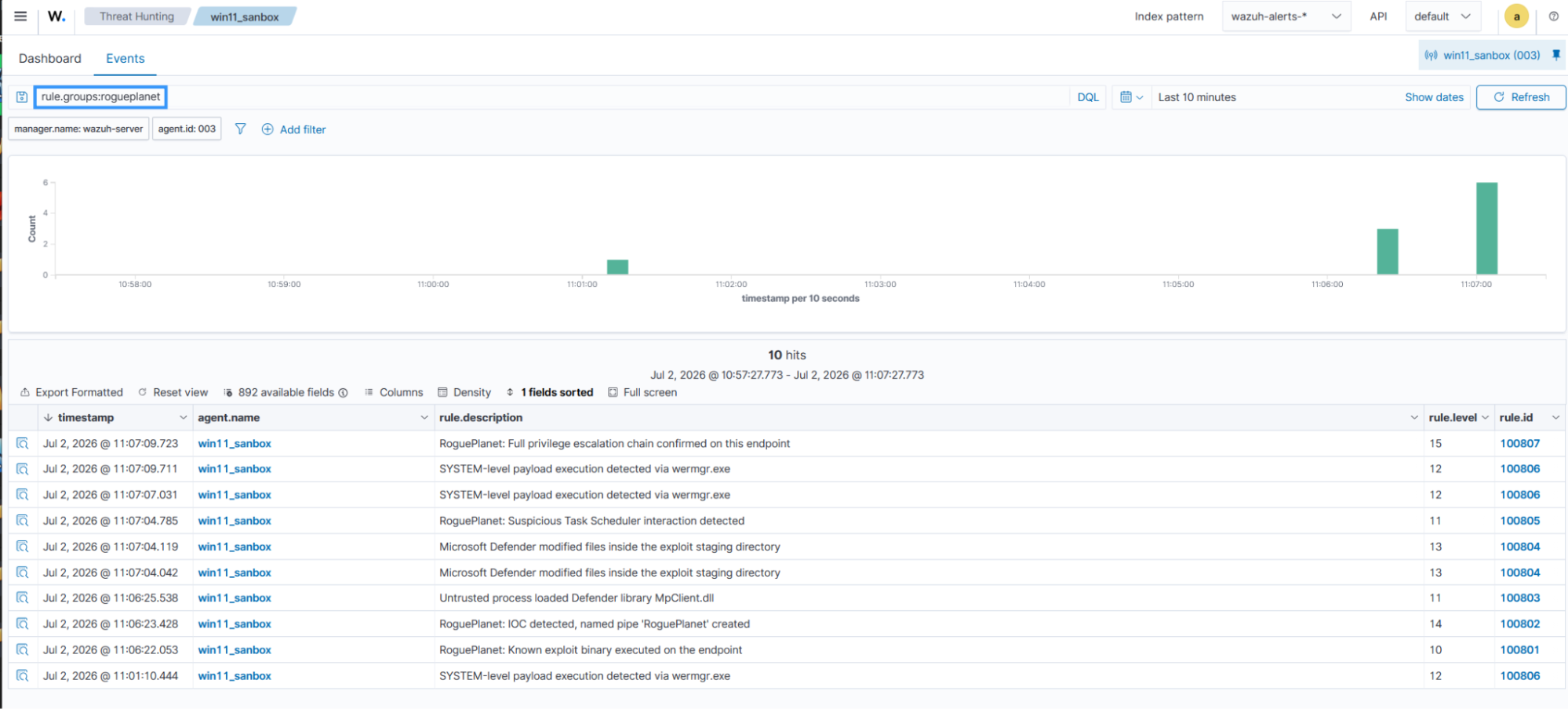
Running the RoguePlanet exploit on the Windows endpoint generates events on the Wazuh dashboard. If exploitation is successful, the attacker gains SYSTEM-level privileges.
| Warning: Run this binary only in an isolated lab or non-production environment. |
Perform the following steps to view the events on the Wazuh dashboard.
- Navigate to Threat intelligence > Threat Hunting > Events.
- In the search bar, type
rule.groups:rogueplanet, and click Update.
Remediation with Wazuh Active Response
The Wazuh Active Response module runs commands on a monitored endpoint when specific alerts are triggered. In this section, we create an active response script to detect and respond to the RoguePlanet vulnerability activities.
Configuring Active Response on the Windows endpoint
Perform the steps below to configure active response on the monitored endpoint:
- Create the file
rogueplanet-response.cmdunderC:\Program Files (x86)\ossec-agent\active-response\bin\and insert the following. The script reads Wazuh alert data from standard input, temporarily stores it in JSON format, and passes it to therogueplanet-response.ps1script for processing:
@echo off
setlocal EnableDelayedExpansion

set "TMPFILE=%TEMP%\wazuh_rogueplanet_%RANDOM%.json"

PowerShell.exe -NonInteractive -NoProfile -Command ^
    "[Console]::In.ReadLine()" > "!TMPFILE!"

:: Verify temp file was written
if not exist "!TMPFILE!" exit /b 1
for %%F in ("!TMPFILE!") do if %%~zF EQU 0 (
    del "!TMPFILE!" >nul 2>&1
    exit /b 1
)

for /f "delims=" %%C in ('PowerShell.exe -NonInteractive -NoProfile -Command ^
    "try { $j = Get-Content \"!TMPFILE!\" -Raw | ConvertFrom-Json; $j.command } catch { 'unknown' }"') do (
    set "COMMAND=%%C"
)

if /I "!COMMAND!" NEQ "add" (
    del "!TMPFILE!" >nul 2>&1
    exit /b 0
)

PowerShell.exe -NonInteractive -NoProfile -ExecutionPolicy Bypass ^
    -File "%~dp0rogueplanet-response.ps1" ^
    -JsonFile "!TMPFILE!"

del "!TMPFILE!" >nul 2>&1
endlocal
exit /b 0
- Create the file
rogueplanet-response.ps1underC:\Program Files (x86)\ossec-agent\active-response\bin\and insert the following. This script analyzes alert data, terminates the spawned shell, removes threat-created directories, and logs the detailed response actions:
param([string]$JsonFile)

$LogPath = "C:\Program Files (x86)\ossec-agent\active-response\active-responses.log"

function Write-ARLog {
    param([string]$Message, [string]$Level = "INFO")
    $Timestamp = Get-Date -Format "yyyy-MM-dd HH:mm:ss"
    $Line = "[$Timestamp] [$Level] RoguePlanet-ActiveResponse: $Message"
    try {
        $stream = [System.IO.File]::Open(
            $LogPath,
            [System.IO.FileMode]::Append,
            [System.IO.FileAccess]::Write,
            [System.IO.FileShare]::ReadWrite
        )
        $writer = [System.IO.StreamWriter]::new($stream)
        $writer.WriteLine($Line)
        $writer.Flush()
        $writer.Close()
        $stream.Close()
    } catch {
        "$Timestamp [$Level] $Message" | Out-File -FilePath "C:\Windows\Temp\rogueplanet_ar_fallback.log" `
            -Append -ErrorAction SilentlyContinue
    }
}

Write-ARLog "Active Response started on $env:COMPUTERNAME"

$InputJson  = $null
$ShellPID   = $null
$ParentPID  = $null
$RuleID     = $null

try {
    if ($JsonFile -and (Test-Path $JsonFile)) {
        $RawInput  = Get-Content -Path $JsonFile -Raw -ErrorAction Stop
        $InputJson = $RawInput | ConvertFrom-Json

        $RuleID    = $InputJson.parameters.alert.rule.id
        $EventData = $InputJson.parameters.alert.data.win.eventdata

        # 100807 fires on the Sysmon Event 1 for the SYSTEM shell creation.
        # processId is the shell itself; parentProcessId is its conhost.exe.
        $RawShellPID  = $EventData.processId
        $RawParentPID = $EventData.parentProcessId

        if ($RawShellPID  -match '^\d+$') { $ShellPID  = [int]$RawShellPID }
        if ($RawParentPID -match '^\d+$') { $ParentPID = [int]$RawParentPID }

        Write-ARLog "Alert rule: $RuleID | Agent: $($InputJson.parameters.alert.agent.name)"
        Write-ARLog "Shell PID from alert: $ShellPID | Parent (conhost) PID: $ParentPID"

        # Forensic snapshot from the alert itself
        Write-ARLog "FORENSICS shell image: $($EventData.image)"
        Write-ARLog "FORENSICS shell cmdline: $($EventData.commandLine)"
        Write-ARLog "FORENSICS shell user: $($EventData.user) | session: $($EventData.terminalSessionId) | integrity: $($EventData.integrityLevel)"
        Write-ARLog "FORENSICS shell hashes: $($EventData.hashes)"
        Write-ARLog "FORENSICS shell create time (UTC): $($EventData.utcTime)"
        Write-ARLog "FORENSICS parent image: $($EventData.parentImage) | parent user: $($EventData.parentUser)"
    }
} catch {
    Write-ARLog "Could not parse alert JSON: $_ - proceeding with live enumeration only"
}

$SafetyExcludedPIDs = @(0, 4, $PID)


$ChildPIDs = @()

if ($ShellPID -and $ShellPID -notin $SafetyExcludedPIDs) {
    try {
        $LiveShell = Get-CimInstance Win32_Process -Filter "ProcessId = $ShellPID" -ErrorAction Stop
        if ($LiveShell) {
            $Children = Get-CimInstance Win32_Process -Filter "ParentProcessId = $ShellPID"
            foreach ($c in $Children) {
                $ChildPIDs += [int]$c.ProcessId
                Write-ARLog "FORENSICS child spawned by shell: $($c.Name) (PID: $($c.ProcessId)) cmdline: $($c.CommandLine)"
            }
            if (-not $Children) {
                Write-ARLog "FORENSICS no child processes spawned by shell PID $ShellPID"
            }
        }
    } catch {
        Write-ARLog "Shell PID $ShellPID not live at AR runtime - may have already exited"
    }
} else {
    Write-ARLog "No valid shell PID from alert"
}


foreach ($cpid in $ChildPIDs) {
    if ($cpid -in $SafetyExcludedPIDs) { continue }
    try {
        $cproc = Get-Process -Id $cpid -ErrorAction Stop
        Stop-Process -Id $cpid -Force
        Write-ARLog "killed shell child: $($cproc.ProcessName) (PID: $cpid) process terminated"
    } catch [Microsoft.PowerShell.Commands.ProcessCommandException] {
        Write-ARLog "shell child PID $cpid already exited"
    } catch {
        Write-ARLog "failed to kill shell child PID $cpid : $_"
    }
}

if ($ShellPID -and $ShellPID -notin $SafetyExcludedPIDs) {
    try {
        $sproc = Get-Process -Id $ShellPID -ErrorAction Stop
        Stop-Process -Id $ShellPID -Force
        Write-ARLog "killed SYSTEM shell: $($sproc.ProcessName) (PID: $ShellPID) process terminated"
    } catch [Microsoft.PowerShell.Commands.ProcessCommandException] {
        Write-ARLog "SYSTEM shell PID $ShellPID already exited"
    } catch {
        Write-ARLog "failed to kill SYSTEM shell PID $ShellPID : $_"
    }
}

if ($ParentPID -and $ParentPID -notin $SafetyExcludedPIDs) {
    try {
        $pproc = Get-Process -Id $ParentPID -ErrorAction Stop
        if ($pproc.ProcessName -eq 'conhost') {
            Stop-Process -Id $ParentPID -Force
            Write-ARLog "killed console host: conhost.exe (PID: $ParentPID) process terminated"
        } else {
            Write-ARLog "parent PID $ParentPID is $($pproc.ProcessName), not conhost - not killed"
        }
    } catch [Microsoft.PowerShell.Commands.ProcessCommandException] {
        Write-ARLog "parent PID $ParentPID already exited"
    } catch {
        Write-ARLog "failed to kill parent PID $ParentPID : $_"
    }
}


try {
    Disable-ScheduledTask -TaskPath "\Microsoft\Windows\Windows Error Reporting\" -TaskName "QueueReporting" -ErrorAction Stop | Out-Null
    Write-ARLog "WER QueueReporting task disabled - SYSTEM execution vector blocked"
} catch {
    Write-ARLog "failed to disable WER QueueReporting task: $_"
}


$Cleaned = 0
$UserProfiles = Get-ChildItem "C:\Users" -Directory -ErrorAction SilentlyContinue
foreach ($Profile in $UserProfiles) {
    $TempPath = Join-Path $Profile.FullName "AppData\Local\Temp"
    if (Test-Path $TempPath) {
        $RPDirs = Get-ChildItem -Path $TempPath -Directory -Filter "RP_*" -ErrorAction SilentlyContinue
        foreach ($Dir in $RPDirs) {
            try {
                Remove-Item -Path $Dir.FullName -Recurse -Force -ErrorAction Stop
                Write-ARLog "deleted staging directory: $($Dir.FullName)"
                $Cleaned++
            } catch {
                Write-ARLog "failed to delete staging directory: $($Dir.FullName) - $_"
            }
        }
    }
}
if ($Cleaned -eq 0) { Write-ARLog "No staging directories found" }

Write-ARLog "Active Response completed on $env:COMPUTERNAME"
exit 0
Configuring Active Response on the Wazuh dashboard
Perform the following steps on the Wazuh dashboard to configure active response:
- Click the upper-left menu ☰ and navigate to Server management > Settings.
- Click Edit configuration to edit the
ossec.confof the Wazuh manager. - Append the following configuration to the editor to trigger an active response action to rule ID
100807. Click Save, then Restart Manager to apply the changes:
<ossec_config>
  <command>
    <name>rogueplanet-response</name>
    <executable>rogueplanet-response.cmd</executable>
    <timeout_allowed>no</timeout_allowed>
  </command>

  <active-response>
    <disabled>no</disabled>
    <command>rogueplanet-response</command>
    <location>local</location>
    <rules_id>100807</rules_id>
  </active-response>
</ossec_config
- Navigate to Server management > Decoders, then click + Add new decoders file.
- Copy and paste the rules below and name the file
rogueplanet_decoder.xml, then click Save.
<!-- Base decoder: matches any RoguePlanet-ActiveResponse log entry -->
<decoder name="rogueplanet-ar-custom">
  <prematch>RoguePlanet-ActiveResponse:</prematch>
</decoder>

<decoder name="rogueplanet-ar-custom-fields">
  <parent>rogueplanet-ar-custom</parent>
  <regex type="pcre2">^\[[^\]]+\] \[(\w+)\] RoguePlanet-ActiveResponse: (.+)$</regex>
  <order>ar_level,ar_message</order>
</decoder>

<!-- PID decoder: extracts process ID from kill events -->
<decoder name="rogueplanet-ar-custom-pid">
  <parent>rogueplanet-ar-custom</parent>
  <regex type="pcre2">PID:\s*(\d+)</regex>
  <order>ar_pid</order>
</decoder>
- Click Reload to apply the changes. Click Confirm when prompted.
- Navigate to Server management > Rules, click Manage rules files, then Custom rules.
- Click the edit button next to the
rogueplanet.xmlfile. - Append the rules below to the file. Click Save, then Reload to apply the changes:
<group name="rogueplanet,active_response,windows">

  <!-- Base rule for PS1 script log entries -->
  <rule id="100820" level="0">
    <decoded_as>rogueplanet-ar-custom</decoded_as>
    <description>RoguePlanet Active Response log entry</description>
  </rule>

  <rule id="100821" level="12">
    <if_sid>100820</if_sid>
    <field name="ar_message" type="pcre2">(?i)(killed:.*process terminated|deleted staging directory|killed SYSTEM shell)</field>
    <description>RoguePlanet: Active response $(ar_message)</description>
  </rule>

  <rule id="100822" level="10">
    <if_sid>100820</if_sid>
    <field name="ar_message" type="pcre2">(?i)(failed to kill|failed to delete)</field>
    <description>RoguePlanet: Active response $(ar_message) - manual intervention required</description>
  </rule>

  <rule id="100823" level="3">
    <if_sid>100820</if_sid>
    <field name="ar_message" type="pcre2">(?i)Active Response completed</field>
    <description>RoguePlanet: Active response containment completed</description>
  </rule>

</group>
Where:
- Rule ID
100821is triggered when the active response script terminates a suspicious process, deletes staging directories, or terminates the spawned SYSTEM shell. - Rule ID
100822is triggered when the active response script fails to act, indicating that manual intervention is required. - Rule ID
100823is triggered when the active response script has completed execution.
Response results
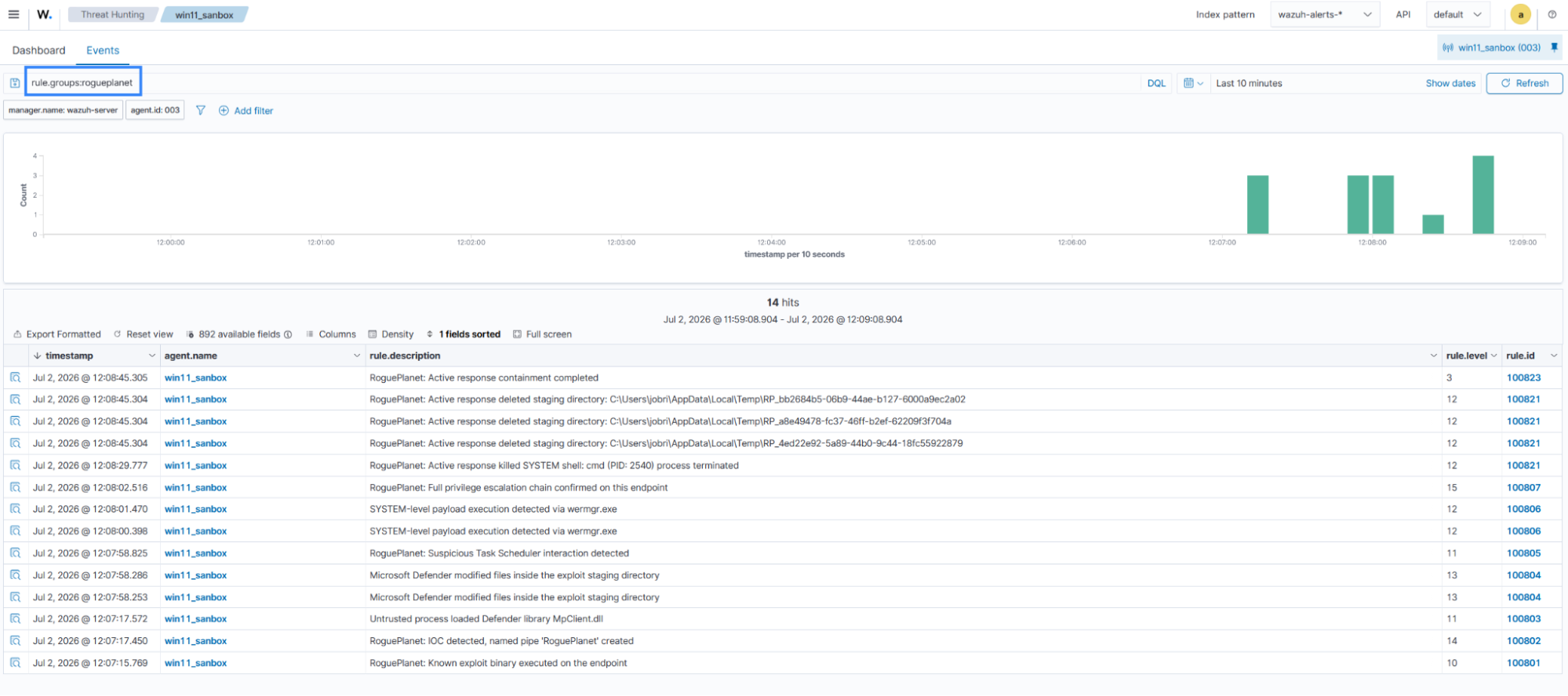
A successful execution of the active response script prevents the attacker from gaining SYSTEM-level privileges and generates events on the Wazuh dashboard.
Perform the following steps to view the events on the Wazuh dashboard.
- Navigate to Threat intelligence > Threat Hunting > Events.
- In the search bar, type
rule.groups:rogueplanet, and click Update.
Conclusion
RoguePlanet is a publicly available vulnerability that gives any local user SYSTEM-level access on Windows 10 and Windows 11 systems. Independent testing has confirmed the vulnerability is functional. While a vendor patch is pending, detection and rapid response are the primary defenses available.
Wazuh detects RoguePlanet activity across multiple stages of the exploit chain, including directory creation, the junction-point redirect, and extending to the final SYSTEM shell spawn. The custom rules in this blog post give security teams actionable, high-fidelity alerts to prioritize and respond to RoguePlanet activity.
Discover more about Wazuh by exploring our other blog posts and joining our growing community.