
Modern security operations need deep visibility into endpoints, networks, and cloud workloads, combined with actionable, real‑time intelligence about active threats and adversaries. Without this context, security teams struggle to distinguish high‑priority threats from benign events and low‑value alerts, slowing down investigations and increasing attacker dwell time.
Wazuh provides unified visibility and threat detection across your infrastructure, while OpenCTI centralizes cyber threat intelligence from multiple feeds into a structured, searchable platform. Integrating Wazuh with OpenCTI allows you to enrich Wazuh alerts with indicators of compromise (IOCs) such as malicious IP addresses, domains, and file hashes.
In this post, we integrate Wazuh with OpenCTI to correlate security events with known threats in real time, improving alert prioritization, reducing false positives, and accelerating incident response.
Infrastructure
We use the following infrastructure to demonstrate the integration between Wazuh and OpenCTI.
- A pre-built, ready-to-use Wazuh OVA 4.14.6, which includes the Wazuh server, Wazuh indexer, and Wazuh dashboard. Follow the Wazuh OVA deployment guide to download and deploy the virtual machine.
- An Ubuntu 24.04 endpoint with the following software:
- OpenCTI installed using the Docker installation guide for OpenCTI.
- The Wazuh agent 4.14.6 installed and enrolled to the Wazuh server to monitor for suspicious activity.
Note
In this blog post, we install OpenCTI in the /root directory for demonstration purposes. You can install in a different directory if preferred, but update the file paths in the commands accordingly.
- A Windows 11 endpoint with the Wazuh agent 4.14.6 installed and enrolled to the Wazuh server. This endpoint generates events that Wazuh monitors for suspicious activity.
Configuration
This section describes how to configure OpenCTI to ingest threat intelligence and obtain an API token. It also explains how to configure the Wazuh server to query OpenCTI for IOC enrichment. Finally, it covers setting up the Windows endpoint that generates the security events used to validate the integration.
Ubuntu endpoint
We demonstrate how to configure OpenCTI to ingest threat intelligence from multiple sources using its connectors. We then validate successful data ingestion and generate an OpenCTI API token to authenticate the integration with Wazuh.
Enabling OpenCTI connectors for data ingestion
OpenCTI connectors continuously populate the platform with IP address, domain, file hash, campaign, and threat actor information. Enable additional connectors to extend the default data sources for your environment.
This post enables the following connectors:
- VirusTotal: A platform for security analysts to scan files, URLs, and search for hashes to get reputation scores and community context.
- RansomwareLive: An open source platform dedicated to providing real-time threat intelligence on the evolving landscape of ransomware threats.
- MalwareBazaar: A free malware-sharing and threat intelligence platform that allows security teams to upload, search, and download confirmed malware samples.
- ThreatFox: A free, community-driven threat intelligence platform that collects and shares IOCs associated with malware and botnet activity.
Note
You can enable as many connectors as your environment requires.
Perform the following steps to enable these connectors in the Docker-based OpenCTI deployment.
- Add the following sections after the existing
connector-opencti: definition in the/root/docker/docker-compose.ymlfile:
  # VirusTotal connector
  connector-virustotal:
    image: opencti/connector-virustotal:6.3.1
    environment:
      - OPENCTI_URL=http://opencti:8080
      - OPENCTI_TOKEN=${OPENCTI_ADMIN_TOKEN}
      - CONNECTOR_ID=<UUID>
      - CONNECTOR_NAME=VirusTotal
      - VIRUSTOTAL_TOKEN=<VIRUSTOTAL_API_KEY>
    restart: always
    depends_on:
      opencti:
        condition: service_healthy

  # RansomwareLive connector
  connector-ransomwarelive:
    image: opencti/connector-ransomwarelive:latest
    environment:
      - OPENCTI_URL=http://opencti:8080
      - OPENCTI_TOKEN=${OPENCTI_ADMIN_TOKEN}
      - CONNECTOR_ID=<UUID>
      - CONNECTOR_NAME=RansomwareLive
      - CONNECTOR_SCOPE=ransomwarelive
      - CONNECTOR_LOG_LEVEL=error
    restart: always
    depends_on:
      opencti:
        condition: service_healthy

  # Malwarebazaar connector
  connector-malwarebazaar-recent-additions:
    image: opencti/connector-malwarebazaar-recent-additions:latest
    environment:
      - OPENCTI_URL=http://opencti:8080
      - OPENCTI_TOKEN=${OPENCTI_ADMIN_TOKEN}
      - CONNECTOR_ID=<UUID>
      - "CONNECTOR_NAME=MalwareBazaar Recent Additions"
      - CONNECTOR_LOG_LEVEL=error
      - MALWAREBAZAAR_RECENT_ADDITIONS_API_URL=https://mb-api.abuse.ch/api/v1/
      - MALWAREBAZAAR_RECENT_ADDITIONS_API_KEY=<MALWAREBAZAAR_API_KEY>
      - MALWAREBAZAAR_RECENT_ADDITIONS_COOLDOWN_SECONDS=300
      - MALWAREBAZAAR_RECENT_ADDITIONS_INCLUDE_TAGS=exe,dll,docm,docx,doc,xls,xlsx,xlsm,js
      - MALWAREBAZAAR_RECENT_ADDITIONS_INCLUDE_REPORTERS=
      - MALWAREBAZAAR_RECENT_ADDITIONS_LABELS=malware-bazaar      - MALWAREBAZAAR_RECENT_ADDITIONS_LABELS_COLOR=#54483b
    restart: always
    depends_on:
      opencti:
        condition: service_healthy

  # ThreatFox connector
  connector-threatfox:
    image: opencti/connector-threatfox:latest
    environment:
      - OPENCTI_URL=http://opencti:8080
      - OPENCTI_TOKEN=${OPENCTI_ADMIN_TOKEN}
      - CONNECTOR_ID=<UUID>
      - CONNECTOR_NAME=ThreatFox
      - CONNECTOR_SCOPE=threatfox
      - CONNECTOR_LOG_LEVEL=error
      - THREATFOX_CSV_URL=https://threatfox.abuse.ch/export/csv/recent/
      - THREATFOX_INTERVAL=3 # In days
      - THREATFOX_IMPORT_OFFLINE=true
      - THREATFOX_CREATE_INDICATORS=true
      - THREATFOX_DEFAULT_X_OPENCTI_SCORE=50
      - THREATFOX_IOC_TO_IMPORT=all_types
    restart: always
    depends_on:
      opencti:
        condition: service_healthy
Replace the following variables with their appropriate values:
<VIRUSTOTAL_API_KEY>with your VirusTotal API key.<MALWAREBAZAAR_API_KEY>with your MalwareBazaar API key.<UUID>with a valid Universally Unique Identifier (UUID) for the different connectors. You can use the following command to generate it:
# cat /proc/sys/kernel/random/uuid
Note
You have to configure OPENCTI_ADMIN_TOKEN and other variables in the /root/docker/.env file as stated in the OpenCTI installation guide.
This blog post uses HTTP for simplicity. For production deployments, configure OpenCTI behind a reverse proxy with HTTPS to secure communications.
- Pull and start the connector containers:
# docker compose up -d
Validating data ingestion
Perform the following steps on the OpenCTI dashboard to verify that the configured connectors are active and ingesting data into OpenCTI.
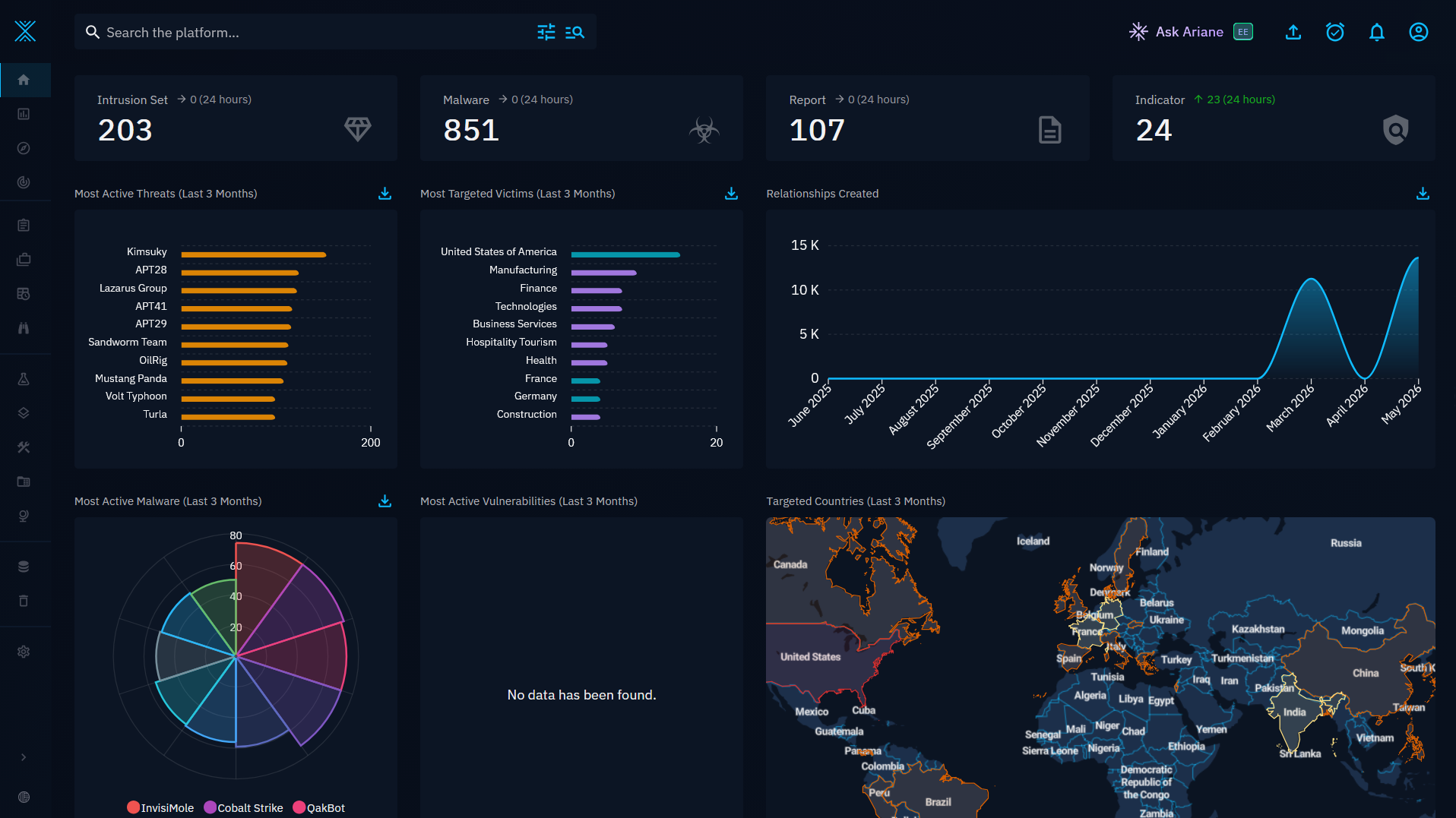
- Log in to your OpenCTI platform instance at
http://<UBUNTU_IP_ADDRESS>:8080. Replace<UBUNTU_IP_ADDRESS>with the IP address of the Ubuntu endpoint.
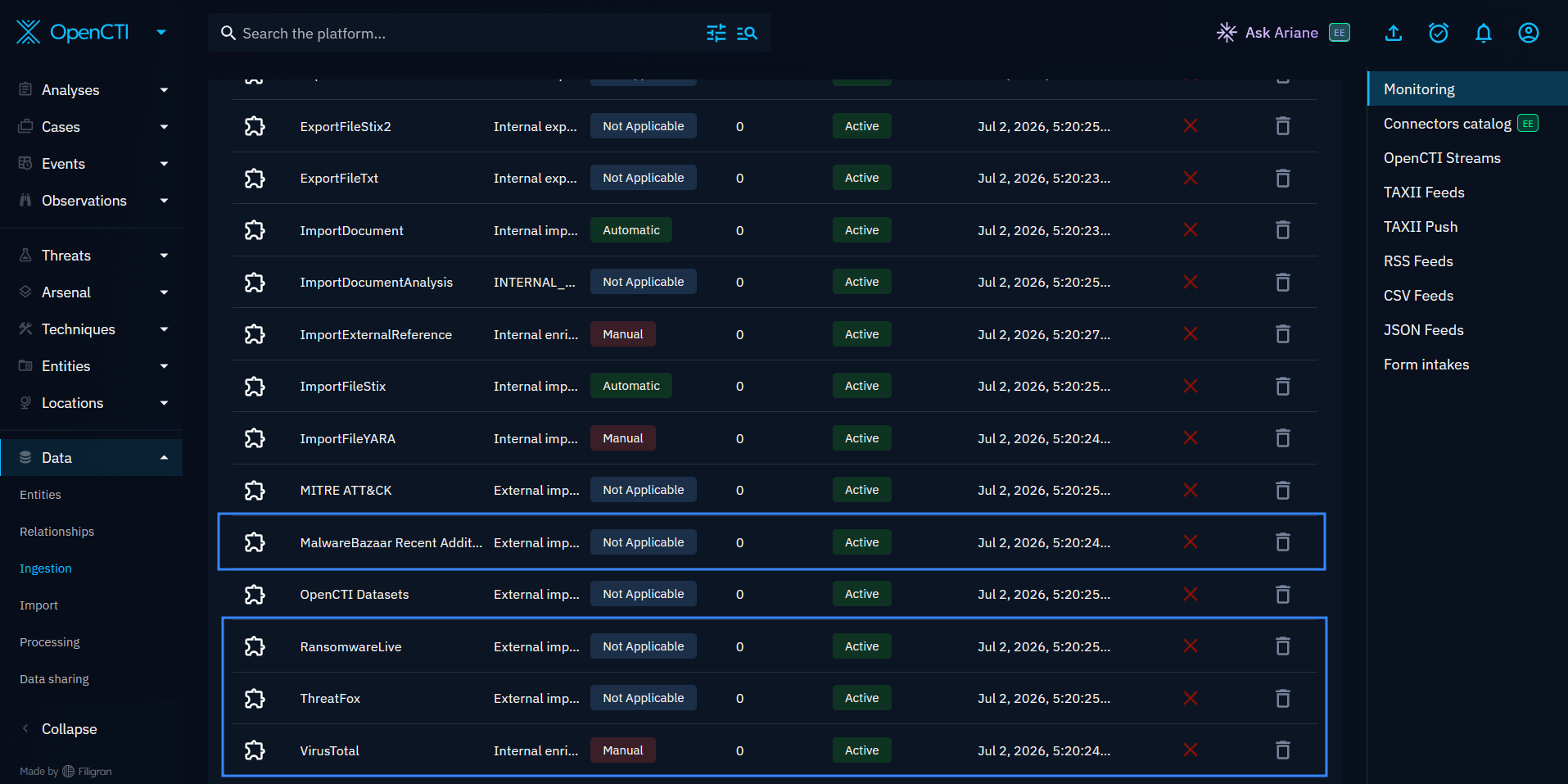
- Navigate to Data > Ingestion on the left menu barto confirm that the MalwareBazaar, RansomwareLive, ThreatFox, and VirusTotal connector statuses are shown as
Active.
Generating an OpenCTI API token
Perform the following steps to generate the personal API key for your OpenCTI instance.
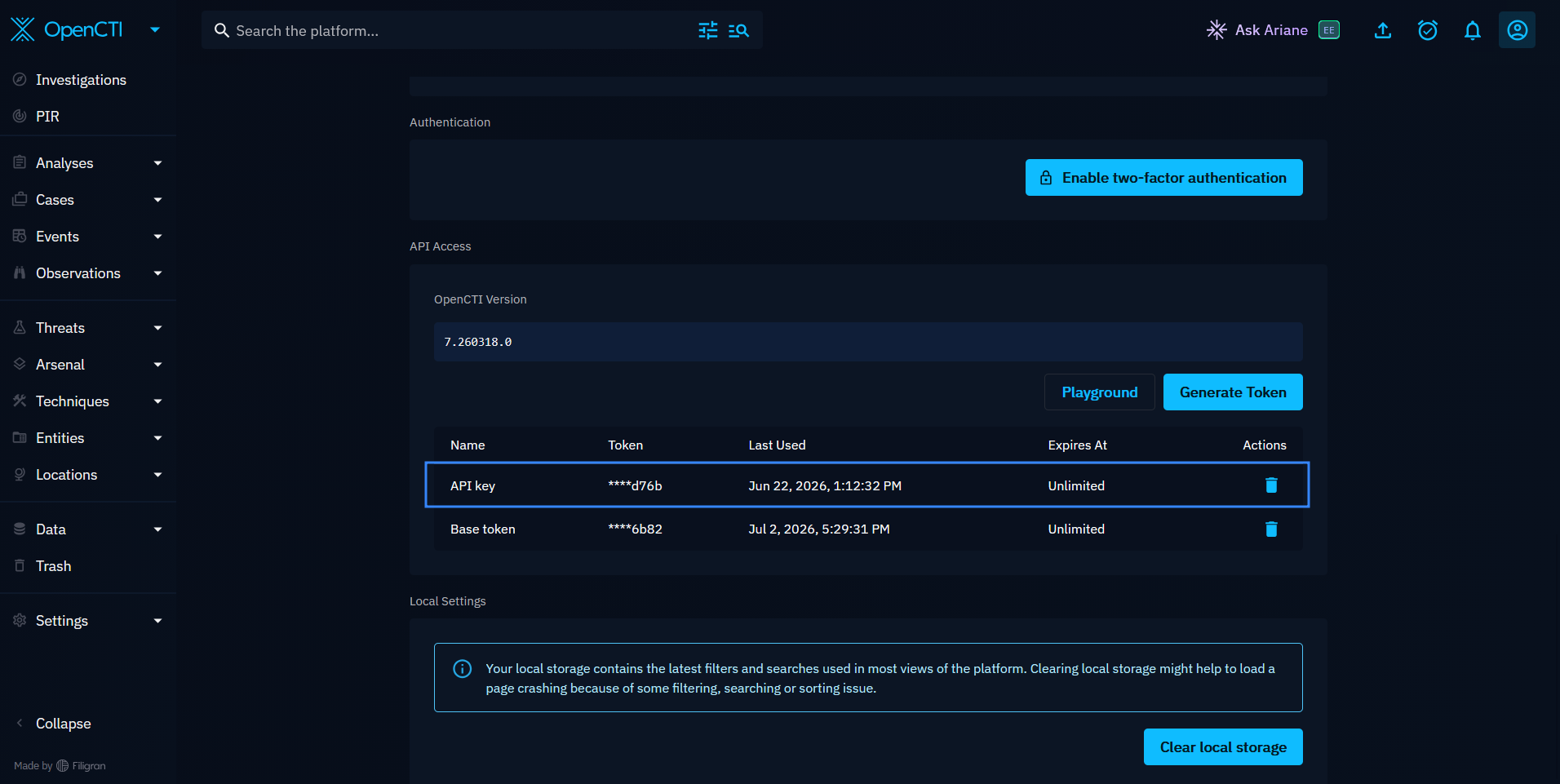
- Log in to your OpenCTI platform instance at
http://<UBUNTU_IP_ADDRESS>:8080. Replace<UBUNTU_IP_ADDRESS>with the IP address of the Ubuntu endpoint. - Click on your Profile icon in the top-right corner of the screen.
- Select Profile from the dropdown menu.
- Scroll down to the API Access section.
- Click Generate Token, fill in the Name and Duration, and click Generate.
- Copy the generated token for use in the Wazuh integrations script to authenticate your API requests.
Note
Copy the token before closing the dialog box. You cannot retrieve the generated token after you close it.
Wazuh server
We configure the Wazuh Integrator module and install the integration script on the Wazuh server to enable IOC lookups against OpenCTI. Then we create custom rules to generate alerts associated with the OpenCTI integration.
Wazuh-OpenCTI integration
Perform the following steps on the Wazuh server to configure the Wazuh Integrator module and the integration script:
- Download the scripts below from the wazuh-opencti-integration GitHub repository into the
/var/ossec/integrations/directory:
# wget -O /var/ossec/integrations/custom-opencti.py https://raw.githubusercontent.com/anyam17/wazuh-opencti-integration/refs/heads/main/custom-opencti.py
# wget -O /var/ossec/integrations/custom-opencti https://raw.githubusercontent.com/anyam17/wazuh-opencti-integration/refs/heads/main/custom-opencti
| Warning: This script is a proof of concept (PoC). Review and validate it to ensure it meets the operational and security requirements of your environment. |
- Add the permissions
750and ownershiproot:wazuhto thecustom-openctiandcustom-opencti.pyscripts. The permission grants the owner full access (read, write, and execute), allows thewazuhgroup to read and execute the scripts, and denies all access to other users.
# chmod 750 /var/ossec/integrations/{custom-opencti.py,custom-opencti}
# chown root:wazuh /var/ossec/integrations/{custom-opencti.py,custom-opencti}
- Create an
opencti.envfile in the/var/ossec/integrations/directory and add your OpenCTI API token to authenticate the Wazuh integration script:
# cat > /var/ossec/integrations/opencti.env << 'EOF'
# Kept here and not in /var/ossec/etc/ossec.conf for security.
OPENCTI_TOKEN=<OPENCTI_API_TOKEN>
EOF
Replace <OPENCTI_API_TOKEN> with your OpenCTI API token.
- Run the following commands to set the correct ownership and permissions on the
/var/ossec/integrations/opencti.env file. This restricts access to therootuser and thewazuhgroup, preventing other users on the system from reading the OpenCTI API token.
# chmod 640 /var/ossec/integrations/opencti.env
# chown root:wazuh /var/ossec/integrations/opencti.env
- Append the configuration below to the
/var/ossec/etc/ossec.conffile to configure Wazuh to run thecustom-openctiscript, which queries OpenCTI for observables and indicators:
<ossec_config>
  <integration>
    <name>custom-opencti</name>
    <group>sysmon,suricata,web,syscheck,virustotal,sshd</group>
    <hook_url><OPENCTI_URL>/graphql</hook_url>
    <alert_format>json</alert_format>
  </integration>
</ossec_config>
Where:
<name>specifies the name of the integration script. In this case,custom-opencti.<group>specifies the Wazuh rule groups that trigger the integration. The script covers events from the following rule groups, includingsyscheck(File Integrity Monitoring),sysmon(process creation, file create, DNS query, etc.),suricata,ids,osquery,web, andsshd.<alert_format>specifies that the alerts are received in JSON format.<hook_url>specifies the webhook URL of the application to query. Replace<OPENCTI_URL>with your OpenCTI URL, for example,http://10.0.2.3:8080.
Creating custom rules
We create custom Wazuh detection rules to generate alerts when OpenCTI returns an IOC match, with severity levels based on match type and confidence score.
- Create the rule file
opencti_rules.xmlin the/var/ossec/etc/rules/directory:
# touch /var/ossec/etc/rules/opencti_rules.xml
- Add the following rules to the
/var/ossec/etc/rules/opencti_rules.xmlfile:
<group name="opencti,threatintel,">

  <!-- Base rule: any event from the OpenCTI integration. -->
  <rule id="110000" level="3">
    <decoded_as>json</decoded_as>
    <field name="integration">opencti</field>
    <description>OpenCTI: enrichment event received.</description>
    <options>no_full_log</options>
  </rule>

  <!-- Observable only: present in OpenCTI as context. -->
  <rule id="110005" level="5">
    <if_sid>110000</if_sid>
    <field name="opencti.match_type" type="pcre2">^observable_only$</field>
    <description>OpenCTI: $(opencti.ioc_type) "$(opencti.ioc_value)" found in CTI.</description>
    <group>ioc_context,</group>
  </rule>

  <!-- Malicious: matched an indicator pattern only (no standalone observable). -->
  <rule id="110010" level="10">
    <if_sid>110000</if_sid>
    <field name="opencti.match_type" type="pcre2">^indicator_only$</field>
    <description>OpenCTI: malicious $(opencti.ioc_type) "$(opencti.ioc_value)" - indicator match (score $(opencti.max_score)).</description>
    <mitre>
      <id>T1071</id>
      <id>T1105</id>
    </mitre>
    <group>malicious,indicator_only,</group>
  </rule>

  <!-- Malicious: observable that carries a linked indicator. -->
  <rule id="110015" level="12">
    <if_sid>110000</if_sid>
    <field name="opencti.match_type" type="pcre2">^indicator_and_observable$</field>
    <description>OpenCTI: malicious $(opencti.ioc_type) "$(opencti.ioc_value)" matches known threat intel (score $(opencti.max_score)).</description>
    <mitre>
      <id>T1071</id>
      <id>T1105</id>
    </mitre>
    <group>malicious,indicator_and_observable,</group>
  </rule>

  <!-- High-confidence rule: Triggers when a malicious match has a score of 75 or higher. -->
  <rule id="110020" level="13">
    <if_sid>110010,110015</if_sid>
    <field name="opencti.max_score" type="pcre2">^(7[5-9]|8[0-9]|9[0-9]|100)$</field>
    <description>OpenCTI: HIGH-CONFIDENCE malicious $(opencti.ioc_type) "$(opencti.ioc_value)" (score $(opencti.max_score), $(opencti.match_type)).</description>
    <mitre>
      <id>T1071</id>
      <id>T1105</id>
    </mitre>
    <group>malicious,high_confidence,</group>
  </rule>

</group>

<group name="sysmon,windows,">

  <!-- DNS rule: Catches all DNS events. Tune rule for specific needs. -->
  <rule id="100025" level="3">
    <if_sid>61650</if_sid>
    <description>DNS query for $(win.eventdata.queryName).</description>
  </rule>
</group>
Where:
- Rule ID
110000is the base rule that matches all enrichment events returned by the OpenCTI integration. - Rule ID
110005is triggered when the IOC is present in OpenCTI as a raw observable only, with no linked indicator. This provides context without a malicious verdict. - Rule ID
110010is triggered when the IOC matches an indicator pattern in OpenCTI without a standalone observable. - Rule ID
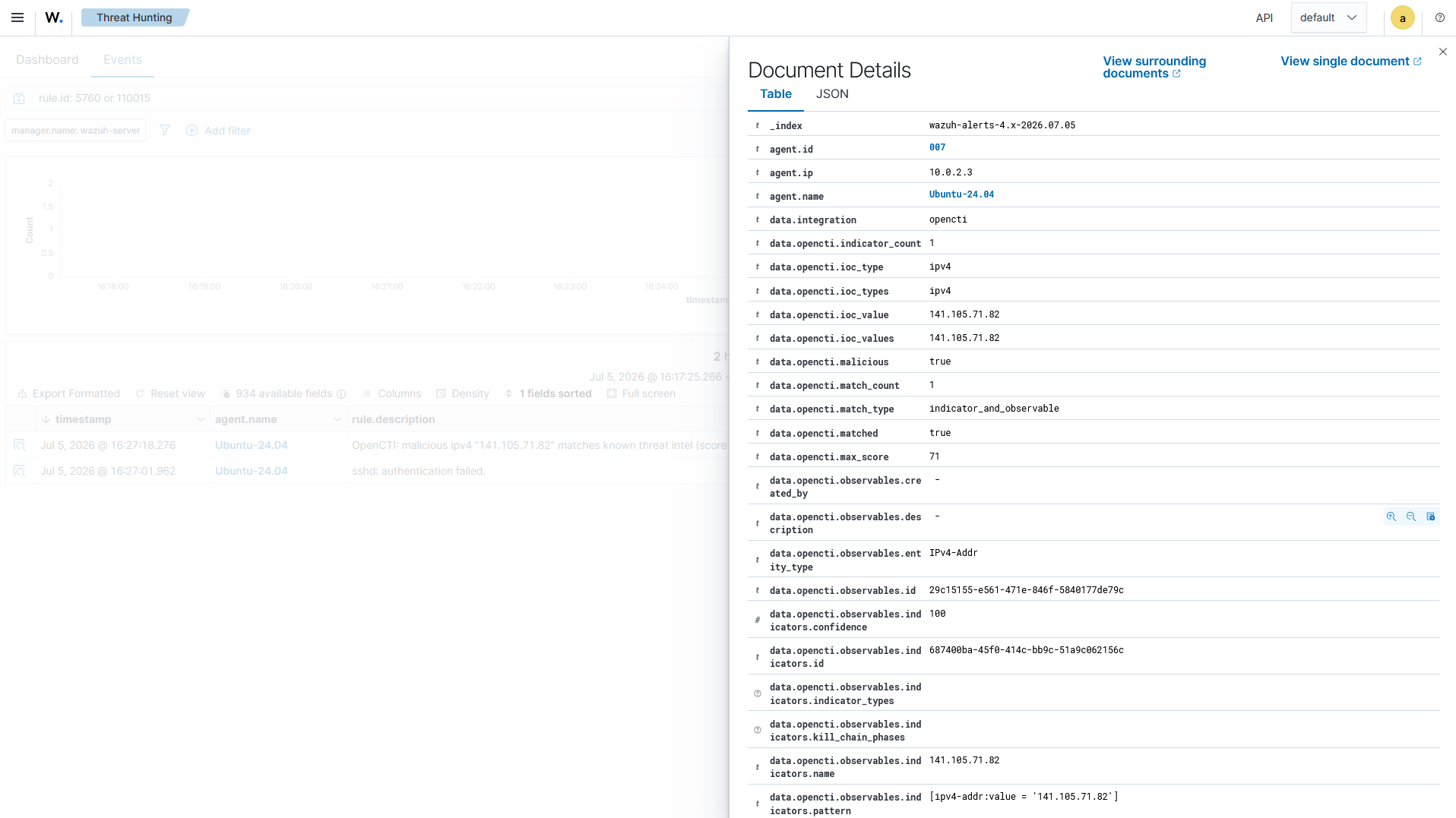
110015is triggered when the IOC matches an observable that carries a linked indicator, representing a confirmed threat intelligence match. - Rule ID
110020is triggered when a malicious match has a confidence score of75or higher, indicating a high-confidence detection. - Rule ID
100025is triggered when there is a DNS lookup. For this blog post, we are showing the alert on the Wazuh dashboard. To avoid noise, lower the rule level to1or2.
- Restart the Wazuh manager to apply the configuration changes:
# systemctl restart wazuh-manager
Windows endpoint
We configure Sysmon and File Integrity Monitoring (FIM) on the Windows endpoint to capture process, network, and file events. Wazuh analyzes these events and triggers a custom integration script, which queries OpenCTI for IOC correlation.
- Download the latest version of Sysmon from the Microsoft Sysinternals page.
- Extract the compressed Sysmon file to your preferred location.
- Download the Sysmon configuration file using PowerShell as an administrator. Replace
<SYSMON_EXECUTABLE_PATH>with the path to your Sysmon executable:
> wget -Uri https://wazuh.com/resources/blog/emulation-of-attack-techniques-and-detection-with-wazuh/sysmonconfig.xml -OutFile <SYSMON_EXECUTABLE_PATH>\sysmonconfig.xml
- Switch to the folder containing the Sysmon executable and run the command below to install and start Sysmon:
> .\Sysmon64.exe -accepteula -i sysmonconfig.xml
- Append the following configuration to the
C:\Program Files (x86)\ossec-agent\ossec.conffile to forward Sysmon events to the Wazuh server:
<ossec_config>
  <localfile>
    <location>Microsoft-Windows-Sysmon/Operational</location>
    <log_format>eventchannel</log_format>
  </localfile>
</ossec_config>
- Append the settings below to the Wazuh agent configuration file
C:\Program Files (x86)\ossec-agent\ossec.confto monitor theDownloadsfolder of all users in real time:
<ossec_config>
  <syscheck>
    <directories realtime="yes">C:\Users\*\Downloads</directories>
  </syscheck>
</ossec_config>
- Restart the Wazuh agent using PowerShell with administrator privileges to apply the configuration change:
> Restart-Service -Name wazuh
Testing the integration
We use the following scenarios to test and validate the Wazuh and OpenCTI integration across the following use cases.
Malware intrusion detection
This use case focuses on detecting malicious software, including ransomware, trojans, spyware, and botnets, by correlating file events from FIM with IOCs in OpenCTI.
Perform the following steps to view the malware detection results.
Simulation
- Download any malware sample tracked by OpenCTI to the monitored
Downloadsfolder on the Windows endpoint. You can look up tracked malware in OpenCTI under Observations > Observables, filtered byentity type = Artifact.
Note
Ensure you delete the malware file after a successful simulation.
Alerts visualization
Perform the following steps on the Wazuh dashboard to visualize the generated alerts.
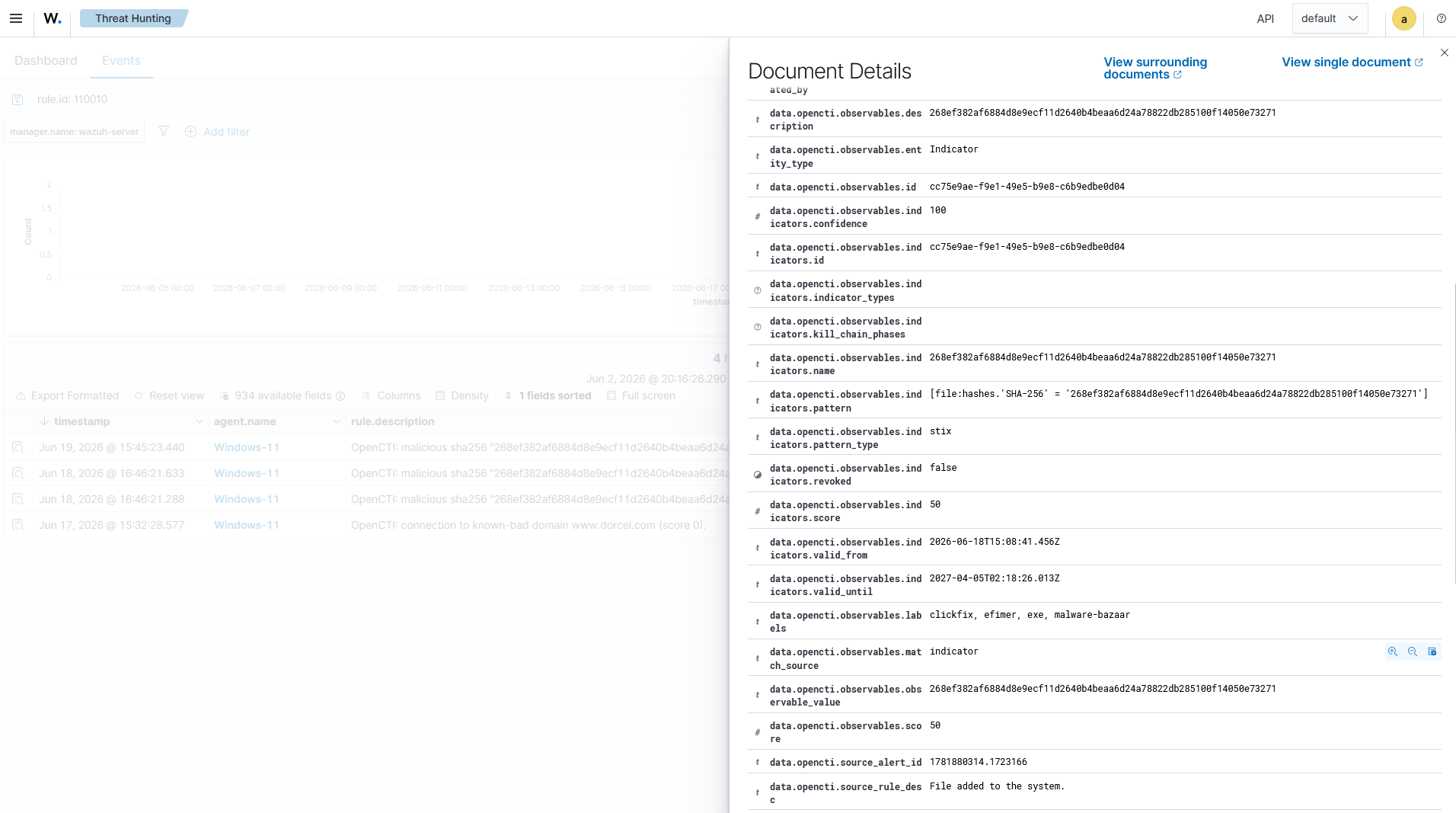
- Navigate to Threat Hunting and click the Events tab.
- Search the query
rule.id: 554 or 110010to view the generated alerts.
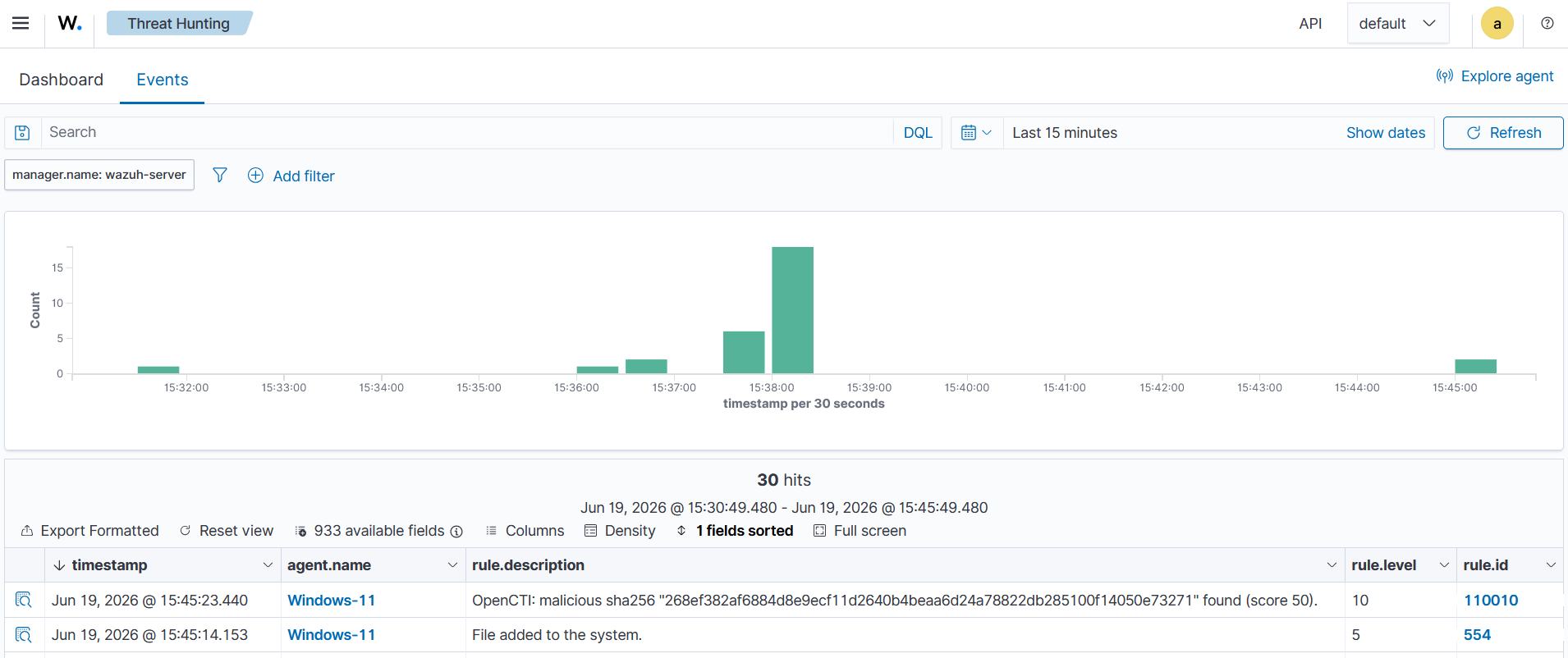
Click the Inspect document details button at the far left of alert ID 110010 to view the enriched alert context.
Suspicious network traffic
Suspicious network traffic detections help identify command-and-control communication, data exfiltration attempts, and unusual inbound scans or brute-force attempts by matching observed DNS queries and network connections against IOCs in OpenCTI.
Perform the following steps to simulate and detect suspicious network traffic.
Creating an observable
Observables represent entities such as IP addresses, domains, URLs, file hashes, and email addresses that can be tracked, analyzed, and enriched with external threat intelligence. We create a new observable in OpenCTI and enrich it with threat intelligence from VirusTotal to add valuable context for security investigations.
Perform the following steps to create an IPv4 address observable in OpenCTI.
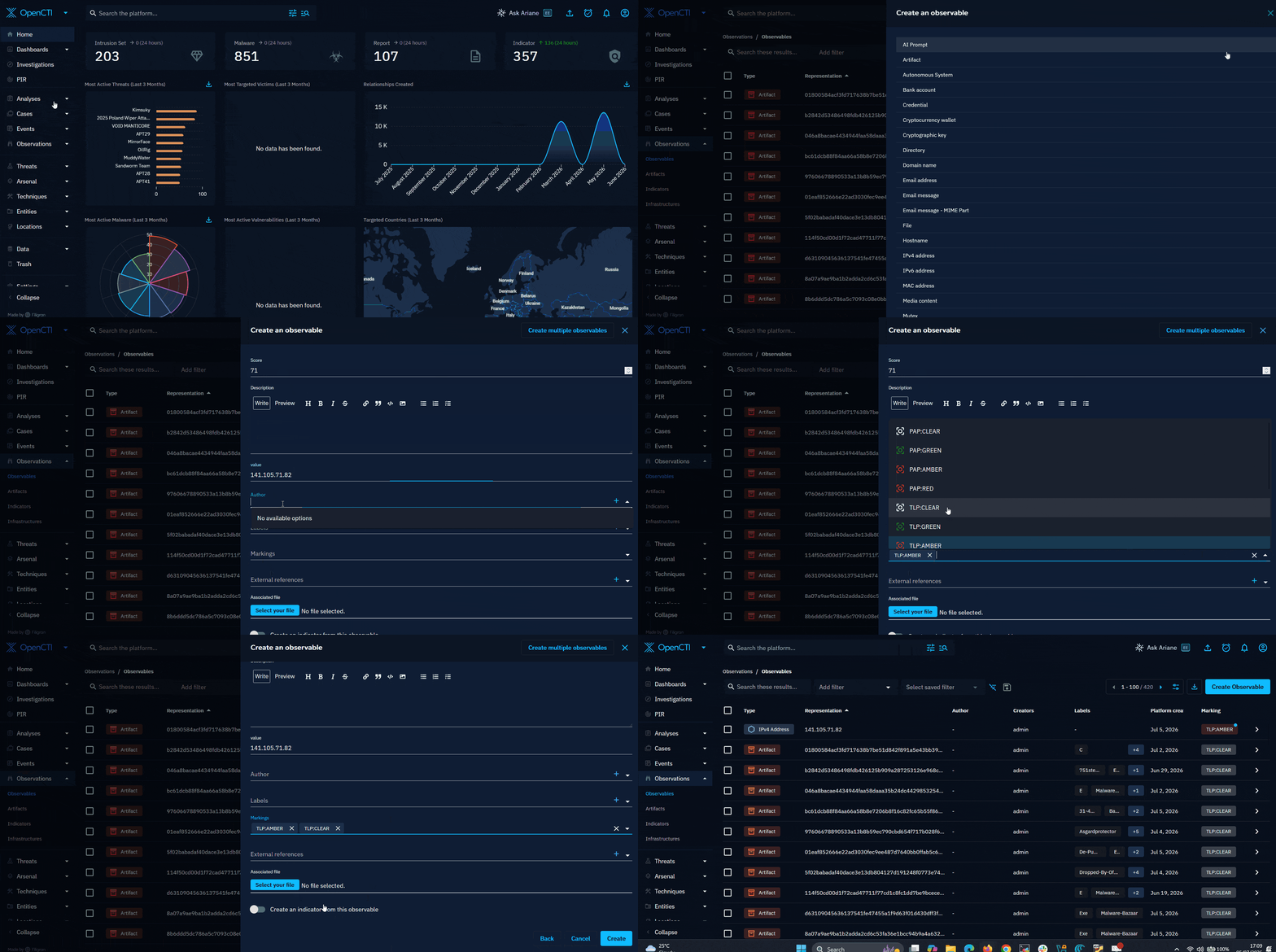
- Navigate to Observations > Observables and click Create Observable.
Select IPv4address in the Create an observable dropdown for an IPv4 indicator and fill out the required details.
- score: Enter an initial maliciousness score if desired e.g
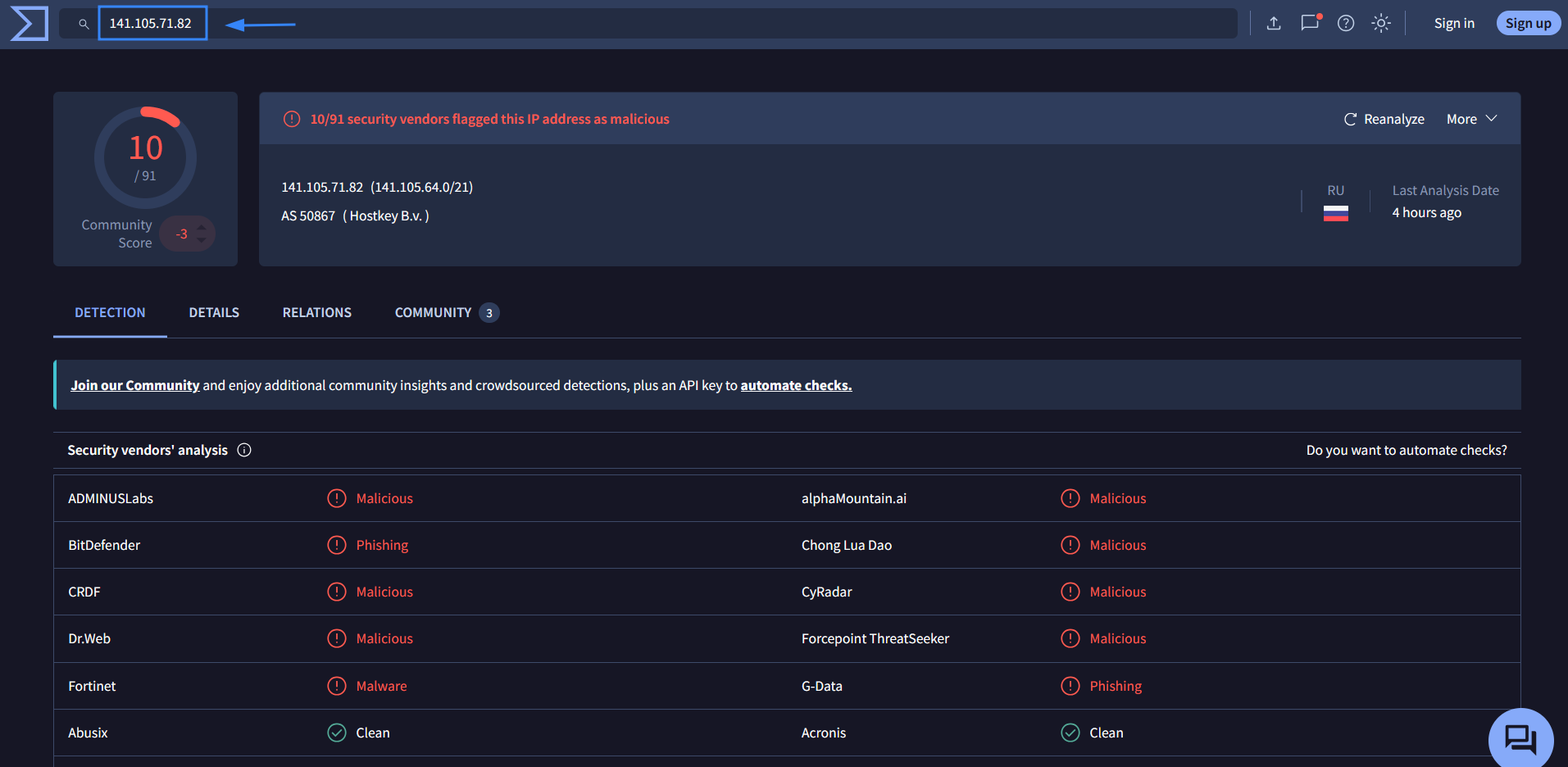
71for this use case. - value: Enter the exact IP address, e.g., we use the known malicious
IP 141.105.71.82tagged on VirusTotal for this use case.
- Markings: Assign data classifications like
TLP:AMBERorTLP:CLEARto restrict visibility based on user roles. - Toggle the Create an indicator from this observable button to switch it on.
- Click Create to save the observable.
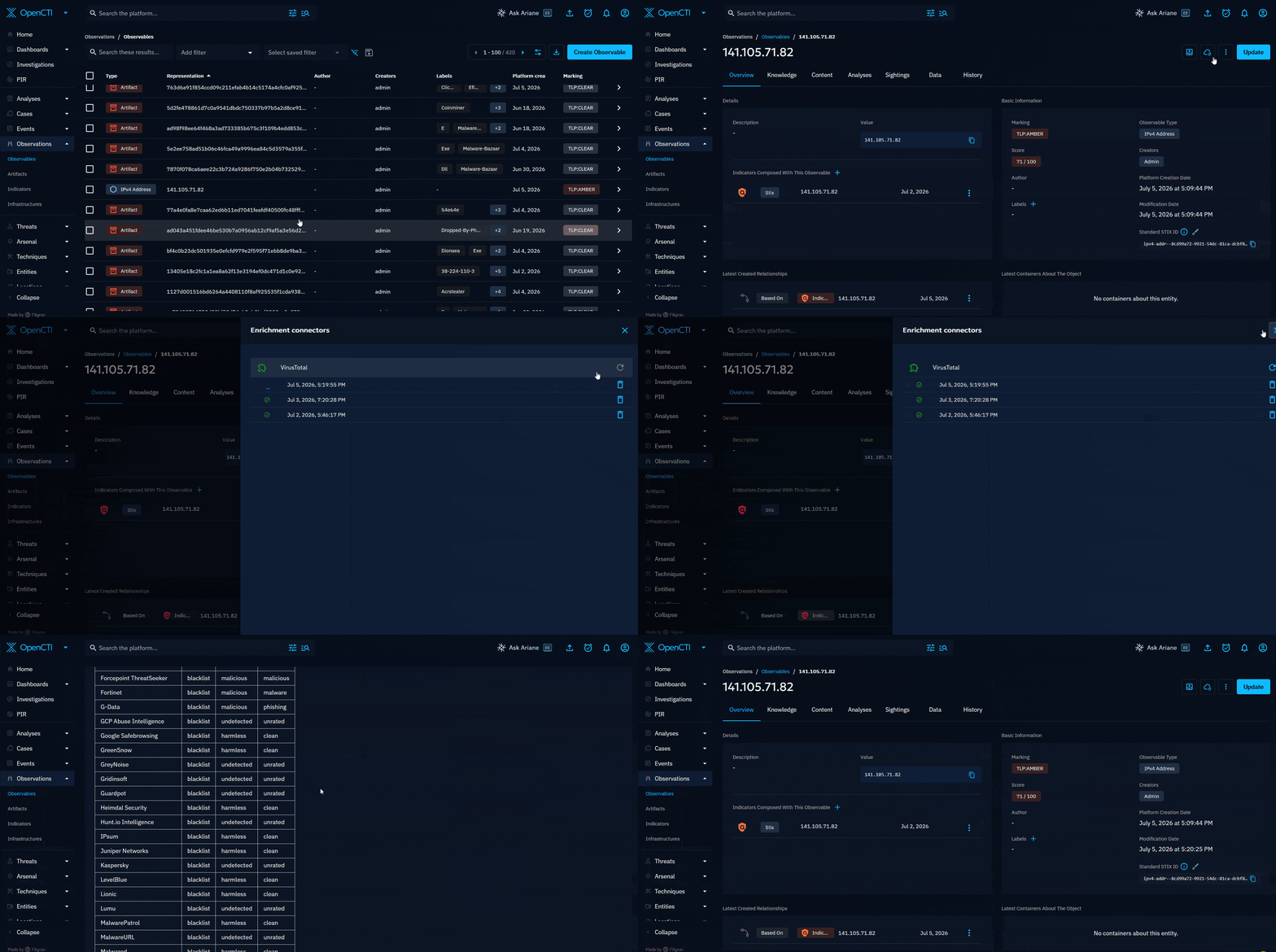
- Select the created observable from the list and click the enrichment icon.
- Select VirusTotal from the list of available enrichment connectors and click the refresh icon, which runs and fetches the data.
Simulation
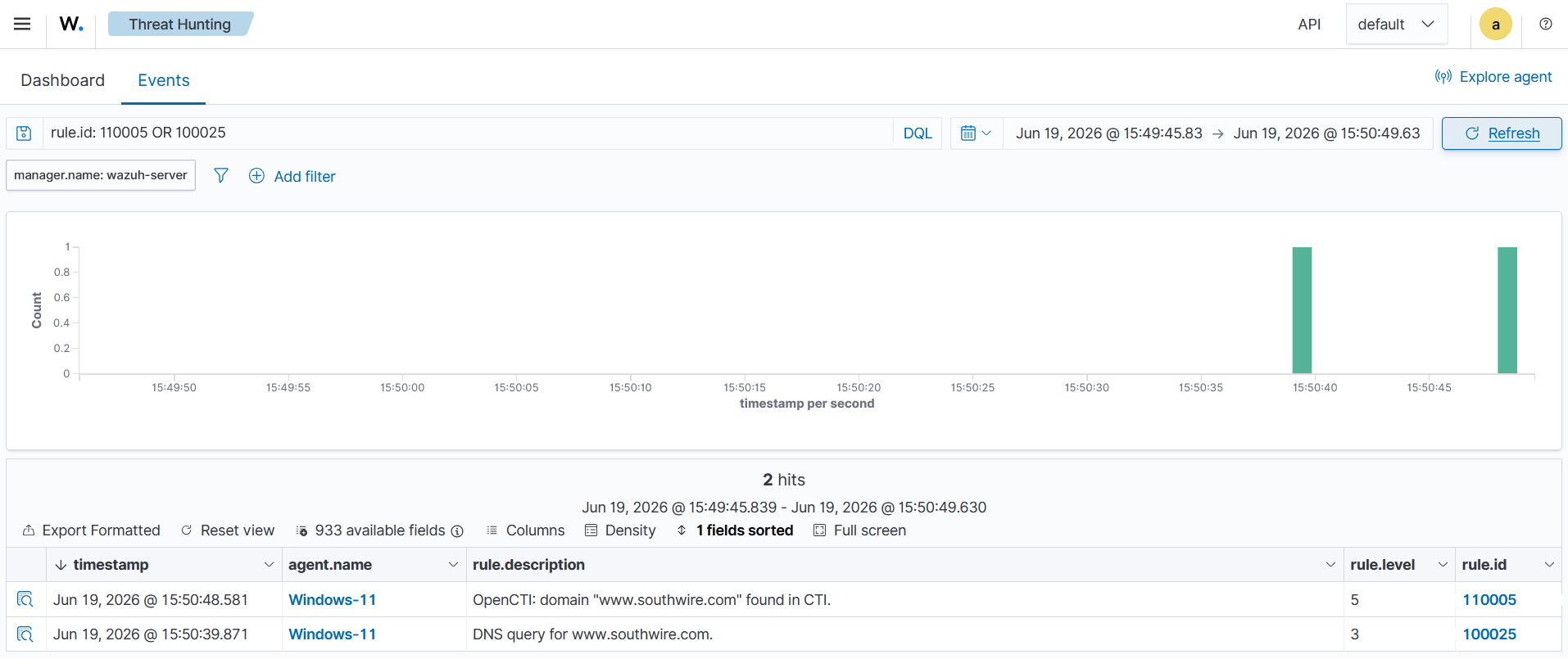
- Execute the following PowerShell command to simulate a DNS query to a known-suspicious domain tracked in OpenCTI, for example,
www.southwire.com:
> Resolve-DnsName -Name <SUSPICIOUS_DOMAIN> -Type A
Replace <SUSPICIOUS_DOMAIN> with a domain that is present in your OpenCTI threat intel feeds. You can look up tracked domains in OpenCTI under Observations > Observables, filtered by entity type = Domain name.
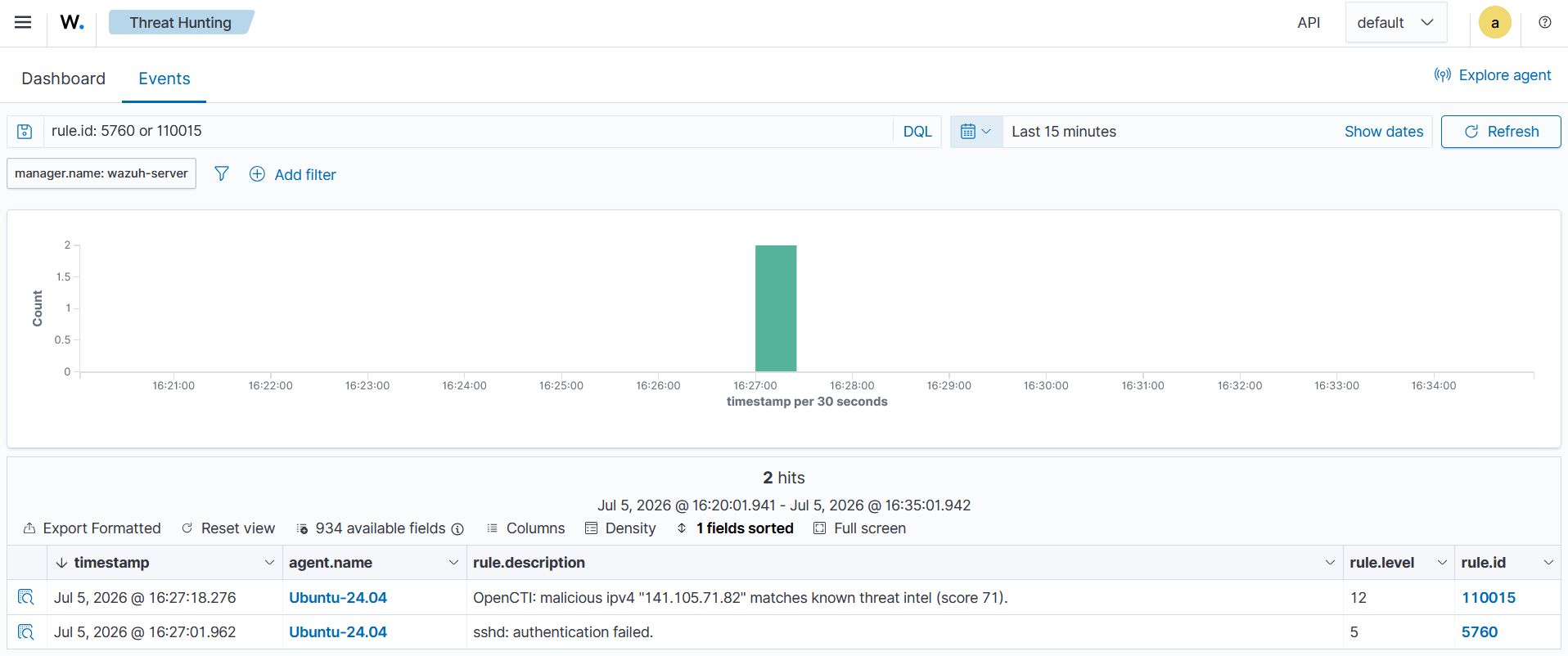
- Run the following command on the Ubuntu endpoint to simulate an incoming SSH attempt from the known suspicious IP address
141.105.71.82:
# echo "Jul 02 16:52:04 Ubuntu24.04 sshd[5358]: Failed password for wazuh-user from 141.105.71.82 port 55685 ssh2" >> /var/ossec/logs/active-responses.log
Alerts visualization
Perform the following steps on the Wazuh dashboard to visualize the generated alerts.
- Navigate to Threat Hunting and click the Events tab.
- Search the query
rule.id: 110005 or 100025to view the generated alerts.
- Search the query
rule.id: 5760 or 110015to view the generated SSH authentication failed alert and the OpenCTI enrichment alert.
Click the Inspect document details button at the far left of alert ID 110015 to view the enriched alert context.
Conclusion
In this post, we integrate Wazuh with OpenCTI to enrich security alerts with threat intelligence. We configure OpenCTI connectors to ingest IOCs from multiple feeds, deploy a custom integration script on the Wazuh server to query OpenCTI in real time, and create rules that classify matches by type and severity.
This integration transforms traditional monitoring into an intelligence-driven workflow, where configured alerts are evaluated within a broader context, improving both detection accuracy and operational efficiency. Security teams can prioritize high-confidence IOC matches, reduce mean time to detect (MTTD) and mean time to respond (MTTR), and build a continuously enriched view of their threat landscape.
To learn more about Wazuh capabilities, check out our documentation, blog posts, and join our community for support and updates.