
Privilege escalation is the process by which an attacker gains permissions beyond those assigned to their current account. On Windows endpoints, threat actors who gain initial access as a standard user may exploit misconfigurations to obtain administrator or NT AUTHORITY\SYSTEM privileges. With elevated privileges, an attacker can disable security controls, access protected files, dump credentials, install persistence mechanisms, or move laterally across the environment.
Windows privilege escalation frequently relies on legitimate operating system functionality. Services, scheduled tasks, Windows Installer policies, DLL loading behavior, registry permissions, and administrative tooling are all expected features of the platform. Attackers can abuse these features when they have weak permissions, unsafe paths, or overly broad execution rights.
This blog post demonstrates how to detect common Windows privilege escalation techniques with Wazuh. We use Sysmon and custom Wazuh rules to detect privilege escalation-related activities. The detections cover service configuration, registry policy changes, DLL hijacking, and SYSTEM-level execution from non-standard directories. Each technique maps to the MITRE ATT&CK framework, and we demonstrate the techniques through lab activity on a monitored Windows endpoint.
Infrastructure
We use the following infrastructure to demonstrate the detection of Windows privilege escalation techniques with Wazuh:
- A pre-built, ready-to-use Wazuh OVA 4.14.7, which includes the Wazuh central components (Wazuh server, Wazuh indexer, and Wazuh dashboard). Follow this guide to download and set up the Wazuh virtual machine.
- A Windows 11 endpoint with the Wazuh agent 4.14.7 installed and enrolled in the Wazuh server.
The simulation steps are designed for a lab endpoint and assume that an attacker already has initial access to the Windows endpoint. Do not run them on production systems.
Sysmon configuration
The detection techniques in this post rely on Sysmon event collection. Sysmon provides telemetry for process creation, file creation, and registry value modification. Perform the following steps on the Windows endpoint to configure Sysmon and forward its events to the Wazuh server.
- Download Sysmon from the Microsoft Sysinternals page.
- Extract the compressed Sysmon file to your preferred directory.
- Download the Sysmon configuration file sysmonconfig.xml using PowerShell as an administrator. Replace
<SYSMON_EXECUTABLE_PATH>with the directory path to your Sysmon executable:
> Invoke-WebRequest -Uri https://wazuh.com/resources/blog/emulation-of-attack-techniques-and-detection-with-wazuh/sysmonconfig.xml -OutFile <SYSMON_EXECUTABLE_PATH>\sysmonconfig.xml
- On the Windows endpoint, open PowerShell as an administrator and run the following script to extend the Sysmon configuration for FileCreate and RegistryEvent events related to DLL staging and AlwaysInstallElevated. Replace
<SYSMON_EXECUTABLE_PATH>with the directory path to your Sysmon executable:
> $configPath = "<SYSMON_EXECUTABLE_PATH>\sysmonconfig.xml"
[xml]$sysmonConfig = Get-Content -Path $configPath -Raw

$eventFiltering = $sysmonConfig.Sysmon.EventFiltering
if (-not $eventFiltering) { throw "EventFiltering node not found in $configPath" }

$hasDllRule = $false
$hasAlwaysInstallElevatedRule = $false

foreach ($ruleGroup in $eventFiltering.RuleGroup) {
    foreach ($fileCreate in $ruleGroup.FileCreate) {
        if ($fileCreate.onmatch -eq "include") {
            foreach ($targetFilename in $fileCreate.TargetFilename) {
                if ($targetFilename.condition -eq "end with" -and $targetFilename.'#text' -eq ".dll") {
                    $hasDllRule = $true
                }
            }
        }
    }
    foreach ($registryEvent in $ruleGroup.RegistryEvent) {
        if ($registryEvent.onmatch -eq "include") {
            foreach ($targetObject in $registryEvent.TargetObject) {
                if ($targetObject.condition -eq "contains" -and $targetObject.'#text' -eq "Policies\Microsoft\Windows\Installer\AlwaysInstallElevated") {
                    $hasAlwaysInstallElevatedRule = $true
                }
            }
        }
    }
}

if (-not $hasDllRule -or -not $hasAlwaysInstallElevatedRule) {
    $newGroup = $sysmonConfig.CreateElement("RuleGroup")
    $newGroup.SetAttribute("name", "windows_privesc")
    $newGroup.SetAttribute("groupRelation", "or")

    if (-not $hasDllRule) {
        $fileCreate = $sysmonConfig.CreateElement("FileCreate")
        $fileCreate.SetAttribute("onmatch", "include")
        $targetFilename = $sysmonConfig.CreateElement("TargetFilename")
        $targetFilename.SetAttribute("condition", "end with")
        $targetFilename.InnerText = ".dll"
        $fileCreate.AppendChild($targetFilename) | Out-Null
        $newGroup.AppendChild($fileCreate) | Out-Null
    }

    if (-not $hasAlwaysInstallElevatedRule) {
        $registryEvent = $sysmonConfig.CreateElement("RegistryEvent")
        $registryEvent.SetAttribute("onmatch", "include")
        $targetObject = $sysmonConfig.CreateElement("TargetObject")
        $targetObject.SetAttribute("condition", "contains")
        $targetObject.InnerText = "Policies\Microsoft\Windows\Installer\AlwaysInstallElevated"
        $registryEvent.AppendChild($targetObject) | Out-Null
        $newGroup.AppendChild($registryEvent) | Out-Null
    }

    $eventFiltering.AppendChild($newGroup) | Out-Null
    $sysmonConfig.Save($configPath)
    Write-Host "Rules added and config saved."
} else {
    Write-Host "Both rules already present. No changes made."
}
- On the Windows endpoint, open PowerShell as an administrator, navigate to the directory containing the Sysmon executable, and run the following command to install and start Sysmon:
> .\Sysmon64.exe -accepteula -i sysmonconfig.xml
- Reload the Sysmon configuration to apply the new filters:
> .\Sysmon64.exe -c sysmonconfig.xml
- Add the following configuration within the
<ossec_config>block of theC:\Program Files (x86)\ossec-agent\ossec.conffile to forward Sysmon events to the Wazuh server:
  <localfile>
    <location>Microsoft-Windows-Sysmon/Operational</location>
    <log_format>eventchannel</log_format>
  </localfile>
- Restart the Wazuh agent to apply the configuration changes:
> Restart-Service -Name WazuhSvc
Common privilege escalation techniques and detection with Wazuh
The MITRE Adversarial Tactics, Techniques, and Common Knowledge (ATT&CK) framework provides a curated knowledge base of real-world adversary tactics and techniques. The following MITRE ATT&CK techniques are used in the Windows privilege escalation workflows covered in this post:
- T1574.009 – Hijack Execution Flow: Path Interception by Unquoted Path
- T1574.011 – Hijack Execution Flow: Services Registry Permissions Weakness
- T1218.007 – System Binary Proxy Execution: Msiexec
- T1574.001 – Hijack Execution Flow: DLL
- T1053.005 – Scheduled Task/Job: Scheduled Task
T1574.009 – Hijack Execution Flow: Path Interception by Unquoted Path
A Windows service path containing spaces and not enclosed in quotation marks can be vulnerable to path interception. For example, if a service ImagePath is set to C:\Tools\Vulnerable Path\svc.exe without quotes, Windows may evaluate earlier path segments before reaching the intended executable. If an attacker can write to one of those earlier locations, they may place a binary that executes with the service account privileges.
Detection
We detect the vulnerable condition when a service ImagePath registry value is set to an unquoted executable path that contains a space. This approach detects the misconfiguration when it is introduced, regardless of whether exploitation succeeds.
Wazuh server configuration
Perform the following steps from the Wazuh dashboard before the attack simulation:
- Navigate to Server management > Rules, then click + Add new rules file.
- Name the file
windows_privesc.xmland copy the rule group below into it. - Click Save, then Reload to apply the rules on the Wazuh server.
<group name="windows,privilege_escalation,">

  <rule id="111010" level="10">
    <if_group>sysmon_event_13</if_group>
    <field name="win.eventdata.targetObject" type="pcre2">(?i)\\+Services\\+[^\\]+\\+ImagePath$</field>
    <field name="win.eventdata.details" type="pcre2">^[^"]*\s[^"]*\.exe</field>
    <description>Service ImagePath set to an unquoted path containing a space - vulnerable to path interception ($(win.eventdata.targetObject) = $(win.eventdata.details)).</description>
    <options>no_full_log</options>
    <mitre>
      <id>T1574.009</id>
    </mitre>
  </rule>

</group>
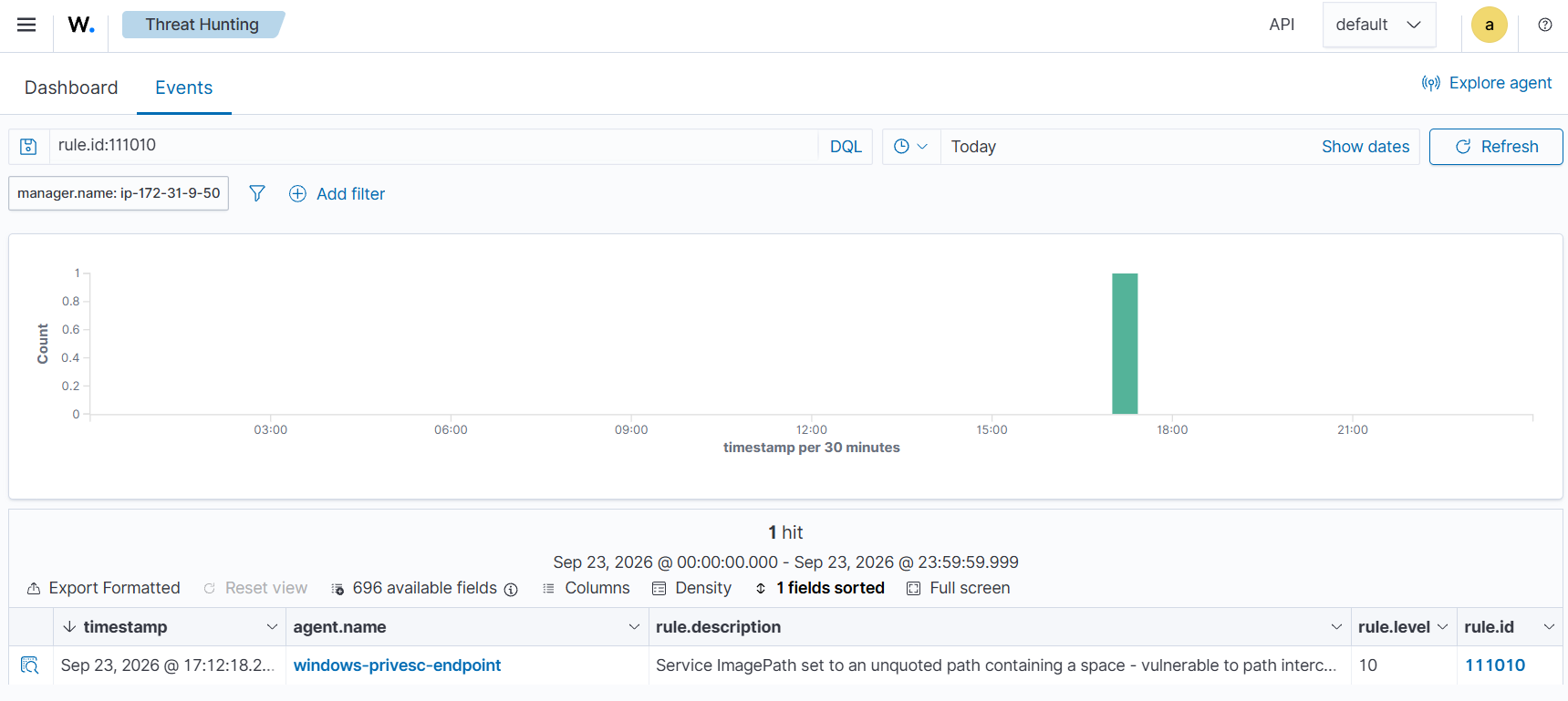
Rule ID 111010 is triggered by Sysmon Event ID 13 events that modify a service ImagePath registry value containing an unquoted path with a space.
Attack simulation
- On the Windows endpoint, open PowerShell as an administrator and run the following commands to create a standard user account:
> $password = ConvertTo-SecureString "P@ssw0rd12345!" -AsPlainText -Force
> New-LocalUser -Name "stduser" -Password $password -FullName "Test User" -Description "test account"
- Create the
C:\Toolsdirectory and grant stduser access to it:
> New-Item -ItemType Directory -Path "C:\Tools" -Force | Out-Null
> icacls "C:\Tools" /grant "stduser:(OI)(CI)M"
- Run the following commands to create the vulnerable service, with an unquoted path containing a space:
> sc.exe create VulnUpdater binPath= "C:\Tools\Vulnerable Path\svc.exe" start= demand
- Sign in as stduser, open PowerShell, and run the following command to copy the cmd.exe binary to the hijacked path:
> Copy-Item "C:\Windows\System32\cmd.exe" "C:\Tools\Vulnerable.exe"
- On the Windows endpoint, open PowerShell as an administrator and run the following command:
> sc.exe start VulnUpdater
Detection result
The rule generates an alert when Sysmon records a service ImagePath registry value that contains an unquoted path with a space. This identifies the service configuration as vulnerable to path interception.
To view the alert, navigate to Threat intelligence > Threat Hunting > Events and filter for rule.id:111010.
T1574.011 – Hijack Execution Flow: Services Registry Permissions Weakness
Windows stores service configuration under HKLM\SYSTEM\CurrentControlSet\Services. If a standard user has excessive permissions on a service registry key, the user can modify sensitive values such as ImagePath, FailureCommand, or ServiceDll. The next time the service starts or fails, Windows may execute attacker-controlled code in the service account context.
Detection
Legitimate service reconfiguration typically goes through the Service Control Manager. In that case, services.exe performs the registry modification. The detection rule alerts when a process other than services.exe modifies sensitive service registry values.
Wazuh server configuration
Perform the following steps from the Wazuh dashboard before the attack simulation:
- Navigate to Server management > Rules, click Manage rules files, then Custom rules.
- Open
windows_privesc.xml. Insert the rule below before the closing</group>tag of the existing group. - Click Save, then Reload to apply the rule on the Wazuh server.
 <rule id="111020" level="12">
    <if_group>sysmon_event_13</if_group>
    <field name="win.eventdata.targetObject" type="pcre2">(?i)\\+Services\\+[^\\]+\\+(Parameters\\+)?(ImagePath|FailureCommand|ServiceDll)$</field>
    <field name="win.eventdata.image" type="pcre2">(?i)^(?!.*\\+Windows\\+System32\\+services\.exe$).+$</field>
    <description>Service registry value modified by a process other than services.exe - possible unauthorized service configuration change ($(win.eventdata.targetObject) set to $(win.eventdata.details) by $(win.eventdata.image), user $(win.eventdata.user)).</description>
    <options>no_full_log</options>
    <mitre>
      <id>T1574.011</id>
    </mitre>
  </rule>
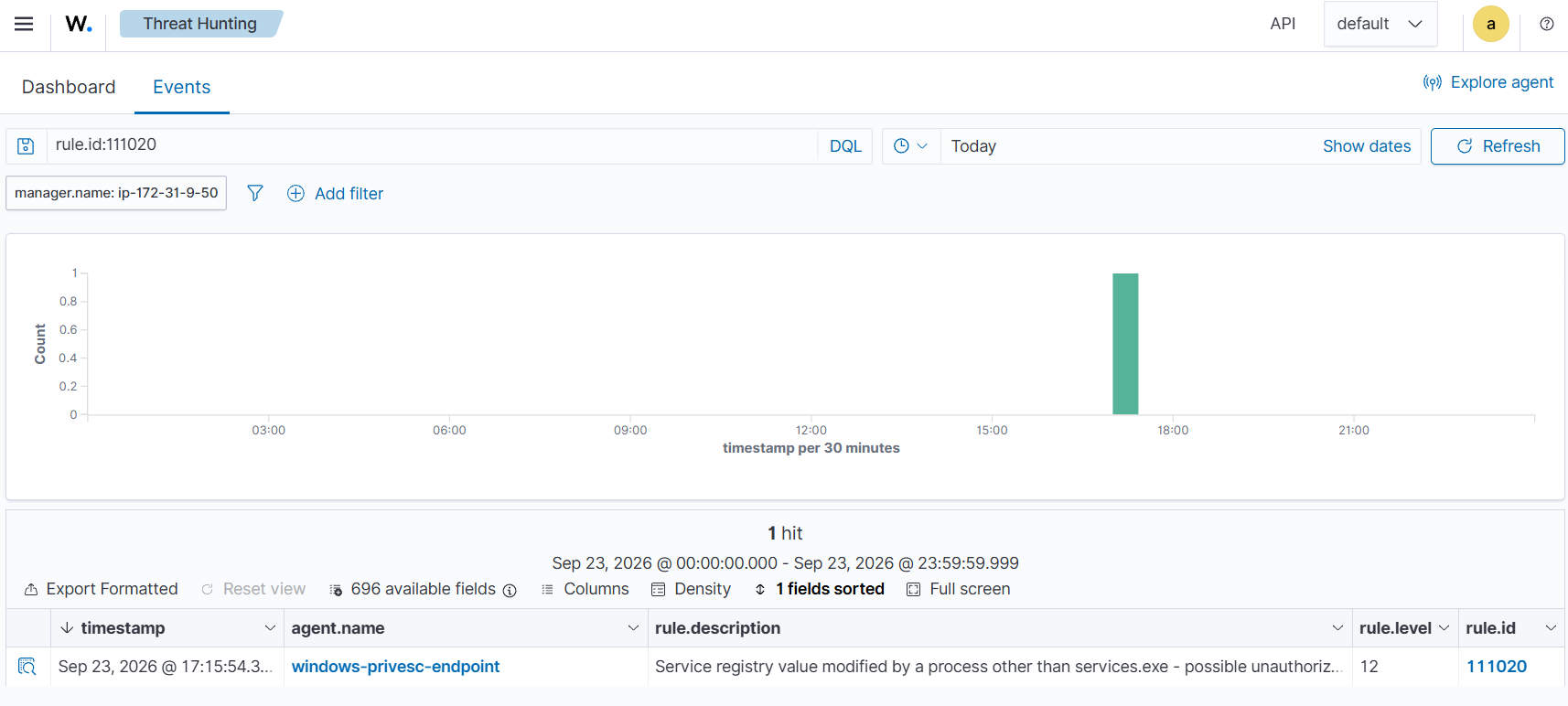
Rule ID 111020 is triggered by Sysmon Event ID 13 events that modify a service ImagePath, FailureCommand, or ServiceDll registry value from a process other than C:\Windows\System32\services.exe.
Attack simulation
This simulation uses AccessChk, a Microsoft Sysinternals tool, as a benign stand-in payload. Perform the following steps on the Windows endpoint.
- Open PowerShell as an administrator and run the following commands to download and extract AccessChk:
> New-Item -ItemType Directory -Path "C:\Tools\AccessChk" -Force | Out-Null
> Invoke-WebRequest -Uri "https://download.sysinternals.com/files/AccessChk.zip" -OutFile "C:\Tools\AccessChk\AccessChk.zip"
> Expand-Archive -Path "C:\Tools\AccessChk\AccessChk.zip" -DestinationPath "C:\Tools\AccessChk" -Force
- Open PowerShell as an administrator and run the following commands to create a test service:
> sc.exe create WeakPermSvc binPath= "C:\Windows\System32\svchost.exe -k WeakGroup" start= demand
- Grant stduser full control of the service’s registry key.
> $acl = Get-Acl "HKLM:\SYSTEM\CurrentControlSet\Services\WeakPermSvc"
> $rule = New-Object System.Security.AccessControl.RegistryAccessRule("stduser","FullControl","ContainerInherit","None","Allow")
> $acl.AddAccessRule($rule)
> Set-Acl -Path "HKLM:\SYSTEM\CurrentControlSet\Services\WeakPermSvc" -AclObject $acl
- From the standard user session, open PowerShell and run the following command:
> Set-ItemProperty -Path "HKLM:\SYSTEM\CurrentControlSet\Services\WeakPermSvc" -Name ImagePath -Value "C:\Tools\AccessChk\accesschk64.exe -x"
Detection result
Rule ID 111020 triggers when PowerShell or another process, other than the Service Control Manager, changes a sensitive service registry value.
To view the alert, navigate to Threat intelligence > Threat Hunting > Events and filter for rule.id:111020.
T1218.007 – System Binary Proxy Execution: Msiexec
AlwaysInstallElevated is controlled by registry values under HKLM and HKCU. When both values are set to 1, Windows Installer can install MSI packages with elevated privileges for any user. An attacker with standard user access can abuse msiexec.exe to execute a malicious MSI package with SYSTEM privileges.
Detection
We detect the risky configuration when the AlwaysInstallElevated registry value is set to 1. This identifies the condition before a malicious MSI package is executed.
Wazuh server configuration
Perform the following steps from the Wazuh dashboard before the attack simulation:
- Navigate to Server management > Rules, click Manage rules files, then Custom rules.
- Open
windows_privesc.xml. Insert the rule below before the closing</group>tag of the existing group. - Click Save, then Reload to apply the rule on the Wazuh server.
  <rule id="111030" level="12">
    <if_group>sysmon_event_13</if_group>
    <field name="win.eventdata.targetObject" type="pcre2">(?i)Policies\\+Microsoft\\+Windows\\+Installer\\+AlwaysInstallElevated$</field>
    <field name="win.eventdata.details" type="pcre2">0x00000001</field>
    <description>AlwaysInstallElevated enabled - MSI packages can run with elevated privileges ($(win.eventdata.targetObject) set by $(win.eventdata.user)).</description>
    <options>no_full_log</options>
    <mitre>
      <id>T1218.007</id>
    </mitre>
  </rule>

  <rule id="111031" level="14" frequency="2" timeframe="600">
    <if_matched_sid>111030</if_matched_sid>
    <different_field>win.eventdata.targetObject</different_field>
    <description>AlwaysInstallElevated enabled in two different registry locations (HKLM and a user hive) within 10 minutes - both required values are now set, so any user can install an MSI package with SYSTEM privileges.</description>
    <options>no_full_log</options>
    <mitre>
      <id>T1218.007</id>
    </mitre>
  </rule>
Where:
- Rule ID
111030is triggered bySysmon Event ID 13events that set theAlwaysInstallElevatedpolicy value to 1. - Rule ID
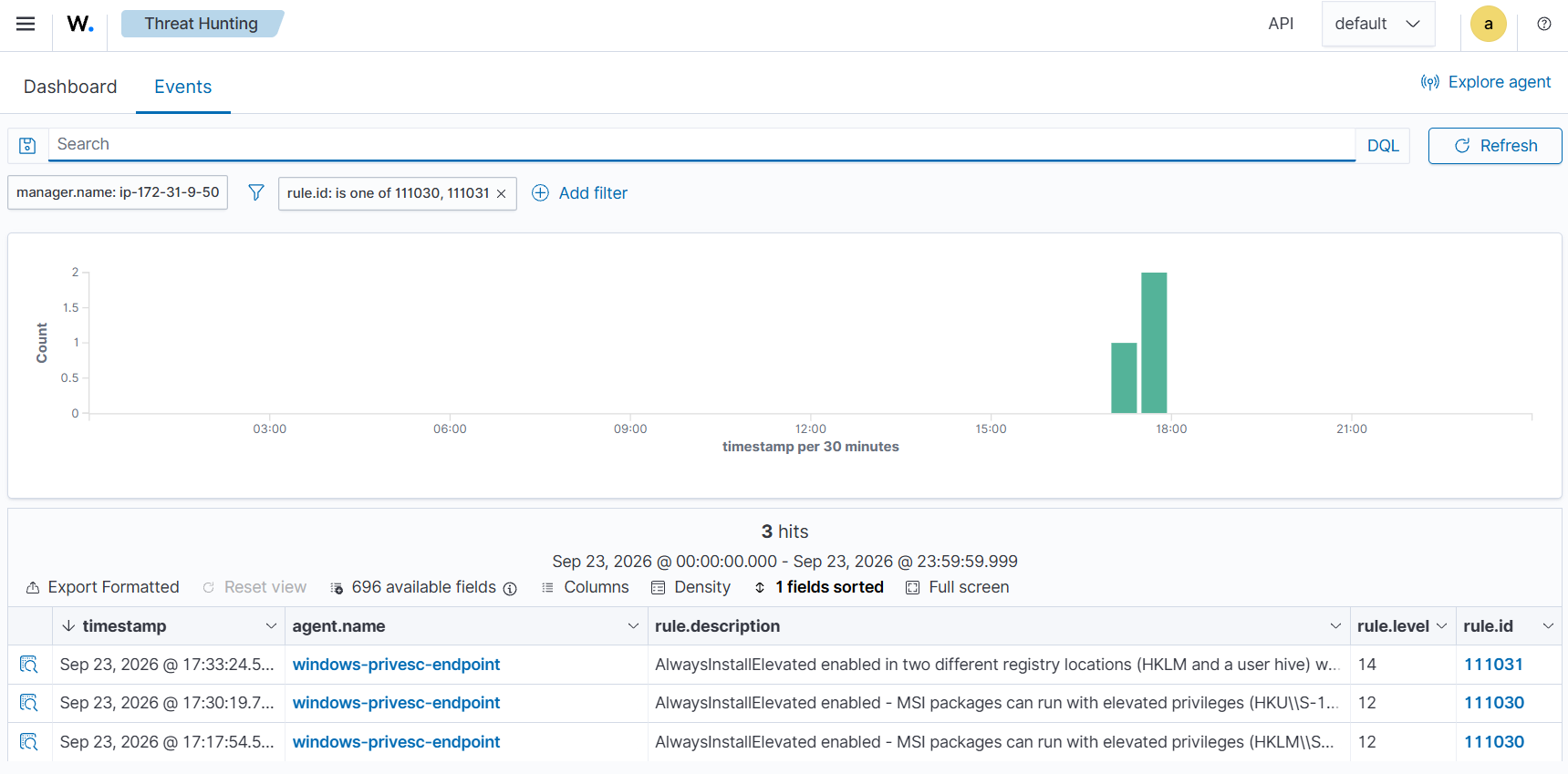
111031is triggered when Rule ID 111030 matches two differentAlwaysInstallElevatedregistry locations within 10 minutes. This indicates that MSI packages can run with SYSTEM privileges.
Attack simulation
Perform the following steps on the Windows endpoint:
- Open PowerShell as an administrator and run the following commands to configure the
AlwaysInstallElevatedpolicy value to1:
> New-Item -Path "HKLM:\SOFTWARE\Policies\Microsoft\Windows\Installer" -Force | Out-Null
> Set-ItemProperty -Path "HKLM:\SOFTWARE\Policies\Microsoft\Windows\Installer" -Name AlwaysInstallElevated -Value 1 -Type DWord
- Run the following PowerShell script to grant
stduserthe batch logon right and create the user profile non-interactively. The script also verifies the profile directory and registry hive.
> # Run elevated as Administrator (WinRM or local console — no GUI session needed)
$user = 'stduser'
$pass = 'P@ssw0rd12345!'
$sid  = (New-Object System.Security.Principal.NTAccount($user)).Translate([System.Security.Principal.SecurityIdentifier]).Value

# 1. Grant the batch-logon right — a standard user does NOT have it by default,
#    and without it the task silently never runs (LastTaskResult 0x00041303).
secedit /export /areas USER_RIGHTS /cfg "$env:TEMP\ur.inf" | Out-Null
(Get-Content "$env:TEMP\ur.inf") -replace '^SeBatchLogonRight = (.*)$', ('SeBatchLogonRight = $1,*' + $sid) |
    Set-Content "$env:TEMP\ur2.inf" -Encoding Unicode
secedit /configure /db "$env:TEMP\ur.sdb" /cfg "$env:TEMP\ur2.inf" /areas USER_RIGHTS | Out-Null

# 2. Log the user on non-interactively — this creates the profile and mounts the hive
$action = New-ScheduledTaskAction -Execute 'cmd.exe' -Argument '/c ping -n 30 127.0.0.1'
Register-ScheduledTask -TaskName 'CreateStduserProfile' -Action $action -User $user -Password $pass -RunLevel Limited -Force | Out-Null
Start-ScheduledTask -TaskName 'CreateStduserProfile'
Start-Sleep -Seconds 15

# 3. Verify
"profile : " + (Test-Path "C:\Users\$user")
"hive    : " + (Test-Path "Registry::HKEY_USERS\$sid")
- Run the following PowerShell command with the standard user to enable the
AlwaysInstallElevatedpolicy for the user:
> New-Item -Path "HKCU:\SOFTWARE\Policies\Microsoft\Windows\Installer" -Force | Out-Null
> Set-ItemProperty -Path "HKCU:\SOFTWARE\Policies\Microsoft\Windows\Installer" -Name AlwaysInstallElevated -Value 1 -Type DWord
Detection result
To view the alert, navigate to Threat intelligence > Threat Hunting > Events and filter for rule.id: is one of 111030,111031.
T1574.001 – Hijack Execution Flow: DLL
DLL search-order hijacking occurs when an application loads a DLL by name without a full path. Windows searches a sequence of directories to resolve the DLL. If an attacker can place a malicious DLL earlier in the search order, the application may load the attacker-controlled DLL instead of the intended library.
Detection
We detect DLL staging by monitoring Sysmon Event ID 11 for DLL files created outside standard Windows and application directories. This catches a common preparation step before the DLL is loaded.
Wazuh server configuration
Perform the following steps from the Wazuh dashboard before the attack simulation:
- Navigate to Server management > Rules, click Manage rules files, then Custom rules.
- Open
windows_privesc.xml. Insert the rule below before the closing</group>tag of the existing group. - Click Save, then Reload to apply the rule on the Wazuh server.
  <rule id="111040" level="10" frequency="2" timeframe="180">
    <if_group>sysmon_event_11</if_group>
    <field name="win.eventdata.targetFilename" type="pcre2">(?i)\.dll$</field>
    <field name="win.eventdata.targetFilename" type="pcre2">(?i)^(?!.*\\+(Windows\\+System32|Windows\\+SysWOW64|Program Files|Program Files \(x86\)|ProgramData\\+Microsoft\\+Windows Defender)\\+).+$</field>
    <description>DLL created outside common system and application directories - possible DLL hijacking activity ($(win.eventdata.targetFilename) by $(win.eventdata.user)).</description>
    <options>no_full_log</options>
    <mitre>
      <id>T1574.001</id>
    </mitre>
  </rule>
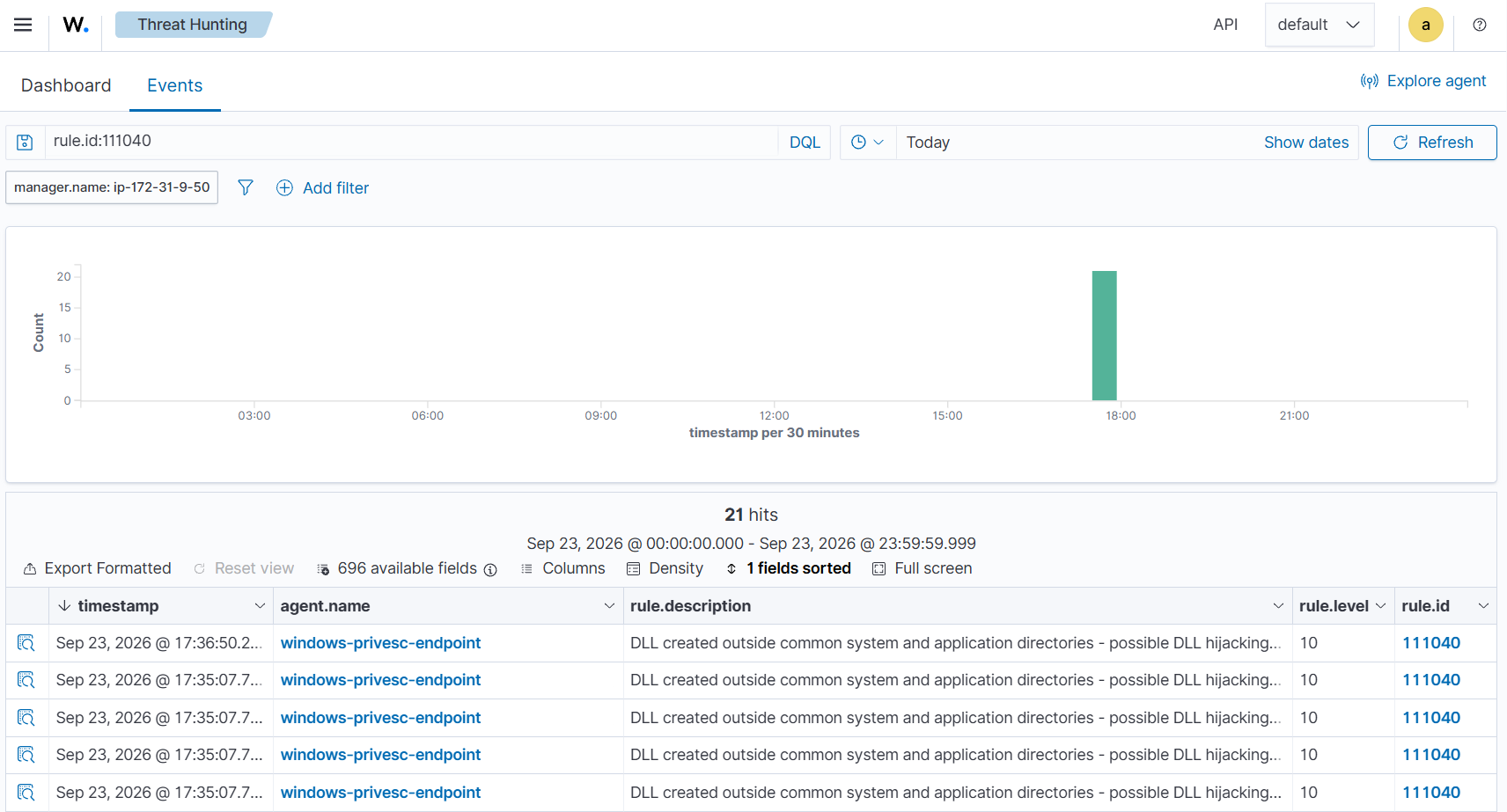
Rule ID 111040 is triggered by Sysmon Event ID 11 events for DLL files created outside standard system or application directories.
Attack simulation
Perform the following steps on the Windows endpoint.
- Open PowerShell as an administrator and compile a loader that mimics an application loading a DLL. Then, grant stduser execute permissions on the loader:
> $loaderSource = @"
using System;
using System.Text;
using System.Runtime.InteropServices;
class Loader {
    [DllImport("kernel32.dll", SetLastError = true, CharSet = CharSet.Auto)]
    public static extern IntPtr LoadLibrary(string lpFileName);
    [DllImport("kernel32.dll", CharSet = CharSet.Auto)]
    public static extern uint GetModuleFileName(IntPtr hModule, StringBuilder lpFilename, int nSize);
    static void Main() {
        IntPtr h = LoadLibrary("somelibrary.dll");
        var sb = new StringBuilder(260);
        GetModuleFileName(h, sb, sb.Capacity);
        Console.WriteLine("Loaded from: " + sb.ToString());
    }
}
"@
> Add-Type -TypeDefinition $loaderSource -OutputAssembly "C:\Tools\DllLoadTest.exe" -OutputType ConsoleApplication
> icacls "C:\Tools\DllLoadTest.exe" /grant "stduser:RX"
> icacls "C:\Tools" /grant "stduser:(OI)(CI)M"
- Sign in as stduser, open PowerShell, and compile the decoy DLL into
C:\Tools. This simulates a standard user staging a malicious DLL in a writable directory:
> $dllSource = 'namespace Evil { public class Marker { public static int GetValue() { return 1337; } } }'
> Add-Type -TypeDefinition $dllSource -OutputAssembly "C:\Tools\somelibrary.dll" -OutputType Library
- Run the loader:
> C:\Tools\DllLoadTest.exe
Detection result
Rule ID 111040 is triggered when Sysmon records a DLL file being created in a non-standard directory such as C:\Tools.
To view the alert, navigate to Threat intelligence > Threat Hunting > Events and filter for rule.id:111040.
T1053.005 – Scheduled Task/Job: Scheduled Task
A scheduled task can run as SYSTEM or another privileged account. If the task executes a binary from a directory where a standard user has write permissions, the user can replace the binary. When the scheduled task runs, Windows executes the replacement binary with the task privileges.
Detection
We detect the outcome of this condition by monitoring Sysmon Event ID 7 for SYSTEM-owned processes that execute from outside standard system and application directories. This detects scheduled task abuse and can also identify related weak-permission patterns involving services or other SYSTEM-run mechanisms.
Wazuh server configuration
Perform the following steps from the Wazuh dashboard before the attack simulation:
- Navigate to Server management > Rules, click Manage rules files, then Custom rules.
- Open
windows_privesc.xml. Insert the rule below before the closing</group>tag of the existing group. - Click Save, then Reload to apply the rule on the Wazuh server.
  <rule id="111050" level="12">
    <if_group>sysmon_event7</if_group>
    <field name="win.eventdata.user" type="pcre2">(?i)^NT AUTHORITY\\+SYSTEM$</field>
    <field name="win.eventdata.image" type="pcre2">(?i)^(?!.*\\+(Windows|Program Files|Program Files \(x86\)|ProgramData\\+Microsoft\\+Windows Defender)\\+).+$</field>
    <description>SYSTEM-privileged process running from a non-standard, potentially user-writable directory - possible exploitation of weak permissions on a scheduled task, service, or similar SYSTEM-run mechanism ($(win.eventdata.image)).</description>
    <options>no_full_log</options>
    <mitre>
      <id>T1053.005</id>
    </mitre>
  </rule>
Rule ID 111050 is triggered by Sysmon Event ID 7 events for processes running as NT AUTHORITY\SYSTEM from locations outside the directories excluded by the rule.
Attack simulation
- On the Windows endpoint, open PowerShell as an administrator and run the following commands to create a SYSTEM-run scheduled task:
> $benignSource = 'using System; class Maint { static void Main() { Console.WriteLine("System maintenance task"); } }'
> Add-Type -TypeDefinition $benignSource -OutputAssembly "C:\Tools\maint.exe" -OutputType ConsoleApplication
> $action = New-ScheduledTaskAction -Execute "C:\Tools\maint.exe"
> $trigger = New-ScheduledTaskTrigger -Once -At (Get-Date).AddYears(1)
> $principal = New-ScheduledTaskPrincipal -UserId "SYSTEM" -LogonType ServiceAccount -RunLevel Highest
> Register-ScheduledTask -TaskName "SystemMaintenance" -Action $action -Trigger $trigger -Principal $principal
> icacls "C:\Tools" /grant "stduser:(OI)(CI)M"
- From the standard user session, open PowerShell and run the following command to replace the scheduled task binary:
> Remove-Item "C:\Tools\maint.exe" -Force
> $hijackSource = 'using System; class Maint { static void Main() { Console.WriteLine("Hijacked payload running as " + Environment.UserName); } }'
> Add-Type -TypeDefinition $hijackSource -OutputAssembly "C:\Tools\maint.exe" -OutputType ConsoleApplication
- On the Windows endpoint, open PowerShell as an administrator and run the following command to start the scheduled task:
> schtasks.exe /run /tn "SystemMaintenance"
Detection result
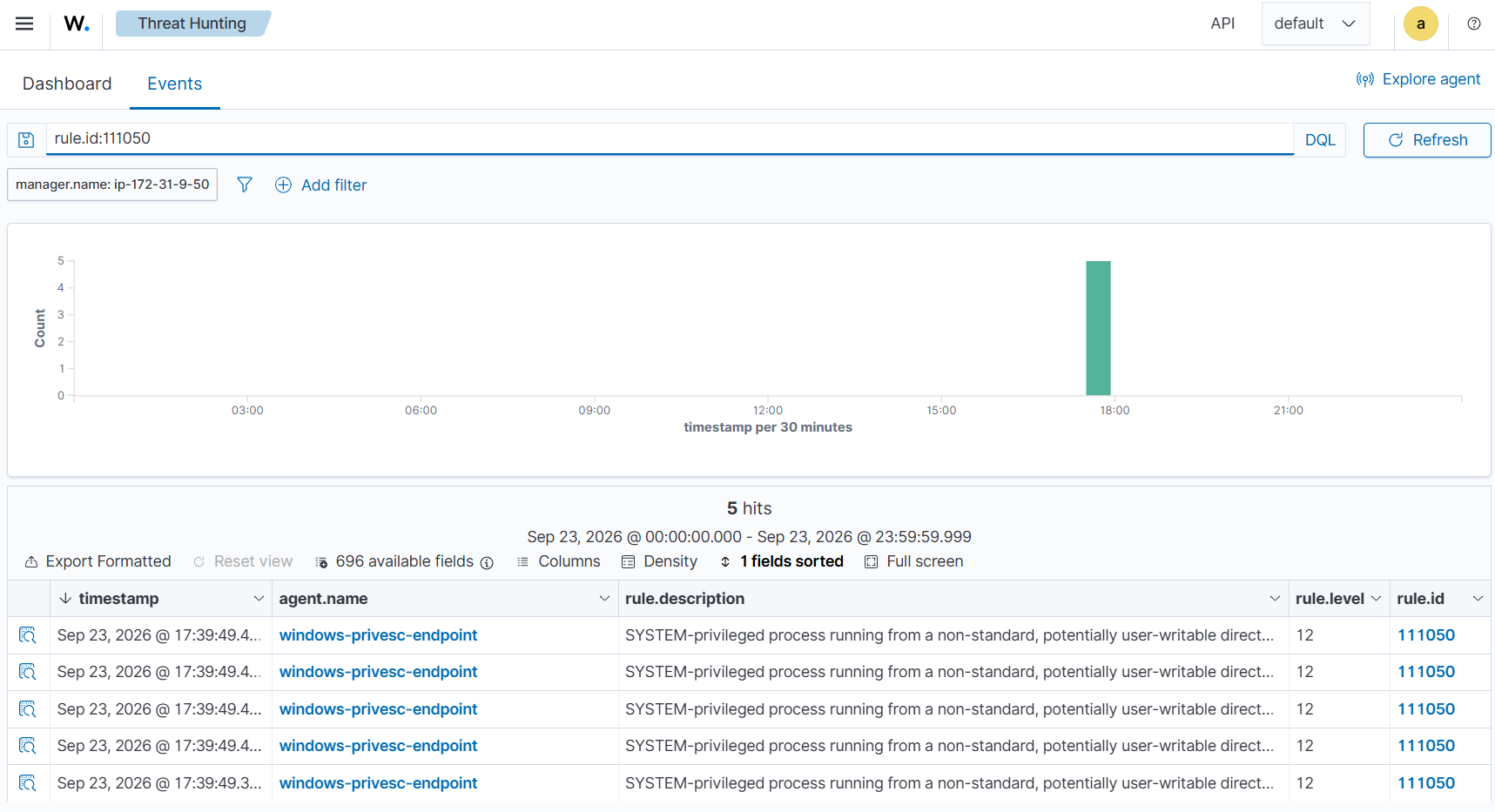
Rule ID 111050 is triggered when Sysmon records a SYSTEM-owned process starting from a non-standard directory such as C:\Tools.
To view the alert, navigate to Threat intelligence > Threat Hunting > Events and filter for rule.id:111050. Review win.eventdata.image and win.eventdata.user.
Results
View privilege escalation alerts
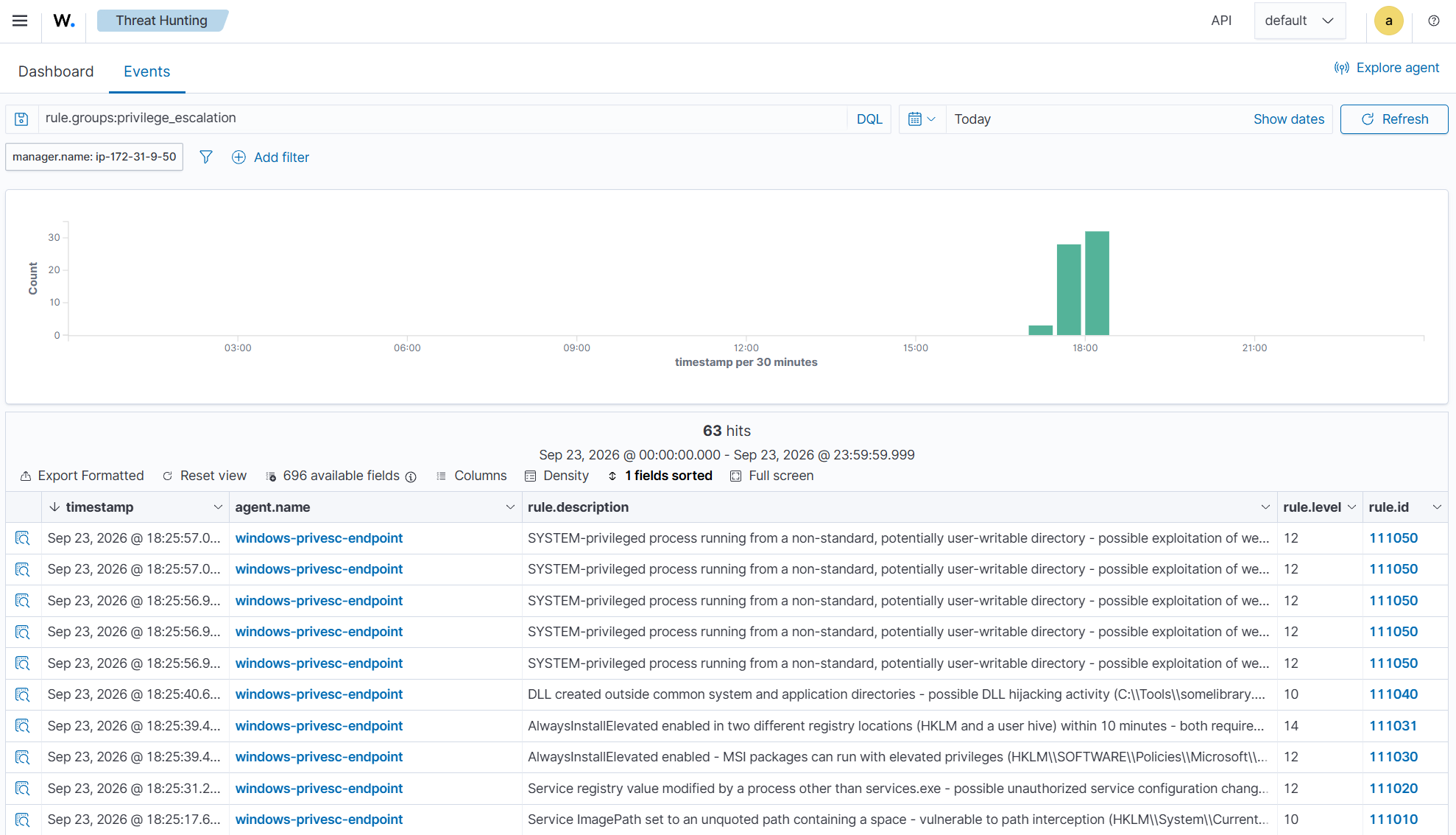
Perform the following steps on the Wazuh dashboard to view the generated alerts:
- Navigate to Threat intelligence > Threat Hunting > Events.
- Search for
rule.groups:privilege_escalation.
View alerts mapped to MITRE ATT&CK
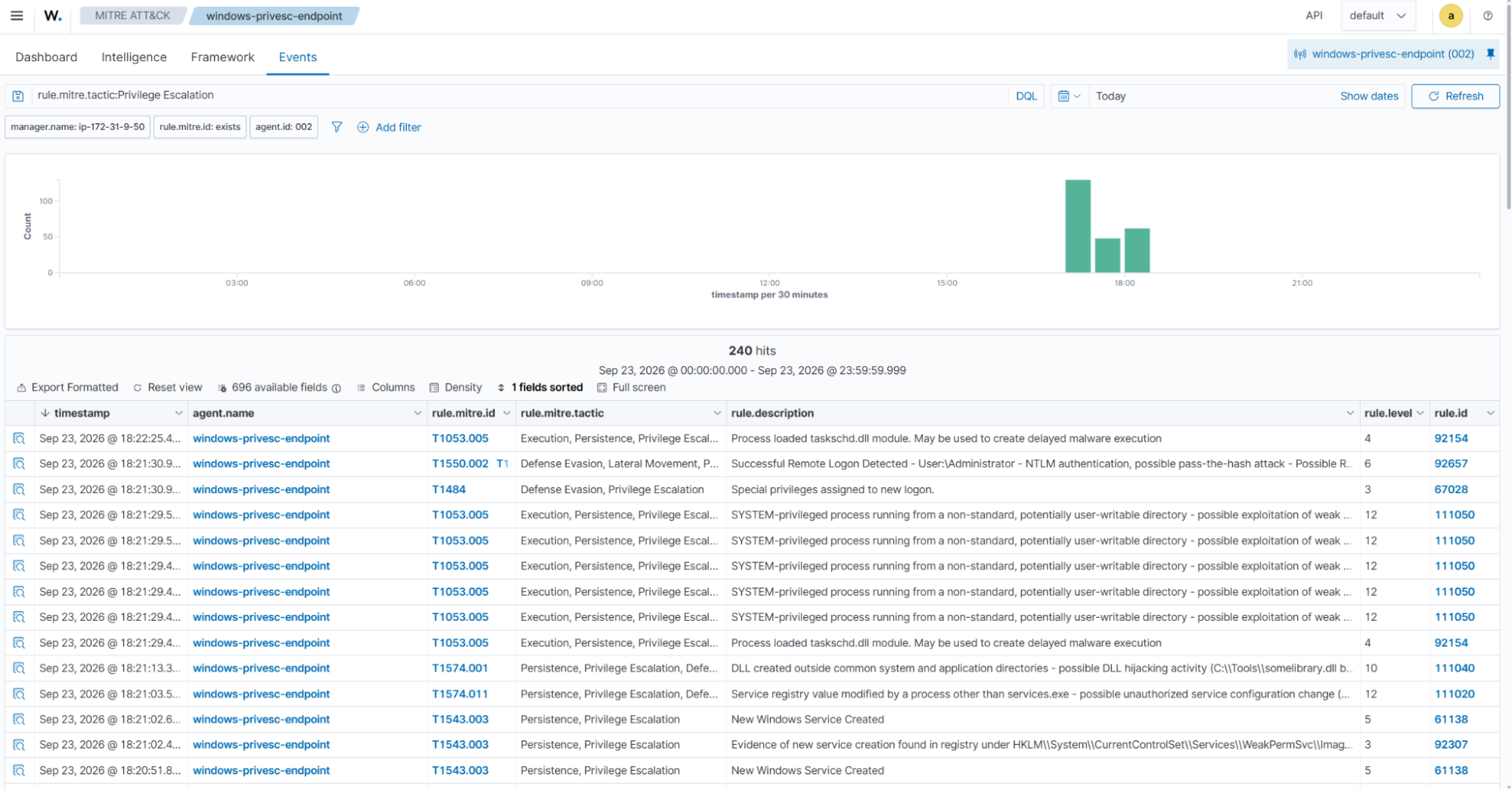
- Navigate to Threat intelligence > MITRE ATT&CK > Events.
- In the search bar, type
rule.mitre.tactic:Privilege Escalation. - Click Update. The dashboard displays alerts associated with the Privilege Escalation tactic in the MITRE ATT&CK framework.
Conclusion
Windows privilege escalation often relies on misconfigured permissions and insecure policy settings affecting trusted operating system components. By collecting and correlating endpoint telemetry, Wazuh helps security teams detect indicators associated with these techniques.
Wazuh detects common privilege escalation activities, including vulnerable service paths, direct service registry modifications, and AlwaysInstallElevated policy changes. It also detects DLL staging and SYSTEM-level process execution from non-standard directories. These detections help organizations improve visibility into privilege escalation attempts and strengthen their ability to identify and respond to suspicious activity on Windows endpoints.
Wazuh is a free and open source security platform. Check out our documentation to learn more, and join our community for help and discussion.