
Microsoft Azure is a cloud computing platform that provides scalable infrastructure, storage, networking, identity management, and security services. Organizations use Azure to host critical workloads, manage enterprise applications, and support hybrid and cloud-native environments. At the core of Microsoft Azure identity infrastructure is Microsoft Entra ID, which manages identities, authentication, and access to cloud resources.
Cloud environments such as Microsoft Azure have become a primary target for cyberattacks due to the critical workloads, identities, and data they host. Attackers continue targeting cloud environments to gain unauthorized access, escalate privileges, establish persistence, and exfiltrate sensitive data. Threat actors often abuse legitimate cloud services, privileged roles, application credentials, OAuth consent grants, and storage resources.
Wazuh ingests and analyzes telemetry from Azure Activity logs, Entra ID Audit logs, and Sign-in logs. This telemetry helps organizations identify privileged role assignments, credential abuse, malicious application consent grants, log tampering, and data exfiltration attempts. This blog post demonstrates how to use Wazuh to detect adversary techniques targeting the Microsoft Azure environment.
Infrastructure
We use the following infrastructure to show how to detect adversary techniques targeting Azure and Entra ID environments:
- A pre-built, ready-to-use Wazuh OVA 4.14.5, which includes the Wazuh central components (Wazuh server, Wazuh indexer, and Wazuh dashboard). Follow this guide to download and set up the Wazuh virtual machine.
- A Microsoft Azure account with administrative privileges (Global administrator). We recommend using a dedicated test subscription that does not manage production workloads.
- An Ubuntu 24.04 endpoint to perform adversary emulation against the Azure environment and Entra ID tenant.
Integrating Wazuh with Azure and Entra ID
We integrate Wazuh with Microsoft Azure and Microsoft Entra ID using a Log Analytics workspace. Azure Activity logs, Entra ID logs, and Azure Storage diagnostic logs are sent to the Log Analytics workspace. Wazuh collects these logs using the azure-logs module and analyzes them for suspicious cloud and identity operations.
Configuration
We perform the following steps to detect the simulated Azure and Entra ID attack techniques using Wazuh:
- Create an Entra ID service principal application with the required permissions to allow Wazuh to access the Log Analytics workspace.
- Create a Log Analytics workspace to store Azure Activity, Entra ID, and Azure Storage logs that are sent to Wazuh.
- Configure Azure Activity logs to monitor subscription-level operations, such as role assignments, resource changes, and resource lock deletion.
- Configure Entra ID logs to monitor identity activity, application changes, role assignments, and authentication events.
- Configure Azure Storage diagnostic logs to monitor blob access, SAS URL usage, and storage-related exfiltration activity.
- Configure the Wazuh
azure-logsmodule to collect Azure Activity logs, Entra ID, and Azure Storage telemetry from the Log Analytics workspace. - Create rules to detect suspicious Azure and Entra ID operations generated during adversary emulation.
Create a service principal application
We create a Microsoft Entra ID application that Wazuh uses to authenticate to the Log Analytics workspace.
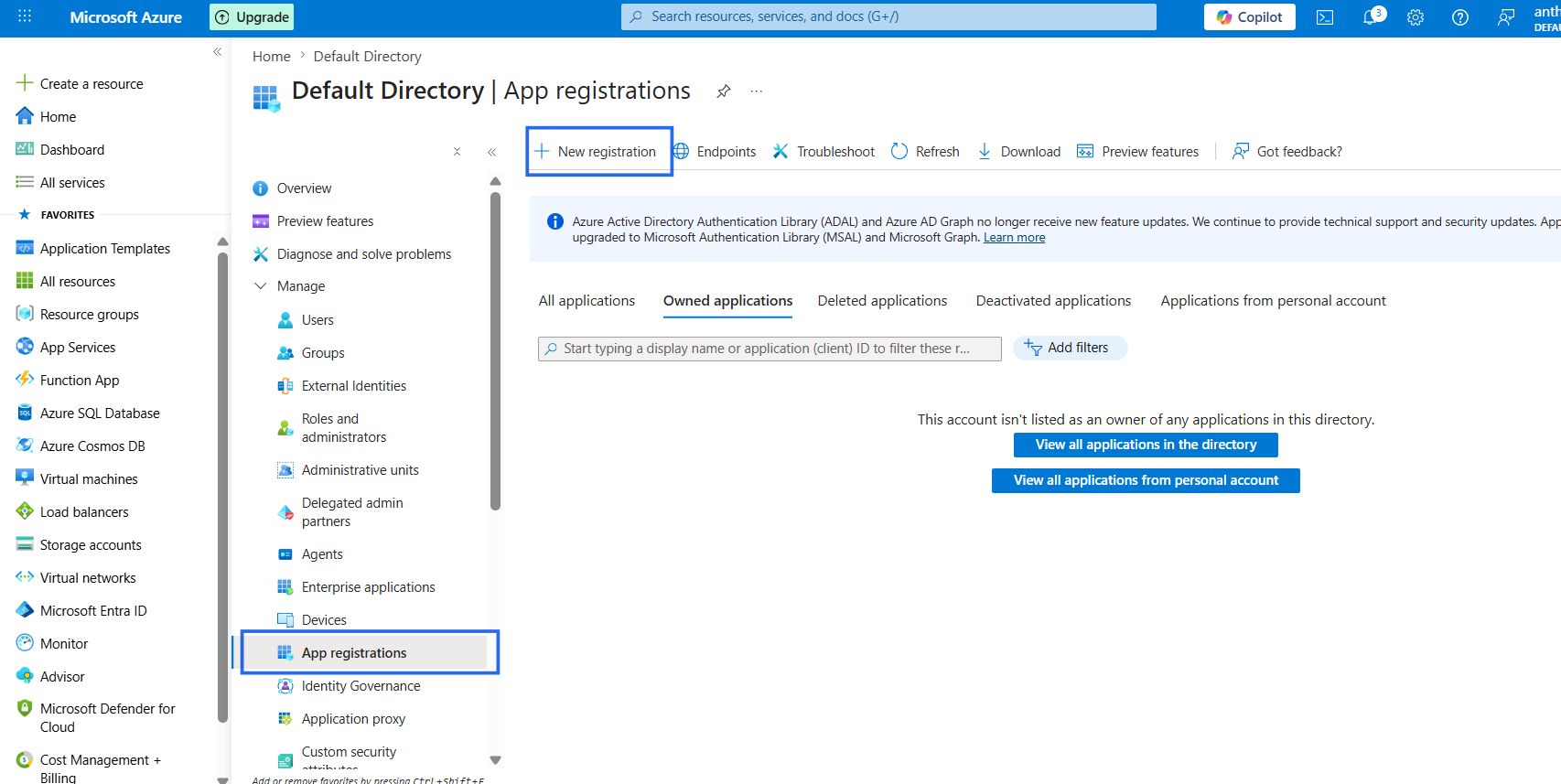
- In the Azure portal search bar, type Microsoft Entra ID, then select Microsoft Entra ID from the search results. Select Manage > App registrations from the Default Directory on the sidebar menu.
- Select + New registration from the command bar to create a new service principal application.
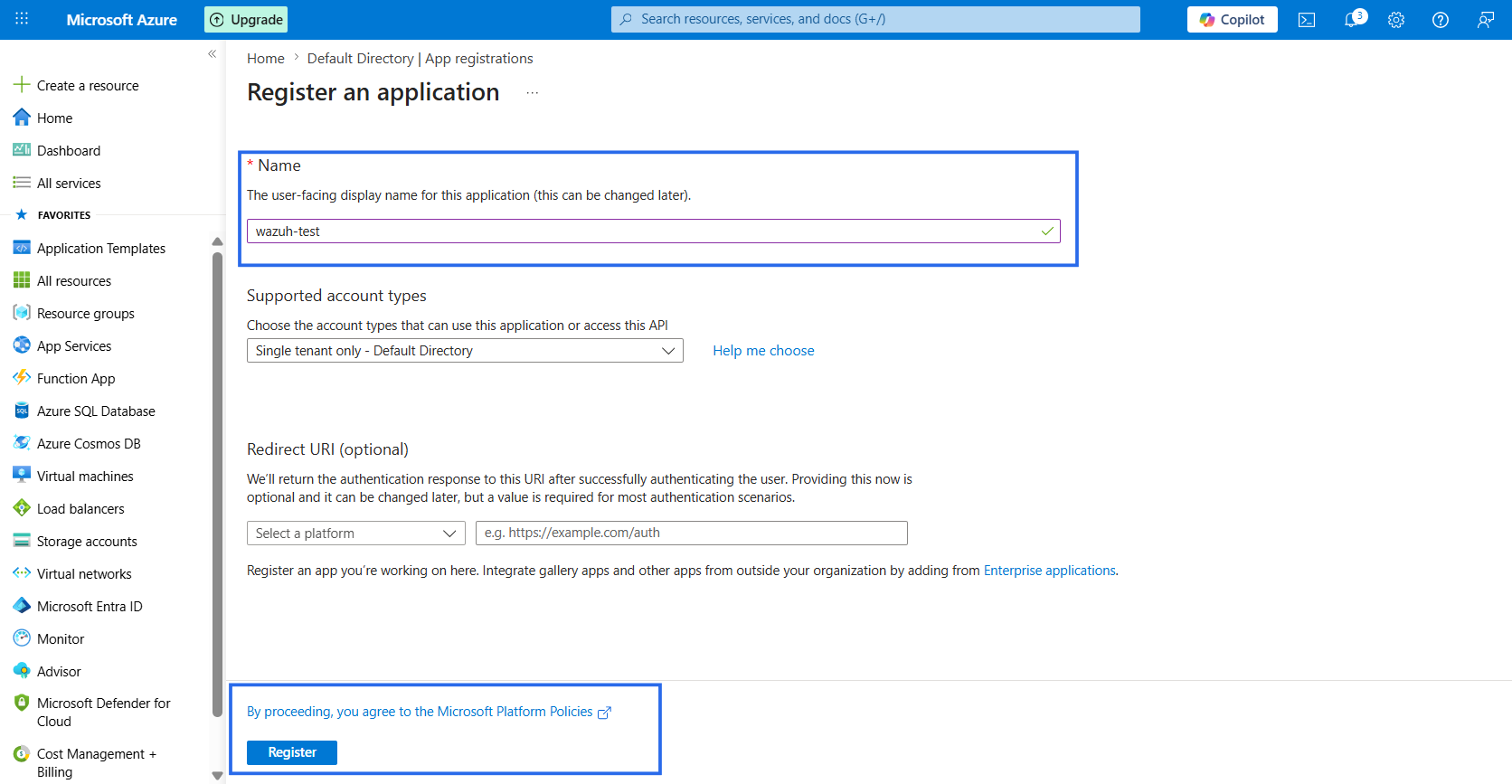
- On the Register an application page, enter a unique name for the application, then click Register. Note the Application (client) ID on the application overview page.
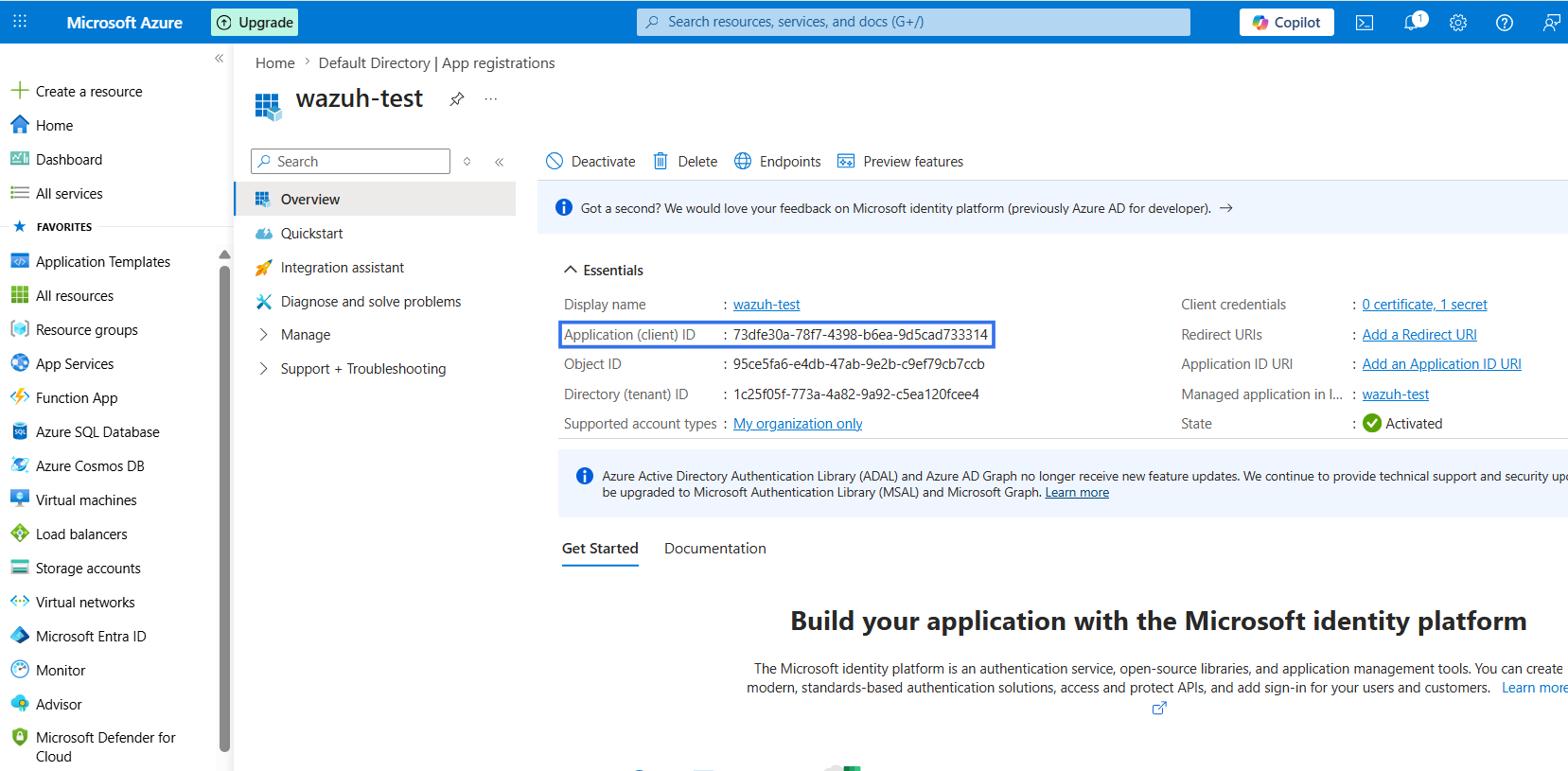
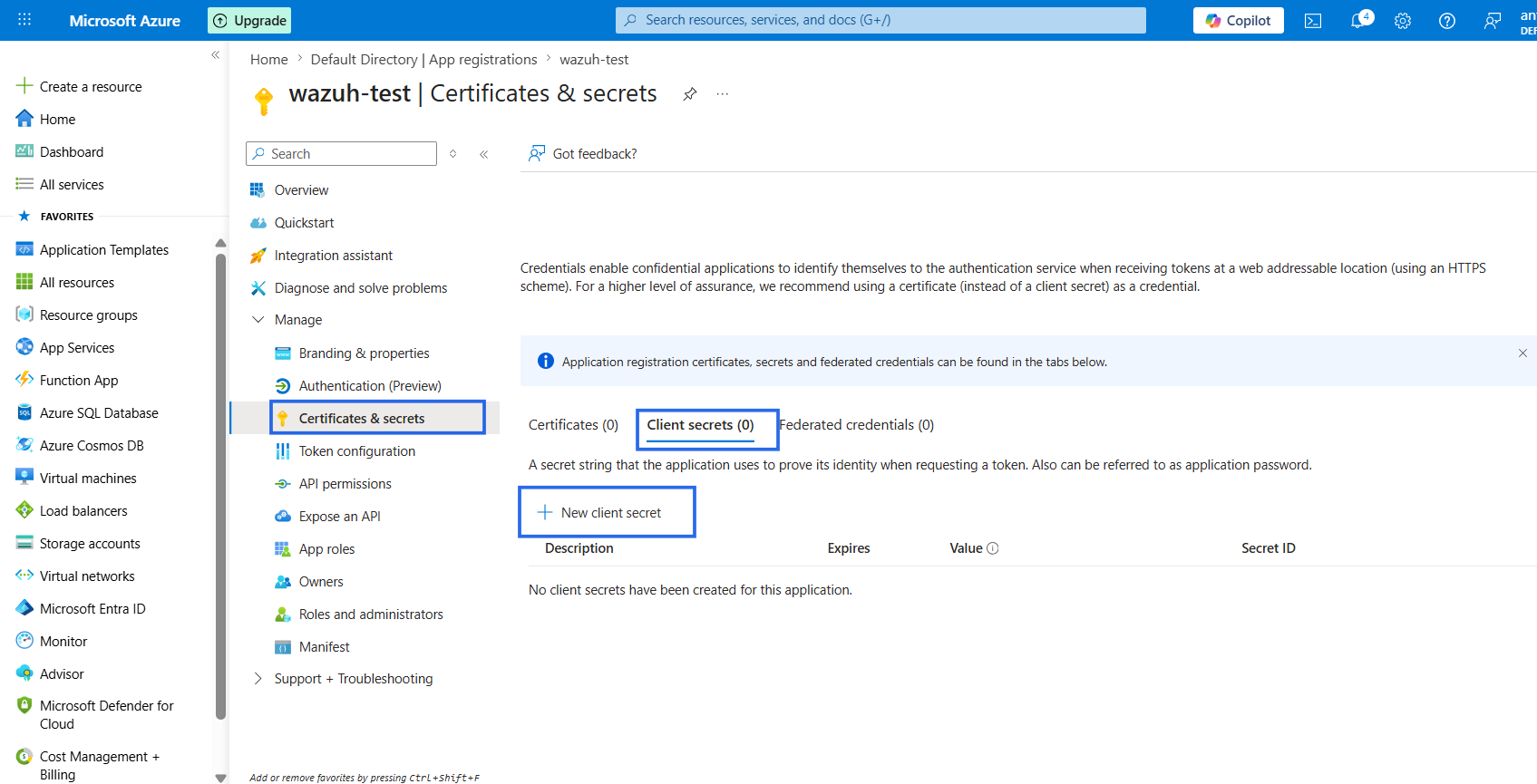
- On the application overview page:
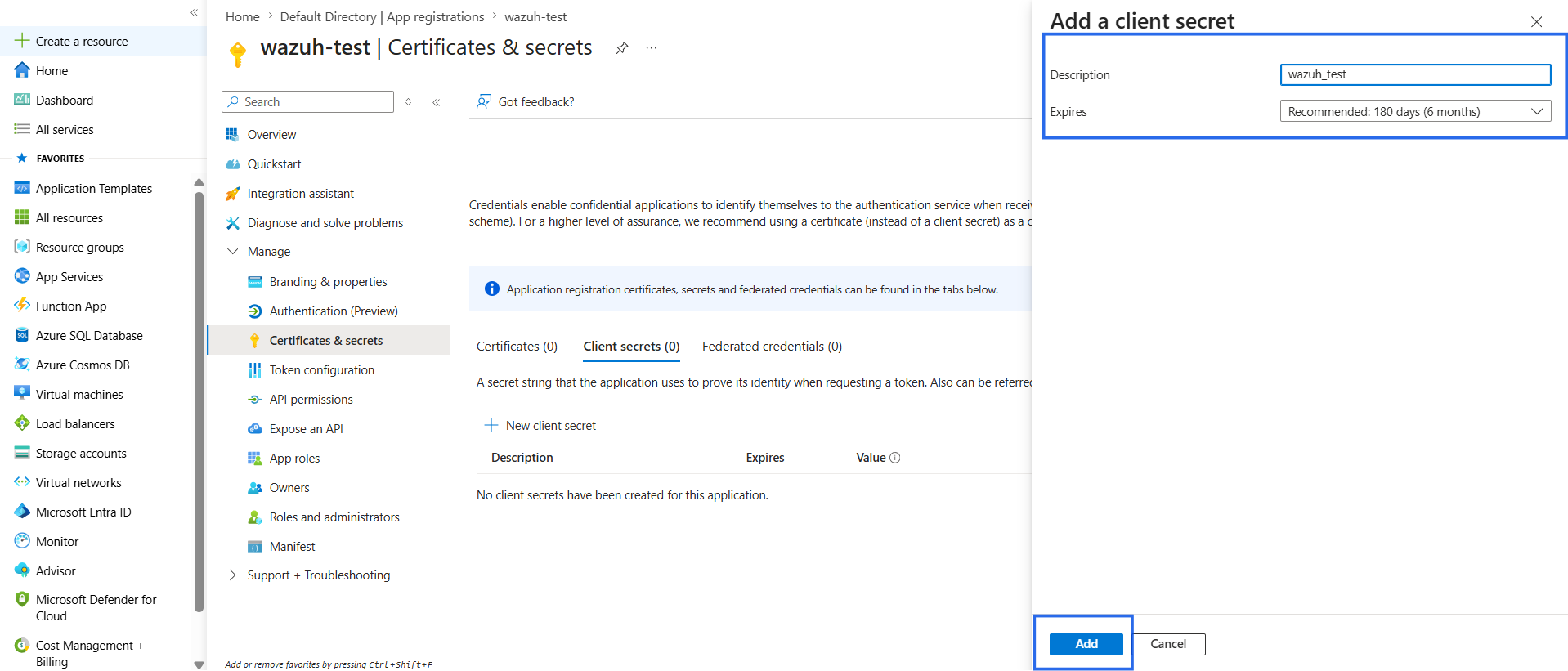
- Select Manage > Certificates & secrets from the sidebar menu.
- Click on the Client secrets tab.
- Click + New client secret. Enter a description for the secret, select the expiry period, and click Add.
- Copy and save the client secret value.
Note
You can only view client secret values immediately after creation. Be sure to save the secret before leaving the page.
- On the application overview page, select Manage > API permissions. Select + Add a permission.
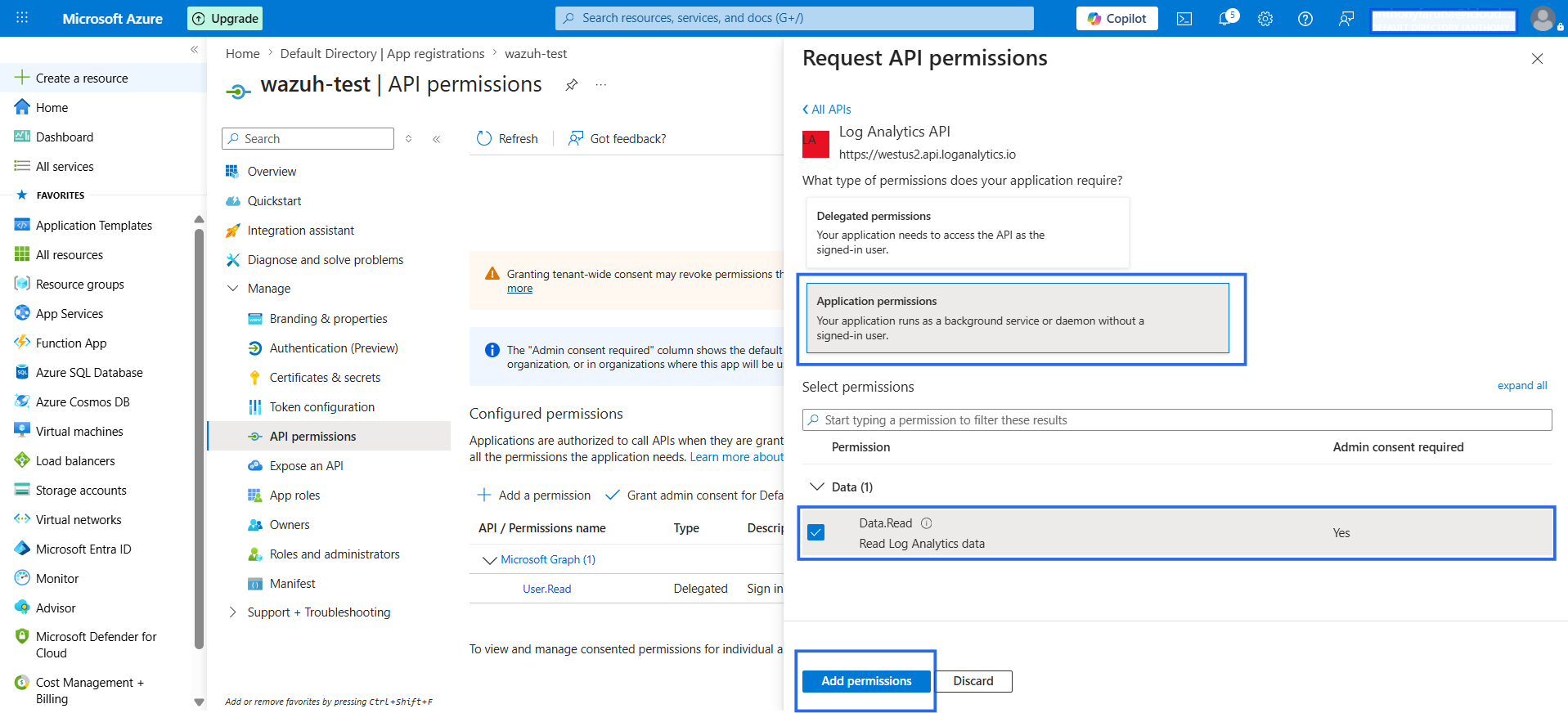
- On the Request API permissions page:
- Click the APIs my organization uses tab.
- Search for Log Analytics and select Log Analytics API from the list.
- Click on Application permissions.
- Select the
Data.Read(Read Log Analytics data) permission. - Click Add permissions.
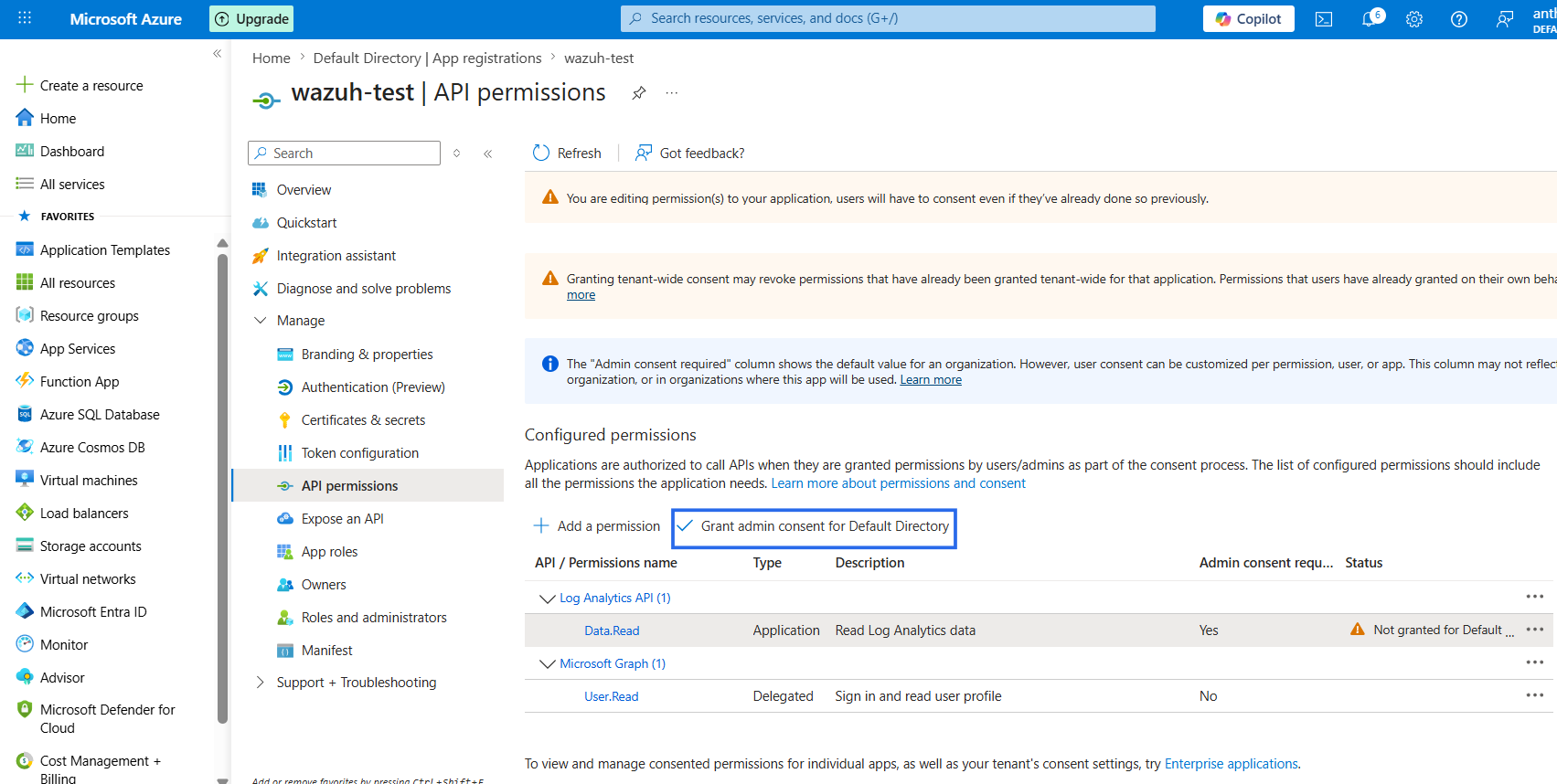
- Click on Grant admin consent for Default Directory.
- Click Yes.
Create a Log Analytics workspace
We create a Log Analytics Workspace that enables Wazuh to retrieve log data from Azure.
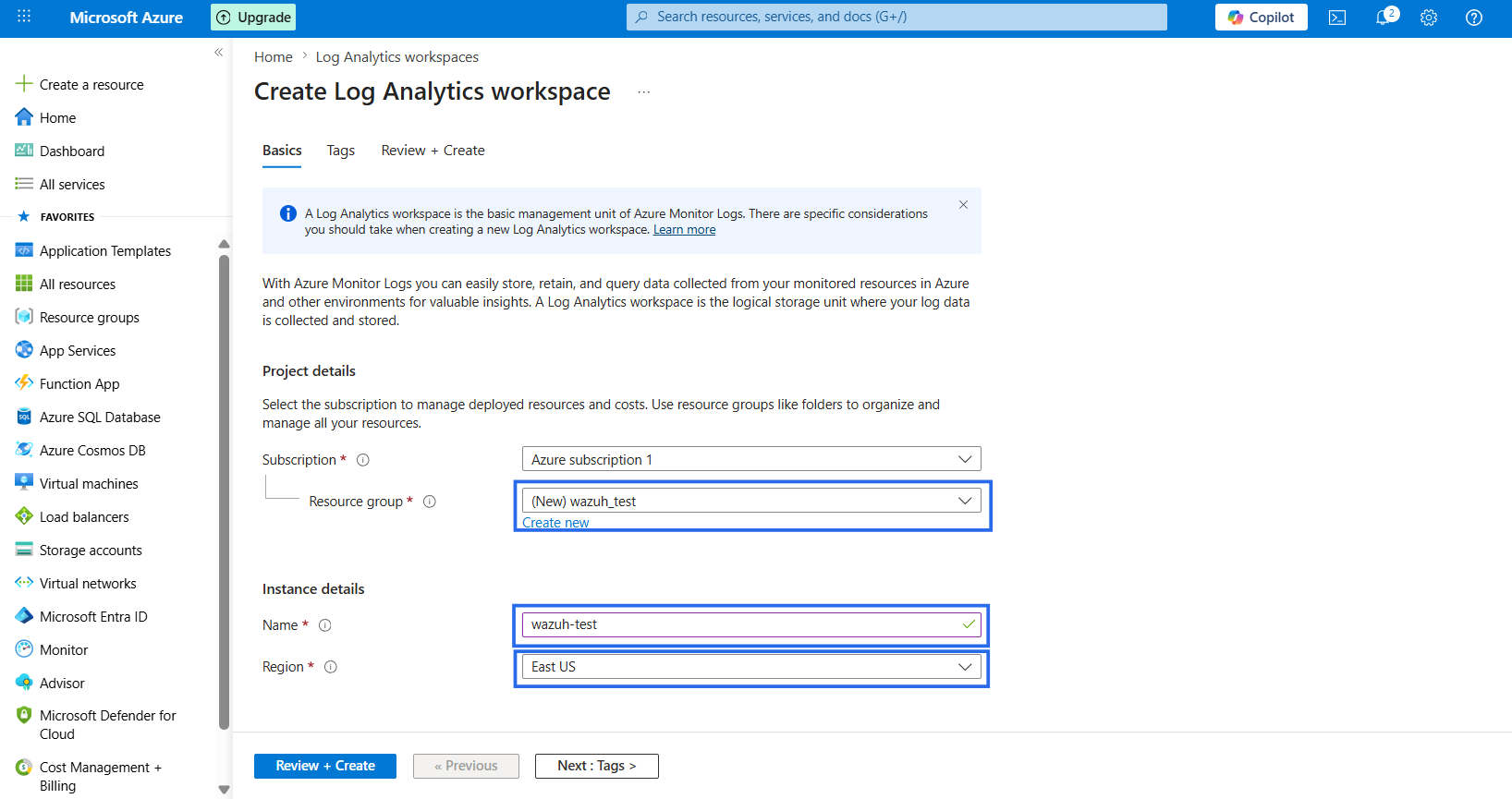
- In the Azure portal search bar, type Log Analytics workspaces, then select Log Analytics workspaces from the search results. Select + Create from the command bar to create a new workspace.
- In the dialog box, select Create new to create a resource group for the Log Analytics workspace. Enter a unique name for the resource group, then click OK.
- Enter a unique name for the Log Analytics workspace within the Instance details section and select a region.
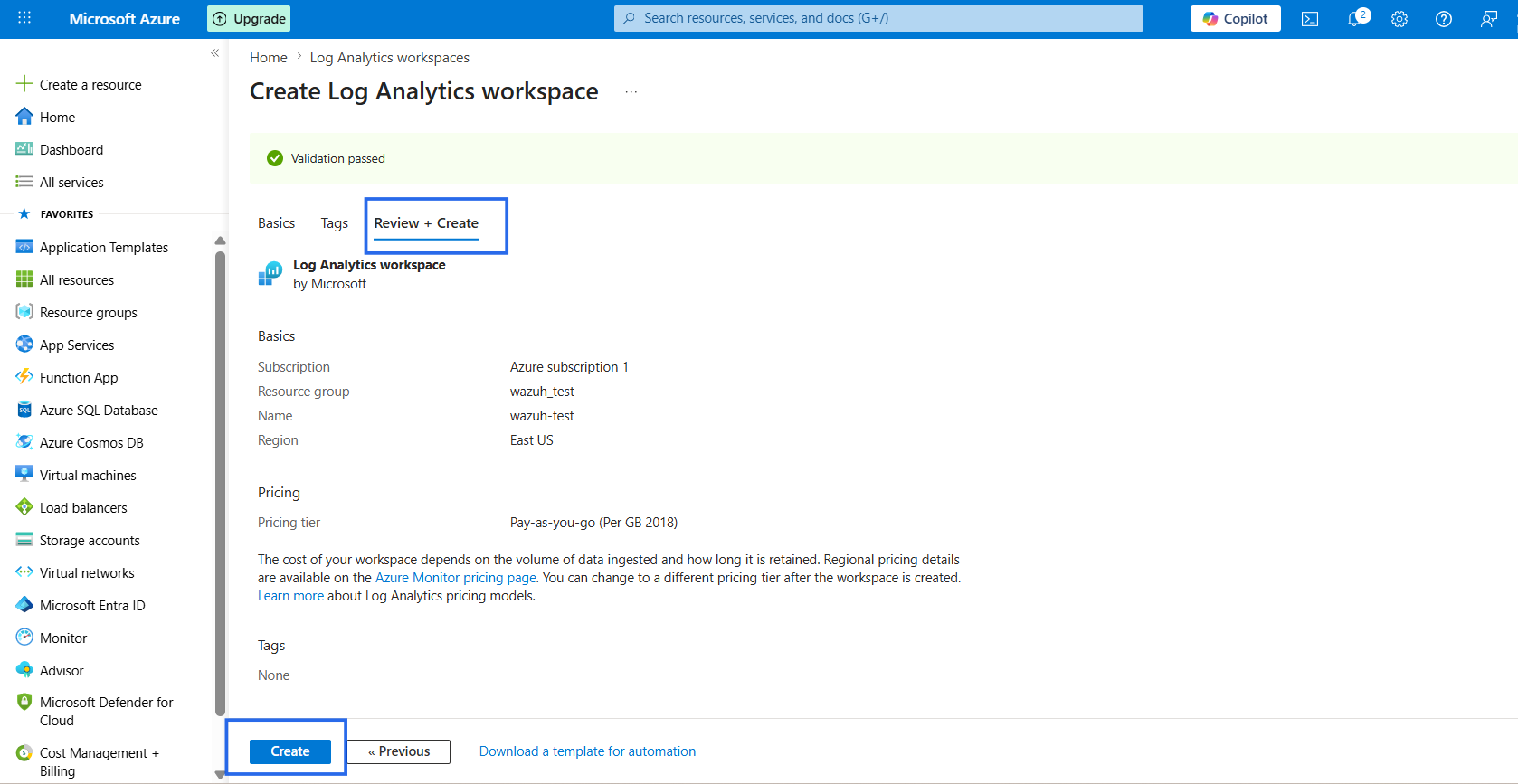
- Select the Review + Create tab. After validation completes successfully, click Create. Wait for the workspace to be provisioned. This process can take several minutes.
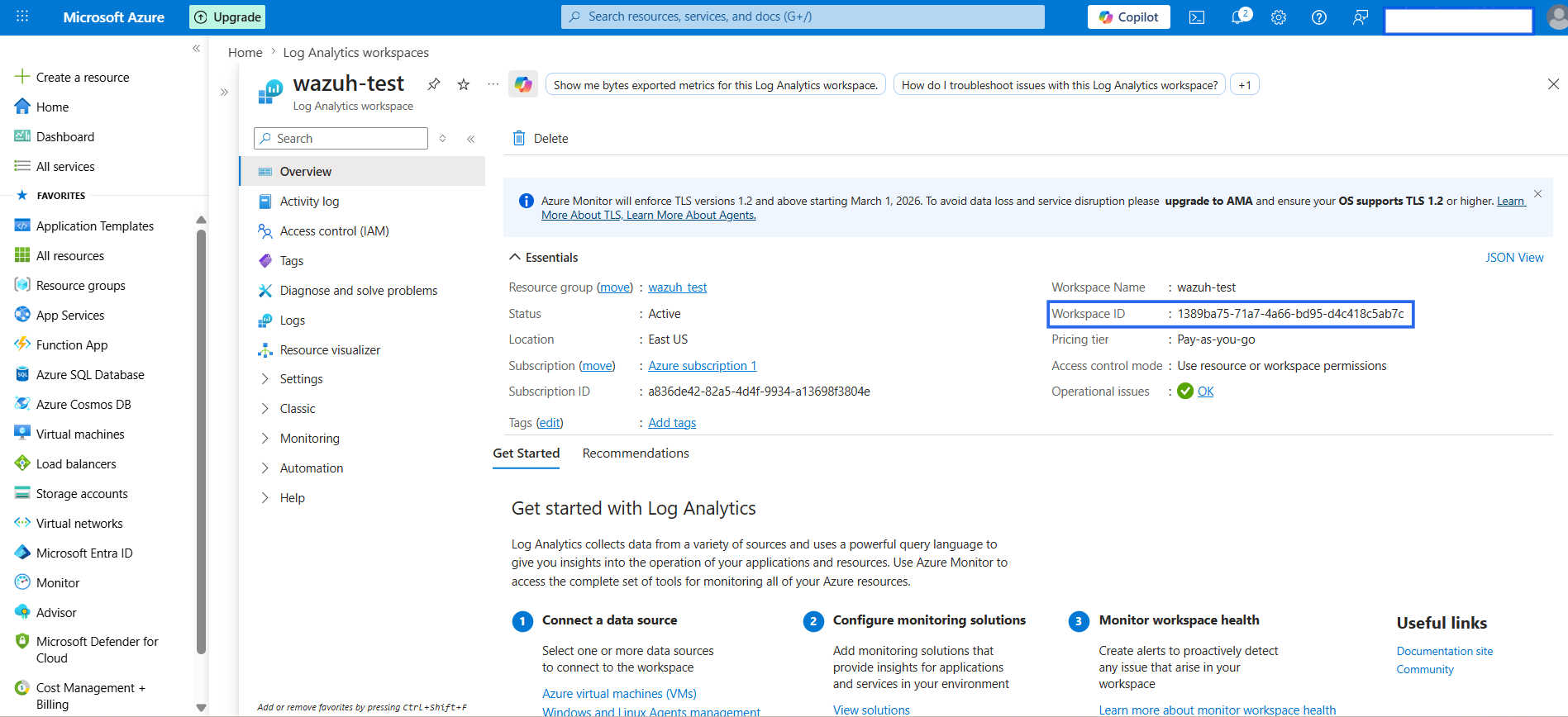
- In the search bar of the Azure portal, type Log Analytics workspaces, then select the newly created workspace. Copy the workspace ID from the Essentials section. The workspace ID is required for the Wazuh log collection configuration.
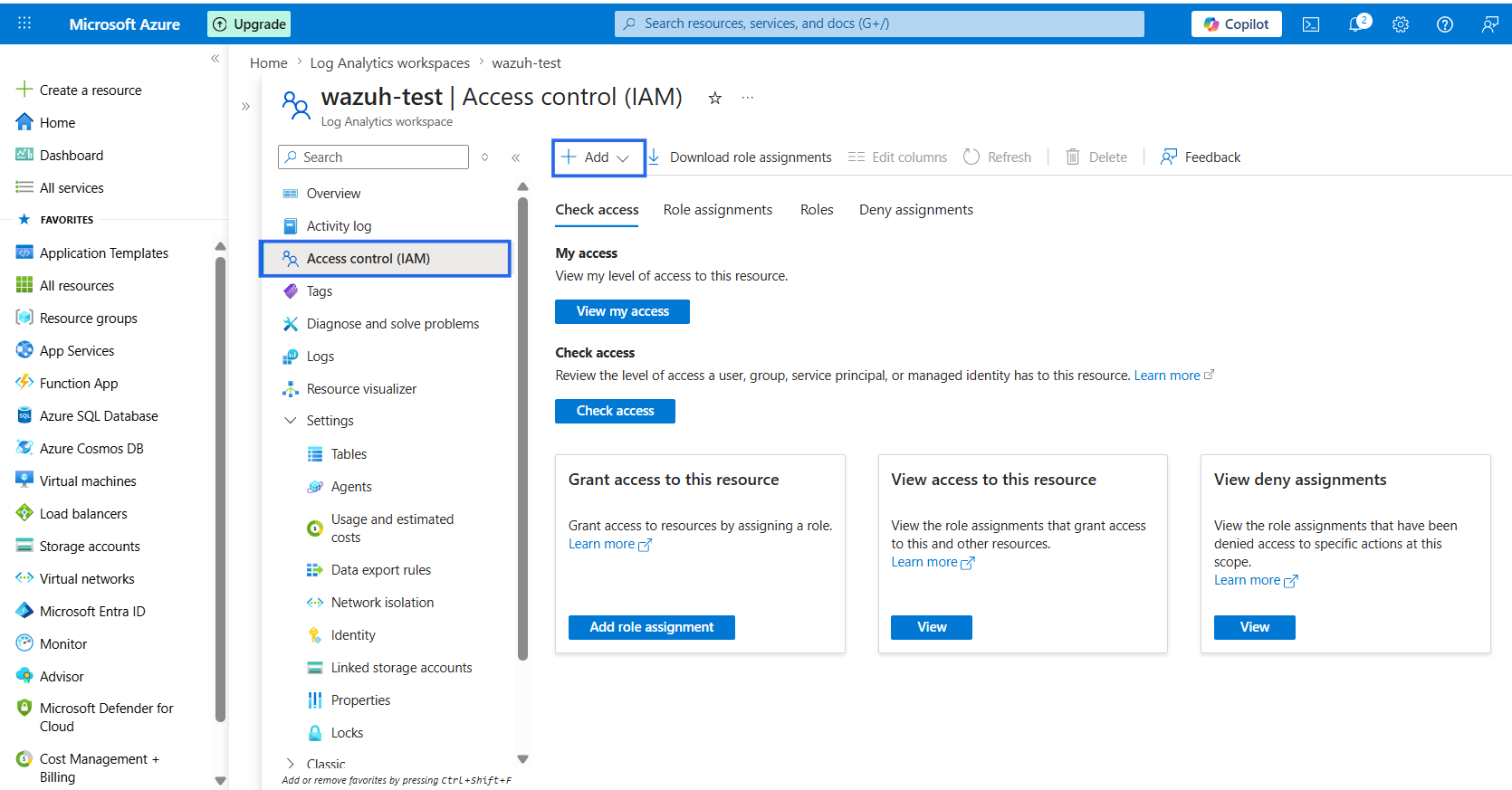
- Select Access control (IAM) on the sidebar menu of the Log Analytics workspace page.
- Click on + Add on the command bar and select Add role assignment.
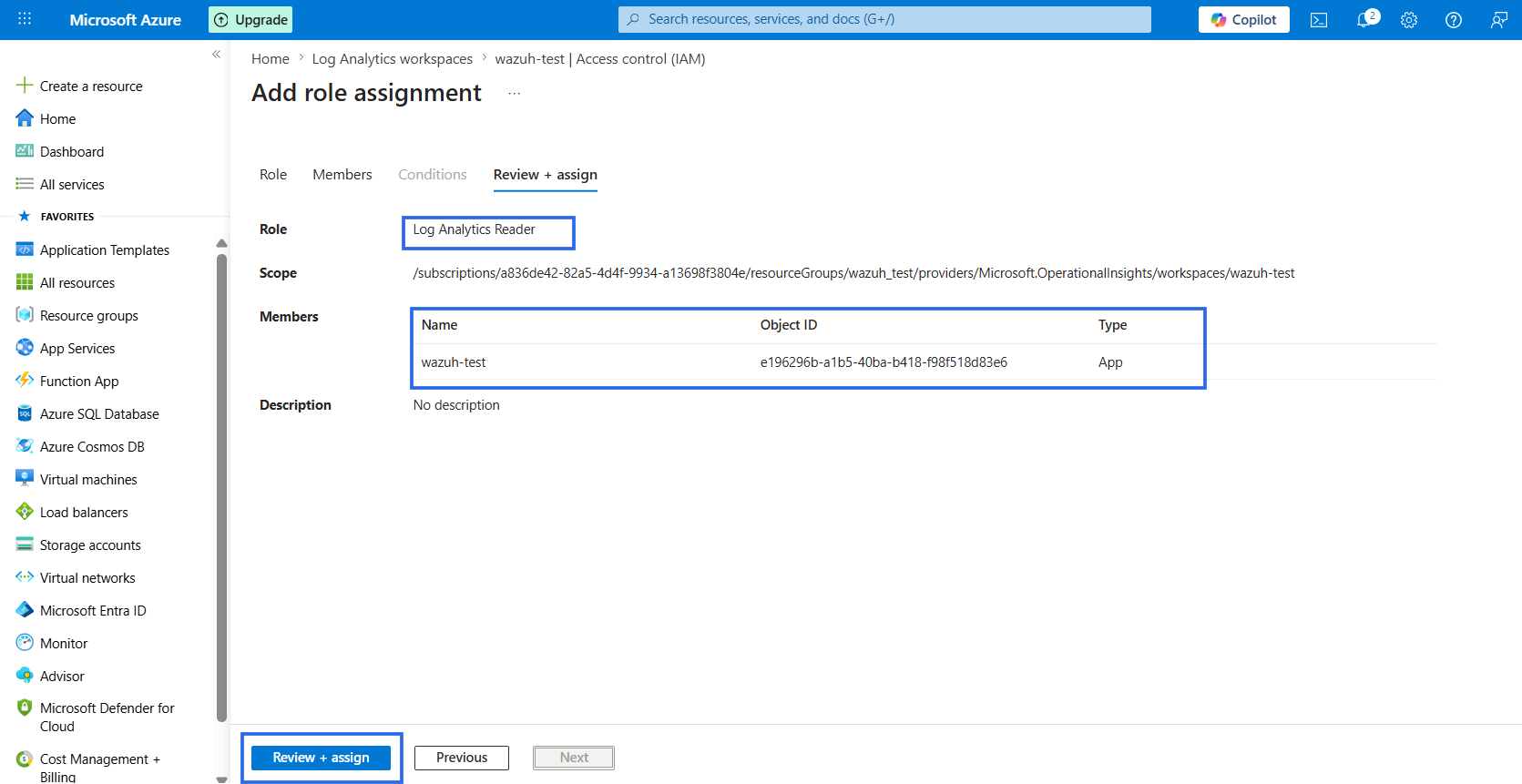
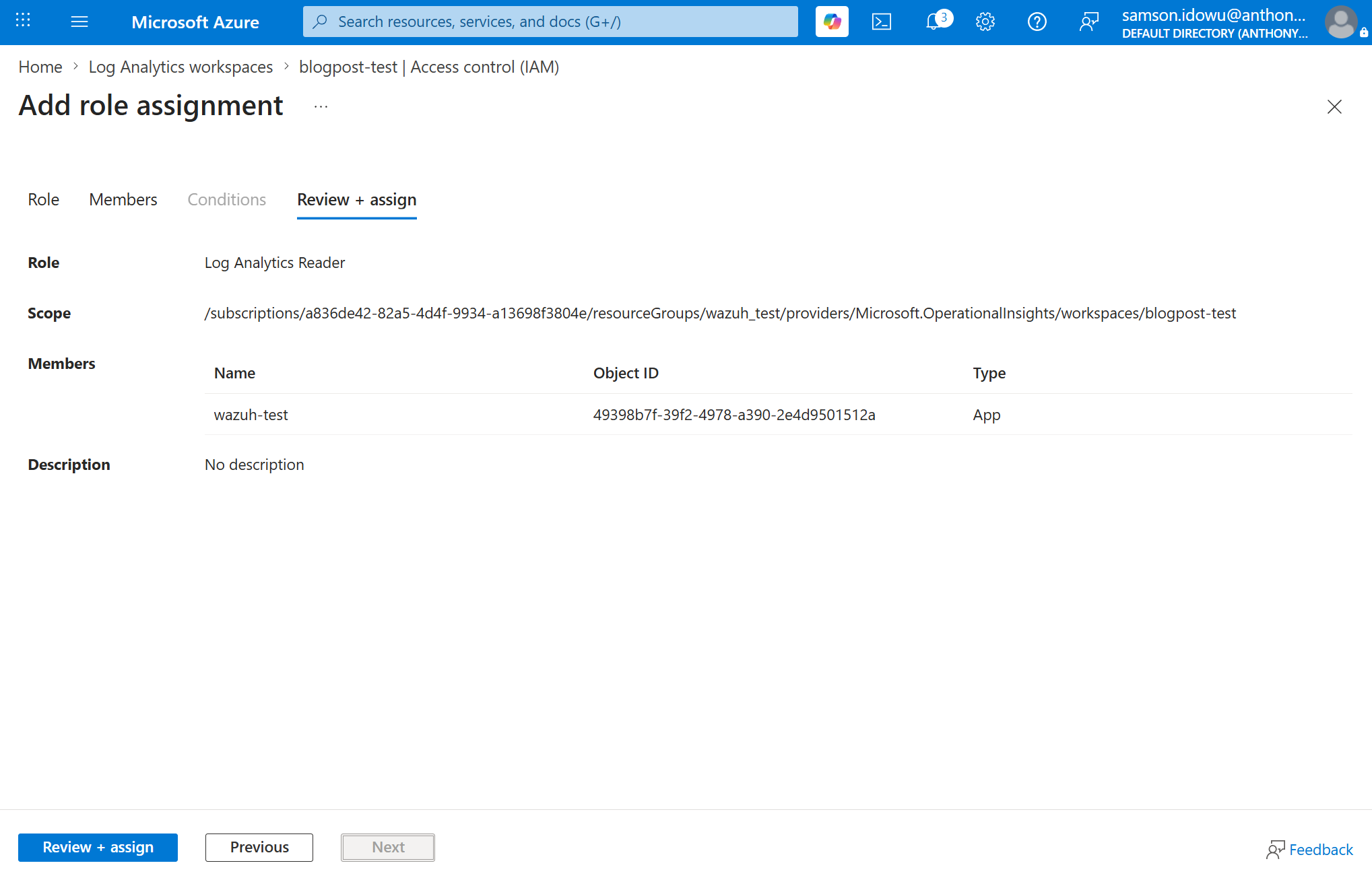
- On the Add role assignment page, search for Log Analytics Reader. Select it and click Next.
- On the Members page, click on + Select members.
- Search for your service principal application name in the Select members box and click Select.
- Click Next, then Review + assign.
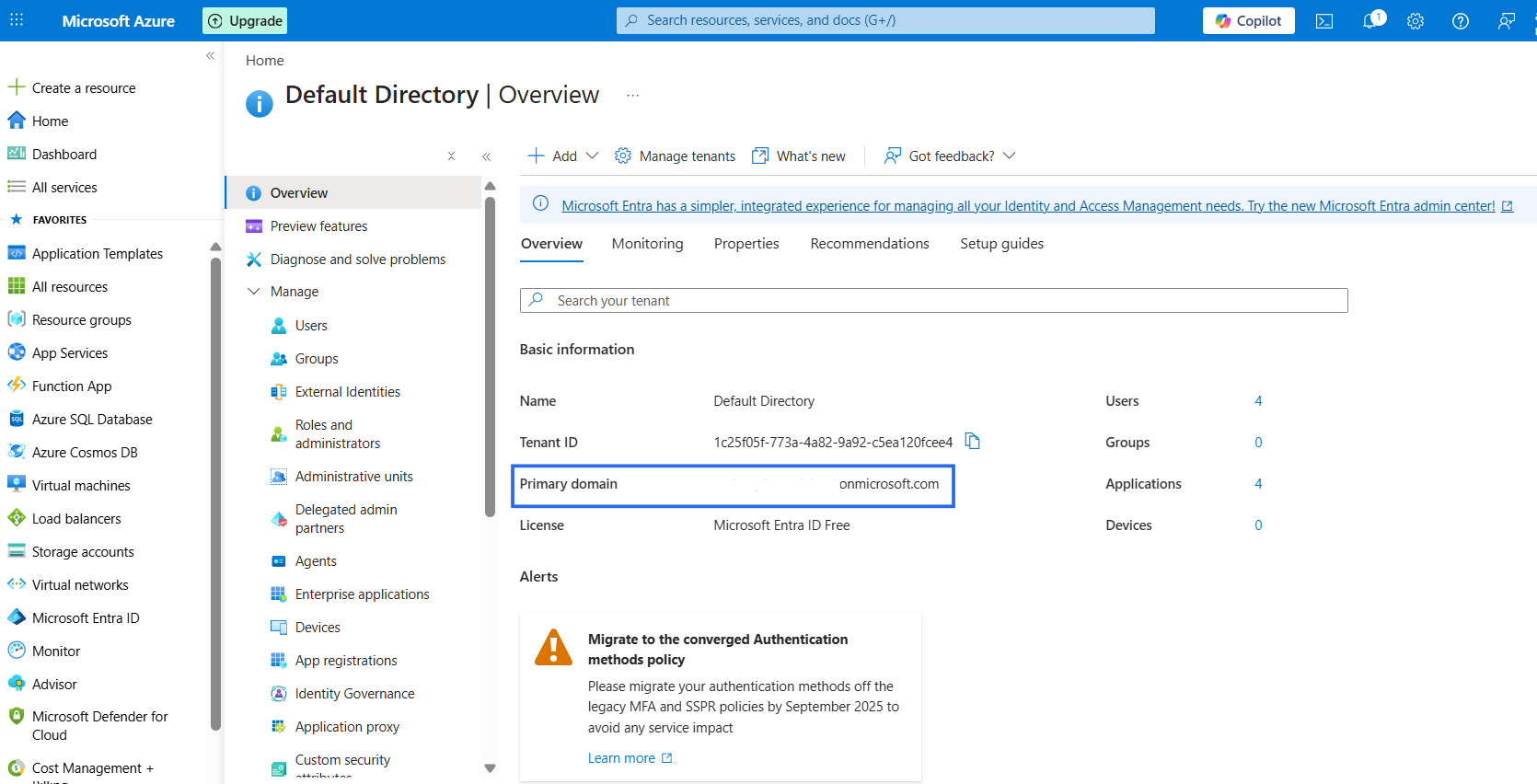
- In the search bar of the Azure portal, type Microsoft Entra ID, then select the matching service.
- Copy the Azure tenant Primary domain name from the Basic Information section. This is used as part of the configuration in Wazuh.
Configure Azure Activity logs
Azure Activity logs provide visibility into subscription-level events generated within the Azure environment. These logs record administrative and operational activities, such as resource creation, role assignments, policy modifications, virtual machine operations, and resource lock deletion.
We use Azure Activity logs to monitor attack techniques related to privilege escalation, persistence, execution, defense evasion, and impact. The logs also help identify suspicious administrative actions performed against Azure resources during adversary emulation.
In this section, we configure Azure Activity logs and forward the telemetry to the Log Analytics workspace for collection and analysis in Wazuh.
Configure Azure Activity logs export
Perform the following steps to export Azure Activity logs to the Log Analytics workspace:
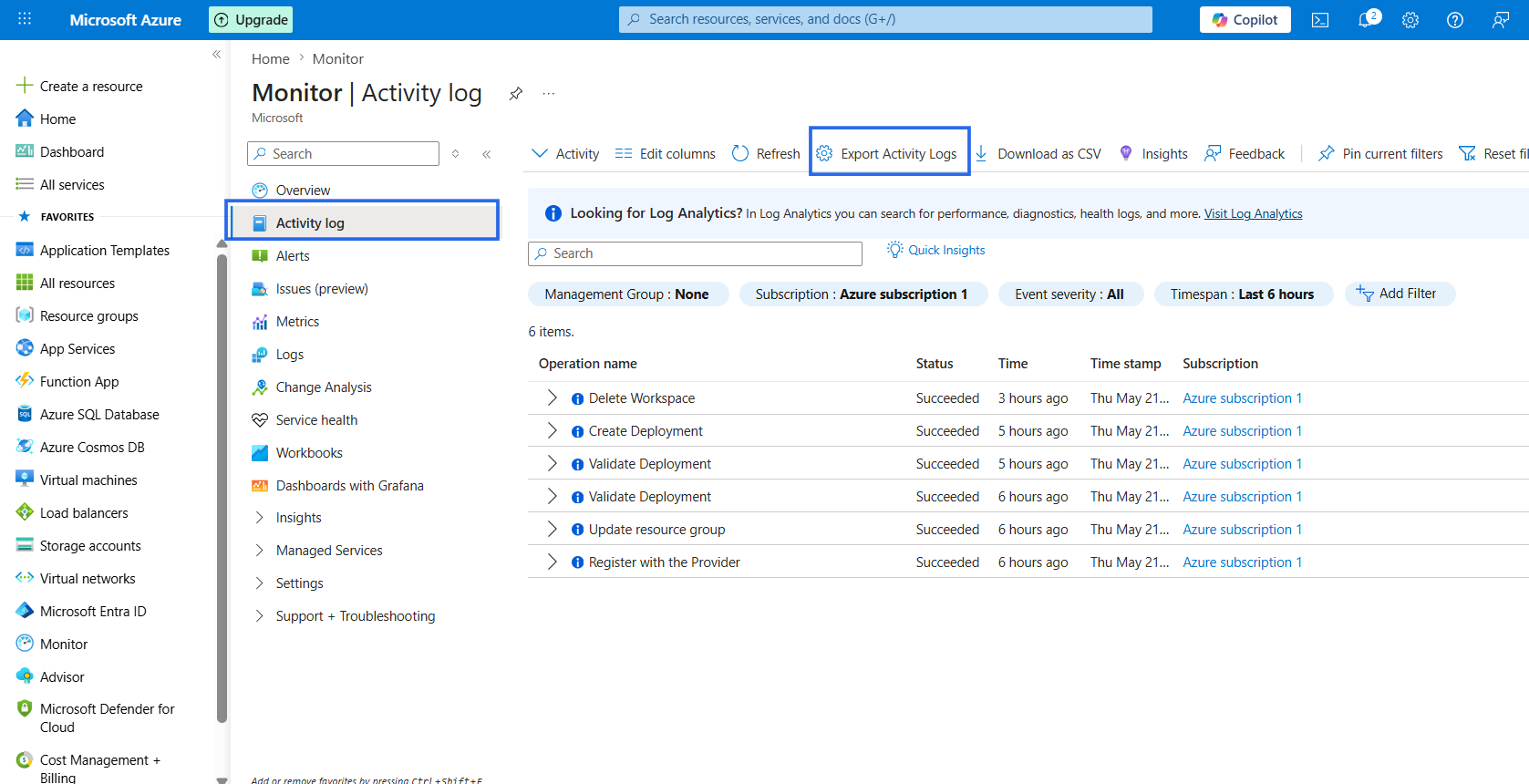
- In the search bar of the Azure portal, type Monitor, then select Activity Log from the sidebar menu. Click Export Activity Logs.
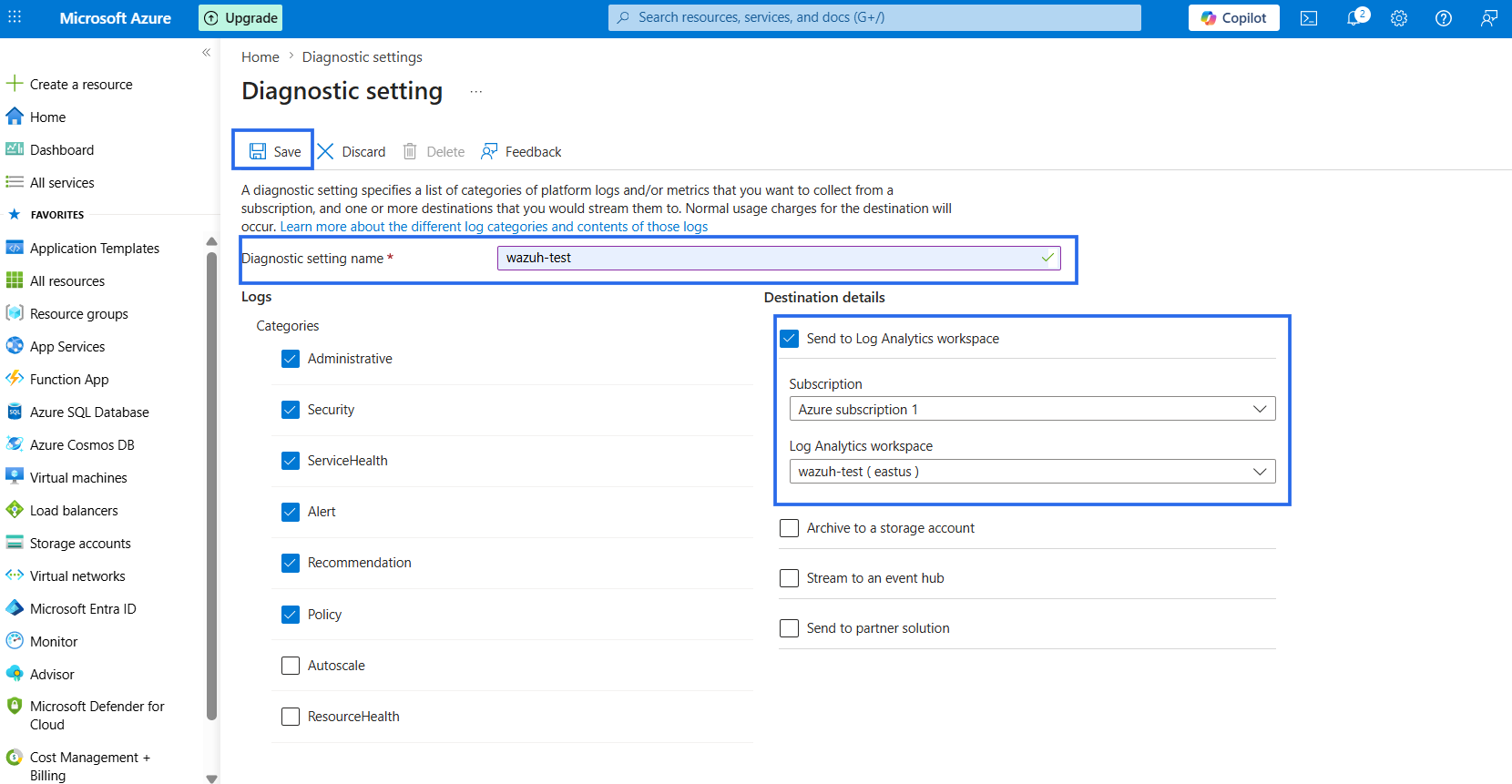
- Click Add diagnostic setting, then enter a name for the diagnostic setting. Select the following log categories:
- Administrative
- Policy
- Security
- ServiceHealth
- Alert
- Recommendation
- Select Send to Log Analytics workspace and choose the Log Analytics workspace created earlier. Click Save.
Configure Entra ID logs
Microsoft Entra ID Audit and Sign-in logs provide visibility into identity-related operations and authentication activity within the Azure environment. These logs record user activity, application changes, role assignments, authentication attempts, consent grants, and directory modifications.
We use these logs to monitor attack techniques related to persistence, privilege escalation, credential access, and defense evasion. The logs also help identify suspicious identity operations generated during adversary emulation.
In this section, we configure Entra ID Audit and Sign-in logs for collection and analysis in Wazuh.
Configure diagnostic settings for Entra ID logs
Perform the following steps to configure diagnostic settings for Entra ID logs:
- In the Azure portal search bar, type Microsoft Entra ID.
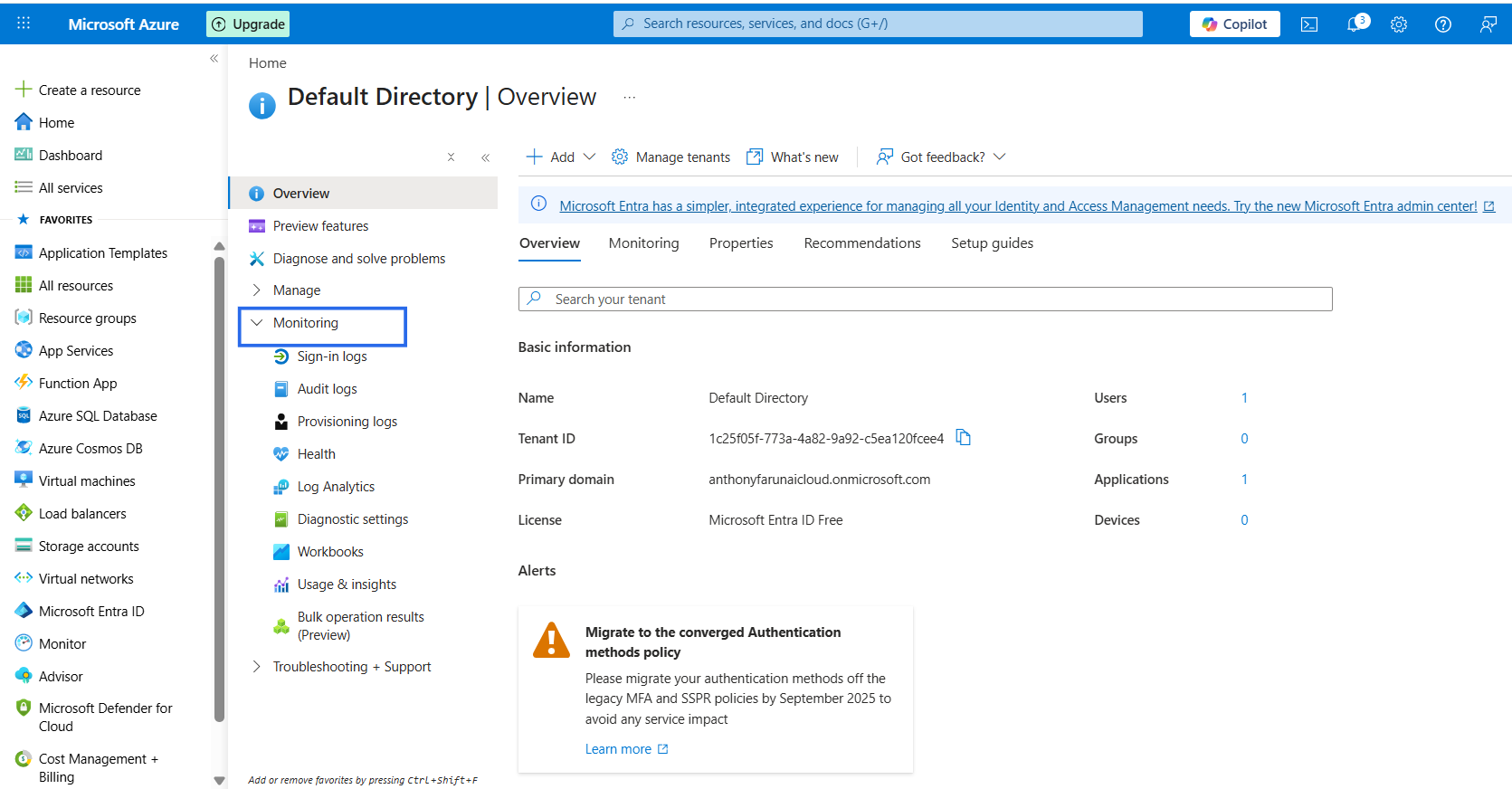
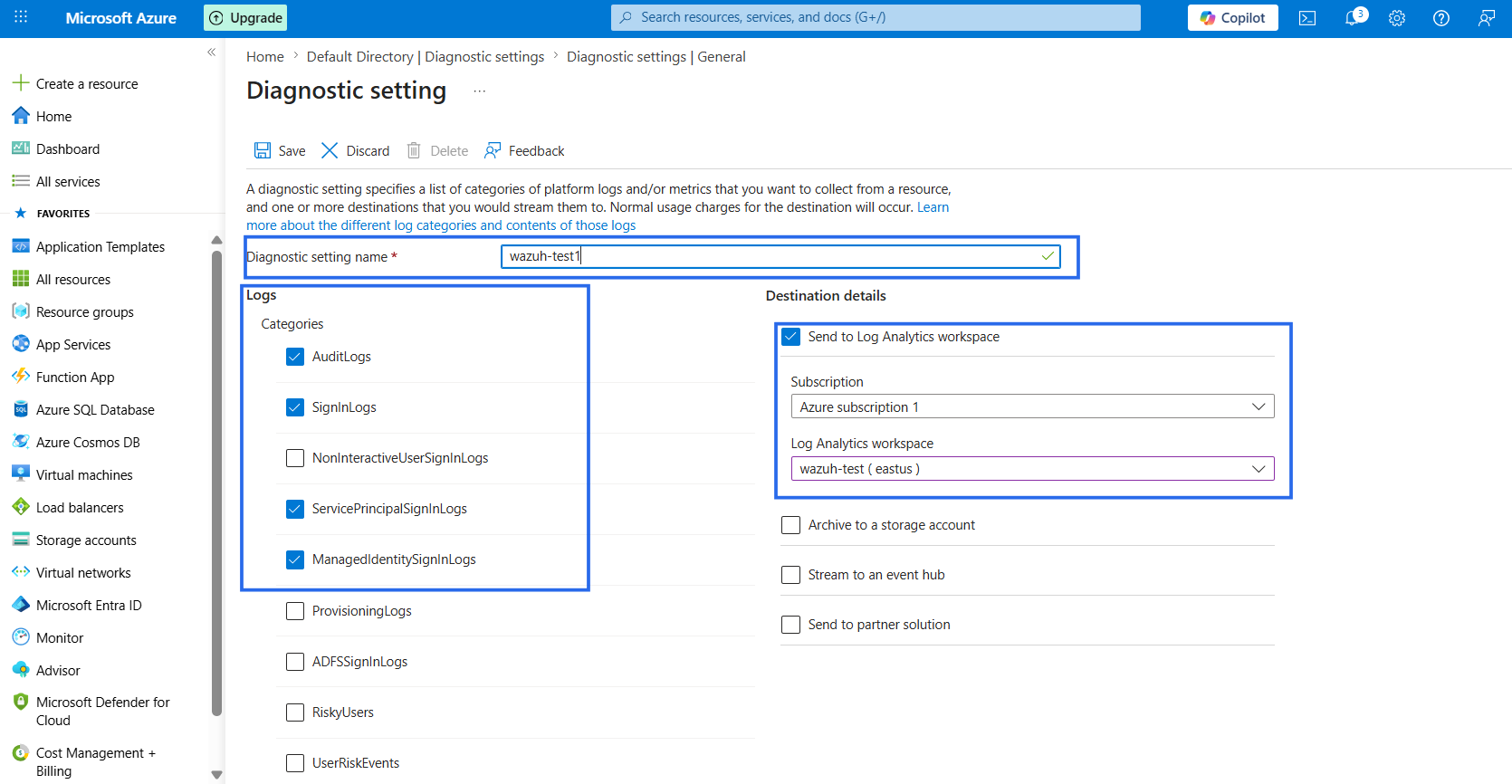
- Select Monitoring > Diagnostic settings and click Add diagnostic setting. Enter a name for the diagnostic setting and select the following log categories:
- AuditLogs
- SignInLogs
- ServicePrincipalSignInLogs
- ManagedIdentitySignInLogs
- Select Send to Log Analytics workspace and choose the Log Analytics workspace created earlier. Click Save.
Configure Azure Storage diagnostic logs
Azure Storage diagnostic logs provide visibility into storage account and blob service operations within the Azure environment. These logs record blob access, SAS URL usage, blob deletion, storage configuration changes, and other storage-related operations.
We use Azure Storage diagnostic logs to monitor attack techniques related to data exfiltration and impact. These logs help identify suspicious storage activity generated during adversary emulation.
In this section, we configure Azure Storage diagnostic logs and forward the telemetry to Wazuh for analysis.
Configure diagnostic settings for Azure Storage logs
Perform the following steps to configure diagnostic settings for the Azure Storage account logs:
- In the search bar of the Azure portal, type Storage accounts, then select the target storage account.
- Click Monitoring, then select Diagnostic settings.
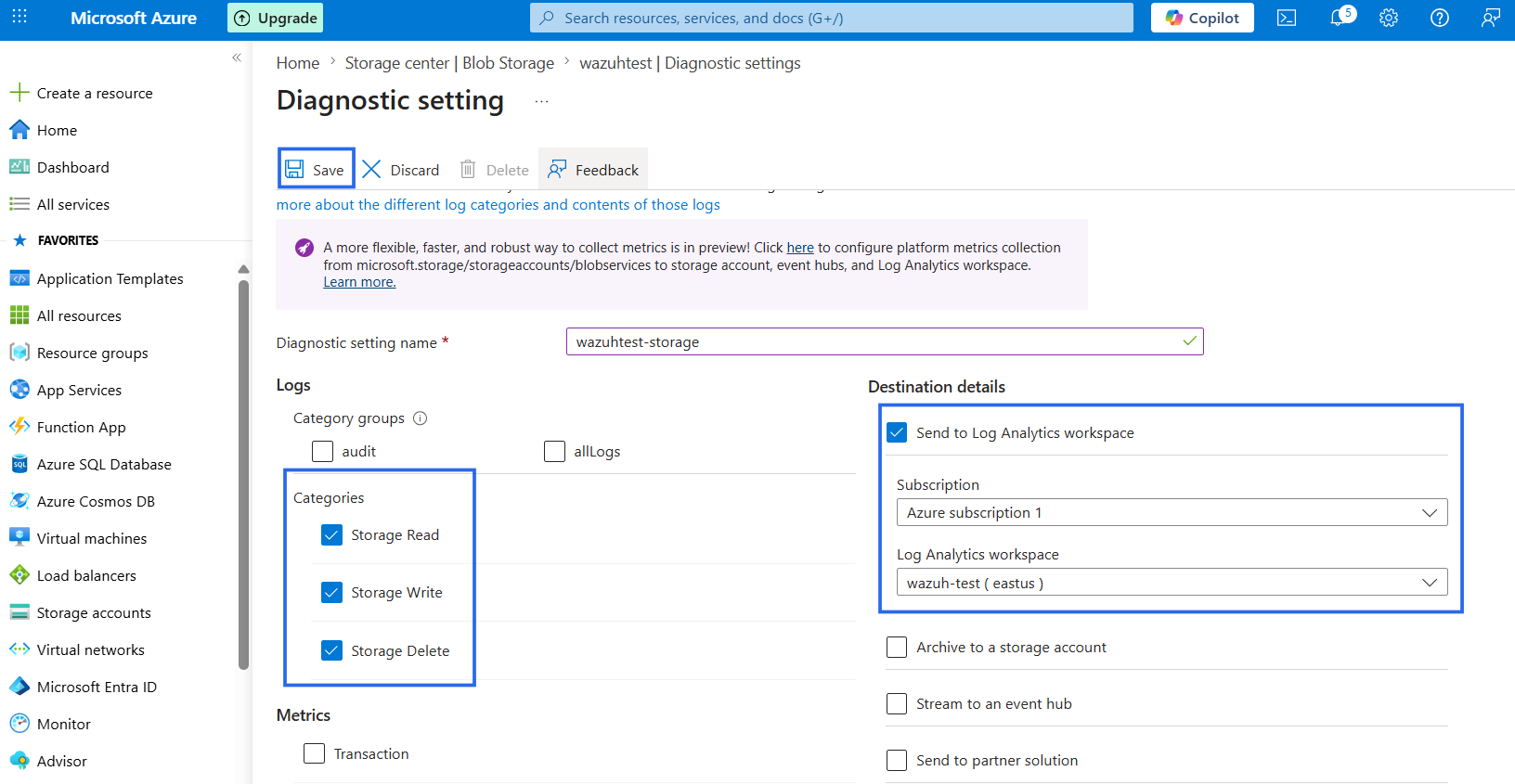
- Select the storage type (blog, queue, table, file) and click Add diagnostic setting. Enter a name for the diagnostic setting and select the following log categories:
- StorageRead
- StorageWrite
- StorageDelete
- Select Send to Log Analytics workspace and choose the Log Analytics workspace created earlier. Click Save.
Configure Wazuh to collect logs from the Log Analytics Workspace
Configure the Wazuh server to receive logs from Microsoft Azure by performing the following steps.
Note
Run the following commands as the root user.
- Create a
credentialsdirectory in the/var/ossec/wodles/directory:
# mkdir /var/ossec/wodles/credentials
- Create a
/var/ossec/wodles/credentials/log_analytics_credentialsfile:
# touch /var/ossec/wodles/credentials/log_analytics_credentials
- Update the
/var/ossec/wodles/credentials/log_analytics_credentialsfile as shown below:
application_id=<SERVICE_PRINCIPAL_APPLICATION_ID>
application_key=<CLIENT_SECRET_VALUE>
| application_id=<SERVICE_PRINCIPAL_APPLICATION_ID>application_key=<CLIENT_SECRET_VALUE> |
Replace:
<SERVICE_PRINCIPAL_APPLICATION_ID>with the service principal application (client) ID.<CLIENT_SECRET_VALUE>with the client secret value.
- Append the following content to the
/var/ossec/etc/ossec.confconfiguration file. The configuration specifies how Wazuh connects to Azure:
<ossec_config>
  <wodle name="azure-logs">
    <disabled>no</disabled>
    <run_on_start>yes</run_on_start>
    <interval>5m</interval>

    <log_analytics>
      <auth_path>/var/ossec/wodles/credentials/log_analytics_credentials</auth_path>
      <tenantdomain><PRIMARY_DOMAIN></tenantdomain>

      <request>
        <tag>azure-activity</tag>
        <query>AzureActivity</query>
        <workspace><LOG_ANALYTICS_WORKSPACE_ID></workspace>
        <time_offset>1d</time_offset>
      </request>

      <request>
        <tag>entra-audit</tag>
        <query>AuditLogs</query>
        <workspace><LOG_ANALYTICS_WORKSPACE_ID></workspace>
        <time_offset>1d</time_offset>
      </request>

      <request>
        <tag>entra-signin</tag>
        <query>SigninLogs</query>
        <workspace><LOG_ANALYTICS_WORKSPACE_ID></workspace>
        <time_offset>1d</time_offset>
      </request>

      <request>
        <tag>azure-storage</tag>
        <query>StorageBlobLogs</query>
        <workspace><LOG_ANALYTICS_WORKSPACE_ID></workspace>
        <time_offset>1d</time_offset>
      </request>

    </log_analytics>
  </wodle>
</ossec_config>
Note
The interval value represents the time between each Azure-Logs module execution. You should set it to a time that is tolerable for your infrastructure.
Replace:
<PRIMARY_DOMAIN>with the domain name of the Azure tenant copied earlier.<LOG_ANALYTICS_WORKSPACE_ID>with the ID of the Log Analytics workspace created earlier.
- Restart the Wazuh manager to apply the configuration:
# systemctl restart wazuh-manager
Create detection rules on the Wazuh dashboard
We create rules on the Wazuh dashboard to detect the simulated attack techniques on the Azure and Entra ID. These rules enable Wazuh to identify and alert about any suspicious activities or potential security breaches across Microsoft Azure and Entra ID environments.
- Navigate to Server management > Rules.
- Click + Add new rules file.
- Copy and paste the rules below and name the file
azure_stratus_red_team_rules, then click Save.
<group name="azure_stratus_red_team_rules,azure_attack,entra_id_attack,">
  <rule id="100101" level="10">
    <if_sid>87801</if_sid>
    <field name="AADOperationType">Update</field>
    <field name="OperationName">Add service principal credentials</field>
    <field name="Result">Success</field>
    <description>Potential Entra ID application backdoor detected through service principal credential creation.</description>
    <mitre>
      <id>T1651</id>
    </mitre>
  </rule>

  <rule id="100102" level="10">
    <if_sid>87801</if_sid>
    <field name="ActivityDisplayName">Update application</field>
    <match>FederatedIdentityCredentials</match>
    <description>Potential Entra ID application backdoor detected through federated identity credential creation.</description>
    <mitre>
      <id>T1098</id>
    </mitre>
  </rule>

  <rule id="100103" level="10">
    <if_sid>87801</if_sid>
    <field name="Category">ApplicationManagement</field>
    <field name="ActivityDisplayName" type="pcre2">Create\sapplication\s–\sCertificates\sand\ssecrets\smanagement</field>
    <description>Potential Entra ID application backdoor detected through application credential creation.</description>
    <mitre>
      <id>T1098</id>
    </mitre>
  </rule>

  <rule id="100104" level="10">
    <if_sid>87810</if_sid>
    <field name="CategoryValue">Administrative</field>
    <field name="OperationNameValue" type="pcre2">MICROSOFT.COMPUTE\/DISKS\/BEGINGETACCESS\/ACTION</field>
    <field name="ResourceProviderValue">MICROSOFT.COMPUTE</field>
    <description>Potential Azure managed disk export detected through SAS URL generation.</description>
    <mitre>
      <id>T1005</id>
      <id>T1567</id>
    </mitre>
  </rule>

  <rule id="100105" level="10">
    <if_sid>87810</if_sid>
    <field name="CategoryValue">Administrative</field>
    <field name="OperationNameValue" type="pcre2">MICROSOFT.STORAGE\/STORAGEACCOUNTS\/LISTKEYS\/ACTION</field>
    <field name="ResourceProviderValue">MICROSOFT.STORAGE</field>
    <description>Potential Azure Storage exfiltration activity detected through storage account key retrieval.</description>
    <mitre>
      <id>T1537</id>
      <id>T1567</id>
    </mitre>
  </rule>

  <rule id="100106" level="10">
    <if_sid>87810</if_sid>
    <field name="OperationNameValue" type="pcre2">MICROSOFT.AUTHORIZATION\/LOCKS\/DELETE</field>
    <field name="ActivityStatusValue">Success</field>
    <field name="ResourceProviderValue">MICROSOFT.AUTHORIZATION</field>
    <description>Azure resource lock deletion detected.</description>
    <mitre>
      <id>T1485</id>
    </mitre>
  </rule>


  <rule id="100107" level="10">
    <if_sid>87810</if_sid>
    <field name="OperationNameValue" type="pcre2">MICROSOFT.MANAGEDIDENTITY\/USERASSIGNEDIDENTITIES\/FEDERATEDIDENTITYCREDENTIALS\/WRITE</field>
    <field name="ActivityStatusValue">Success</field>
    <field name="ActivitySubstatusValue">Created</field>
    <description>Potential Azure managed identity backdoor detected through federated identity credential creation.</description>
    <mitre>
      <id>T1098</id>
    </mitre>
  </rule>

  <rule id="100108" level="10">
    <if_sid>87801</if_sid>
    <field name="OperationName" type="pcre2">User\shas\selevated\stheir\saccess\sto\sUser\sAccess\sAdministrator\sfor\stheir\sAzure\sResources</field>
    <field name="Result">Success</field>
    <field name="Category">AzureRBACRoleManagementElevateAccess</field>
    <field name="LoggedByService">Azure\sRBAC\s\(Elevated\sAccess\)</field>
    <description>Azure user elevated access to User Access Administrator at root scope.</description>
    <mitre>
      <id>T1098</id>
    </mitre>
  </rule>

</group>
Where:
- Rule ID
100101is triggered when service principal credentials are created, which may indicate that an adversary is establishing persistence by adding a new authentication method to an application. - Rule ID
100102is triggered when a federated identity credential is created in an Entra ID application, potentially indicating a passwordless backdoor for persistent access. - Rule ID
100103is triggered when certificate or secret management operations occur within an Entra ID application, potentially indicating that an adversary is creating new application credentials. - Rule ID
100104is triggered when Azure managed disk access is generated via a SAS URL, which may indicate disk export or data exfiltration. - Rule ID
100105is triggered when Azure Storage account keys are retrieved, which may indicate preparation for SAS URL generation and storage data access. - Rule ID
100106is triggered when an Azure resource lock is successfully deleted, which may indicate that an adversary is removing protection controls before destructive actions. - Rule ID
100107is triggered when a federated identity credential is created on a managed identity, potentially indicating persistence via a passwordless identity backdoor. - Rule ID
100108is triggered when access is elevated to the User Access Administrator role at the Azure root scope, potentially indicating privilege escalation.
4. Click Reload to apply the changes. Click Confirm when prompted.
Attack emulation using Stratus Red Team
Stratus Red Team is a cloud attack simulation tool designed to help security teams safely reproduce adversary behaviors in controlled environments. The framework provides predefined attack scenarios for Azure and Microsoft Entra ID environments. These scenarios emulate privilege escalation, malicious identity modifications, remote command execution, persistence, and data exfiltration activities.
These simulations generate realistic cloud telemetry that organizations can analyze with security monitoring platforms such as Wazuh to validate detection coverage and improve cloud threat visibility.
Configure the emulation endpoint
Follow the steps below to configure the Stratus Red Team tool on the Ubuntu endpoint.
- Update the Ubuntu endpoint and install the required packages:
# apt update
# apt install -y curl wget unzip python3 python3-pip
- Install Azure CLI:
# curl -sL https://aka.ms/InstallAzureCLIDeb | bash
- Verify the Azure CLI installation:
# az version
{
  "azure-cli": "2.87.0",
  "azure-cli-core": "2.87.0",
  "azure-cli-telemetry": "1.1.0",
  "extensions": {}
}
- Download and extract Stratus Red Team:
# curl -L -o stratus.tar.gz https://github.com/DataDog/stratus-red-team/releases/download/v2.31.1/stratus-red-team_Linux_x86_64.tar.gz
# tar xvf stratus.tar.gz
# chmod +x stratus
# mv stratus /usr/local/bin/
- Authenticate to Azure using the Azure CLI:
# az login
Perform the following actions after running the command above:
- Copy the device code displayed in the terminal.
- Open the Microsoft authentication URL shown in the terminal on a web browser.
- Enter the device code and sign in with your Azure account.
- Complete any required multi-factor authentication prompts.
- Select the Azure subscription used for this lab when prompted.
- Verify the configured Azure subscription:
# az account show
{
  "environmentName": "AzureCloud",
  "homeTenantId": "1b25f05f-773a-4a82-9a92-c5ea556fcee4",
  "id": "a836de42-82a5-4f4c-9934-a23698f3804e",
  "isDefault": true,
  "managedByTenants": [],
  "name": "Azure subscription 1",
  "state": "Enabled",
  "tenantDefaultDomain": "wazuh_test.onmicrosoft.com",
  "tenantDisplayName": "Default Directory",
  "tenantId": "1b25f05f-773a-4a82-9a92-c5ea556fcee4",
  "user": {
    "name": "wazuh_test@icloud.com",
    "type": "user"
  }
}
Attack emulation
On the Ubuntu emulation endpoint, perform the following Azure and Entra ID attacks to validate the Wazuh detection rules.
Backdoor Entra ID application through service principal
This attack emulates an adversary establishing persistence by adding a new credential to the service principal associated with an existing Entra ID application. The added credential can later be used to authenticate as the application and maintain access to the Entra ID environment:
# stratus detonate entra-id.persistence.backdoor-application-sp
This attack generates an alert for rule ID 100101.
Backdoor Entra ID application with Federated Identity Credential (FIC)
This attack emulates an adversary adding a federated identity credential to an Entra ID application. Threat actors can abuse federated credentials to maintain persistent cloud access without cleaning up the infrastructure:
# stratus detonate entra-id.persistence.backdoor-application-fic
This attack generates an alert for rule ID 100102.
Backdoor Entra ID application
This attack emulates an adversary adding a new credential to an existing Entra ID application. The added credential can allow the adversary to authenticate as the application and maintain access using its assigned permissions:
# stratus detonate entra-id.persistence.backdoor-application
This attack generates an alert for rule ID 100103.
Export disk through SAS URL
This attack emulates an adversary exporting a managed disk through a Shared Access Signature (SAS) URL. Threat actors can abuse SAS URLs to exfiltrate sensitive virtual machine data:
# stratus detonate azure.exfiltration.disk-export
This attack generates an alert for rule ID 100104.
Exfiltrate Azure Storage through SAS URL
This attack emulates an adversary generating a Shared Access Signature (SAS) token for an Azure Storage account. The SAS token can be used to access storage resources without requiring additional Azure authentication, enabling unauthorized access or data exfiltration:
# stratus detonate azure.exfiltration.storage-sas-export
This attack generates an alert for rule ID 100105.
Delete Azure resource lock
This attack emulates an adversary removing an Azure management lock from a protected resource to bypass protection controls and enable unauthorized modifications or deletion of cloud resources:
# stratus detonate azure.impact.resource-lock
This attack generates an alert for rule ID 100106.
Backdoor Azure Managed Identity with Federated Identity Credential (FIC)
This attack emulates an adversary establishing persistence by adding a Federated Identity Credential (FIC) to an existing Azure user-assigned managed identity. By establishing a trusted federation with an external identity provider, the attacker can obtain access tokens without requiring passwords, certificates, or secrets. This technique enables long-term persistence and can be used to maintain unauthorized access to Azure resources associated with the compromised managed identity.
# stratus detonate azure.persistence.backdoor-managed-identity-fic
This attack generates an alert for rule ID 100107.
Elevate to user access administrator at root scope
This attack emulates an adversary elevating privileges by granting themselves the user access administrator role at the Azure root scope. Attackers can abuse Azure’s Elevate Access capability to gain permission to manage role assignments across subscriptions and resources. This access can be used to grant additional privileges, establish persistence, or expand control throughout the Azure environment:
# stratus detonate azure.privilege-escalation.root-user-access-administrator
This attack generates an alert for rule ID 100108.
Clean up the infrastructure
At the end of the adversary emulation exercises, remove all resources created by Stratus Red Team:
# stratus cleanup --all
Detection results
Perform the following steps to view the alerts on the Wazuh dashboard.
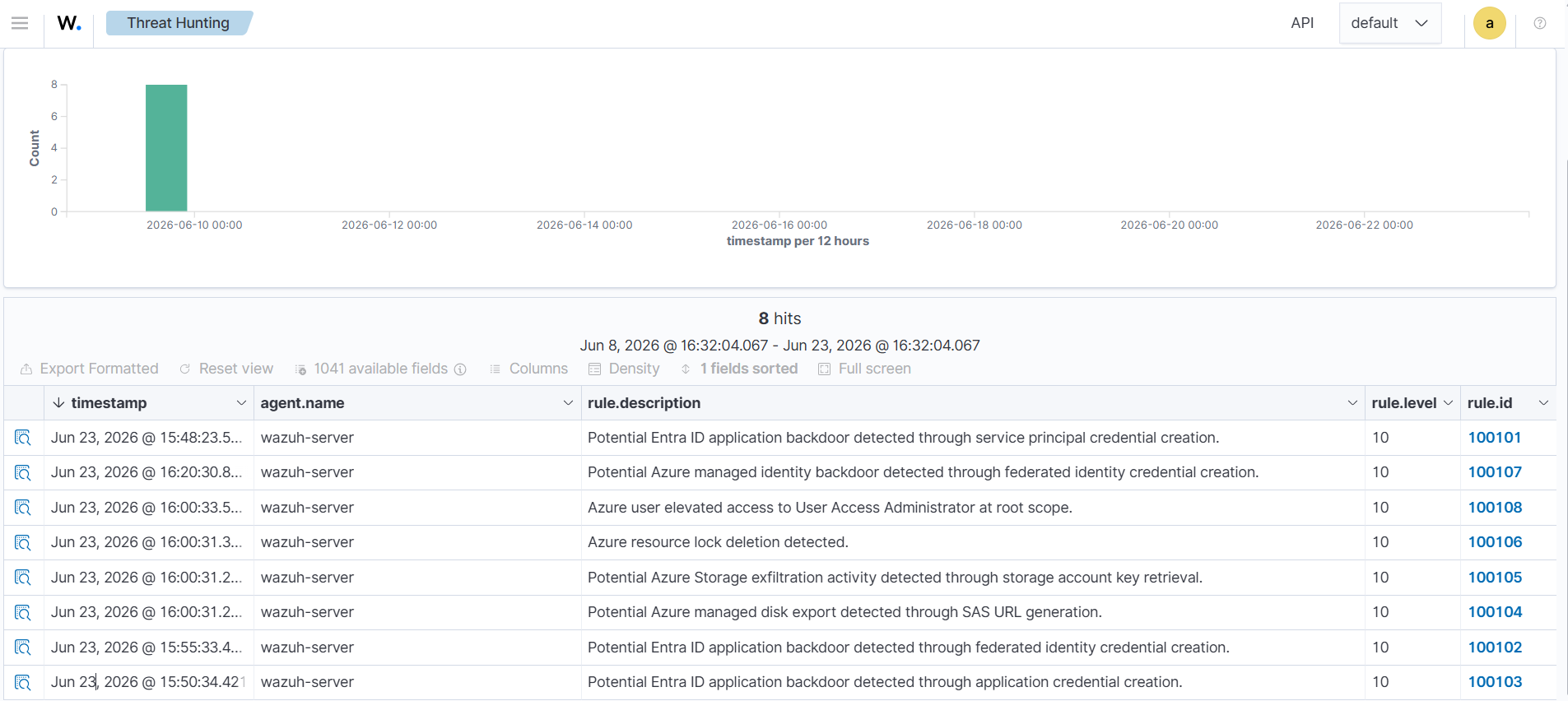
- Click Threat Hunting, then select the Events tab.
- Click + Add filter. Then filter for
rule.groupsin the Field field. Selectisin the Operator field. - Add the value
azure_stratus_red_team_rulesin the Values field. - Click Save.
Conclusion
In this blog post, we demonstrated how to detect and analyze multiple Azure and Microsoft Entra ID attack techniques using Wazuh. We used Stratus Red Team to simulate attacks targeting cloud identities, privileged roles, virtual machines, and Azure Storage resources. We also configured Wazuh to collect telemetry from the Log Analytics workspace and created custom detection rules to identify suspicious cloud operations generated during the adversary emulation.
These attack techniques demonstrate how threat actors can abuse cloud identities, role assignments, management interfaces, storage services, and persistence mechanisms within Azure environments. By combining centralized telemetry collection with effective detection rules, security teams can improve visibility and respond faster to malicious Azure and Entra ID activities.
Wazuh is a free and open source security platform that helps organizations detect, analyze, and respond to threats across cloud and on-premises environments. If you found this article helpful or need support with your deployment, feel free to connect with the Wazuh community, where contributors and security practitioners actively share knowledge and provide assistance.