
Air-gapped environments isolate critical systems from the internet and less trusted networks to reduce exposure to external threats. However, isolation alone doesn’t eliminate security risks. Removable media, file transfers, and insider activity can still introduce threats into these environments.
In 2010, the Stuxnet malware demonstrated how removable media can introduce threats into industrial networks. In 2008, the Agent.btz worm spread through US military networks using infected USB drives. In October 2024, ESET documented two GoldenJackal toolsets designed to compromise air-gapped government and diplomatic systems. These examples highlight how removable media can expose isolated networks to cyber threats.
The Wazuh unified XDR and SIEM platform collects and analyzes security events in an air-gapped environment without external connectivity. It also integrates with YARA, an open source pattern-matching tool, to scan transferred files for suspicious patterns.
In this blog post, we demonstrate how to use Wazuh to detect vulnerable software, unauthorized USB storage devices, malicious files, and network interface changes.
Security risks in air-gapped environments
Air-gapped environments use physical isolation to block communication with external networks. However, file transfers, maintenance activities, and insider access can still introduce security threats. Common attack vectors include:
- Removable media: Attackers use USB drives to introduce malware or extract sensitive information. This activity maps to MITRE ATT&CK techniques T1091 (Replication Through Removable Media) and T1052.001 (Exfiltration over USB).
- Approved file transfers: Attackers hide malicious content in software updates and documents transferred through authorized processes.
- Unauthorized hardware: Attackers introduce Wi-Fi adapters, cellular modems, or other networking devices to establish unauthorized connections to external networks. This activity maps to T1200 (Hardware Additions).
- Maintenance and insider devices: Laptops and devices brought in by contractors or employees can introduce malware or unauthorized connections into isolated systems.
Traditional security tools are hard to operate in air-gapped environments because they rely on cloud consoles, online threat intelligence feeds, and vendor update services.
Wazuh capabilities for air-gapped environments
The following table describes how Wazuh provides security capabilities without relying on external connectivity.
| Security challenge | Wazuh solution |
| Cloud dependencies | Offline installation of Wazuh components |
| Outdated vulnerability data | Locally hosted Wazuh Cyber Threat Intelligence (CTI) snapshot for offline vulnerability detection |
| Software maintenance | Locally available Wazuh signed package (WPK) files distributed by the Wazuh server |
| Malware detection | File integrity monitoring (FIM) with locally configured YARA scanning and Constant Database (CDB) lists for indicator of compromise (IOC) matching |
Wazuh deployment in air-gapped environments
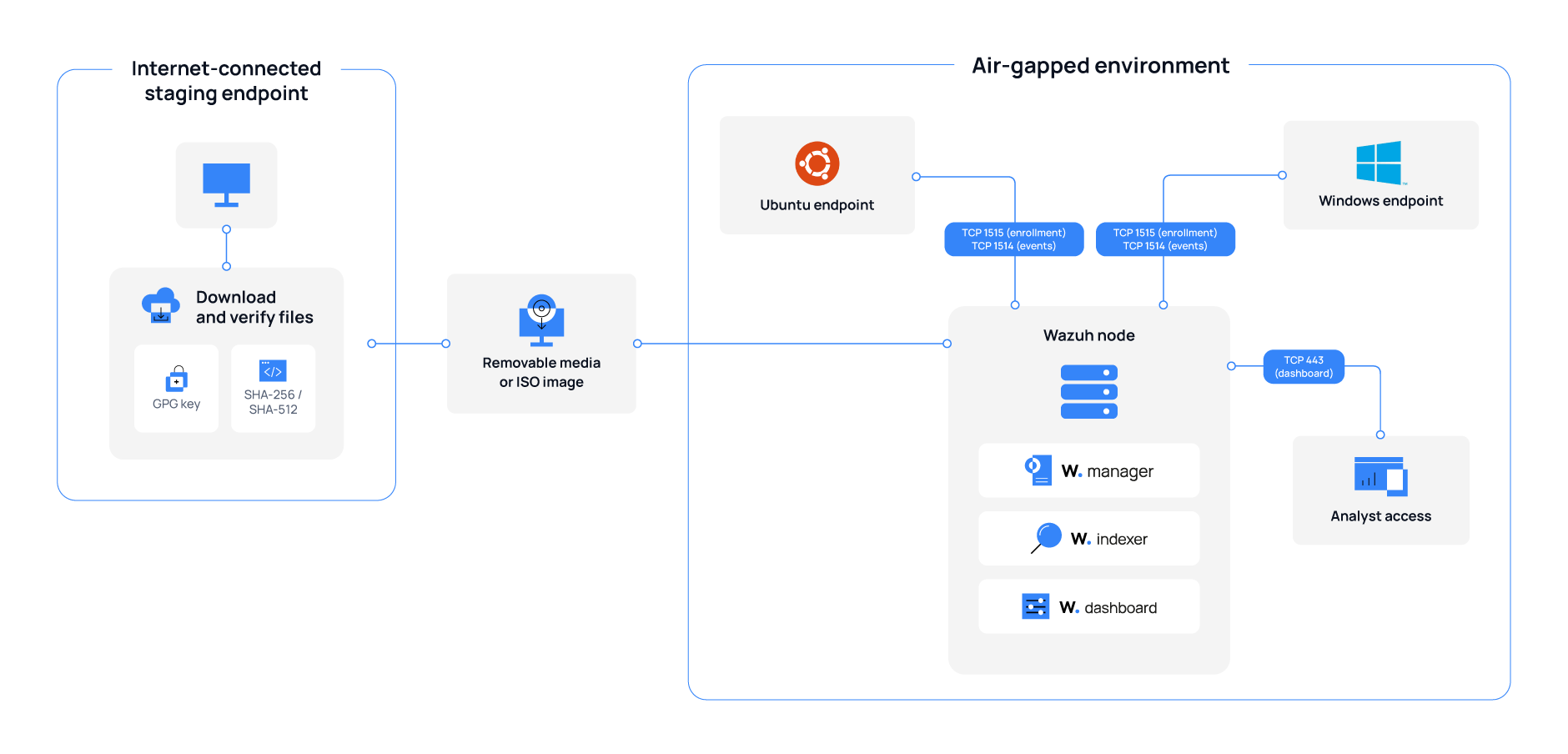
Wazuh uses an offline installation to monitor and protect endpoints within an air-gapped environment. The Wazuh server, Wazuh indexer, and Wazuh dashboard run on infrastructure inside the isolated network. Wazuh agents installed on monitored endpoints collect security events and send them to the Wazuh server for analysis.
Air-gapped environments cannot access external repositories to download installation packages or security updates. To address this limitation, administrators use an internet-connected staging endpoint to download and verify the required files. They then transfer the verified files into the isolated environment using removable media.
The following diagram illustrates the file transfer process and Wazuh architecture within the air-gapped environment.
Infrastructure
Our test environment consists of a single-node Wazuh deployment, two monitored endpoints, and an internet-connected staging endpoint used to prepare files for offline transfer.
We use the following infrastructure to demonstrate Wazuh threat detection in an air-gapped environment:
- An Ubuntu 24.04 LTS endpoint with the Wazuh 4.14.9 central components (Wazuh server, Wazuh indexer, and Wazuh dashboard) installed. Follow the Offline installation guide to deploy them offline.
- A Windows 11 endpoint with Wazuh agent 4.14.9 installed and enrolled in the Wazuh server. We use this endpoint to demonstrate USB device and network interface monitoring. Download the agent package from the Wazuh packages list and transfer it to the air-gapped environment for offline installation.
- An Ubuntu 24.04 LTS endpoint with Wazuh agent 4.14.9 installed and enrolled in the Wazuh server. We use this endpoint to demonstrate YARA file scanning and network interface monitoring. Download the agent package from the Wazuh packages list and transfer it to the air-gapped environment for offline installation.
- An internet-connected Ubuntu 24.04 LTS staging endpoint used to download and verify the files required for offline deployment and security monitoring.
The Wazuh server and monitored endpoints operate on an isolated network without a default route, DNS resolution, or internet connectivity. We transfer files into the air-gapped environment using removable media and verify their integrity against a SHA-256 checksum manifest.
Detecting threats in air-gapped environments
Wazuh detects threats associated with each attack vector without internet connectivity. We demonstrate the following use cases:
- Vulnerable software detection
- Unauthorized removable media
- Malicious files transferred into the air-gapped environment
- Unauthorized network connections
Vulnerable software detection
The Wazuh vulnerability detection module identifies known vulnerabilities by comparing endpoint software inventories with vulnerability data from the Wazuh Cyber Threat Intelligence (CTI) service. In an air-gapped environment, Wazuh uses a locally stored CTI snapshot.
Follow these steps to configure offline vulnerability detection.
Note
Wazuh also automates the removal of unauthorized software through Incident Response. Our blog post on managing shadow IT with Wazuh shows how to detect unauthorized software installations and automatically uninstall them using a custom active response script.
Staging Ubuntu endpoint
- Retrieve the download URL and timestamp of the latest Wazuh CTI snapshot:
# curl -s -X GET https://cti.wazuh.com/api/v1/catalog/contexts/vd_1.0.0/consumers/vd_4.8.0 | jq -r '.data | "\(.last_snapshot_link)\n\(.last_snapshot_at)"'
https://cti.wazuh.com/store/contexts/vd_1.0.0/consumers/vd_4.8.0/4325428_1793625513.zip
2026-11-02T13:18:33.775170Z
The first line is the snapshot download URL, and the second line is the time the snapshot was published.
- Download the latest CTI snapshot using the URL returned in the previous step. Replace
<SNAPSHOT_URL>with the retrieved URL:
# curl -L "<SNAPSHOT_URL>" -o cves.zip
- Transfer the CTI snapshot
cves.zipto the Ubuntu endpoint hosting the Wazuh server. - Run the following command on both the staging endpoint and the Wazuh server to verify that the SHA-256 checksums match:
# sha256sum cves.zip
Matching checksums confirm that the file has not changed during the transfer.
Wazuh server
- Create the
/var/ossec/offline-cti/directory on the Wazuh server to store the vulnerability data:
# mkdir -p /var/ossec/offline-cti/
- Transfer the CTI snapshot into the directory as
cves.zipand set its permissions and ownership:
# chmod 750 /var/ossec/offline-cti/cves.zip
# chown root:wazuh /var/ossec/offline-cti/cves.zip
- Configure the Vulnerability detection module to use the local CTI snapshot by adding the
<offline-url>configuration within the<vulnerability-detection>block in/var/ossec/etc/ossec.conf:
<vulnerability-detection>
  <enabled>yes</enabled>
  <index-status>yes</index-status>
  <feed-update-interval>60m</feed-update-interval>
  <offline-url>file:///var/ossec/offline-cti/cves.zip</offline-url>
</vulnerability-detection>
The <offline-url> setting specifies the CTI snapshot location and supports local files and HTTP or HTTPS URLs.
- Restart the Wazuh manager to apply the configuration and initiate the vulnerability feed update:
# systemctl restart wazuh-manager
- Verify that the vulnerability feed update is complete by checking
/var/ossec/logs/ossec.log:
# grep "Feed update process completed" /var/ossec/logs/ossec.log
2026/10/30 15:59:24 wazuh-modulesd:vulnerability-scanner: INFO: Feed update process completed.
Note
You won’t see new vulnerability data until the update is complete, which can take 15 minutes or more. Do not restart the Wazuh manager during this process, because a restart starts the update over.
To update the vulnerability data, download and transfer a new CTI snapshot and replace cves.zip in the /var/ossec/offline-cti/ directory. Wazuh loads it at the next feed update interval.
Wazuh dashboard
Perform the following steps on the Wazuh dashboard to view vulnerabilities detected on the monitored endpoints.
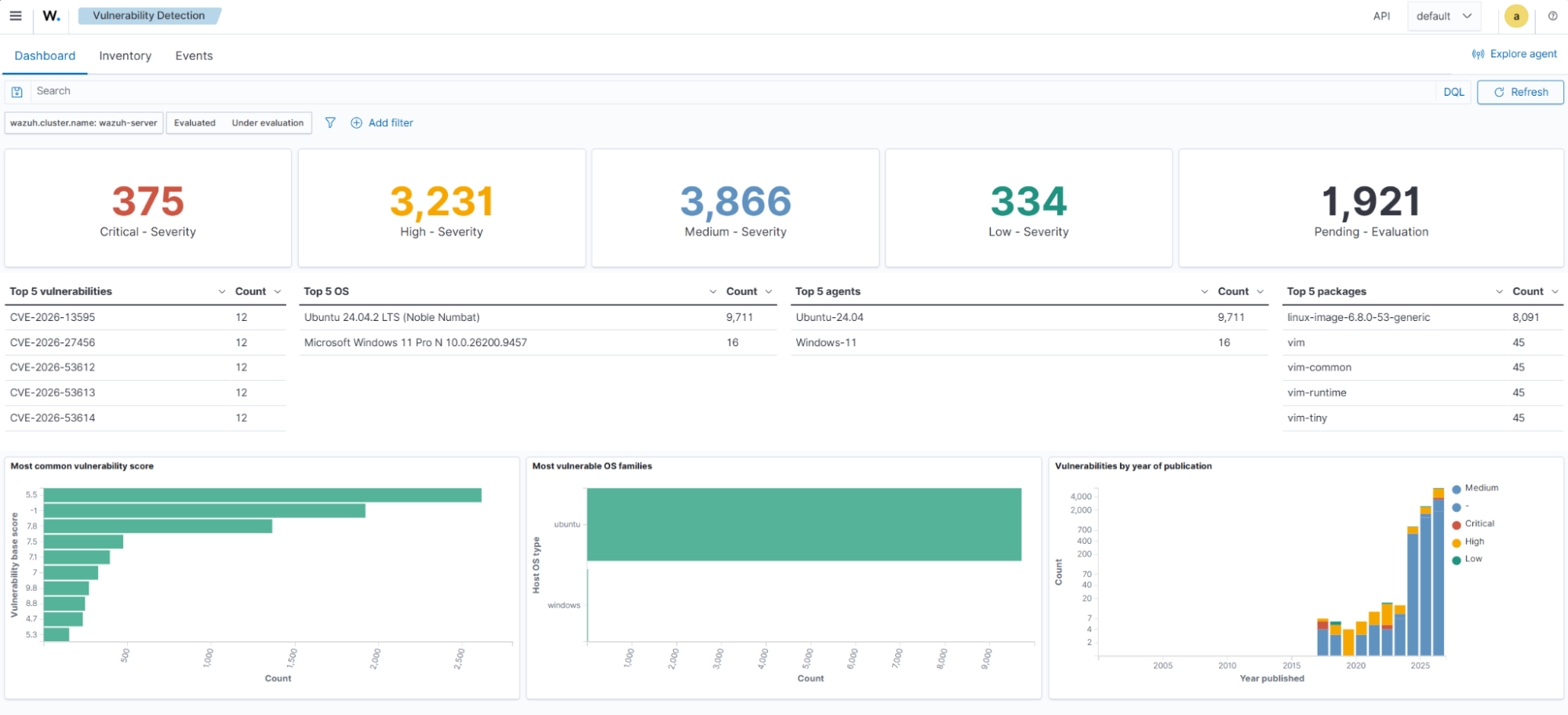
- Navigate to Threat intelligence > Vulnerability Detection to view a summary of the vulnerabilities detected on the monitored endpoints.
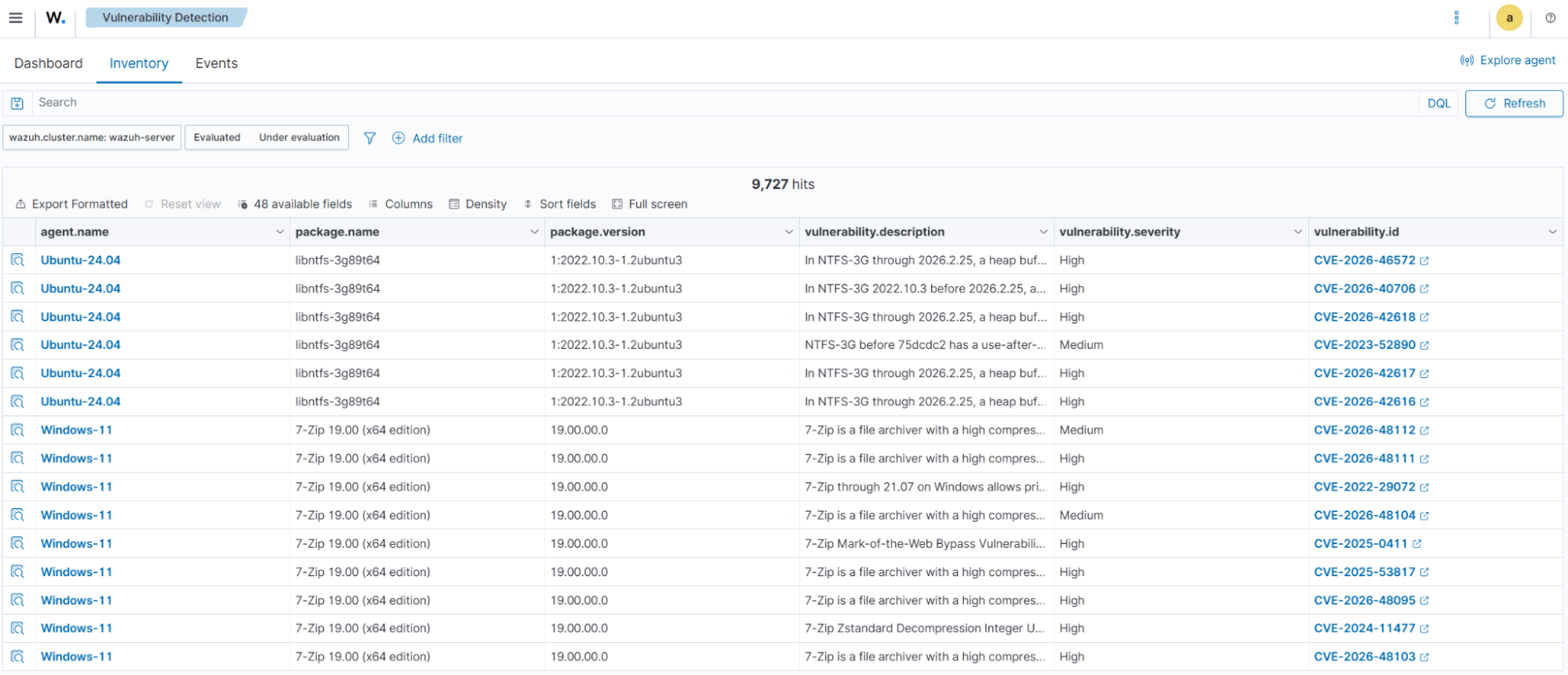
- Click the Inventory tab to view all active vulnerabilities detected across the monitored endpoints.
Detecting unauthorized USB storage devices
This use case configures Wazuh to monitor USB storage devices and distinguish approved drives from unapproved ones using an allow-list.
The configuration builds on our blog post about monitoring USB drives in Windows using Wazuh. Similar implementations are available for Linux and macOS.
Windows generates Security event ID 6416 when it recognizes a new external device. Wazuh processes these events through its Windows event ruleset. We use rule 60227 as the parent for custom rules that identify plugged-in USB storage devices.
Note
This use case requires two USB flash drives. Add one to the allow-list, and use the other to test the unapproved device rule.
Windows endpoint
Perform the following steps on the Windows endpoint to enable Plug and Play (PnP) event auditing.
- Enable Plug and Play event auditing using an elevated PowerShell terminal:
> auditpol /set /subcategory:"Plug and Play Events" /success:enable
- Verify that the audit policy is enabled:
> auditpol /get /subcategory:"Plug and Play Events"
System audit policy
Category/Subcategory                      Setting
Detailed Tracking
  Plug and Play Events                    Success
Note
For Windows systems using languages other than English, use the locale-independent subcategory globally unique identifier (GUID) {0CCE9248-69AE-11D9-BED3-505054503030} instead of the subcategory name.
- Connect the approved USB drive to the Windows endpoint to generate an event containing its device identifier.
- Run the following PowerShell command to retrieve the device ID that identifies the plugged-in storage device:
> Get-WinEvent -FilterHashtable @{LogName="Security"; Id=6416} -MaxEvents 50 |
Where-Object { $_.Properties[7].Value -eq "DiskDrive" } |
Select-Object -First 1 |
ForEach-Object { $_.Properties[4].Value.Replace("\","\\").Replace("&","&") }
USBSTOR\\Disk&Ven_General&Prod_USB_Flash_Disk&Rev_1100\\04R3EAEXCA02OBPN&0
Wazuh server
The device identifier distinguishes approved USB drives from unapproved devices. We use a Constant Database (CDB) list to store approved device identifiers. Two custom Wazuh rules compare detected devices against this list and generate alerts based on their approval status.
Perform the following steps on the Wazuh server.
- Create the CDB list
/var/ossec/etc/lists/approved-transfer-mediato store approved USB device identifiers:
# touch /var/ossec/etc/lists/approved-transfer-media
# chown wazuh:wazuh /var/ossec/etc/lists/approved-transfer-media
# chmod 660 /var/ossec/etc/lists/approved-transfer-media
- Add the approved USB device identifier to the CDB list. Replace
<APPROVED_DEVICE_IDENTIFIER>with the identifier retrieved earlier:
<APPROVED_DEVICE_IDENTIFIER>:transfer-drive-01
- Register the CDB list by adding the following entry to the
<ruleset>block in/var/ossec/etc/ossec.conf:
<list>etc/lists/approved-transfer-media</list>
- Create the file
airgap_usb_rules.xmlin the/var/ossec/etc/rules/directory and add the following detection rules to identify approved and unapproved storage devices:
<group name="airgap,usb,windows,">
  <rule id="100100" level="3">
    <if_sid>60227</if_sid>
    <field name="win.eventdata.className">^DiskDrive$</field>
    <list field="win.eventdata.deviceId" lookup="match_key">etc/lists/approved-transfer-media</list>
    <description>Approved transfer drive $(win.eventdata.deviceDescription) connected to $(win.system.computer).</description>
    <options>no_full_log</options>
  </rule>

  <rule id="100101" level="12">
    <if_sid>60227</if_sid>
    <field name="win.eventdata.className">^DiskDrive$</field>
    <list field="win.eventdata.deviceId" lookup="not_match_key">etc/lists/approved-transfer-media</list>
    <description>Unapproved storage device $(win.eventdata.deviceDescription) connected to $(win.system.computer).</description>
    <options>no_full_log</options>
    <mitre>
      <id>T1091</id>
      <id>T1052.001</id>
    </mitre>
  </rule>
</group>
Where:
- Rule
100100detects a storage device whose identifier matches the approved CDB list. - Rule
100101detects a storage device whose identifier is absent from the approved CDB list.
- Restart the Wazuh manager to load the CDB list and custom detection rules:
# systemctl restart wazuh-manager
Note
You can configure Wazuh Active Response to automatically disable unauthorized USB storage devices when the detection rule generates an alert. This setup requires a custom active response script on the Windows endpoint and a matching command and active response configuration on the Wazuh server.
Test USB device detection
Test both rules by connecting approved and unapproved USB storage devices to the Windows endpoint.
- Eject and physically disconnect the approved USB drive, then reconnect it to generate a new device recognition event.
- Connect the unapproved USB drive to generate an alert for a device absent from the allow-list.
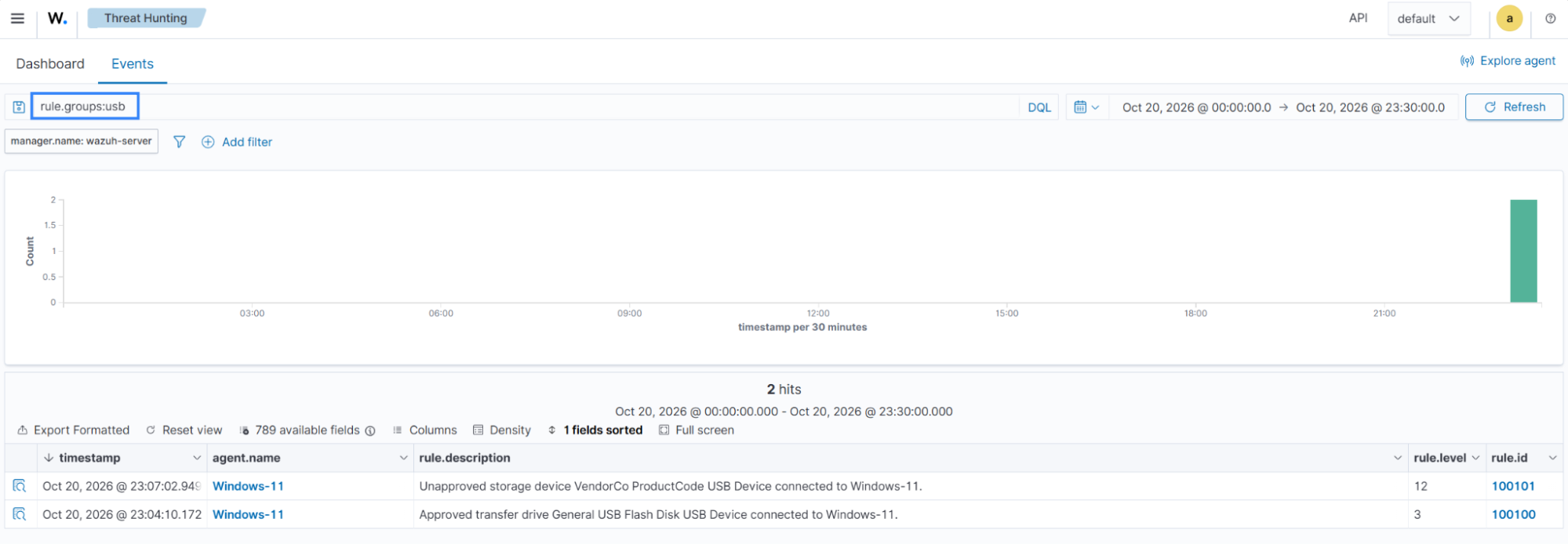
- Navigate to Threat intelligence > Threat Hunting > Events on the Wazuh dashboard and filter by
rule.groups:usbto view the generated alerts.
Detecting malware in transferred files
Malware can enter an air-gapped environment hidden in approved file transfers. This use case combines Wazuh File integrity monitoring (FIM), Active Response, and YARA to detect suspicious files in an import directory on an Ubuntu endpoint. FIM detects file additions and modifications, while Active Response triggers a YARA scan using locally stored detection rules.
Staging Ubuntu endpoint
Follow these steps to prepare the YARA packages, detection rule, and test file for offline deployment.
- Download the YARA packages to prepare for offline installation:
$ sudo apt-get update
$ apt-get download yara libyara10
In our test environment, the downloaded packages are yara_4.5.0-1build2_amd64.deb and libyara10_4.5.0-1build2_amd64.deb.
- Create a YARA rule file named
airgap_import.yarto detect the EICAR test file:
rule EICAR_Test_File
{
    meta:
        description = "EICAR antivirus test file"
        reference = "https://www.eicar.org/download-anti-malware-testfile/"
    strings:
        $eicar = "X5O!P%@AP[4\\PZX54(P^)7CC)7}$EICAR-STANDARD-ANTIVIRUS-TEST-FILE!$H+H*"
    condition:
        $eicar at 0
}
- Create the EICAR test file and verify its SHA-256 checksum matches the expected value below:
$ printf '%s' 'X5O!P%@AP[4\PZX54(P^)7CC)7}$EICAR-STANDARD-ANTIVIRUS-TEST-FILE!$H+H*' > eicar.com
$ sha256sum eicar.com
275a021bbfb6489e54d471899f7db9d1663fc695ec2fe2a2c4538aabf651fd0f eicar.com
- Save the yara.sh Active Response script from the Wazuh YARA integration guide to enable automated file scanning.
- Transfer the following files into the air-gapped environment using approved transfer media, and compare their SHA-256 checksums with the staging endpoint:
yara_4.5.0-1build2_amd64.deblibyara10_4.5.0-1build2_amd64.debairgap_import.yaryara.sheicar.com
Note
The yara.sh script requires jq to process JSON data from Wazuh alerts. Confirm that jq and the dependencies of the YARA packages are installed on the Ubuntu endpoint. Include any missing packages in the transfer media.
Ubuntu endpoint
The following steps install YARA and configure FIM to monitor /srv/airgap-import for new or modified files.
Replace <TRANSFER_MEDIA_PATH> with the mount point of the transfer media.
- Install the YARA packages from the transfer media to enable local file scanning:
$ sudo dpkg -i <TRANSFER_MEDIA_PATH>/libyara10_4.5.0-1build2_amd64.deb <TRANSFER_MEDIA_PATH>/yara_4.5.0-1build2_amd64.deb
- Verify the YARA installation by checking the installed version:
$ yara --version
4.5.0
- Create the YARA rules directory and install the detection rule with the required permissions:
$ sudo install -d -m 750 -o root -g wazuh /var/ossec/etc/yara
$ sudo install -m 640 -o root -g wazuh <TRANSFER_MEDIA_PATH>/airgap_import.yar /var/ossec/etc/yara/airgap_import.yar
- Create the import directory to provide a monitored location for transferred files:
$ sudo mkdir -p /srv/airgap-import
- Copy
yara.shfrom the transfer media to the Active Response directory withrootowner,wazuhgroup, and750permissions to enable YARA scans:
$ sudo install -m 750 -o root -g wazuh <TRANSFER_MEDIA_PATH>/yara.sh /var/ossec/active-response/bin/yara.sh
- Enable real-time file monitoring by adding the following entry to the
<syscheck>block in/var/ossec/etc/ossec.conf:
<directories realtime="yes">/srv/airgap-import</directories>
- Restart the Wazuh agent to apply the FIM configuration:
$ sudo systemctl restart wazuh-agent
Wazuh server
The Wazuh server uses custom rules to identify file additions and modifications in the import directory. These rules trigger the YARA Active Response script on the Ubuntu endpoint.
Follow these steps to configure the decoders, detection rules, and Active Response.
- Create the file
airgap_decoders.xmlin/var/ossec/etc/decoders/and add the following decoders to extract the YARA rule name and scanned file path from Active Response events:
<decoder name="yara_decoder">
  <prematch>wazuh-yara: </prematch>
</decoder>

<decoder name="yara_decoder1">
  <parent>yara_decoder</parent>
  <regex>wazuh-yara: (\S+) - Scan result: (\S+) (\S+)</regex>
  <order>log_type, yara_rule, yara_scanned_file</order>
</decoder>
- Create the file
airgap_import_rules.xmlin/var/ossec/etc/rules/and add the following rules to detect changes in the import directory and alert on YARA matches:
<group name="airgap,syscheck,">
  <rule id="100102" level="5">
    <if_sid>554</if_sid>
    <field name="file">^/srv/airgap-import/</field>
    <description>File added to the air gap import directory: $(file).</description>
    <mitre>
      <id>T1105</id>
    </mitre>
  </rule>

  <rule id="100103" level="5">
    <if_sid>550</if_sid>
    <field name="file">^/srv/airgap-import/</field>
    <description>File modified in the air gap import directory: $(file).</description>
    <mitre>
      <id>T1105</id>
    </mitre>
  </rule>
</group>

<group name="airgap,yara,">
  <rule id="100104" level="12">
    <decoded_as>yara_decoder</decoded_as>
    <match>wazuh-yara: INFO - Scan result: </match>
    <description>File "$(yara_scanned_file)" matches YARA rule: $(yara_rule).</description>
    <mitre>
      <id>T1105</id>
      <id>T1091</id>
    </mitre>
  </rule>
</group>
Where:
- Rule
100102is triggered when Wazuh detects files added to /srv/airgap-import/. - Rule
100103is triggered when Wazuh detects modifications to files in the import directory. - Rule
100104is triggered when YARA reports a rule match.
- Add the following configuration to
/var/ossec/etc/ossec.confto run the YARA script when rules100102or100103trigger:
<ossec_config>
  <command>
    <name>yara_linux</name>
    <executable>yara.sh</executable>
    <extra_args>-yara_path /usr/bin -yara_rules /var/ossec/etc/yara/airgap_import.yar</extra_args>
    <timeout_allowed>no</timeout_allowed>
  </command>

  <active-response>
    <disabled>no</disabled>
    <command>yara_linux</command>
    <location>local</location>
    <rules_id>100102,100103</rules_id>
  </active-response>
</ossec_config>
- Restart the Wazuh manager to load the decoders, detection rules, and Active Response configuration:
# systemctl restart wazuh-manager
Test malware detection in the import directory
Test the integration by introducing the EICAR test file into the monitored directory and modifying an existing file.
- Copy the EICAR test file into the import directory on the Ubuntu endpoint to trigger a FIM alert and YARA scan:
$ sudo cp <TRANSFER_MEDIA_PATH>/eicar.com /srv/airgap-import/
The file addition triggers rule 100102, after which Active Response executes a YARA scan, triggering rule 100104.
- Create a non-malicious file named
notes.txtin the import directory to test file addition without a YARA match:
$ printf '%s\n' 'Approved transfer notes' | sudo tee /srv/airgap-import/notes.txt
- Replace the content of
notes.txtwith the EICAR test string to verify that modified files are also scanned:
$ sudo cp <TRANSFER_MEDIA_PATH>/eicar.com /srv/airgap-import/notes.txt
The file modification triggers rule 100103, followed by rule 100104 when YARA detects the EICAR signature.
Wazuh dashboard
- Navigate to Threat intelligence > Threat Hunting > Events to view the generated alerts.
- Filter the events by entering
rule.id:(100102 or 100103 or 100104)in the search bar to display the FIM and YARA alerts.
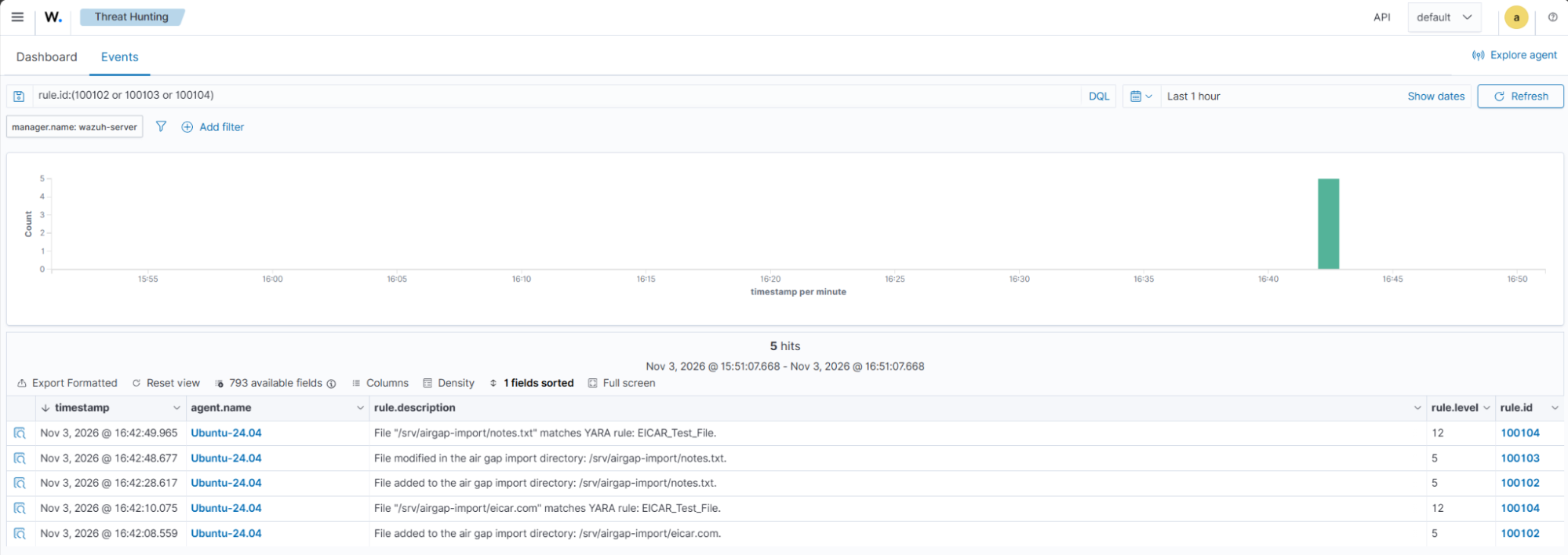
The results show how Wazuh integrates FIM with Active Response to detect files that match locally configured YARA rules without external reputation services or internet connectivity.
Detecting network interface changes
This use case configures Wazuh to detect changes in the network interfaces of Ubuntu and Windows endpoints, such as a new Wi-Fi dongle or modem.
The Wazuh Command monitoring capability executes commands on endpoints at configured intervals and forwards their output to the Wazuh server. The <check_diff> rule option compares consecutive outputs and generates an alert when a change occurs. Each endpoint runs the command locally, so remote command execution stays disabled.
Ubuntu endpoint
Follow these steps to monitor network interface changes on the Ubuntu endpoint.
- Append the following configuration block to
/var/ossec/etc/ossec.confto collect network interface information every 60 seconds:
<ossec_config>
  <localfile>
    <log_format>full_command</log_format>
    <command>ip -br link</command>
    <alias>airgap network interfaces</alias>
    <frequency>60</frequency>
  </localfile>
</ossec_config>
- Restart the Wazuh agent to apply the command monitoring configuration:
$ sudo systemctl restart wazuh-agent
Windows endpoint
Follow these steps to monitor network interface changes on the Windows endpoint.
- Append the following configuration block to
C:\Program Files (x86)\ossec-agent\ossec.confto collect network adapter information every 60 seconds:
<ossec_config>
  <localfile>
    <log_format>full_command</log_format>
    <command>powershell.exe -NoProfile -NonInteractive -Command "Get-NetAdapter | Sort-Object Name | ForEach-Object { '{0} | {1} | {2} | {3}' -f $_.Name, $_.InterfaceDescription, $_.Status, $_.MacAddress }"</command>
    <alias>airgap network interfaces</alias>
    <frequency>60</frequency>
  </localfile>
</ossec_config>
- Restart the Wazuh agent from an elevated PowerShell terminal to apply the configuration:
> Restart-Service -Name WazuhSvc
Wazuh server
The Wazuh server uses a custom rule to compare consecutive network interface reports from each endpoint.
- Create
/var/ossec/etc/rules/airgap_network_rules.xmlto detect changes in the network interface list:
<group name="airgap,network,">
  <rule id="100105" level="10">
    <if_sid>530</if_sid>
    <match>ossec: output: 'airgap network interfaces'</match>
    <check_diff />
    <description>Network interface list changed: a network adapter was added, removed, or changed state.</description>
    <mitre>
      <id>T1200</id>
    </mitre>
  </rule>
</group>
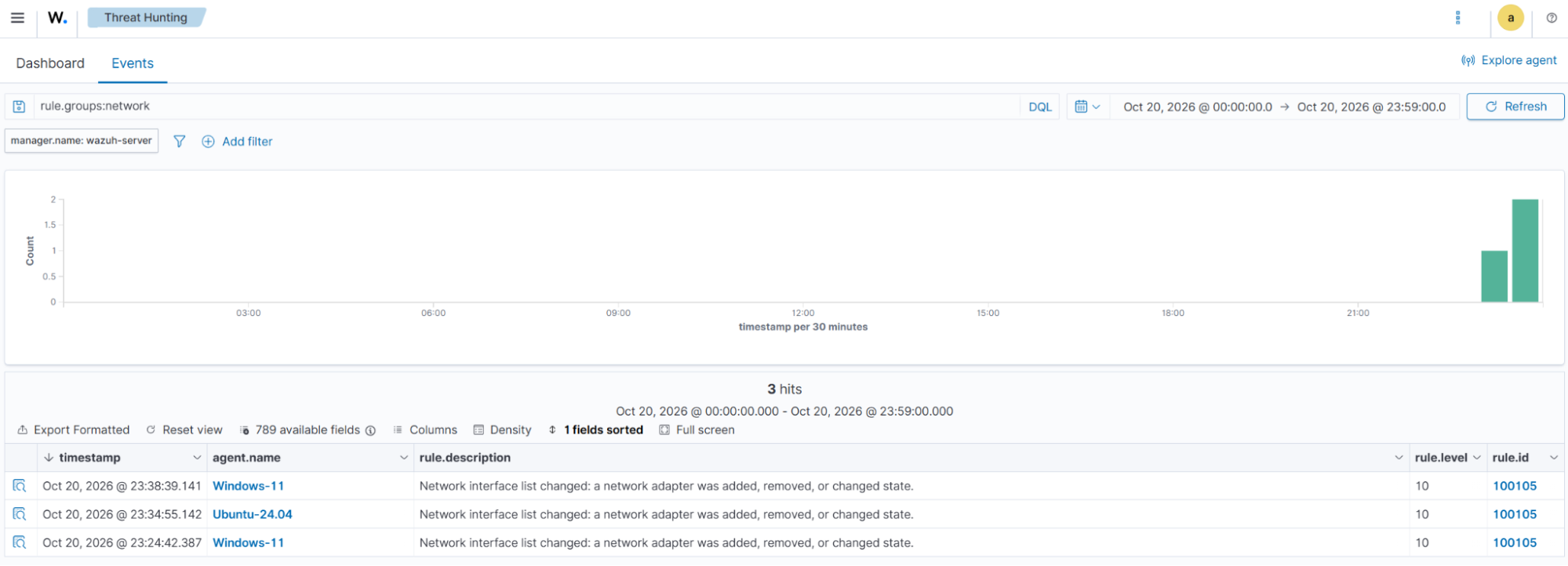
Rule 100105 generates an alert when the reported network interface information differs from the previously recorded output.
Note
The command output includes the link state, so an interface that goes up or down also triggers rule 100105.
- Restart the Wazuh manager to load the custom detection rule:
# systemctl restart wazuh-manager
Test network adapter detection
We test the detection by adding a second virtual network adapter to both endpoints.
Follow these steps to add the adapter and view the generated alerts:
- Power off each endpoint, add a second virtual network adapter, and power the endpoint on again.
- Open the Wazuh dashboard and navigate to Threat intelligence > Threat Hunting > Events.
- Filter the events by entering
rule.groups:networkin the search bar.
Conclusion
Wazuh provides centralized security monitoring in air-gapped environments without requiring continuous internet connectivity. Its self-hosted architecture supports offline deployment, vulnerability detection using local CTI snapshots, agent upgrades, and security event analysis.
In this blog post, we detect vulnerable software, unapproved USB storage devices, malicious transferred files, and network interface changes with Wazuh. These capabilities help organizations monitor potential attack paths within isolated networks.
Wazuh is a free and open source security platform. Check out our documentation to learn more, and join our community for help and discussion.
References
- Offline installation guide
- Offline vulnerability detection
- ESET: Mind the (air) gap: GoldenJackal gooses government guardrails
- Wazuh proof of concept: Detecting malware using YARA integration
- Wazuh documentation: WPK list
- MITRE ATT&CK: T1091 Replication Through Removable Media
- MITRE ATT&CK: T1052.001 Exfiltration over USB
- MITRE ATT&CK: T1200 Hardware Additions
- MITRE ATT&CK: T1105 Ingress Tool Transfer
- MITRE ATT&CK: Agent.btz
- CISA: Primary Stuxnet advisory ICSA-10-272-01
- Microsoft: 6416(S) A new external device was recognized by the System
- YARA documentation
- EICAR anti-malware test file